
Holiday Slack Profile Pictures: Christmas, Halloween and Free Frames
A holiday Slack profile picture works best as your own photo with a seasonal touch: a Santa hat, a candy-cane frame, a Halloween hat. Ideas for Christmas, Halloween, Hanukkah, Diwali, Thanksgiving and New Year, six free transparent frame overlays, a script that adds them to your photo, and the size Slack needs.
The best holiday Slack profile picture is still your own face, with one seasonal touch: a Santa hat, a candy-cane frame, a witch hat or a party hat. Coworkers find people in Slack by their photo, so a photo of a pumpkin or a snowman makes you harder to find. Keep it square, between 512 and 1024 pixels, and put your normal photo back when the holiday ends. Below are ideas for each holiday, six free transparent frames you can lay over your photo, and a short script that does it for you.
The image results for this search are stock photos from Pexels, Pinterest boards and Canva templates. They are fine for inspiration, but most are not sized for Slack and none keep your face in the picture. The frames on this page are 1024 by 1024 pixels, the largest size Slack takes.
A new photo does not change your presence. Slack still shows you as away after about 10 minutes without input in the Slack window, holidays included. Slack Green keeps your dot green from a server during the hours you set.
Holiday profile picture ideas by holiday
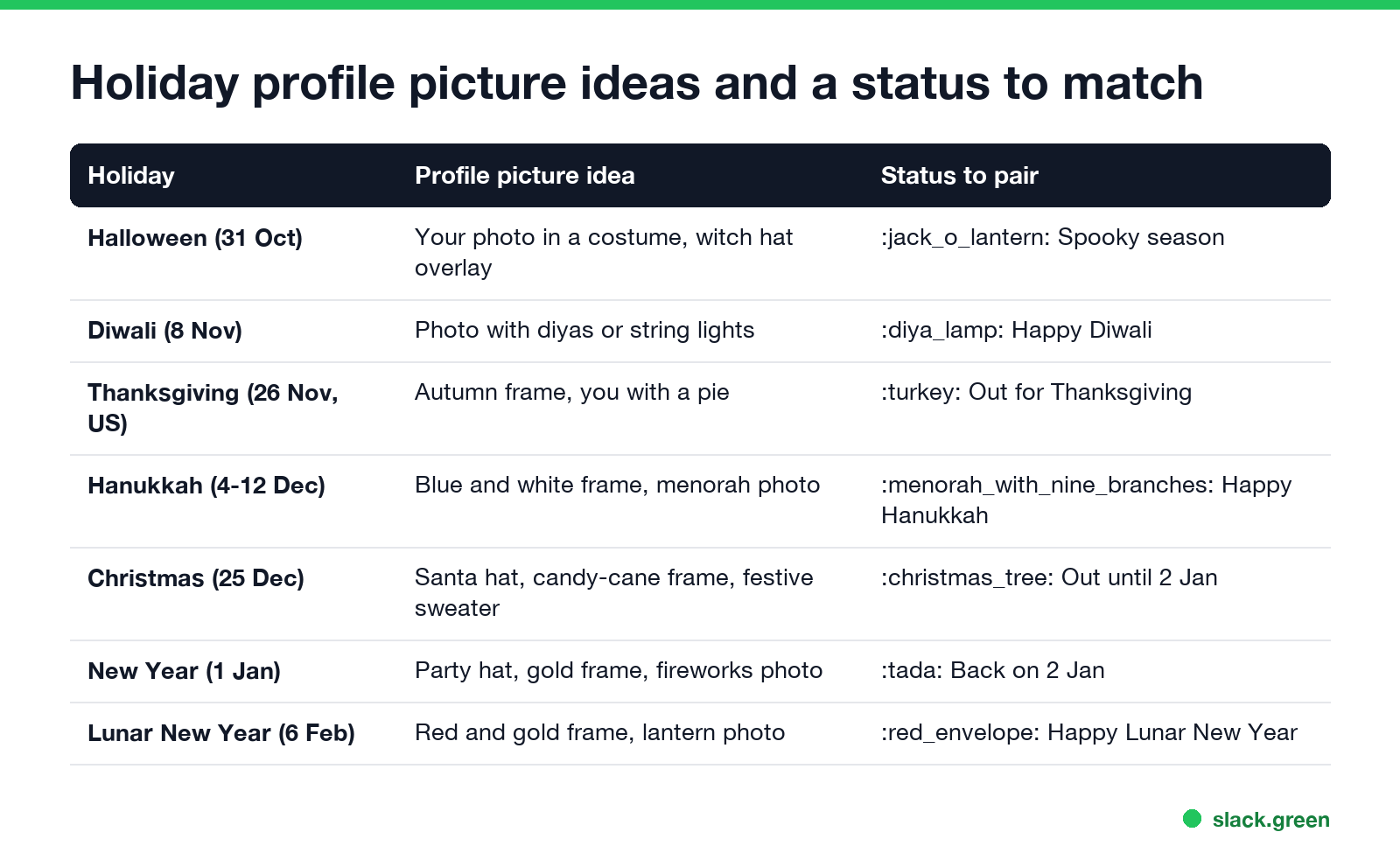
| Holiday | Profile picture idea | Status to pair |
|---|---|---|
| Halloween, 31 October | You in a costume, or your photo with a witch hat overlay | 🎃 :jack_o_lantern: Spooky season |
| Diwali, 8 November | A photo with diyas or string lights | 🪔 :diya_lamp: Happy Diwali |
| Thanksgiving, 26 November (US) | Autumn-colored frame, or you with a pie | 🦃 :turkey: Out for Thanksgiving |
| Hanukkah, 4 to 12 December | Blue and white frame, a menorah in the background | 🕎 :menorah_with_nine_branches: Happy Hanukkah |
| Christmas, 25 December | Santa hat, candy-cane frame or a holiday sweater | 🎄 :christmas_tree: Out until 2 Jan |
| New Year, 1 January | Party hat, gold frame, fireworks behind you | 🎉 :tada: Back on 2 Jan |
| Lunar New Year, 6 February | Red and gold frame, lanterns in the background | 🧧 :red_envelope: Happy Lunar New Year |
Dates are for the 2026 holiday season and the start of 2027. More ideas that stay safe for work are in funny Slack profile pictures.
A few tips that apply to every holiday:
- • Keep your face at the center. Slack shows your picture as a small rounded square, about the size of a fingertip next to your messages. A hat and a frame read at that size; a detailed scene does not.
- • Use one touch. A hat or a frame, not both plus a background.
- • Mind a mixed team. "Happy holidays" or a winter frame suits a team that does not all celebrate Christmas.
- • Check your workspace rules. Some companies ask for a plain photo. Each workspace has its own profile picture, and it shows wherever your profile appears in that workspace, shared channels included.
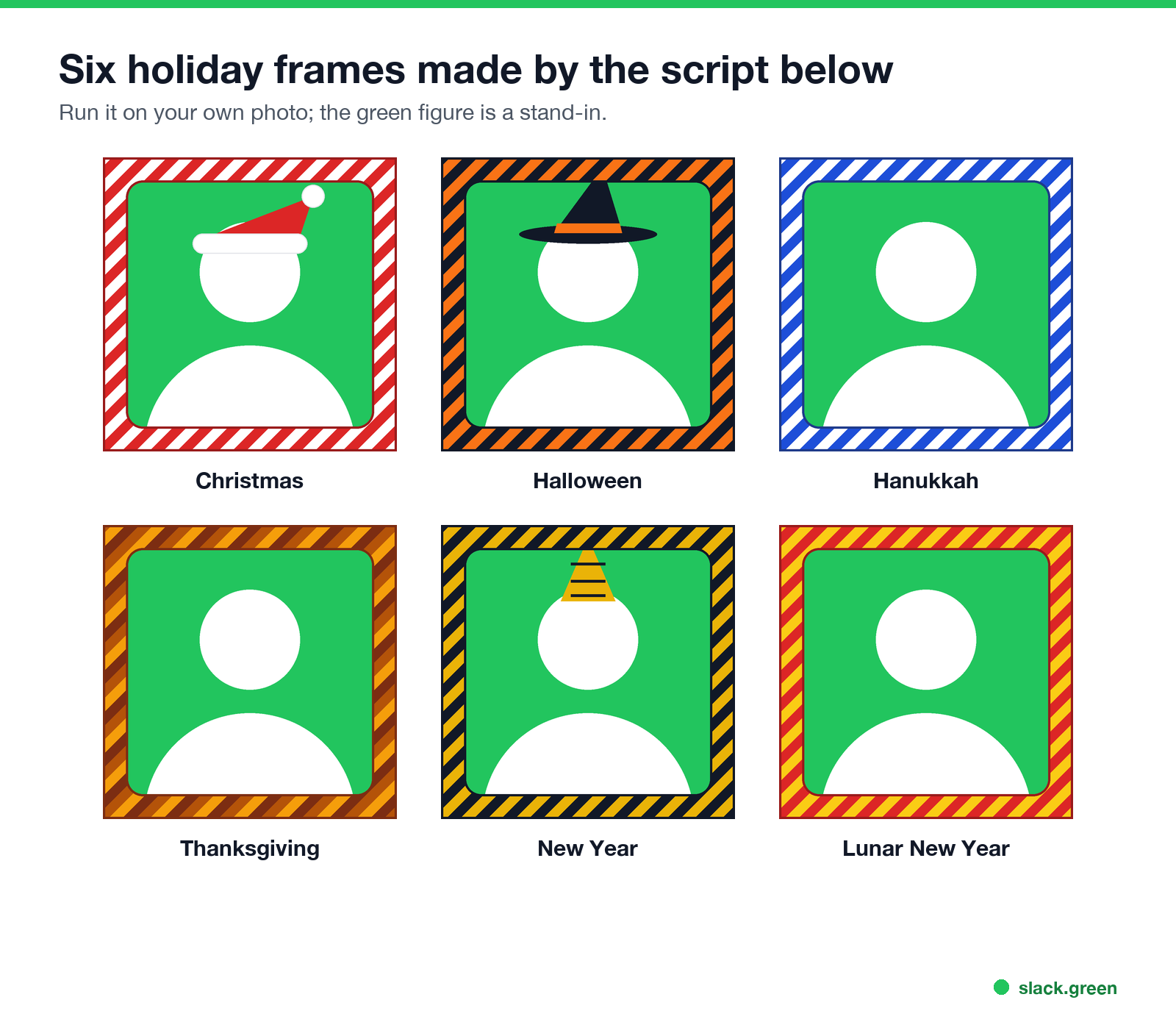
- • Christmas: candy-cane frame and Santa hat
- • Halloween: orange and black frame and witch hat
- • Hanukkah: blue and white frame
- • Thanksgiving: autumn frame
- • New Year: gold and black frame and party hat
- • Lunar New Year: red and gold frame
Free holiday frames for your Slack photo
Each frame is a 1024 by 1024 PNG with a transparent middle. Open it on top of your photo in any editor that has layers, such as Canva, Figma, Photopea or Keynote, and export a square PNG:
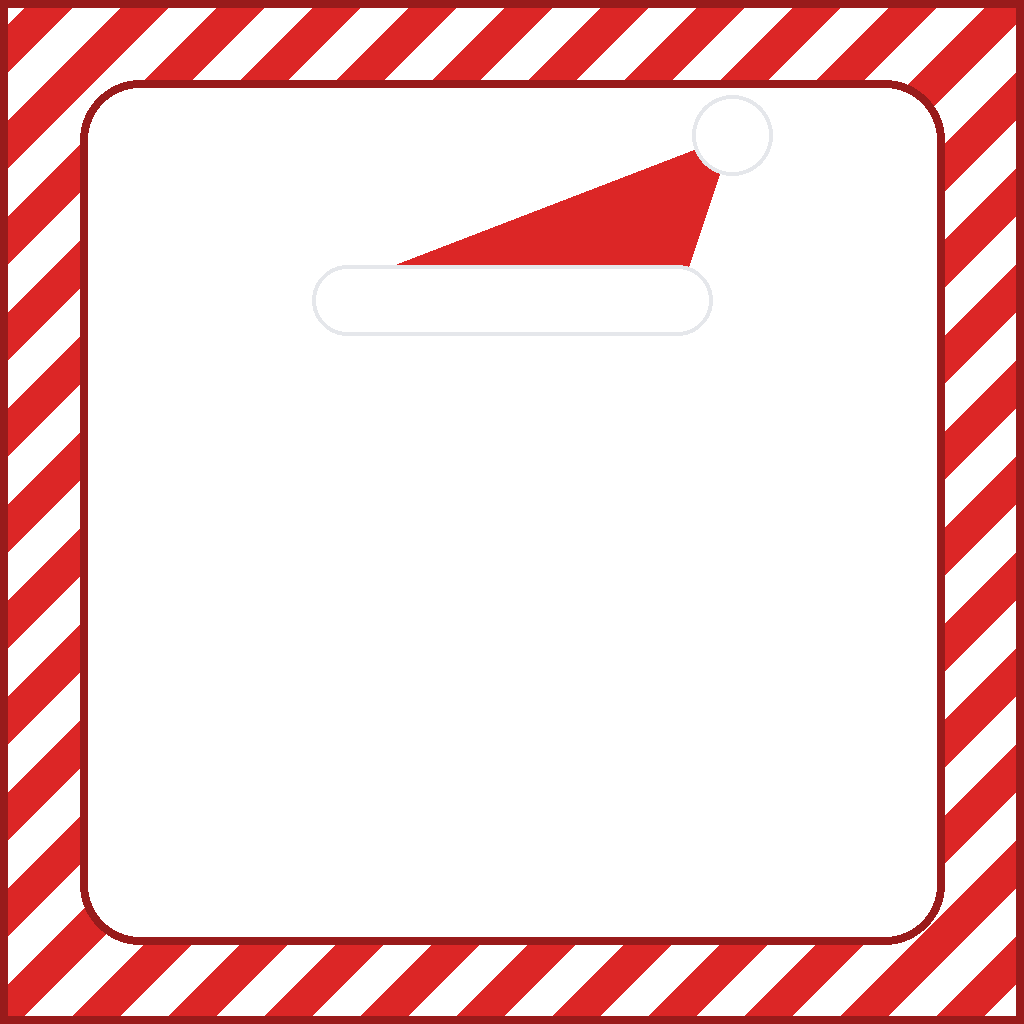
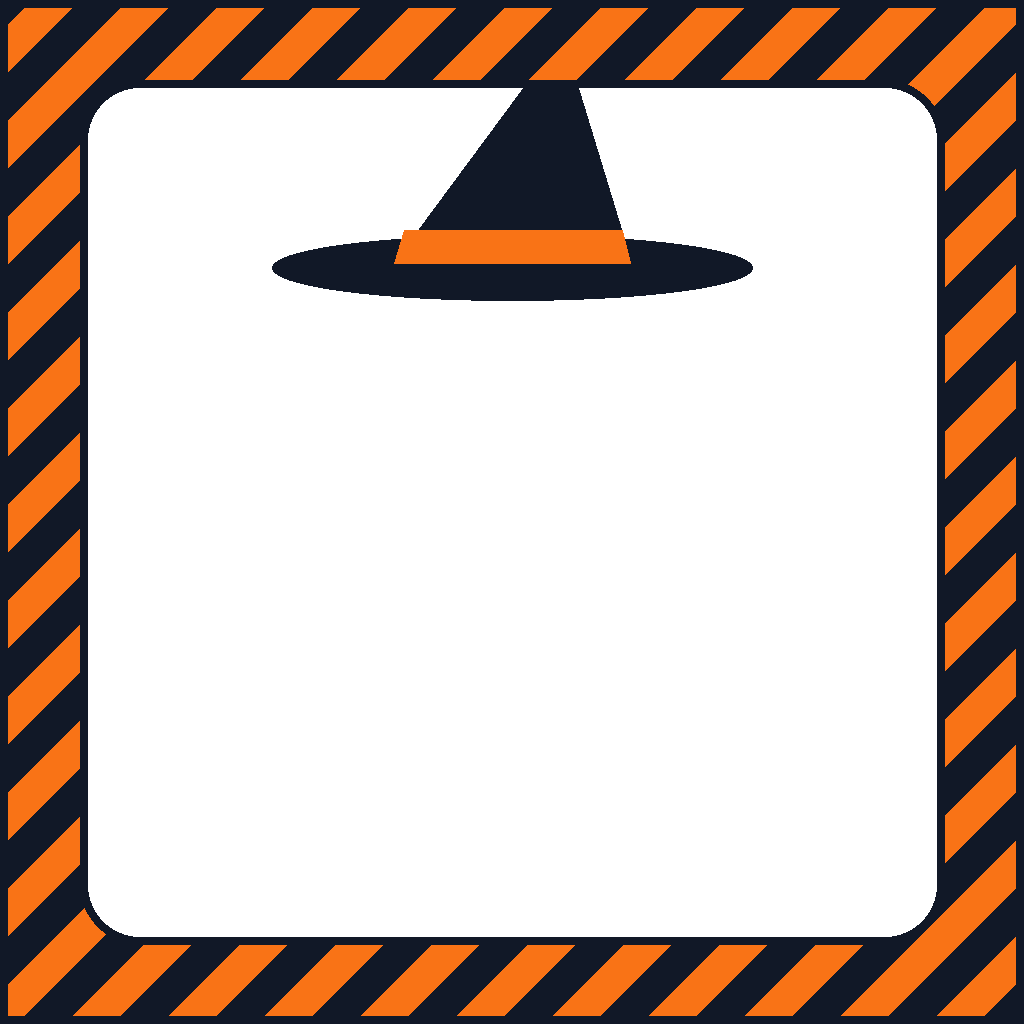


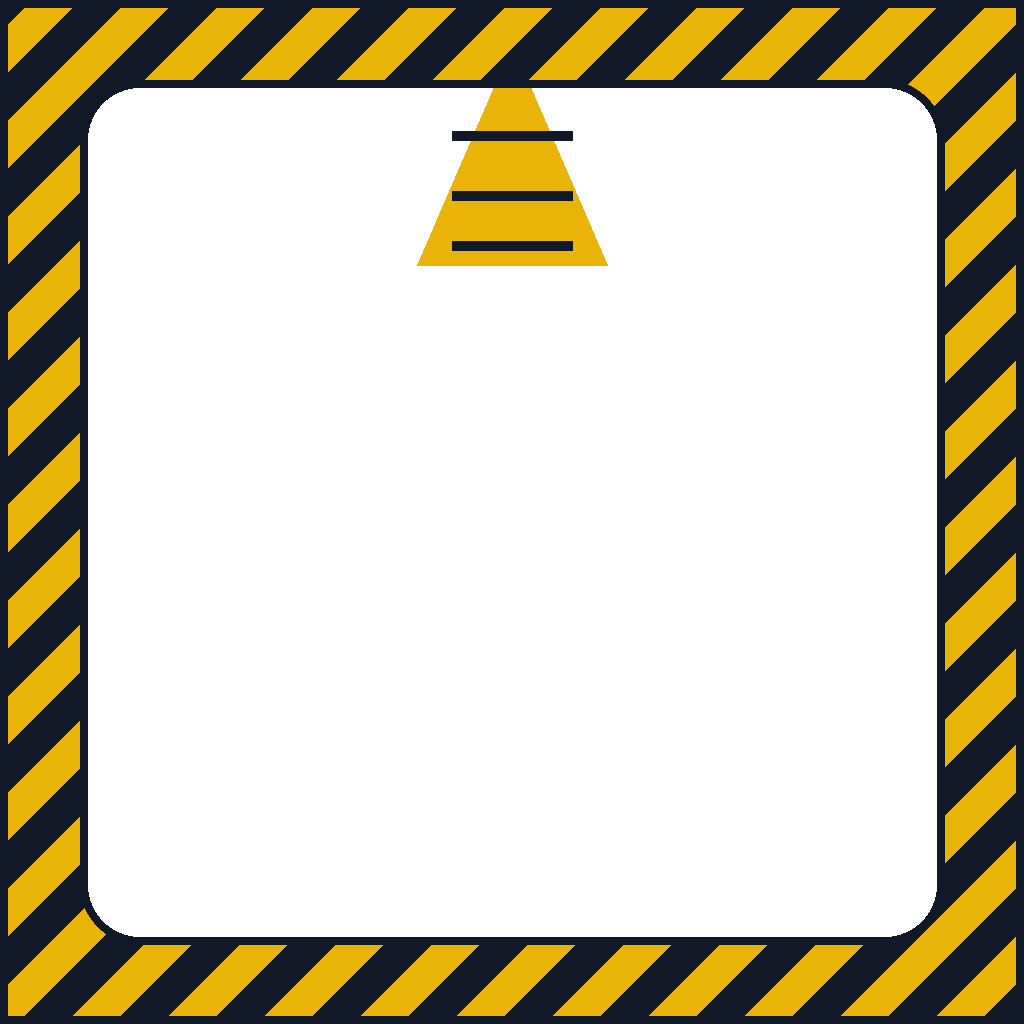

The hats are placed for a face in the middle of the square. If yours sits higher or lower, move the hat layer.
Add the frame with a script
Never appear "away" on Slack again
Cloud-based. No downloads. Works 24/7 even when your laptop is off.
If you would rather not open an editor, this Python script crops your photo to a square, adds the hat and the frame, and saves a 1024 by 1024 PNG. It needs the Pillow library (pip install pillow):
import sys
from PIL import Image, ImageDraw, ImageOps

SIZE = 1024  # Slack takes 512 to 1024 px, square
BORDER = 80  # frame width in px

THEMES = {
    "christmas": {"stripes": ["#dc2626", "#ffffff"], "edge": "#991b1b", "hat": "santa"},
    "halloween": {"stripes": ["#f97316", "#111827"], "edge": "#111827", "hat": "witch"},
    "hanukkah": {"stripes": ["#1d4ed8", "#ffffff"], "edge": "#1e3a8a", "hat": None},
    "thanksgiving": {"stripes": ["#b45309", "#f59e0b", "#7c2d12"], "edge": "#7c2d12", "hat": None},
    "new-year": {"stripes": ["#eab308", "#111827"], "edge": "#111827", "hat": "party"},
    "lunar-new-year": {"stripes": ["#dc2626", "#facc15"], "edge": "#991b1b", "hat": None},
}


def plain_avatar():
    """A stand-in photo: white figure on green."""
    img = Image.new("RGB", (SIZE, SIZE), "#22c55e")
    d = ImageDraw.Draw(img)
    r = SIZE * 0.17
    d.ellipse([SIZE / 2 - r, SIZE * 0.22, SIZE / 2 + r, SIZE * 0.22 + 2 * r], fill="white")
    d.pieslice([SIZE * 0.14, SIZE * 0.64, SIZE * 0.86, SIZE * 1.36], 180, 360, fill="white")
    return img


def frame(img, colors, edge):
    """Diagonal candy-cane stripes around the edge of the square."""
    stripes = Image.new(img.mode, (SIZE, SIZE))
    d = ImageDraw.Draw(stripes)
    w = 48
    for i, x in enumerate(range(-SIZE, 2 * SIZE, w)):
        d.polygon([(x, 0), (x + w, 0), (x + w - SIZE, SIZE), (x - SIZE, SIZE)], fill=colors[i % len(colors)])
    mask = Image.new("L", (SIZE, SIZE), 255)
    ImageDraw.Draw(mask).rounded_rectangle([BORDER, BORDER, SIZE - BORDER, SIZE - BORDER], 60, fill=0)
    img.paste(stripes, (0, 0), mask)
    d = ImageDraw.Draw(img)
    d.rectangle([0, 0, SIZE - 1, SIZE - 1], outline=edge, width=8)
    d.rounded_rectangle([BORDER, BORDER, SIZE - BORDER, SIZE - BORDER], 60, outline=edge, width=8)


def hat(img, kind):
    d = ImageDraw.Draw(img)
    x, top = SIZE / 2, SIZE * 0.22  # center and top of the head
    if kind == "santa":
        d.polygon([(x - 170, top + 60), (x + 170, top + 60), (x + 220, top - 90)], fill="#dc2626")
        d.rounded_rectangle([x - 200, top + 40, x + 200, top + 110], 35, fill="white", outline="#e5e7eb", width=4)
        d.ellipse([x + 180, top - 130, x + 260, top - 50], fill="white", outline="#e5e7eb", width=4)
    elif kind == "witch":
        d.polygon([(x - 120, top + 40), (x + 120, top + 40), (x + 50, top - 190)], fill="#111827")
        d.ellipse([x - 240, top + 10, x + 240, top + 75], fill="#111827")
        d.polygon([(x - 108, top + 5), (x + 110, top + 5), (x + 118, top + 38), (x - 118, top + 38)], fill="#f97316")
    elif kind == "party":
        d.polygon([(x - 95, top + 40), (x + 95, top + 40), (x, top - 180)], fill="#eab308")
        for y in (top - 90, top - 30, top + 20):
            d.line([(x - 60, y), (x + 60, y)], fill="#111827", width=10)
        d.ellipse([x - 32, top - 212, x + 32, top - 148], fill="#f97316")


def make(src, theme, out):
    if src == "--overlay":  # transparent PNG to lay over a photo in any editor
        img = Image.new("RGBA", (SIZE, SIZE), (0, 0, 0, 0))
    elif src:
        img = ImageOps.fit(Image.open(src).convert("RGB"), (SIZE, SIZE))
    else:
        img = plain_avatar()
    t = THEMES[theme]
    if t["hat"]:
        hat(img, t["hat"])
    frame(img, t["stripes"], t["edge"])
    img.save(out)
    return out


if __name__ == "__main__":
    # python holiday_pfp.py christmas photo.jpg   (or --overlay, or nothing for a demo)
    theme = sys.argv[1] if len(sys.argv) > 1 else "christmas"
    src = sys.argv[2] if len(sys.argv) > 2 else None
    name = f"slack-{theme}-overlay.png" if src == "--overlay" else f"slack-{theme}.png"
    print(make(src, theme, name), SIZE, "x", SIZE)
Run it with the holiday and your photo:
python holiday_pfp.py christmas me.jpg     # saves slack-christmas.png
python holiday_pfp.py halloween --overlay  # a transparent frame only
python holiday_pfp.py new-year             # a demo on a stand-in figure
We ran all three forms on 28 September; each printed the file name and 1024 x 1024. The six images above are its demo output. Themes are christmas, halloween, hanukkah, thanksgiving, new-year and lunar-new-year; change the hex colors in THEMES to make your own.
How to change your Slack profile picture for the holidays
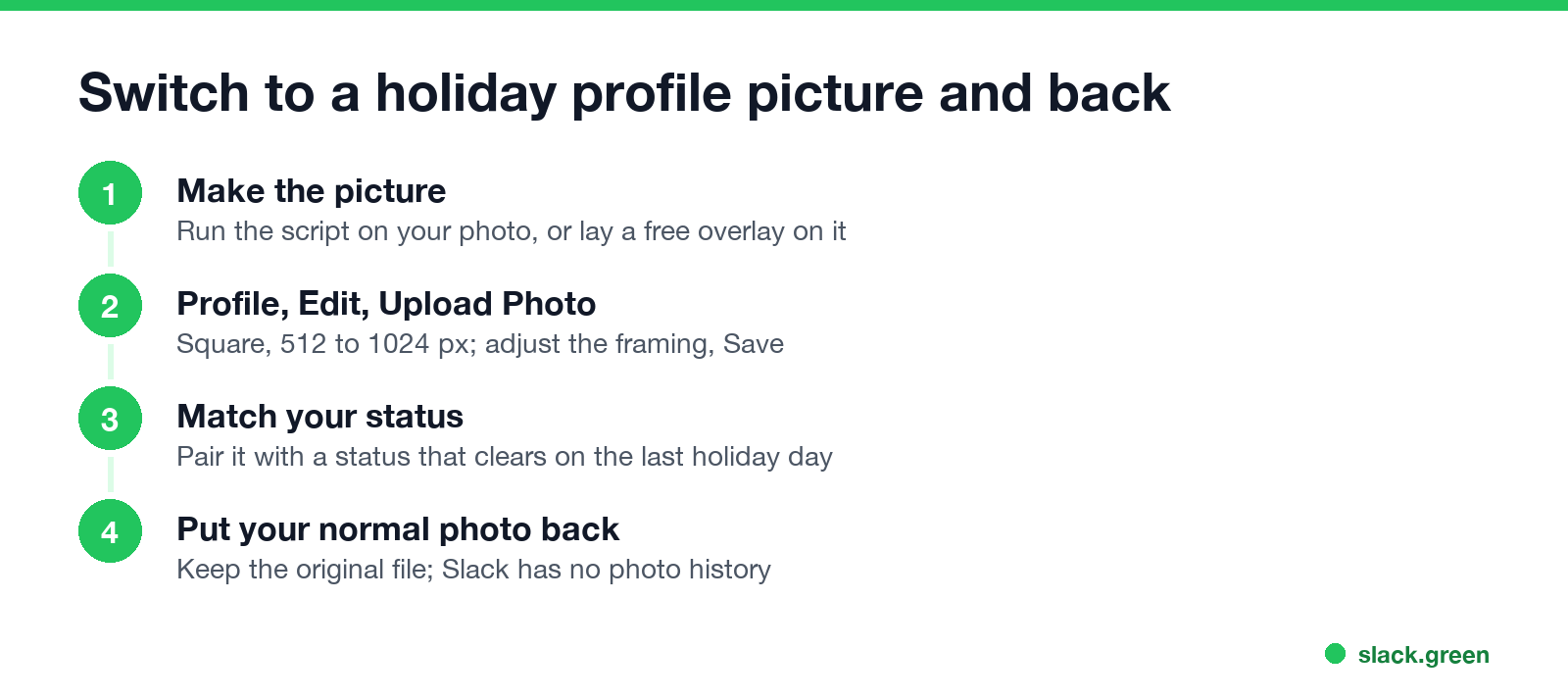
On iPhone or Android, tap your profile picture, then View profile, Edit Profile and Edit Photo. Slack asks for at least 512 by 512 and at most 1024 by 1024 pixels.
Keep your normal photo file, because switching back in January means uploading it again. Set a status that clears itself on the last day of the holiday so the two match; see Slack status clear after. If you are away for the holidays, add an out of office message.
Christmas and Halloween Slack themes
A profile picture changes what others see. A Slack theme changes only what you see. Slack has no Christmas or Halloween theme in its list, but you can make one: click your profile picture, choose Preferences, then Appearance, open Custom theme and set the Theme colors. Colors that work:
| Theme | System navigation | Selected items | Presence indication and Notifications |
|---|---|---|---|
| Halloween | #111827 (black) | #f97316 (orange) | #a855f7 (purple) |
| Christmas | #14532d (pine green) | #dc2626 (red) | #facc15 (gold) |
| Winter | #1e3a8a (navy) | #93c5fd (ice blue) | #ffffff (white) |
Share gives you the theme to send to a coworker, and Import loads one someone sent you. The font menu on the same page is covered in what font Slack uses.
Slack has no background image setting, so "Halloween Slack background" usually means a theme like the ones above.
Holiday emoji to go with the picture
Never appear "away" on Slack again
Cloud-based. No downloads. Works 24/7 even when your laptop is off.
A custom holiday emoji adds more than a photo does, because it can go on every message. The built-in holiday codes are in Halloween and holiday Slack emojis. Make a Santa hat or pumpkin version of your team's favorite emoji with our free Slack emoji maker, and shrink any GIF under Slack's size limit with the Slack emoji resizer. For seasonal status lines, try the Slack status generator.
FAQ
What size should a Slack profile picture be?
Square, at least 512 by 512 and at most 1024 by 1024 pixels.
How do I put a Santa hat on my Slack profile picture?
Lay our free Christmas overlay over your photo in an editor with layers, or run the script above with christmas and your photo.
Where can I find a Christmas Slack profile picture?
Stock sites have holiday images, but a frame or hat on your own photo keeps you easy to recognize. Download a frame above.
Is there a Christmas theme in Slack?
No built-in one. Make it in Preferences, Appearance, Custom theme with green, red and gold.
Can I set a Slack profile picture that changes by itself?
Not in Slack's settings. Upload the holiday photo yourself and put the normal one back afterward.
Will coworkers see my holiday Slack profile picture everywhere?
Yes, in that workspace. It replaces your photo next to your messages, in your profile and in shared channels where you appear.
Stop Jiggling Your Mouse.
Join hundreds of remote workers who never worry about their Slack status. Set it up once, stay green forever.
Related Articles
Slack Emoji for Approved, Perfect and Sounds Good
The Slack emoji for approved is ✅ :white_check_mark:. For perfect, use 💯 :100: or 🤌 :pinched_fingers:; for sounds good or sure, 👍 :+1: or 👌 :ok_hand:. Every code checked in Slack, what each one means to readers, custom LGTM and SGTM emoji, and a pinned legend for approval channels.
Tips for Working Across Time Zones: 10 Habits That Work
Working across time zones works when the team writes things down, keeps a short overlap window for live talk, says the zone with every time, and lets tools deliver messages in each person's working hours. Ten habits, a follow-the-sun handoff note, the Slack settings that help, and a script that shows your team's local times.
Slack Emoji for OOO, PTO and Days Off
The usual Slack emoji for OOO is 🌴 :palm_tree:, with ✈️ :airplane: for travel and 🗓️ :spiral_calendar_pad: for planned PTO. Enterprise's built-in Out of office status uses ⛔. Codes for vacation, upcoming PTO, sick days, holidays and outages, custom :ooo: and :pto: emoji, and statuses to copy.