
Slack Themes: Custom Theme Strings That Import, Tested
Slack's custom theme now takes 4 colors. We pasted old 8-color strings, Slack's own Share output and our own themes into Import, and logged which ones Slack accepted.
A Slack custom theme is now 4 hex colors: System navigation, Selected items, Presence indication and Notifications. You set them in Preferences > Appearance > Custom theme, or paste them all at once with Import. On 5 October 2026 we pasted 15 strings into Import in Slack's web app: old 8-color sidebar strings, Slack's own Share output, broken strings and four themes of our own. Slack accepted strings with exactly 4 or exactly 8 colors and rejected everything else, including the text its own Share button copies.
Where themes live now
Open your profile picture, then Preferences, then Appearance. Below Font and Color Mode there are two tabs:
- • Slack themes: 34 ready-made themes in five groups. Miles Davis (Kind of Blue, Funky Fresh, Jazz Club, Electric Fusion, Brassy, Sunglasses Inside), Single color (Aubergine, Clementine, Banana, Jade, Lagoon, Barbra, Gray, Mood Indigo), Vision assistive (Tritanopia, Protanopia & Deuteranopia), Fun and new (Raspberry Beret, Big Business, POG, Mint Chip, PB&J, Chill Vibes, Forest Floor, Slackr, Sea Glass, Lemon Lime, Falling Leaves, Sunrise) and Updated classics (Choco Mint, CMYK, Haberdashery, Hoth, Ochin, Sweet Treat).
- • Custom theme: the 4 color fields, plus Share, Import, Surprise me, and two checkboxes, Window gradient and Darker sidebars.
The theme is saved to your Slack account, not to the browser. We changed it through Slack's settings API and the web app showed the new colors after a reload.
Theme strings we pasted into Import
| What we pasted | Result |
|---|---|
4 colors: #14532D,#DCFCE7,#22C55E,#F97316 | Applied |
| 4 colors with spaces after the commas | Applied |
| 4 colors in lowercase | Applied |
Old 8-color string #3F0E40,#350D36,#1164A3,#FFFFFF,#350D36,#FFFFFF,#2BAC76,#CD2553 | Applied, using 4 of the 8 colors |
| 10 colors (the old string plus 2 top bar colors), tested 8 October | Applied, using colors 1, 3, 7 and 8 |
| 11 colors | Invalid theme string |
4 colors without # | Invalid theme string |
| 2, 3, 5, 7 or 9 colors | Invalid theme string |
hello | Invalid theme string |
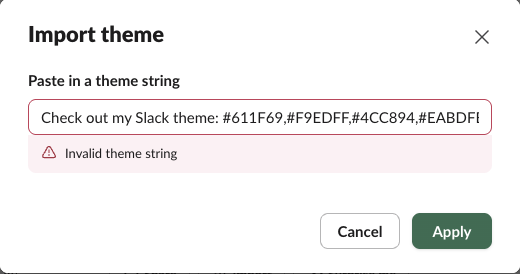
Slack's own Share text, Check out my Slack theme: #611F69,#F9EDFF,#4CC894,#EABDFB | Invalid theme string |
The last row catches people out. Share copies a sentence, not a theme string. Import rejects it until you delete "Check out my Slack theme:" and keep only the four colors:
How Slack reads an old 8-color string
Older theme galleries list 8-color strings made for the old sidebar. They still import, but Slack keeps only 4 of the colors. With classic Aubergine:
| Position in the old string | Old sidebar meaning | New field after Import |
|---|---|---|
1 #3F0E40 | Column background | System navigation |
2 #350D36 | Menu background hover | Dropped |
3 #1164A3 | Active item | Selected items |
4 #FFFFFF | Active item text | Dropped |
5 #350D36 | Hover item | Dropped |
6 #FFFFFF | Text color | Dropped |
7 #2BAC76 | Active presence | Presence indication |
8 #CD2553 | Mention badge | Notifications |
So any old gallery string works if it has exactly 8 or 10 colors with #. Text color is gone: Slack picks the text color itself.
Never appear "away" on Slack again
Cloud-based. No downloads. Works 24/7 even when your laptop is off.
Four themes we made, and one that breaks
We imported four of our own strings and took a screenshot of the sidebar after each:
| Name | Theme string |
|---|---|
| Slack green | #14532D,#DCFCE7,#22C55E,#F97316 |
| Night shift | #0F172A,#334155,#22C55E,#F43F5E |
| Ocean | #0C4A6E,#BAE6FD,#2DD4BF,#FACC15 |
| Paper | #E7E5E4,#FFFFFF,#16A34A,#DC2626 |
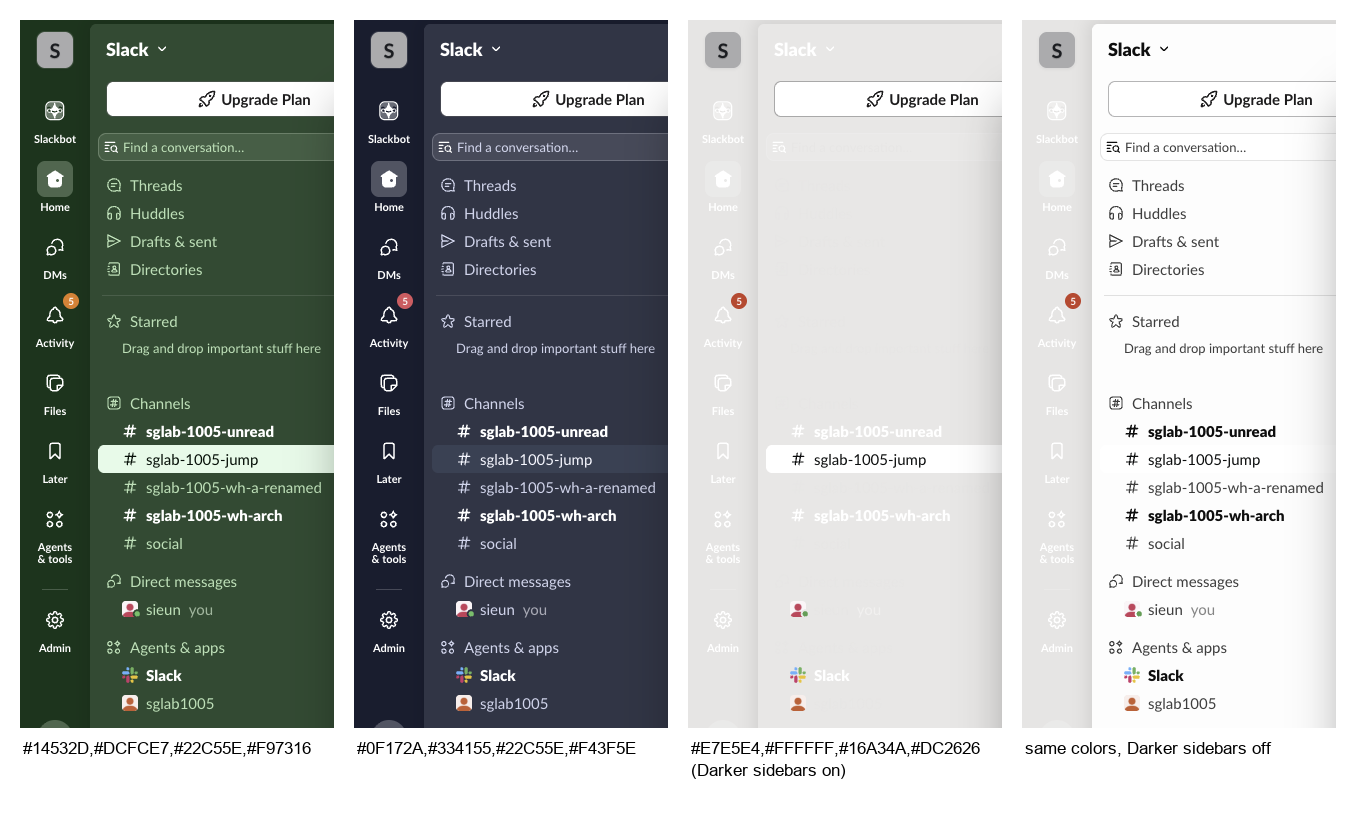
The import note says Slack will "adapt the colors as best we can to preserve contrast". With Paper it did not. A light System navigation color with Darker sidebars ticked, as it was in our account, gave white channel names on a light gray sidebar. Unticking Darker sidebars switched the text to dark and fixed it. Rule of thumb from our four: a dark first color works with Darker sidebars on, a light first color needs it off.
The reason, from a second test on 8 October and Slack's theme code: Import keeps the brightness of the theme you had selected before. After Aubergine, every import gets Darker sidebars, however light the first color is. After Banana, Slack hides the Darker sidebars box and draws a near-white sidebar, so a dark first color shows only in the top bar and the rail. The Slack theme generator runs the same color rules and shows the result, with contrast numbers, before you import.
Importing also unticked Window gradient for us. Tick it again if you liked the blended background.
Restore the default
Pick Aubergine under Slack themes. If you want the exact default custom colors, Slack's Share button gave #611F69,#F9EDFF,#4CC894,#EABDFB for the default theme.
FAQ
Can I change the font in Slack?
Yes, the Font menu sits above the themes on the same Appearance tab. Sizes and zoom are in how to change font size in Slack, and the default font is named in what font does Slack use.
Does Slack have a dark mode?
Yes. Color Mode on the same tab has Light, Dark and System, and a checkbox that forces dark mode in focus mode. Our dark mode test shows which custom emoji vanish in each mode.
Stop Jiggling Your Mouse.
Join hundreds of remote workers who never worry about their Slack status. Set it up once, stay green forever.
Related Articles
How to Turn Off Huddles in Slack: Channel, Notifications and Sounds
To stop huddles in one channel, open the channel's Settings and set Huddles to No. To stop huddle alerts for yourself, untick New huddles in Preferences > Notifications. We tested both in a Free workspace on October 28, 2026.
How to Edit Frequently Used Emojis in Slack (and Quick Reactions)
Slack has no button to edit or clear Frequently Used emoji; the list follows what you pick. You can set the three one-click reactions in Preferences > Messages & media. We tested both on October 28, 2026.
How to Change the Language in Slack (and What It Changes)
Change Slack's display language in Preferences > Language & region > Language. We switched our test account to Spanish and back on October 27, 2026 and recorded what changed: menus, the clock format, and not your messages.