
How to Change the Language in Slack (and What It Changes)
Change Slack's display language in Preferences > Language & region > Language. We switched our test account to Spanish and back on October 27, 2026 and recorded what changed: menus, the clock format, and not your messages.
To change the language in Slack, click your profile picture, choose Preferences, open Language & region, and pick a language from the Language menu. The change applies right away. On October 27, 2026 we switched our test account from English (US) to Español (España) and back, and the whole interface changed in place in about 7 seconds, without a reload. Messages people had already written stayed in their original language.
Change your Slack language on desktop or web
- Click your profile picture at the bottom of the left rail.
- Click Preferences.
- Click Language & region.
- Open the Language menu and pick a language.
- • The clock changed too. The same message showed 4:06 PM in English and 16:06 in Spanish. Slack's account settings showed that the 24-hour clock setting had turned on with the language. When we switched back to English (US), it turned off again by itself.
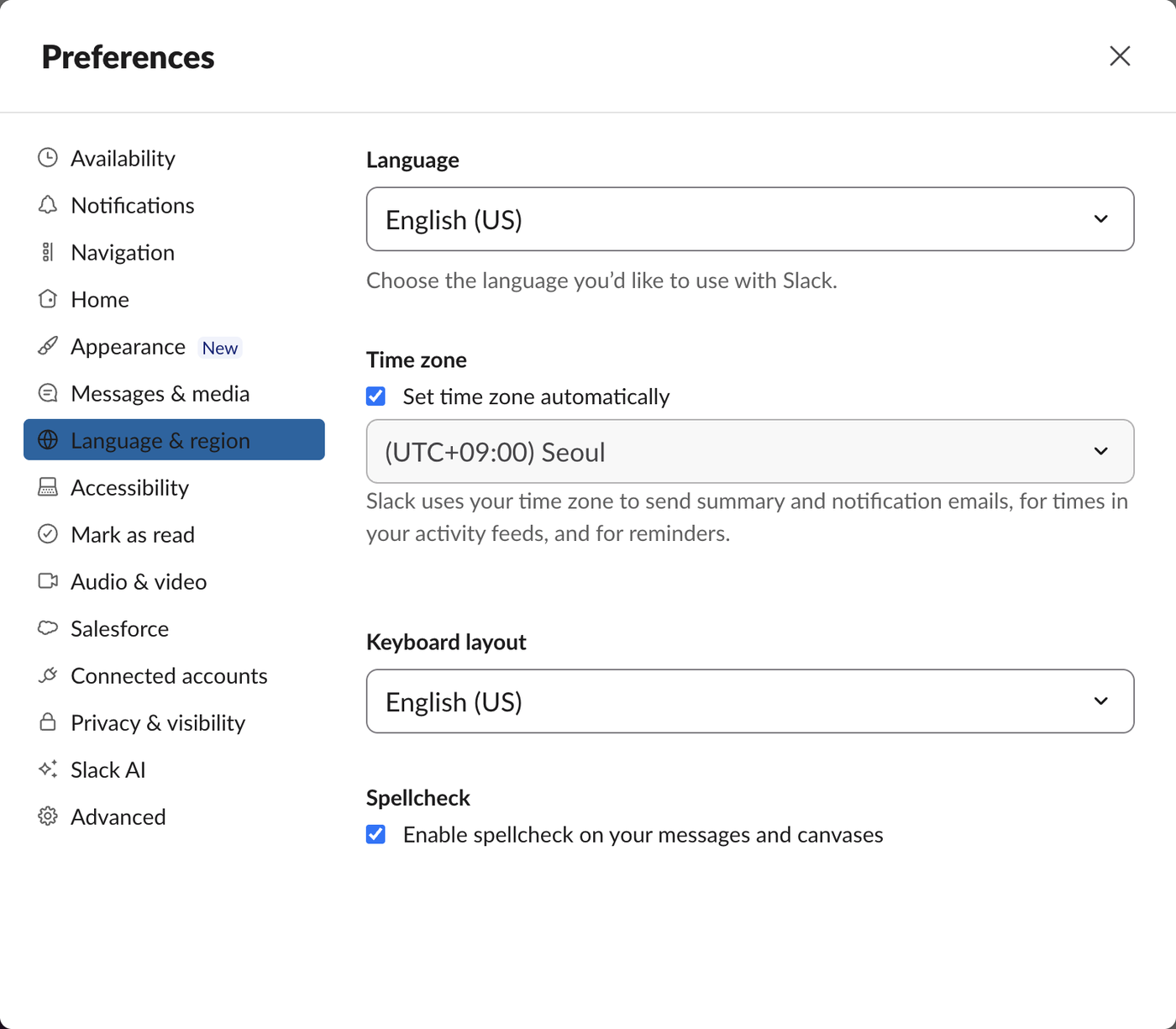
- • The keyboard layout did not change. It stayed at English (US). That setting is separate, on the same pane.
- • Nothing else moved. We compared every account preference before and after the round trip. Only the language and the clock setting had changed, and both were back to their old values after we switched back.
- Click your profile picture at the bottom left.
- Click the item with the gear icon near the bottom of the menu (Preferencias in Spanish).
- Click the globe icon in the left list of the window.
- Open the first drop-down and pick English (US) or English (UK). Each language in that menu is written in its own language, so English (US) reads the same whatever language Slack is in.
This is the pane we started from:
The menu listed 12 display languages in our Free workspace:
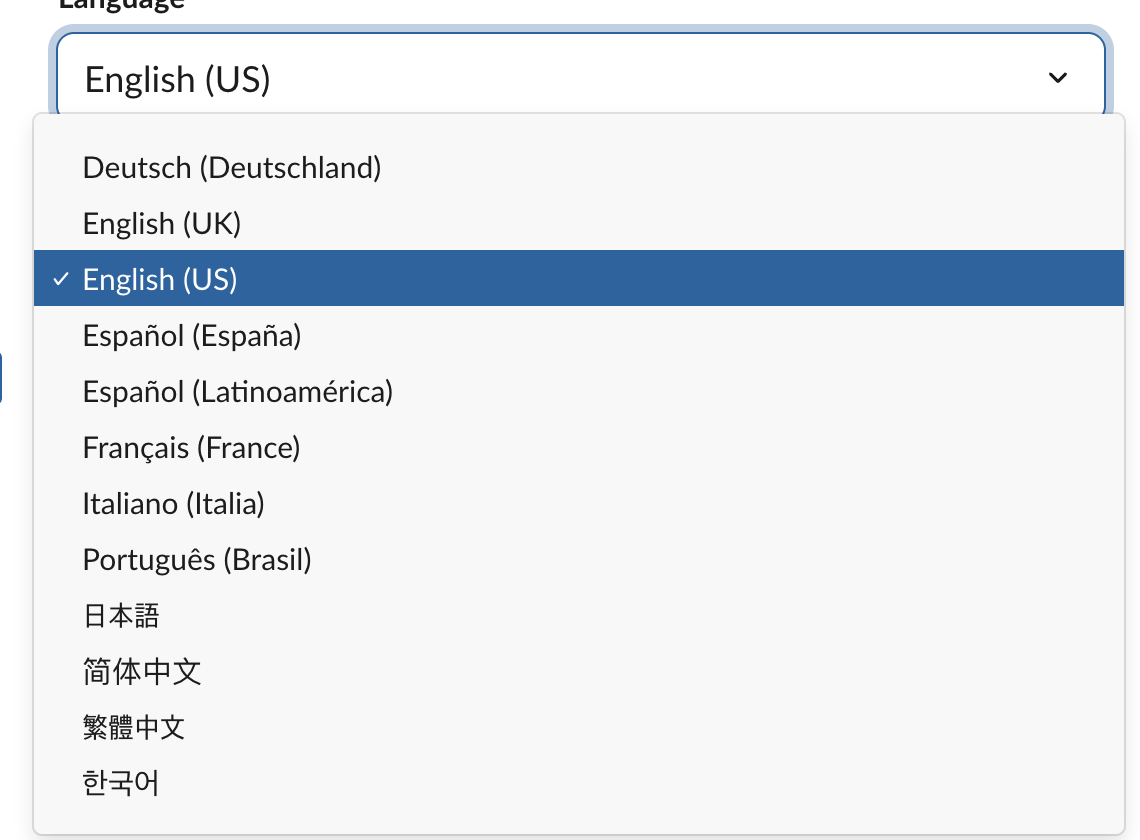
| Menu entry | Language |
|---|---|
| Deutsch (Deutschland) | German |
| English (UK), English (US) | English |
| Español (España), Español (Latinoamérica) | Spanish |
| Français (France) | French |
| Italiano (Italia) | Italian |
| Português (Brasil) | Portuguese |
| 日本語 | Japanese |
| 简体中文, 繁體中文 | Chinese, simplified and traditional |
| 한국어 | Korean |
Slack's help page on language preferences says right-to-left languages such as Arabic and Hebrew are not supported as display languages. You can still type and read messages in them.
What changed when we switched to Spanish
We picked Español (España) and closed the window. Every menu, button and label in the web app was now in Spanish, from Ascender de plan at the top of the sidebar to Enviar un mensaje a #w1-1027b-lab in the message box. A test message we had posted in English still read exactly as written:
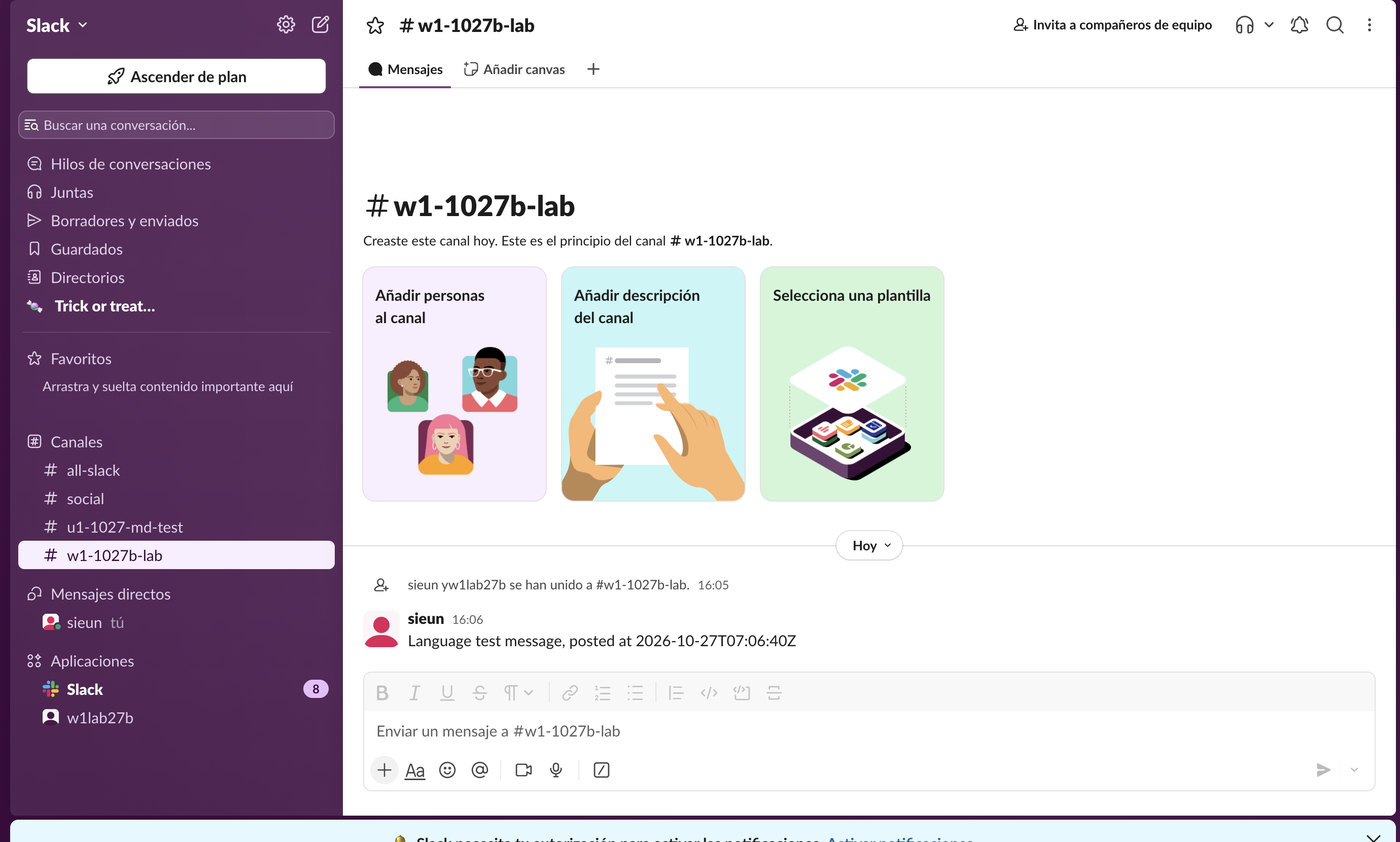
Three details we did not expect:
Changing your language does not translate other people's messages. For that, see how to translate Slack messages, which tests what the Free plan offers.
Switch Slack back to English
If someone changed your Slack to a language you cannot read, the menu positions stay the same:
That is how we switched back. Slack's settings then read en-US again.
Never appear "away" on Slack again
Cloud-based. No downloads. Works 24/7 even when your laptop is off.
On iPhone and Android
We did not test the mobile apps. Slack's help gives these steps:
Change the language for the whole workspace
Workspace owners and admins have a separate setting. In the admin pages, go to Settings & permissions and expand Workspace Language:

The setting says it "affects system notifications, Slackbot messages, and sign-up emails." It does not change any member's own display language, which each person sets in their own Preferences. We opened this setting but did not save a change, because it is shared by the whole workspace.
Spell check is separate again: it follows the languages you type, and Slack spell check shows how to add a dictionary. If times look wrong after a language change, check the time zone on the same pane; how to change your time zone in Slack covers that setting.
FAQ
Does changing my Slack language change it for everyone?
No. Your display language is your own preference. In our test only our account changed. The workspace setting above changes system messages, not each member's interface.
Why did Slack switch to 24-hour time?
In our test, choosing Español (España) turned on the 24-hour clock setting along with the language, and choosing English (US) turned it off again. If you want a different clock format, change it after you pick the language.
Does Slack change the language of my notification emails?
We did not check email in this test. The workspace setting says it controls sign-up emails and system notifications, so ask an admin if those arrive in the wrong language.
Stop Jiggling Your Mouse.
Join hundreds of remote workers who never worry about their Slack status. Set it up once, stay green forever.
Related Articles
How to Mark a Message Urgent in Slack (There Is No Flag)
Slack has no urgent or priority flag on messages. On October 27, 2026 we checked every menu in the Free plan's message box and message menu and found none. What works instead: a DM, @here or @channel, a reminder on the message, and the reader's VIP and keyword settings.
How to Delete a Thread in Slack (Parent and Replies)
Slack has no delete-thread button. Deleting the first message leaves 'This message was deleted.' with the replies still attached; the thread only disappears once every reply is deleted too. We tested both in the app and through the API on October 27, 2026.
How to Delete Files in Slack (Deleting the Message Is Not Enough)
Delete a Slack file from Files or from the file's own menu with Delete file. In our October 27, 2026 test, Delete message on a file post removed the post but left the file on Slack's servers. We also deleted files in bulk with a short script.