
How to Put an Emoji Next to Your Name in Slack
Set a status emoji: click your profile picture, click Update your status, pick an emoji and save. It shows next to your name everywhere in Slack. The second way is an emoji inside your display name, which stays until you edit it. Steps for both, custom emoji, and why the emoji disappears.
To put an emoji next to your name in Slack, set a status emoji. Click your profile picture, click Update your status, pick an emoji, and click Save. Slack shows that emoji next to your name in messages, direct messages and the member list, and people see your status text when they hover over it. You can leave the text empty if you only want the emoji. Set Remove status after to Don't clear so it stays.
The second way is to type an emoji into your display name. That emoji becomes part of your name and stays until you edit it. Both are below, with a table of the differences.
We build Slack Green, which keeps the other thing next to your name, the green presence dot, active during the hours you set. For status ideas, try our free Slack status generator.
Way 1: set a status emoji
Slack's help page on statuses says it directly: when you set a status, your status emoji appears next to your name, and other members see it anywhere they can see your full or display name.
On desktop
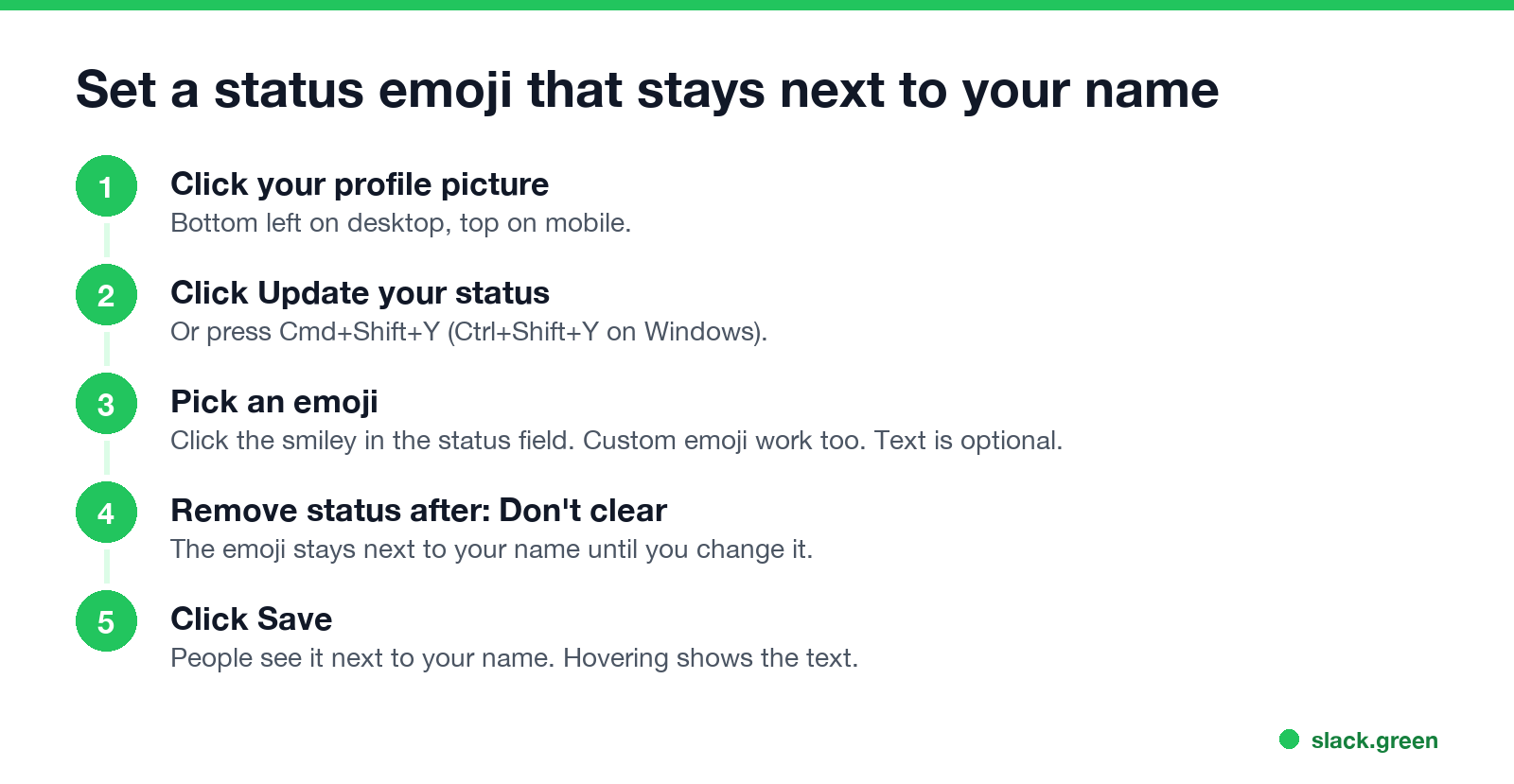
- Click your profile picture in the sidebar.
- Click Update your status. The shortcut is Cmd+Shift+Y on Mac and Ctrl+Shift+Y on Windows.
- Click the smiley face in the status field and pick an emoji. Custom emoji from your workspace are in the picker too.
- Type a status if you want one. It is optional.
- Under Remove status after, choose Don't clear to keep the emoji, or a time if it should go away.
- Click Save.
- Tap your profile picture.
- Tap the status field.
- Tap the emoji icon and pick an emoji. Add text if you want.
- Tap Clear after and choose when it should clear.
- Tap Done.
- Click your profile picture, then Profile.
- Click Edit profile.
- In Display name, add the emoji. On Mac press Ctrl+Cmd+Space to open the emoji keyboard. On Windows press Win+. (Windows key and period).
- Click Save Changes.
On iPhone and Android
If you type a status but skip the emoji, Slack shows a 💬 speech balloon next to your name. Pick an emoji to replace it.
Way 2: put the emoji in your display name
Slack's display name field accepts spaces, capitals and non-English characters, and emoji characters from your keyboard work the same way. The emoji becomes part of your name, so it shows wherever your name shows and in @mentions of you.
On mobile: tap your profile picture, View profile, Edit Profile, then the Display name field. Use the emoji key on your phone's keyboard and tap Save.
Two limits apply here. A custom workspace emoji such as :party-parrot: does not work in a name, because the name field stores plain text and does not turn codes into pictures. And if your company signs you in with single sign-on, Slack says your ability to edit your name may be restricted. If the field is greyed out, ask your admin, or use a status emoji instead.
Status emoji vs emoji in your display name
Never appear "away" on Slack again
Cloud-based. No downloads. Works 24/7 even when your laptop is off.
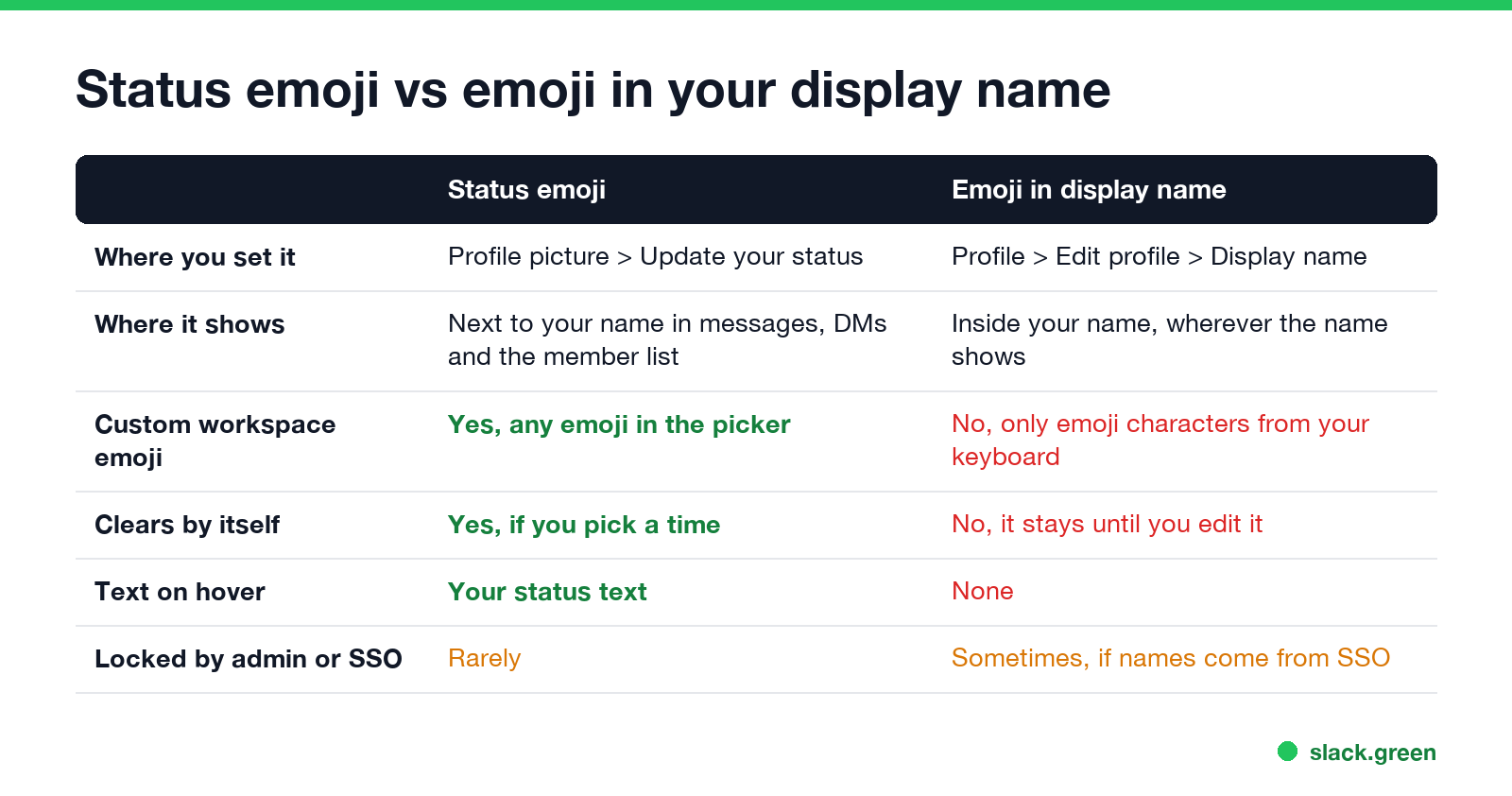
| Status emoji | Emoji in display name | |
|---|---|---|
| Where you set it | Profile picture, Update your status | Profile, Edit profile, Display name |
| Custom workspace emoji | Yes | No, keyboard emoji only |
| Clears by itself | Yes, if you pick a time | No |
| Text on hover | Your status text | None |
| Good for | Where you are today: vacation, focus, remote | A lasting tag: a flag, a team icon, a pronoun hint |
Most people want the status emoji. It changes with your day, it can clear on a schedule, and it does not rename you in search or mentions. Use the display name only for something permanent.
Emoji people put next to their name
| Emoji | Code | Usually means |
|---|---|---|
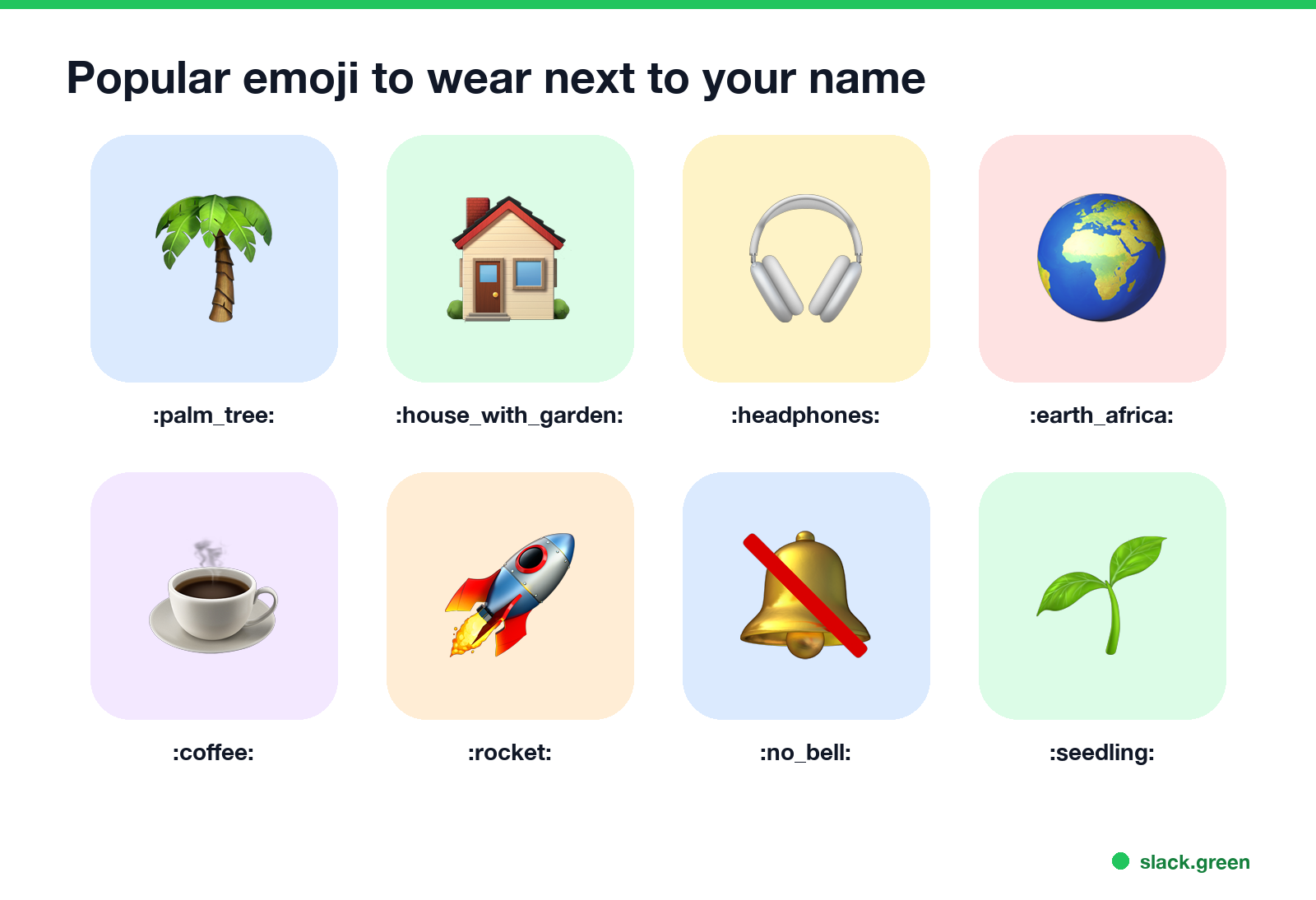
| 🌴 | :palm_tree: | On vacation |
| 🏠 | :house_with_garden: | Working from home |
| 🎧 | :headphones: | Focusing, reply later |
| 🌍 | :earth_africa: | Different time zone |
| ☕ | :coffee: | Short break |
| 🚀 | :rocket: | Shipping something |
| 🔕 | :no_bell: | Notifications off |
| 🌱 | :seedling: | New on the team |
More codes are in our Slack emoji codes list, and what each common icon means to other people is in Slack status icons meaning.
Use your own custom emoji next to your name
A custom emoji works as a status emoji, so your team logo or your own face can sit next to your name.
If your workspace blocks uploads, the upload option is missing. See Slack custom emoji not showing for that and the other common causes.
Why the emoji next to your name disappeared
Never appear "away" on Slack again
Cloud-based. No downloads. Works 24/7 even when your laptop is off.
More on timing is in Slack status clear after.
The emoji is not the green dot
The emoji next to your name is your status. The dot next to it is your availability, and Slack sets that from activity: active while Slack is open, away after 10 minutes without input on desktop. Setting 🏠 or 💻 does not keep the dot green. For how the two differ, see how to change status on Slack. Slack Green keeps the dot green during your working hours.
FAQ
How do I put an emoji next to my name in Slack? Click your profile picture, click Update your status, pick an emoji, choose Don't clear, and click Save.
Can I add an emoji next to my name without a status message? Yes. Pick an emoji and leave the text empty.
Can I use a custom emoji next to my name? Yes, as your status emoji. Custom emoji codes do not work inside a display name.
Why does a speech balloon show next to my name? You set status text without an emoji. Slack shows 💬 by default. Pick an emoji to replace it.
Can other people see the emoji next to my name? Yes. Anyone who can see your name sees your status emoji. Hovering on desktop shows your status text.
Stop Jiggling Your Mouse.
Join hundreds of remote workers who never worry about their Slack status. Set it up once, stay green forever.
Related Articles
Slack Emoji for OOO, PTO and Days Off
The usual Slack emoji for OOO is 🌴 :palm_tree:, with ✈️ :airplane: for travel and 🗓️ :spiral_calendar_pad: for planned PTO. Enterprise's built-in Out of office status uses ⛔. Codes for vacation, upcoming PTO, sick days, holidays and outages, custom :ooo: and :pto: emoji, and statuses to copy.
Slack Webhook curl Example, Plus Python and Node.js
Send a Slack message with one curl command: POST a JSON body with a text field to your incoming webhook URL, and Slack answers ok. Tested examples for curl, jq, Block Kit, Python with retries and Node.js, how to escape quotes and new lines, and what 400 invalid_payload and 429 mean in code.
How to Show Your Discord Status on Steam Deck
Discord on Steam Deck does not show what you are playing by itself. Install Discord as a Flatpak, add it to Steam, then add the Discord Status plugin through Decky Loader. Keep Discord running and friends see 'Playing [game] on Steam Deck'. Setup, fixes, and the alternatives.