
Slack Emoji Codes List: Shortcodes for Reactions, Status and Work
Slack emoji codes are the names between colons, like :+1:, :eyes: and :white_check_mark:. Type a colon and part of the name, and Slack suggests the emoji. The codes teams use for reactions, status and work, how aliases and skin tones work, and a script that exports all 1,919 standard codes.
Slack emoji codes are short names between two colons, such as :+1: for a thumbs up, :eyes: for "looking at it" and :white_check_mark: for done. Type a colon and the first few letters in any message box, and Slack suggests matching emoji; press Enter or Tab to pick one, or finish typing the name and the closing colon. Some emoji have two codes (:+1: and :thumbsup: are the same). Skin tones are a second code after the first: :wave::skin-tone-3:. The tables below list the codes teams use most, and the script at the end exports every standard code.
The codes on this page come from emoji-data, the open-source emoji dataset by Slack co-founder Cal Henderson, which covers Emoji 17.0 and lists 1,919 standard emoji with 1,980 names. We downloaded it on 27 September. Slack may lag behind the newest Unicode release, so a brand-new emoji can be missing in Slack for a while.
Reacting with an emoji counts as activity only while you are in Slack; your dot still turns away after about 10 minutes without input there. Slack Green keeps it green from a server during the hours you set.
How Slack emoji codes work
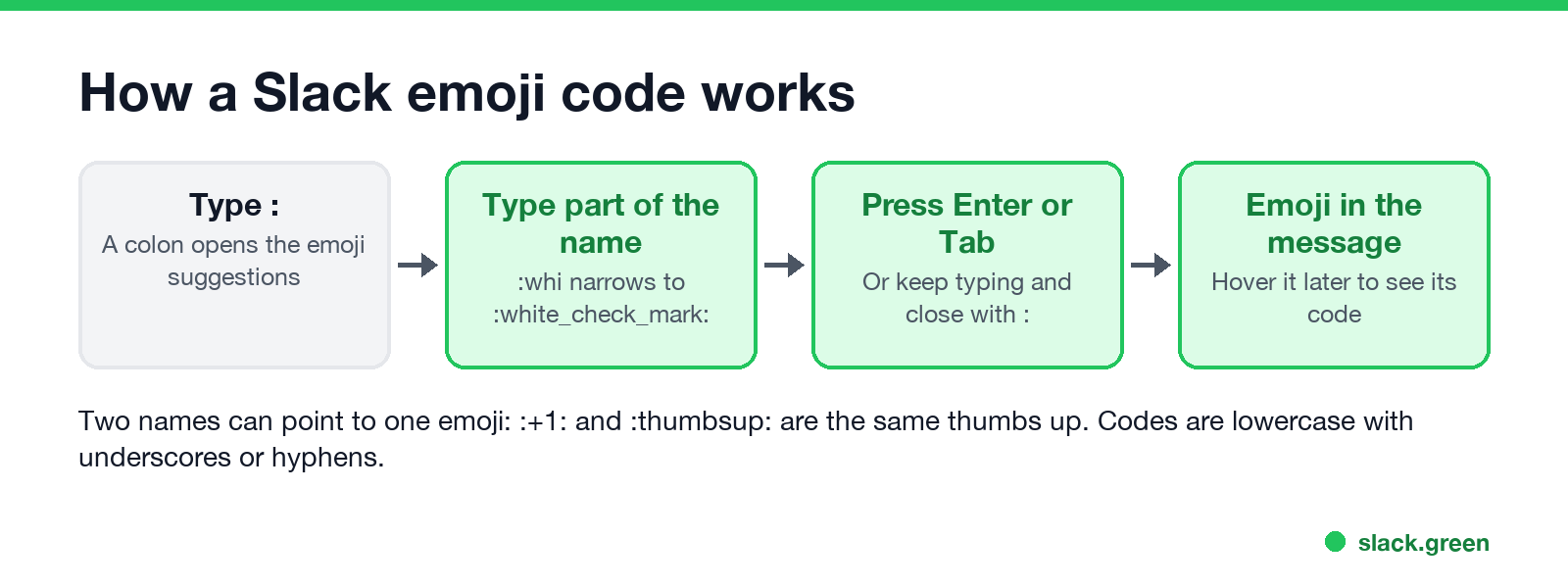
- • Type a colon in the message box, then part of the name.
:whialready offers:white_check_mark:. - • Pick with Enter or Tab, or type the whole name and the closing colon.
- • Find any emoji's code by hovering over it in a message or reaction, or in the emoji picker.
- • Codes are lowercase, with underscores or hyphens:
:thinking_face:,:man-shrugging:. - • Custom emoji use the name someone gave them when they added it, such as
:lgtm:.
Slack emoji codes for reactions
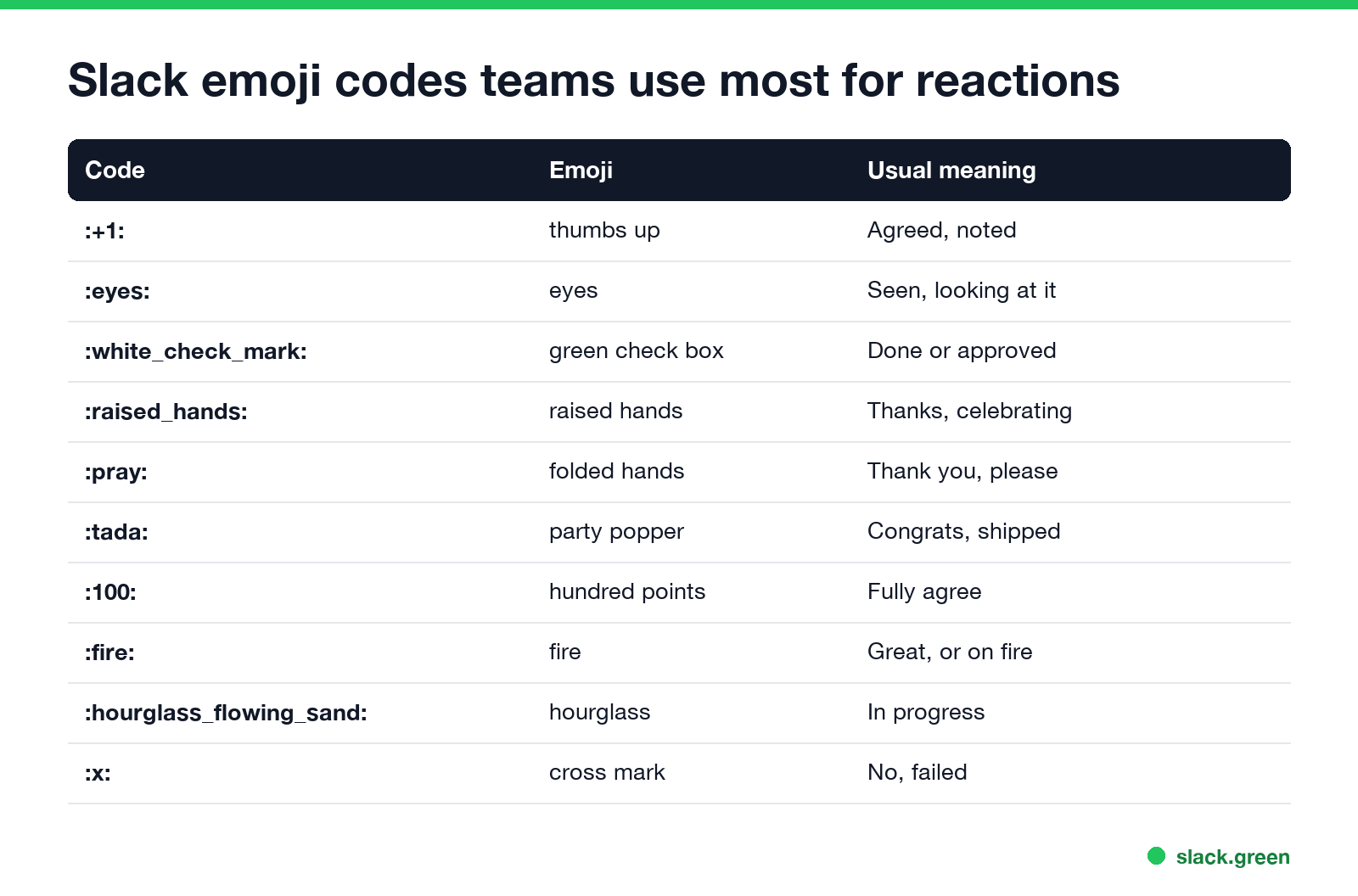
| Emoji | Code | Use it for |
|---|---|---|
| 👍 | :+1: or :thumbsup: | Agreed, noted |
| 👀 | :eyes: | Seen, looking at it |
| ✅ | :white_check_mark: | Done, approved |
| 🙌 | :raised_hands: | Thanks, celebrating |
| 🙏 | :pray: | Thank you, please |
| 🎉 | :tada: | Congrats, shipped |
| 💯 | :100: | Fully agree |
| 🔥 | :fire: | Great work, or an incident |
| ❤️ | :heart: | Appreciation |
| 👏 | :clap: | Well done |
| ⏳ | :hourglass_flowing_sand: | In progress |
| ❌ | :x: | No, failed |
| ➕ | :heavy_plus_sign: | Me too |
| 🤔 | :thinking_face: | Not sure, thinking |
| 😂 | :joy: | That is funny |
What each reaction usually means inside a team is in what does the eyes emoji mean in Slack.
Slack emoji codes for your status
Never appear "away" on Slack again
Cloud-based. No downloads. Works 24/7 even when your laptop is off.
| Emoji | Code | Use it for |
|---|---|---|
| 🌴 | :palm_tree: | Vacation |
| 🗓️ | :spiral_calendar_pad: | In a meeting |
| 📆 | :calendar: | Calendar event |
| 🎧 | :headphones: | Heads down, or in a huddle |
| 🚗 | :car: or :red_car: | Commuting |
| 🏠 | :house: | Working from home |
| 🤒 | :face_with_thermometer: | Out sick |
| 🍔 | :hamburger: | Lunch |
| ☕ | :coffee: | Short break |
| 💤 | :zzz: | Away, offline |
| ✈️ | :airplane: | Traveling |
| ⛔ | :no_entry: | Do not disturb |
| 🟢 | :large_green_circle: | Available |
| 🔴 | :red_circle: | Busy, urgent |
| 👶 | :baby: | Parental leave |
Slack's suggested "Vacationing" status uses :palm_tree:. What each status icon tells coworkers is in Slack status icons meaning, and ready-made status text is in our Slack status generator.
Slack emoji codes for work
| Emoji | Code | Use it for |
|---|---|---|
| 📝 | :memo: or :pencil: | Notes, write-up |
| 📌 | :pushpin: | Pinned, important |
| 🔗 | :link: | Link, reference |
| 💡 | :bulb: | Idea |
| 🐛 | :bug: | Bug |
| 🚀 | :rocket: | Launch, deploy |
| ⚠️ | :warning: | Warning |
| 🔒 | :lock: | Private, security |
| 🛠️ | :hammer_and_wrench: | Fixing |
| ⚙️ | :gear: | Settings, config |
| 📈 | :chart_with_upwards_trend: | Metrics up |
| 🎯 | :dart: | Goal |
| ❓ | :question: | Question |
| ❗ | :exclamation: or :heavy_exclamation_mark: | Important |
| 1️⃣ | :one: | Poll option 1 |
Standard emoji by category
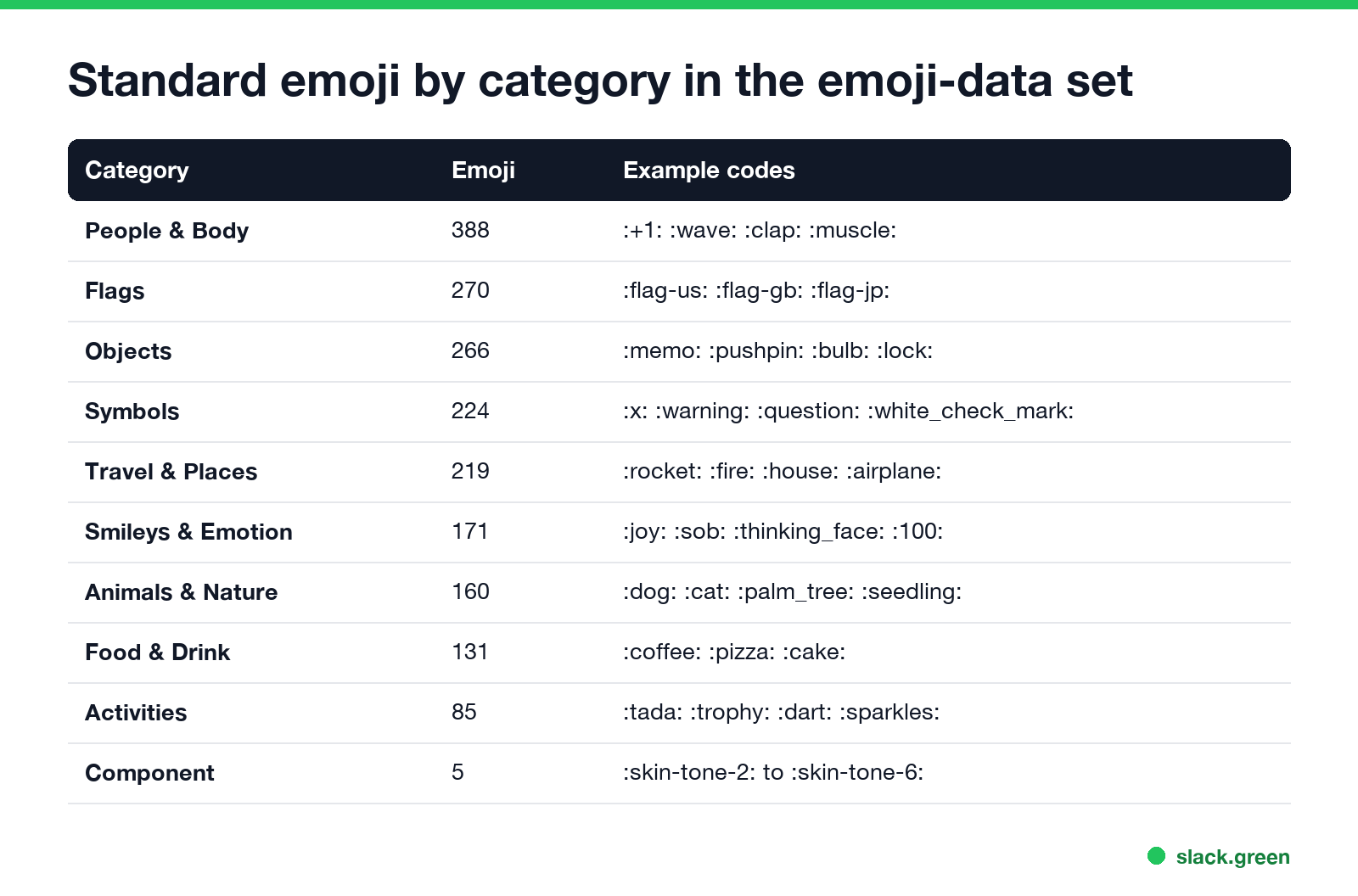
| Category | Standard emoji |
|---|---|
| People & Body | 388 |
| Flags | 270 |
| Objects | 266 |
| Symbols | 224 |
| Travel & Places | 219 |
| Smileys & Emotion | 171 |
| Animals & Nature | 160 |
| Food & Drink | 131 |
| Activities | 85 |
| Component | 5 |
Flags use the country code: :flag-us:, :flag-gb:, :flag-jp:. The five components are the skin tones, :skin-tone-2: to :skin-tone-6:.
Export every Slack emoji code to a spreadsheet
Never appear "away" on Slack again
Cloud-based. No downloads. Works 24/7 even when your laptop is off.
This Python script downloads the emoji-data list and writes every emoji with its codes and category to a CSV file you can open in Excel or Google Sheets. It uses only the standard library:
import json
import urllib.request

URL = "https://raw.githubusercontent.com/iamcal/emoji-data/master/emoji.json"
with urllib.request.urlopen(URL, timeout=30) as resp:
    emoji = json.load(resp)

emoji.sort(key=lambda e: e["sort_order"])
with open("slack-emoji-codes.csv", "w", encoding="utf-8") as out:
    out.write("emoji,codes,category\n")
    for e in emoji:
        char = "".join(chr(int(cp, 16)) for cp in e["unified"].split("-"))
        codes = " ".join(f":{name}:" for name in e["short_names"])
        out.write(f'{char},"{codes}",{e["category"]}\n')
print(len(emoji), "emoji written to slack-emoji-codes.csv")
When we ran it on 27 September it wrote 1,919 rows; the first is 😀 :grinning:.
Custom emoji codes in your workspace
Custom emoji are not in any public list. To see your workspace's codes, click the smiley face in the message field and open the custom section, or click your workspace name, Customize [workspace], and the Emoji tab. To add your own, see how to add custom emoji to Slack; for ideas, 40 Slack emoji ideas; to make one, the Slack emoji maker.
FAQ
How do I type an emoji code in Slack?
Type a colon and the name, like :tada:. Slack suggests matches after the first letters.
What is the Slack code for a thumbs up?
:+1: or :thumbsup:.
What is the Slack code for a green check mark?
:white_check_mark: for the green box, or :heavy_check_mark: for a plain check.
How do I add a skin tone with a code?
Add a skin tone code after the emoji: :wave::skin-tone-4:. Tones run from :skin-tone-2: to :skin-tone-6:.
Where can I find all Slack emoji codes?
Hover over any emoji in Slack to see its code, or run the script above to export all 1,919 standard ones.
Stop Jiggling Your Mouse.
Join hundreds of remote workers who never worry about their Slack status. Set it up once, stay green forever.
Related Articles
Slack Emoji for Announcements, Updates and Reminders
The standard Slack emoji for an announcement is 📣 :mega: or 📢 :loudspeaker: at the start of the post. Use 🚨 :rotating_light: only for real emergencies, 🆕 :new: for updates, ⏰ :alarm_clock: for reminders, and ask readers to react with ✅ :white_check_mark: once they have read it. Templates and a custom emoji idea.
Slack Status for a Doctor Appointment: 24 Statuses and Emoji
A Slack status for a doctor appointment says you are out and when you are back, such as 🏥 'At an appointment, back at 2 PM.' You do not have to say what kind. 24 statuses for doctor, dentist and other appointments, the emoji codes, and how to schedule the status so it clears by itself.
Slack Status for Limited Availability: 30 Statuses to Copy
A Slack status for limited availability says you are around but slow, until when, and how to reach you if it is urgent, such as ⏳ 'Limited availability today, replies after 3 PM. Urgent: @mention me.' 30 statuses for busy days, slow replies and catching up, the emoji to use, and when to pause notifications too.