
Slack Skin Tone: Set a Default, and Where Slack Ignores It
Open the emoji picker, click Skin Tone at the bottom right and pick one of six hands. We tested where the default applies on 29 September 2026: the picker, autocomplete and reactions use it, but a fully typed :thumbsup: does not.
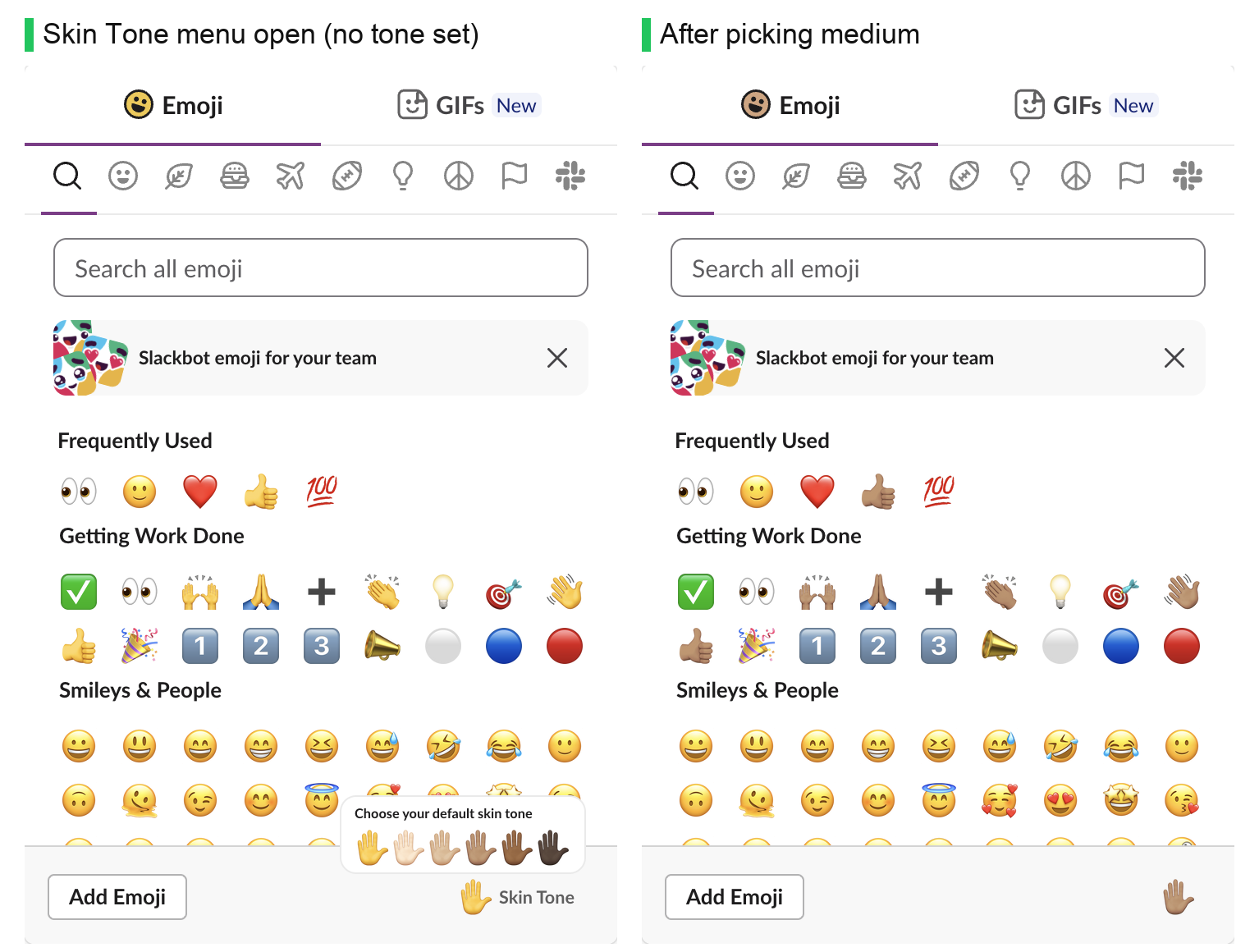
To set your default skin tone in Slack, open the emoji picker from the smiley in the message box, click Skin Tone at the bottom right, and pick one of the six hands. Every emoji that has skin tones changes to that tone in the picker at once. The setting is yours only; other people keep their own default.
We tested it on 29 September 2026 in Slack in the browser, in a one-person test workspace. We also checked what Slack saves in each message, because the default does not apply everywhere.
Set your default skin tone
- Click the smiley (Emoji) in the message box.
- Click Skin Tone, the hand at the bottom right of the picker.
- Pick a hand in "Choose your default skin tone": no tone (yellow), light, medium-light, medium, medium-dark or dark.
The Skin Tone button then shows your tone instead of the words. Slack saves the choice in your account, as the preference preferred_skin_tone. It was empty before we changed it and "4" after we picked medium. To go back to yellow, open the same menu and pick the first hand.
Where the default applies, and where it does not
We sent one message with a thumbs up added three ways, then read back what Slack stored:

| How you add the emoji | Tone used | What Slack stored |
|---|---|---|
| Click it in the emoji picker | Your default | :+1::skin-tone-4: |
Type :thumbsu, then pick from autocomplete | Your default | :+1::skin-tone-4: |
Type the whole code :thumbsup: | None, yellow | :+1: |
| Add a reaction with the picker | Your default | +1::skin-tone-4 |
API, :thumbsup: in the text | None, yellow | :thumbsup: |
API, :thumbsup::skin-tone-6: | Dark | :thumbsup::skin-tone-6: |
So if you type emoji codes from memory and close the colon yourself, you get the yellow version. Let autocomplete finish the code, or add the tone by hand. The message stores the tone, so everyone sees the tone you picked, whatever their own default is.
This autocomplete menu shows the toned thumbs up first:

Never appear "away" on Slack again
Cloud-based. No downloads. Works 24/7 even when your laptop is off.
Skin tone codes
A tone is a second code right after the emoji: :wave::skin-tone-3:. Codes run from skin-tone-2 (light) to skin-tone-6 (dark). There is no skin-tone-1; plain :wave: is the yellow one. The full list of emoji codes is in Slack emoji codes.
We added reactions to one message with reactions.add, using every tone, one past each end, and an emoji with no tones:
name sent | Result |
|---|---|
thumbsup | {"ok": true} |
thumbsup::skin-tone-2 to thumbsup::skin-tone-6 | {"ok": true} for each |
thumbsup::skin-tone-1 | {"ok": false, "error": "invalid_name"} |
thumbsup::skin-tone-7 | {"ok": false, "error": "invalid_name"} |
fire::skin-tone-3 | {"ok": false, "error": "invalid_name"} |
invalid_name also comes back for a tone on an emoji that has no tones, such as fire. Slack saved thumbsup as +1, its main name, and showed all six thumbs up reactions as one group with a count of 6, as in the screenshot above. More on reactions from code is in how to react to a message in Slack.
Custom emoji have no skin tones
Tones only exist for the standard emoji that Unicode gives tones. A custom emoji is a single image, so if you want your own hands in several tones, upload one image per tone, such as :clap-medium:. The Slack emoji maker makes the images at Slack's size.
Stop Jiggling Your Mouse.
Join hundreds of remote workers who never worry about their Slack status. Set it up once, stay green forever.
Related Articles
Slack Member ID: Where to Copy It, and What the U Means
A Slack member ID is the U... code that identifies a person. Copy it from their profile under the three-dot menu, or look it up with users.info and users.list. Tested in two workspaces, with the ID formats we found.
Slack API Rate Limits: What We Hit, and the 429 You Get Back
Slack answers too many calls with HTTP 429 and a Retry-After header. We burst chat.postMessage, conversations.history and an incoming webhook from an internal app and logged every response: where the 429s started, the bodies, and a retry loop that never hit one.
Slack files.upload Deprecated: The 3-Step Upload That Replaces It
files.upload now returns method_deprecated. Use files.getUploadURLExternal, POST the bytes, then files.completeUploadExternal, or files_upload_v2 in the SDK. Tested with curl and Python, including two silent failures.