
How to Add Custom Emoji to Slack (Desktop and iPhone)
To add a custom emoji to Slack, click the smiley face in the message field, click Add Emoji, upload a square JPG, PNG or GIF under 128 KB, name it and save. Everyone in the workspace can use it. Size rules, GIFs, aliases, emoji packs, and why you might not be allowed.
To add a custom emoji to Slack on desktop, click the smiley face icon in the message field, click Add Emoji, click Upload Image, choose a JPG, PNG or GIF, enter a name, and click Save. The emoji is then available to everyone in your workspace under the Slack icon in the emoji picker, and you can type it as :name:. Slack's help center recommends square images under 128 KB with a transparent background; animated GIFs can have up to 50 frames. You can also add custom emoji from an iPhone or iPad, but not from the Android app.
Need the image first? Our free Slack emoji maker turns a photo or logo into an emoji-ready image, and the Slack emoji resizer shrinks any image or GIF to the right size in your browser.
How to add a custom emoji to Slack on desktop
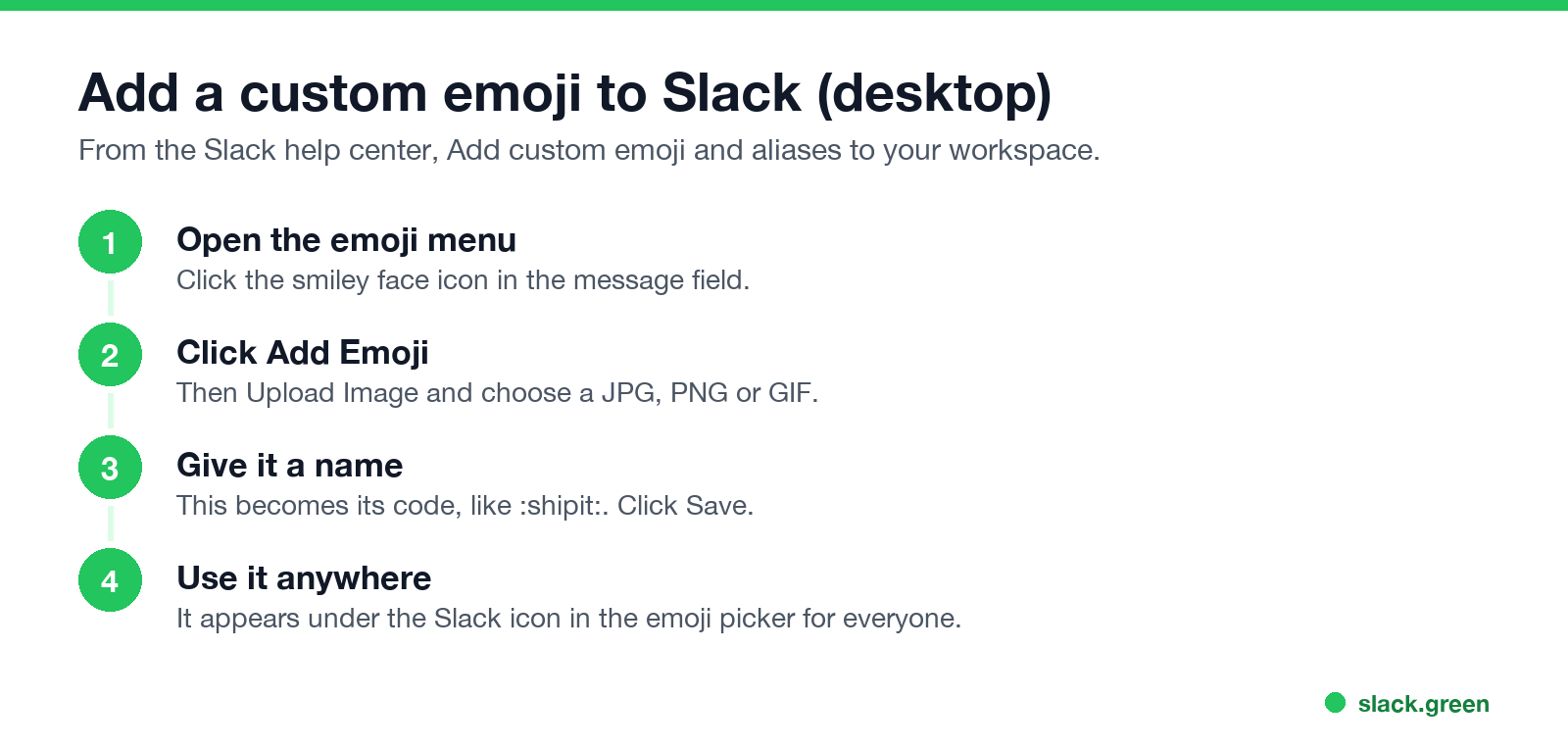
- In any conversation, click the smiley face icon in the message field.
- Click Add Emoji.
- Click Upload Image and choose your file.
- Under Give it a name, type the code people will use, such as
shipitorthanks-team. - Click Save.
- Tap the smiley face icon in the message field.
- Enter a name, then tap Add custom emoji. If the name is taken, choose another.
- Choose where the image comes from and follow the prompts.
- Tap Add in the top right.
Names must be unique in the workspace. Short, lowercase names with hyphens are easiest to type.
How to add a custom emoji on iPhone or iPad
The Slack Android app does not support adding custom emoji. Use the desktop app or a browser.
Slack custom emoji size and format
Never appear "away" on Slack again
Cloud-based. No downloads. Works 24/7 even when your laptop is off.
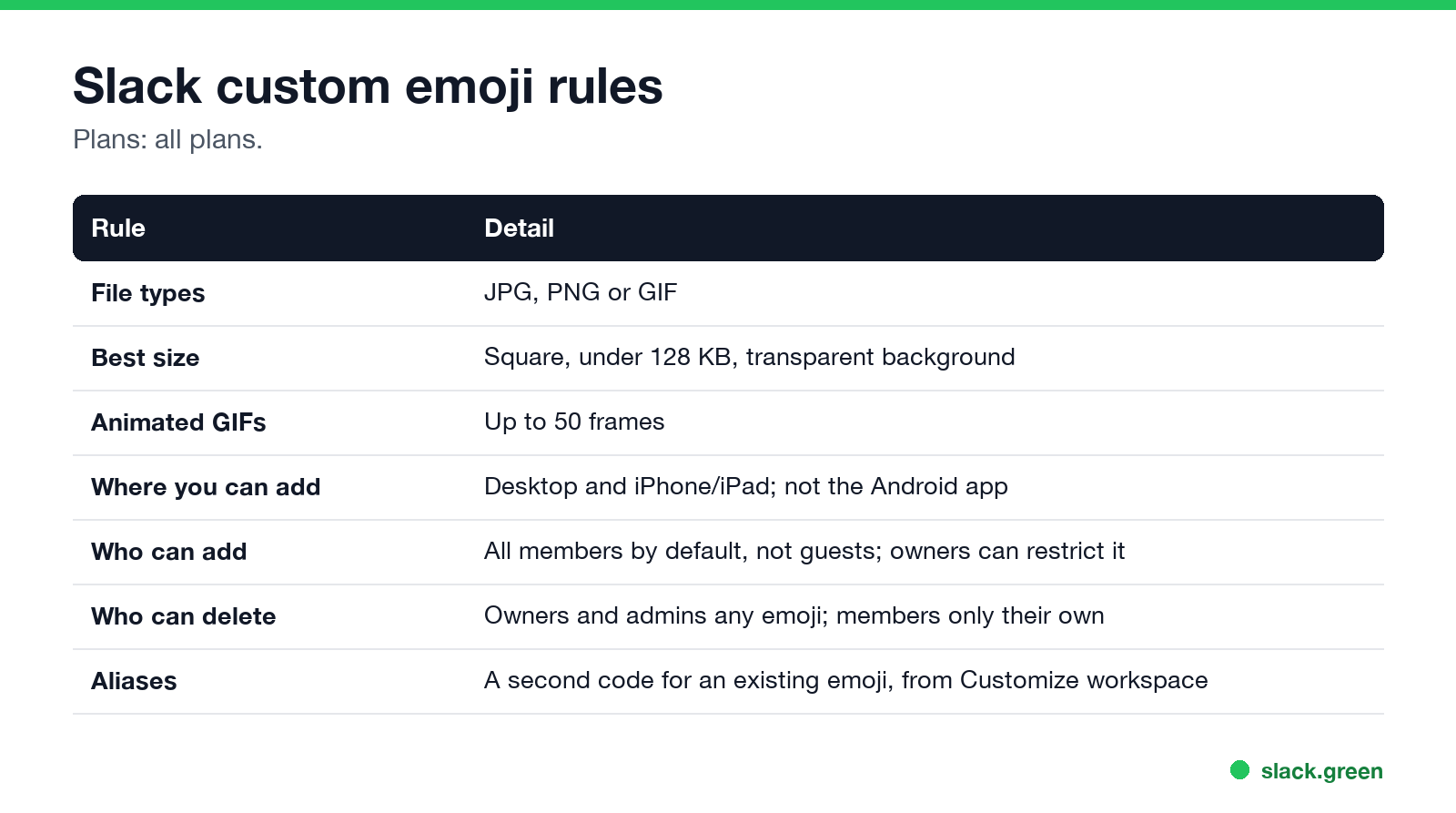
| Rule | Detail |
|---|---|
| File types | JPG, PNG or GIF |
| Best size | Square, under 128 KB, transparent background |
| Animated GIFs | Up to 50 frames |
| Where you can add | Desktop, iPhone and iPad |
Emoji show small, so a simple shape with bold lines reads better than a detailed photo. Crop to a square with little empty space around the subject. If your file is too big, run it through the Slack emoji resizer, which shrinks images and GIFs in the browser without uploading them anywhere. To make one from scratch or from a photo, use the Slack emoji maker.
How to add a GIF emoji to Slack
The steps are the same; choose a GIF in Upload Image. Keep it to 50 frames or fewer and small in file size. Long or large GIFs are the most common reason an upload fails, so trim frames or resize it first with the emoji resizer. Slack shows animated emoji frozen for people who turned off animations in their accessibility preferences.
Slack emoji aliases and emoji packs
:+1: also as :yes:. Click your workspace name, choose Customize [workspace] (owners and admins go through Settings & administration first), click Add Alias, choose the emoji, type the new code, and Save.Why can't I add emoji to Slack?
Never appear "away" on Slack again
Cloud-based. No downloads. Works 24/7 even when your laptop is off.
How to remove a custom emoji
Click your workspace name, choose Customize [workspace], open the Emoji tab, find the emoji and click the delete icon, then Delete Emoji. Members can delete only emoji they added; owners and admins can delete any. More on replacing and removing emoji in how to delete a Slack emoji.
Custom emoji as your status
A custom emoji works as a status emoji too, so a team logo or an :on-call: badge can sit next to your name. Status meanings are in Slack status icons meaning, and reaction meanings in what does the eyes emoji mean in Slack. A status explains where you are; it does not keep your dot green. Slack Green does that during the working hours you set, from the cloud.
FAQ
Never appear "away" on Slack again
Cloud-based. No downloads. Works 24/7 even when your laptop is off.
How do I upload a custom emoji to Slack?
Click the smiley face in the message field, then Add Emoji, Upload Image, name it and Save.
What size should a Slack emoji be?
Square, under 128 KB, ideally with a transparent background. Use the Slack emoji resizer to get there.
Can I add emoji to Slack from my phone?
From an iPhone or iPad, yes. From Android, no.
Why can't I add custom emoji in Slack?
Your workspace owner may have restricted it, you may be a guest, or you are on the Android app.
Can I use another company's custom emoji?
In a Slack Connect channel or DM, you can right-click another organization's custom emoji to add it to your own.
Stop Jiggling Your Mouse.
Join hundreds of remote workers who never worry about their Slack status. Set it up once, stay green forever.
Related Articles
Slack Workflow Builder Examples: 12 Workflows to Copy, With Triggers and Steps
Twelve Slack Workflow Builder examples with the exact trigger and steps for each: daily standups, channel welcomes, time-off approvals, help desk requests, emoji escalations, keyword routing, incidents, list updates and webhooks from other tools. Plus where Workflow Builder lives, what it costs and how branches work.
Slack Timer: How to Set a Countdown, Pomodoro or Focus Timer in Slack
Slack has no built-in timer, but four built-in tools act like one: /remind me to ... in 25 minutes, a status that clears itself, /dnd for a focus block, and Workflow Builder for dated countdowns. For a live countdown in a channel, use a Marketplace app or a 15-line bot script.
Slack Red Dot Won't Go Away? What It Counts and How to Clear It
A red dot on the Slack icon means unread activity somewhere; a red number means DMs, mentions, keywords or followed thread replies. Press Shift+Esc to mark all read, check Threads, Activity, Later and other workspaces, then clear the cache or reset the OS badge.