
How to Make an Emoji Background Transparent for Slack
To make a Slack emoji with a transparent background, remove the background and save the file as a PNG or GIF, never a JPG. Free ways on the web, Mac, iPhone, Windows and the command line, why a white box shows up in dark mode, and the size Slack needs.
To make an emoji background transparent for Slack, remove the background from the image and save it as a PNG or GIF. A JPG cannot store transparency, so it always keeps a solid background that shows as a white or colored box, most visibly in dark mode. The fastest free way is our Slack emoji maker: drop in the image, tick Remove background, and download a 128 by 128 PNG. On a Mac, Finder's Remove Background quick action works too, and on Windows 11 so does the Remove background button in Paint.
Slack's help center says square images under 128 KB with transparent backgrounds work best for custom emoji. The steps for each device are below.
We build Slack Green, which keeps your Slack status green from our servers during the hours you set. Our emoji maker and Slack emoji resizer run in your browser, and the image never leaves your device.
Why a transparent background matters in Slack
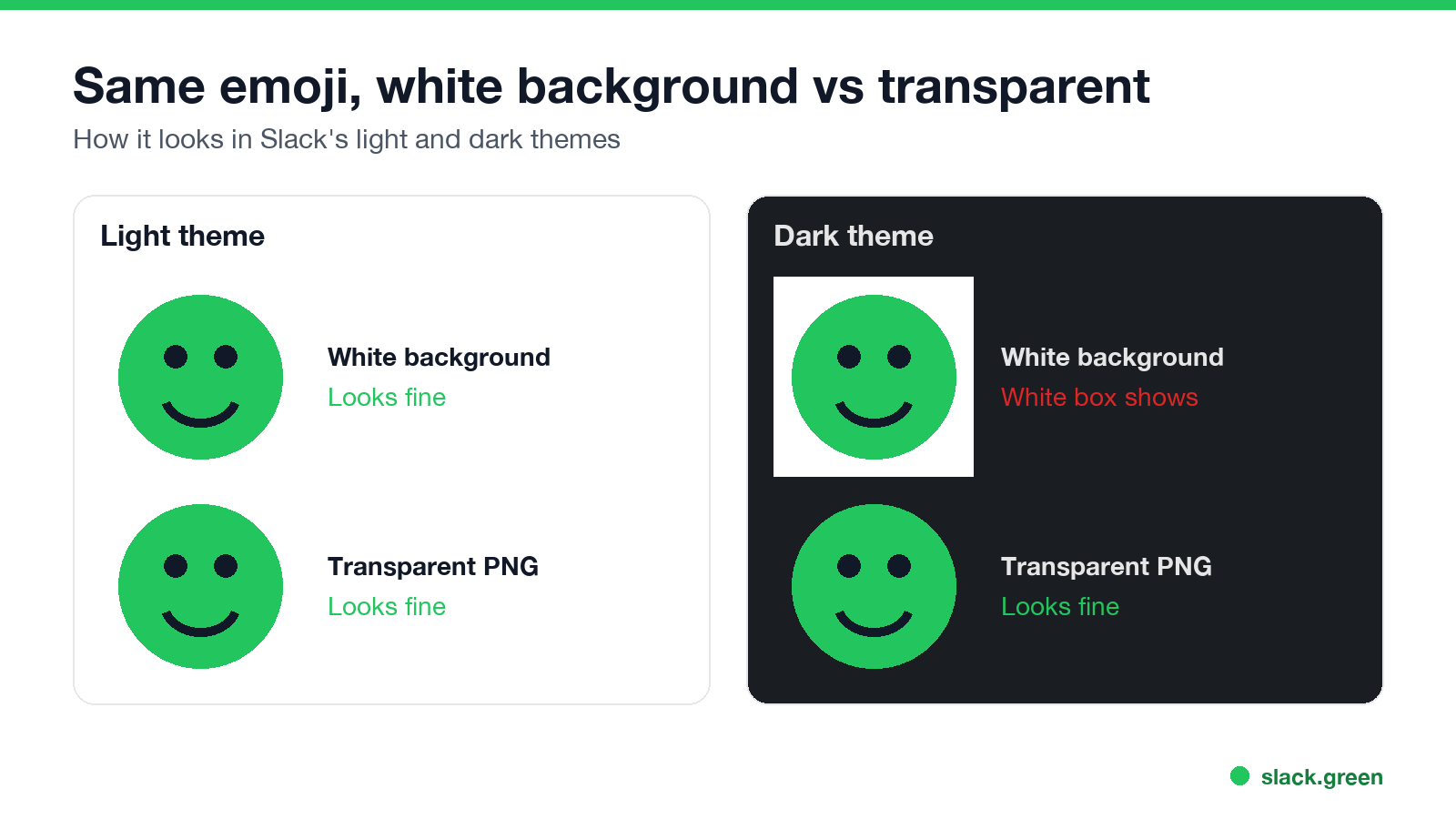
In the light theme, an emoji with a white background looks fine, because the white blends into the white message area. Switch to dark mode, or look at it in a message someone has highlighted, and a white square appears around the emoji. Many of your coworkers use dark mode, so a background you cannot see on your screen is plain on theirs.
A transparent background also lets the emoji sit cleanly on a status, in a reaction pill, and next to other emoji.
Ways to remove an emoji background
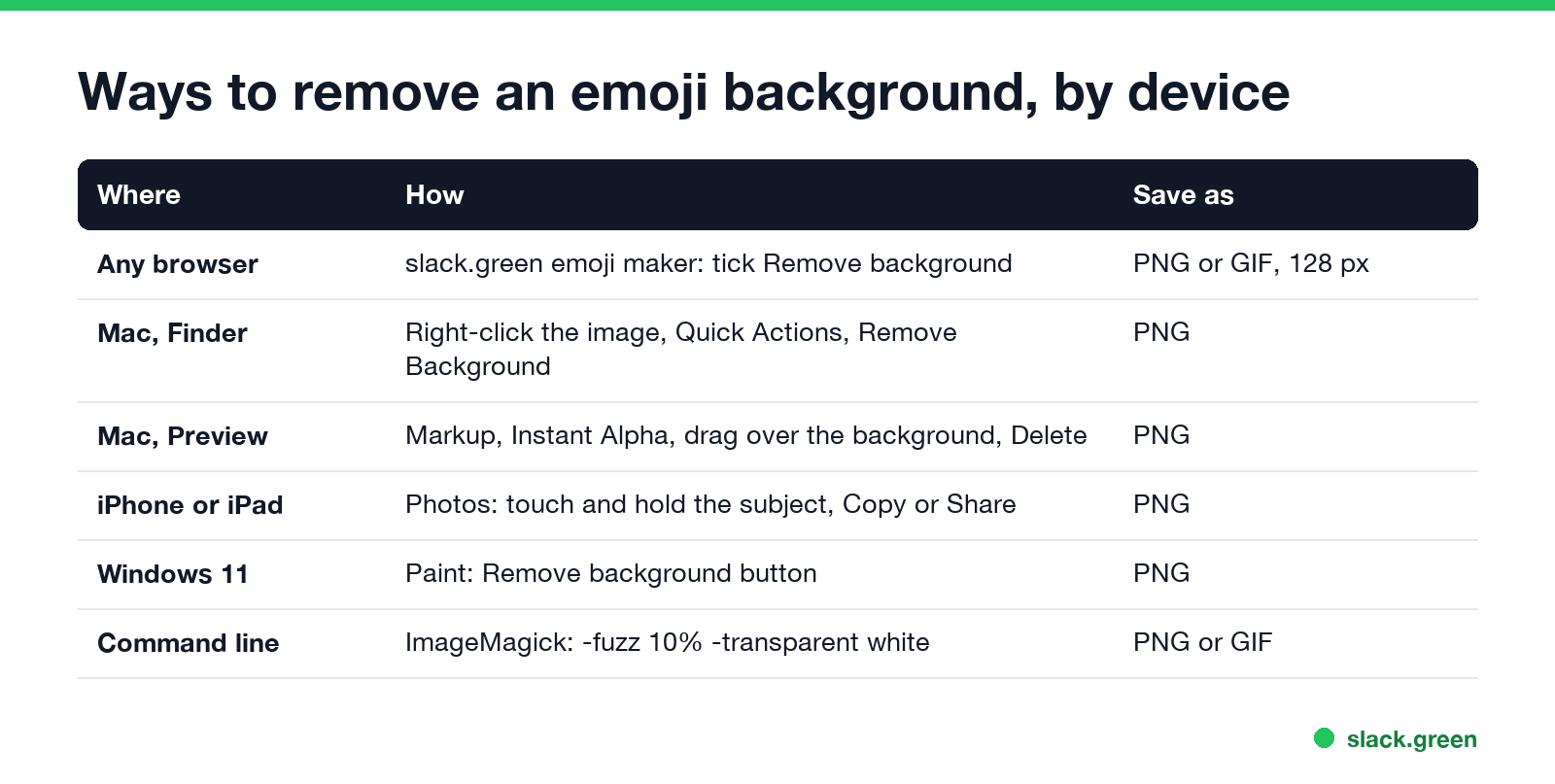
| Where | How | Save as |
|---|---|---|
| Any browser | slack.green emoji maker: tick Remove background | PNG or GIF, 128 px |
| Mac, Finder | Right-click the image, Quick Actions, Remove Background | PNG |
| Mac, Preview | Markup, Instant Alpha, drag over the background, press Delete | PNG |
| iPhone or iPad | Photos: touch and hold the subject, then Copy or Share | PNG |
| Windows 11 | Paint: Remove background in the toolbar | PNG |
| Command line | ImageMagick, below | PNG or GIF |
In the browser with the slack.green emoji maker
- Open the Slack emoji maker and choose Image to emoji.
- Drop, choose or paste your PNG, JPG, GIF or WebP.
- Crop it to a square with the zoom and position sliders.
- Tick Remove background. It clears the color around the edges. Move the Tolerance slider up if some background is left, and down if it eats into the subject.
- Check the preview on light and dark themes at 16, 22 and 32 pixels, then download the PNG.
It works best on a plain background: a logo on white, a photo against a wall, a screenshot of text. For a text emoji, pick Text to emoji and tick transparent next to the background color.
On a Mac
In Finder, right-click the image, choose Quick Actions, then Remove Background. macOS saves a new PNG next to the original with the background cut out. It handles people, pets and objects in photos, not only plain backgrounds.
For more control, open the image in Preview, click the Markup button, choose Instant Alpha (the magic wand), drag over the background until it is selected, and press Delete. Then File, Export, and pick PNG.
On iPhone or iPad
Open the photo in Photos, touch and hold the subject until it lifts off the background, and tap Copy or Share. Save the result as an image; it keeps the transparent background. You can add it as a custom emoji straight from the Slack app on iPhone and iPad; the steps are in how to add custom emoji to Slack.
On Windows 11
Open the image in Paint and click Remove background in the toolbar. Paint cuts out the main subject. Save with File, Save as, PNG picture. The Windows Photos app also has a background tool under Edit.
With ImageMagick
To make white pixels transparent and resize to 128 by 128:
# Replace near-white with transparency, then resize to a 128x128 square
magick input.png -fuzz 10% -transparent white -resize 128x128 -gravity center -background none -extent 128x128 emoji.png
For an animated GIF, work on every frame:
magick input.gif -coalesce -fuzz 10% -transparent white -resize 128x128 -layers optimize emoji.gifRaise -fuzz if a light halo stays, and lower it if parts of the subject disappear.
Why a Slack emoji still has a white or black edge
Never appear "away" on Slack again
Cloud-based. No downloads. Works 24/7 even when your laptop is off.
Slack emoji size and upload
Keep the finished emoji square, 128 by 128 pixels, and under 128 KB. Animated GIFs can have up to 50 frames. If the file is too big, the Slack emoji resizer shrinks it and keeps the transparency and animation. All the limits are in Slack GIF size limit.
To upload it, click the smiley face in the message field, then Add Emoji, choose the file, give it a name, and Save.
FAQ
Can Slack emoji have a transparent background? Yes. Upload a PNG or GIF with transparent pixels. Slack recommends it.
Why does my Slack emoji have a white background? The image was saved with a white background, often as a JPG. Remove the background and save as PNG.
What is the best format for a Slack emoji? PNG for still emoji, GIF for animated ones. Square, 128 by 128 pixels, under 128 KB.
How do I remove a background for a Slack emoji for free? Use the slack.green emoji maker in the browser, Remove Background in Finder on a Mac, or Paint on Windows 11.
Stop Jiggling Your Mouse.
Join hundreds of remote workers who never worry about their Slack status. Set it up once, stay green forever.
Related Articles
Slack Emoji for Announcements, Updates and Reminders
The standard Slack emoji for an announcement is 📣 :mega: or 📢 :loudspeaker: at the start of the post. Use 🚨 :rotating_light: only for real emergencies, 🆕 :new: for updates, ⏰ :alarm_clock: for reminders, and ask readers to react with ✅ :white_check_mark: once they have read it. Templates and a custom emoji idea.
Slack Status for a Doctor Appointment: 24 Statuses and Emoji
A Slack status for a doctor appointment says you are out and when you are back, such as 🏥 'At an appointment, back at 2 PM.' You do not have to say what kind. 24 statuses for doctor, dentist and other appointments, the emoji codes, and how to schedule the status so it clears by itself.
Slack Status for Limited Availability: 30 Statuses to Copy
A Slack status for limited availability says you are around but slow, until when, and how to reach you if it is urgent, such as ⏳ 'Limited availability today, replies after 3 PM. Urgent: @mention me.' 30 statuses for busy days, slow replies and catching up, the emoji to use, and when to pause notifications too.