
Slack GIF Size Limit: 1 GB in Messages, 128 KB for Emoji
A GIF posted in a Slack message can be up to 1 GB, the limit for any file, and it previews inline if it is under 25,000 pixels on its longest side. A GIF emoji is the tight limit: square, under 128 KB, and up to 50 frames. How to shrink a GIF that Slack says is too big.
The Slack GIF size limit depends on where the GIF goes. A GIF you post in a message or thread is a file, and Slack's help center says you can add files up to 1 GB. It plays inline if it is smaller than 25,000 pixels on its longest side and 45 million pixels in total. A GIF you upload as a custom emoji is the strict case: Slack says square images under 128 KB work best, and a GIF can have up to 50 frames. When Slack says a GIF is too big, it is almost always an emoji upload.
We build Slack Green, which keeps your Slack status green from our servers during the hours you set. We also make the free Slack emoji resizer, which shrinks an animated GIF under 128 KB in your browser and keeps the animation.
Slack GIF limits by where the GIF goes
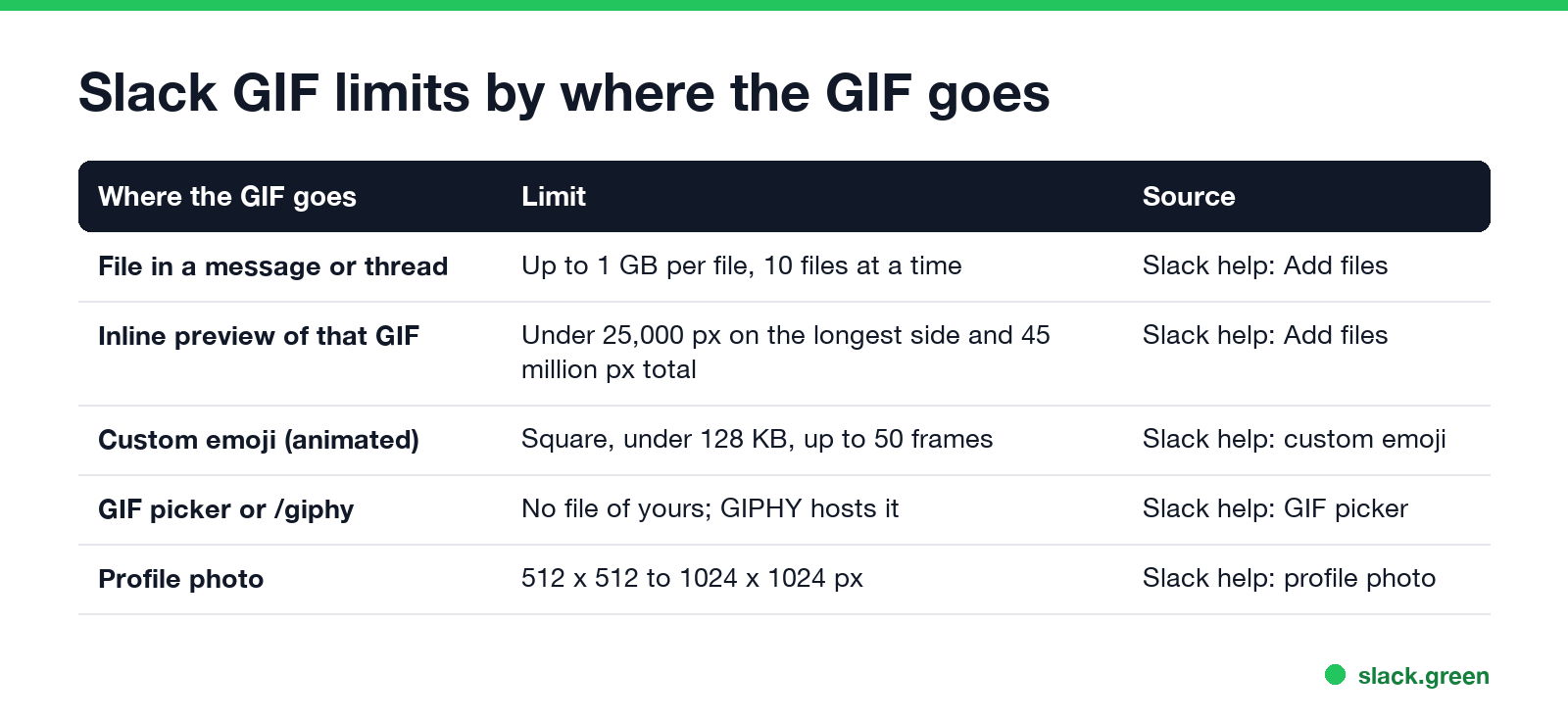
| Where the GIF goes | Limit |
|---|---|
| A file in a message, DM or thread | Up to 1 GB per file, up to 10 files at once |
| Inline preview of that file | Under 25,000 px on the longest side and 45 million px total |
| Custom emoji, animated | Square, under 128 KB, up to 50 frames, JPG, PNG or GIF |
| GIF picker or /giphy | No upload; GIPHY hosts the GIF |
| Profile photo | 512 by 512 to 1024 by 1024 pixels |
A GIF above the preview limits still uploads. People see it as a file to click instead of an image playing in the channel. Some workspaces also restrict which files members and guests can upload, especially in Slack Connect channels with other companies.
The steps for each way to post a GIF, from the built-in picker to uploading your own, are in how to add a GIF in Slack.
Slack GIF emoji size limit
Custom emoji are where GIFs get rejected. Slack's help center gives these numbers:
- • File size: under 128 KB works best.
- • Shape: square, ideally with a transparent background.
- • Frames: a GIF can have up to 50 frames.
- • Formats: JPG, PNG or GIF.
A 128 by 128 pixel image is the usual size. Emoji show at 32 pixels or smaller in messages, so a bigger image does not look better; it only adds bytes. Phone screen recordings and GIFs saved from the web are often 2 to 10 MB, which is 20 to 80 times the limit.
The full upload steps, and who is allowed to add emoji, are in how to add custom emoji to Slack.
How to shrink a GIF for Slack
Never appear "away" on Slack again
Cloud-based. No downloads. Works 24/7 even when your laptop is off.
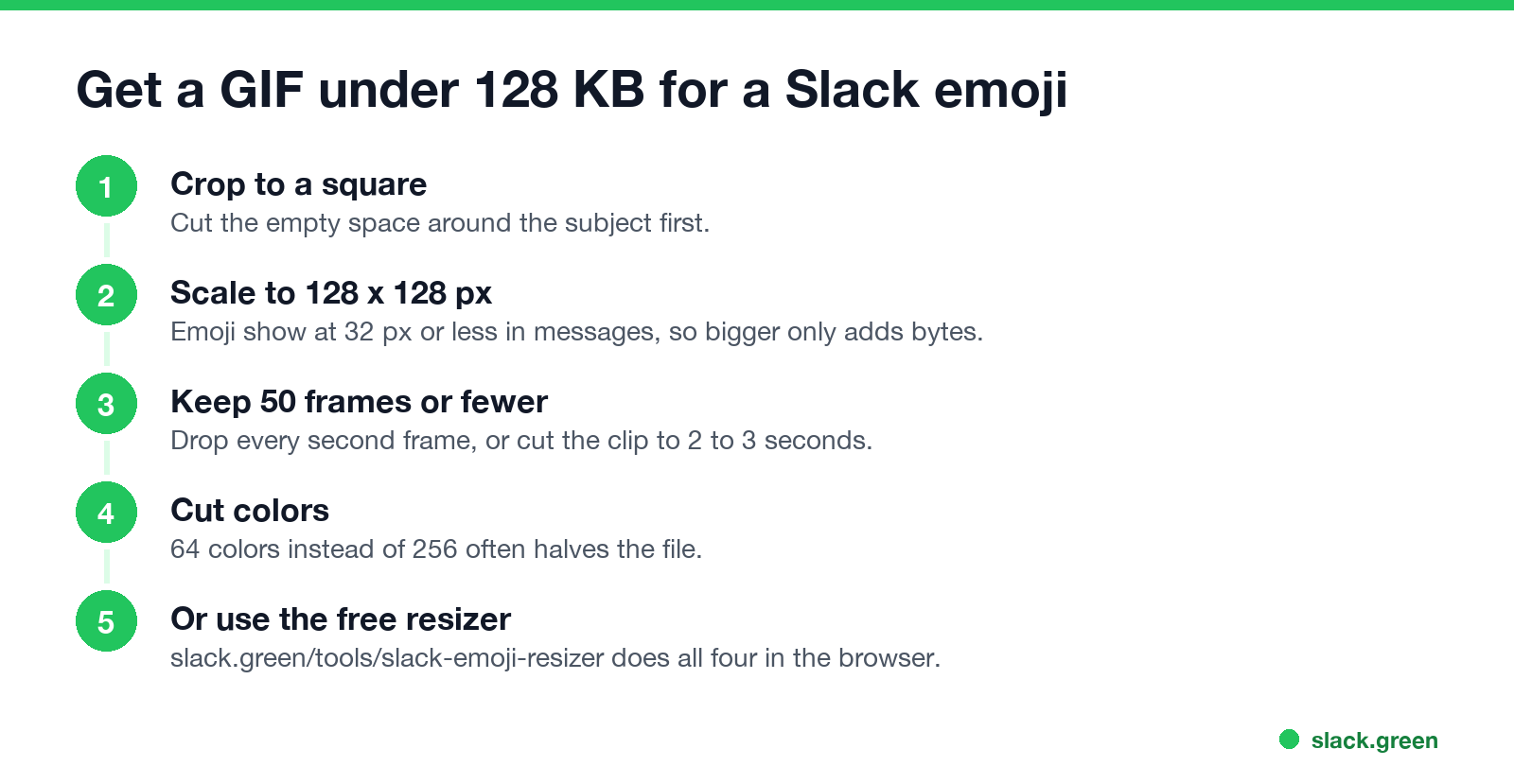
The file size of a GIF comes from four things: pixel size, frame count, number of colors, and how much changes between frames. Cut them in that order:
Our Slack emoji resizer does all four in the browser: it resizes every frame, keeps 50 frames spread across the clip if the source has more, and re-encodes until the file is under 128 KB. Nothing is uploaded to a server.
If you prefer the command line, gifsicle does the same:
# Resize to 128x128, cut to 64 colors, lossy compression, optimize
gifsicle --resize 128x128 --colors 64 --lossy=80 -O3 input.gif -o emoji.gif

# Check the result is under 128 KB (131,072 bytes)
ls -l emoji.gif
To make a GIF emoji from a video clip, ffmpeg can take 3 seconds at 10 frames a second, which gives 30 frames:
ffmpeg -t 3 -i clip.mp4 -vf "fps=10,scale=128:128:force_original_aspect_ratio=increase,crop=128:128,split[a][b];[a]palettegen=max_colors=64[p];[b][p]paletteuse" emoji.gifSlack GIF too big: what the error means
A GIF that shows as a still image for one person and plays for another is usually that person's accessibility setting, not the file.
Does Slack compress GIFs?
A GIF posted as a file keeps its original file, and people can download it at full size. For emoji, do not count on Slack to shrink an oversized GIF; shrink it first so the upload goes through and the animation stays smooth. The picker GIFs come from GIPHY and load from GIPHY's servers at the size GIPHY serves.
FAQ
Never appear "away" on Slack again
Cloud-based. No downloads. Works 24/7 even when your laptop is off.
What is the max GIF size for Slack? 1 GB for a GIF posted as a file. For a custom emoji, under 128 KB and up to 50 frames.
How many frames can a Slack GIF emoji have? Up to 50, according to Slack's help center.
What size should a Slack emoji GIF be? 128 by 128 pixels and under 128 KB.
How do I make a GIF smaller for Slack? Crop it square, scale it to 128 pixels, cut frames and colors, or drop it into the Slack emoji resizer.
Can I make a Slack GIF emoji bigger in messages? No. Emoji show at a fixed small size. To show a GIF large, post it as a file or use the GIF picker.
Stop Jiggling Your Mouse.
Join hundreds of remote workers who never worry about their Slack status. Set it up once, stay green forever.
Related Articles
Slack Status for a Doctor Appointment: 24 Statuses and Emoji
A Slack status for a doctor appointment says you are out and when you are back, such as 🏥 'At an appointment, back at 2 PM.' You do not have to say what kind. 24 statuses for doctor, dentist and other appointments, the emoji codes, and how to schedule the status so it clears by itself.
Slack Status for Limited Availability: 30 Statuses to Copy
A Slack status for limited availability says you are around but slow, until when, and how to reach you if it is urgent, such as ⏳ 'Limited availability today, replies after 3 PM. Urgent: @mention me.' 30 statuses for busy days, slow replies and catching up, the emoji to use, and when to pause notifications too.
Slack Emoji for Thank You (and You're Welcome)
The usual Slack emoji for thank you are 🙏 :pray:, 🙌 :raised_hands: and ❤️ :heart:. For you're welcome, 😊 :blush: or 🤗 :hugging_face:. What each one says, which ones read wrong, and custom :ty:, :np: and :welcome: emoji your team can add in a minute.