
Slack GIF Not Playing? Turn On Animations (and Other Fixes)
When GIFs or animated emoji do not move in Slack, the animation setting is usually off. On desktop, open Preferences, Accessibility and check Automatically play animations in Slack; on iPhone and Android, turn on Allow Animated Images. The same switch stops GIFs from autoplaying. Fixes for GIFs that stop after one loop, show only a link, or never load.
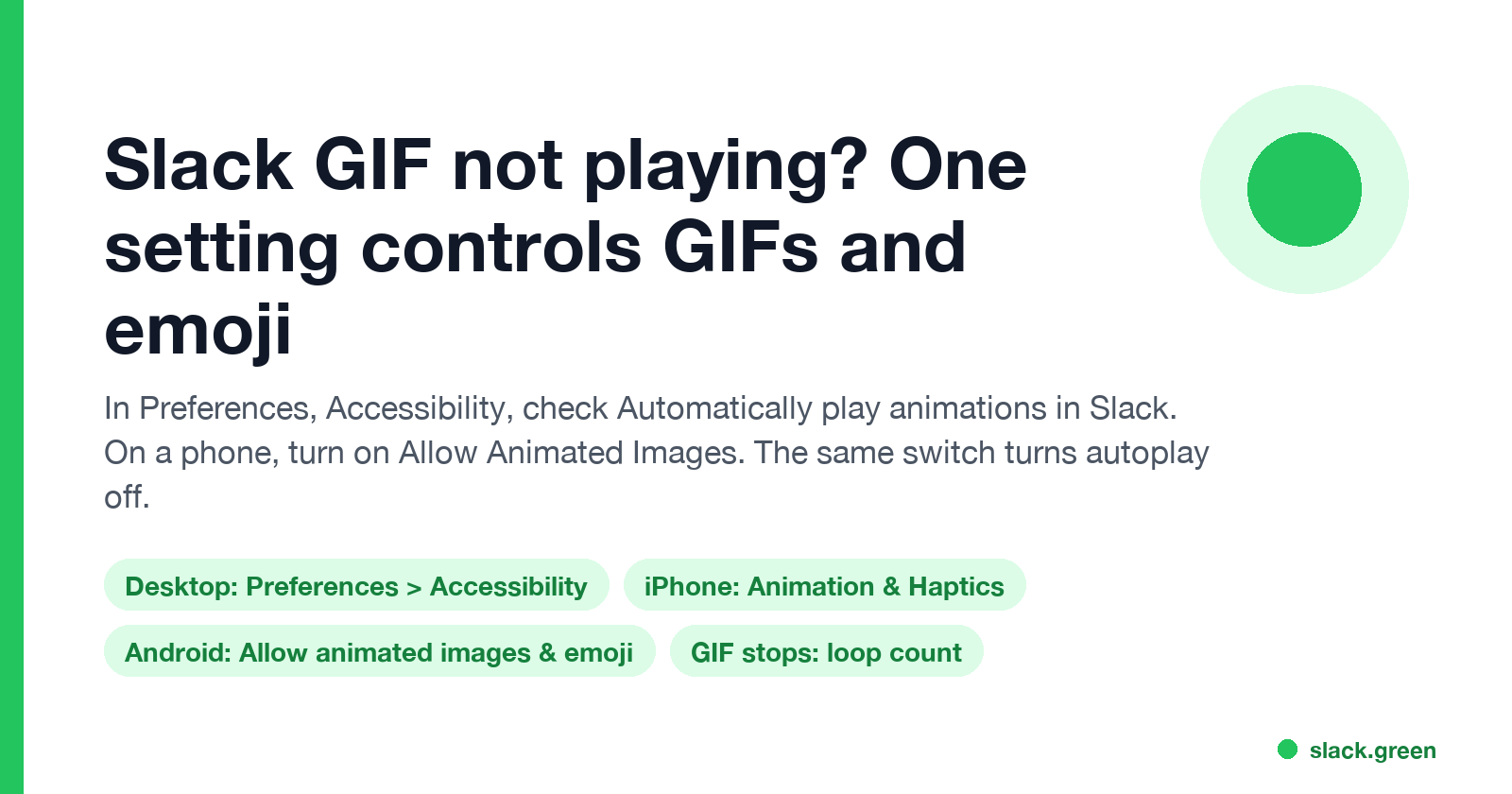
If a GIF or animated emoji is not playing in Slack, the animation setting is almost always off. On desktop, click your profile picture, choose Preferences, then Accessibility, and under Other display options check Automatically play animations in Slack. On iPhone, go to Preferences, Animation & Haptics and turn on Allow Animated Images. On Android, turn on Allow animated images & emoji in Preferences. One switch covers both GIFs and animated custom emoji, and the same switch is how you stop them from autoplaying.
If the setting is on and a GIF still does not move, it may be set to play once, be too large to preview, or be blocked from loading. Those fixes are below.
We build Slack Green, which keeps your Slack status green from our servers during the hours you set. We also make the free Slack emoji maker, which renders animated emoji effects as real GIFs that loop in Slack.
Turn Slack animations on or off
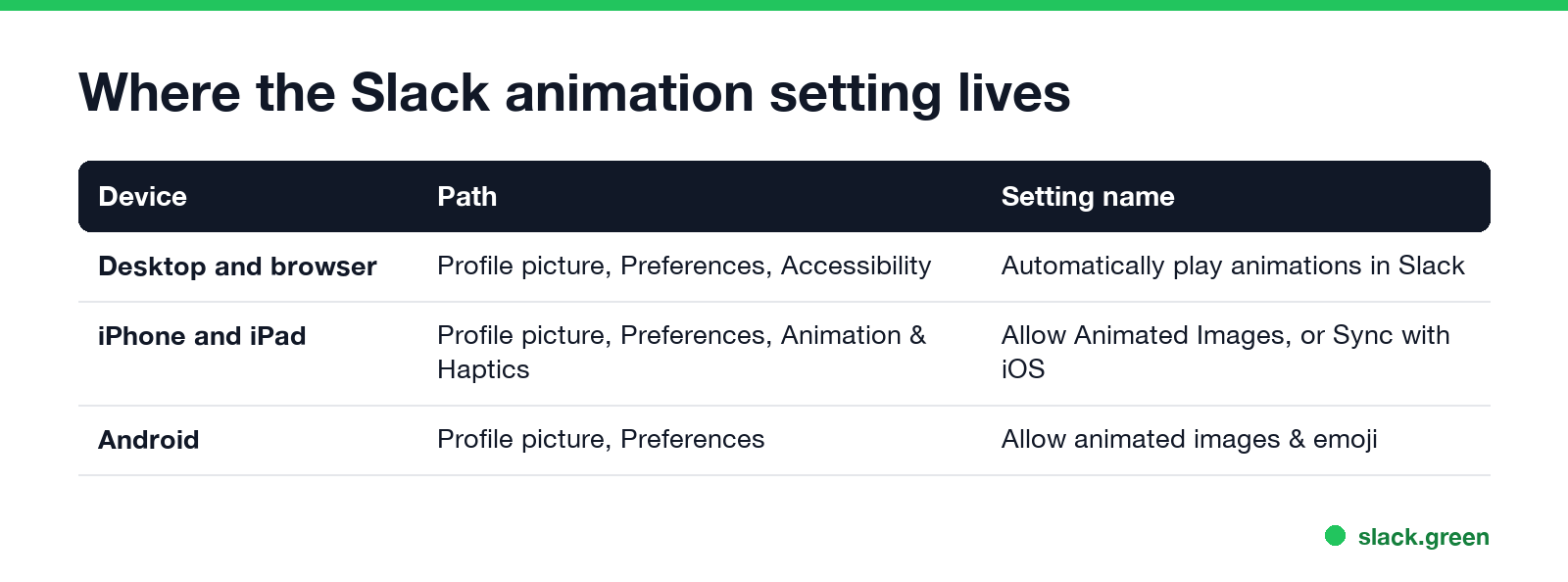
Slack's help center gives these steps.
Desktop app or browser:
- Click your profile picture in the sidebar.
- Select Preferences, then Accessibility.
- Below Other display options, check Automatically play animations in Slack to play GIFs and emoji, or uncheck it to stop them.
- Tap your profile picture at the top of the screen, then Preferences.
- Under Accessibility, tap Animation & Haptics.
- Turn on Allow Animated Images, or turn on Sync with iOS to follow your device's own setting.
- Tap your profile picture, then Preferences.
- Turn on Allow animated images & emoji.
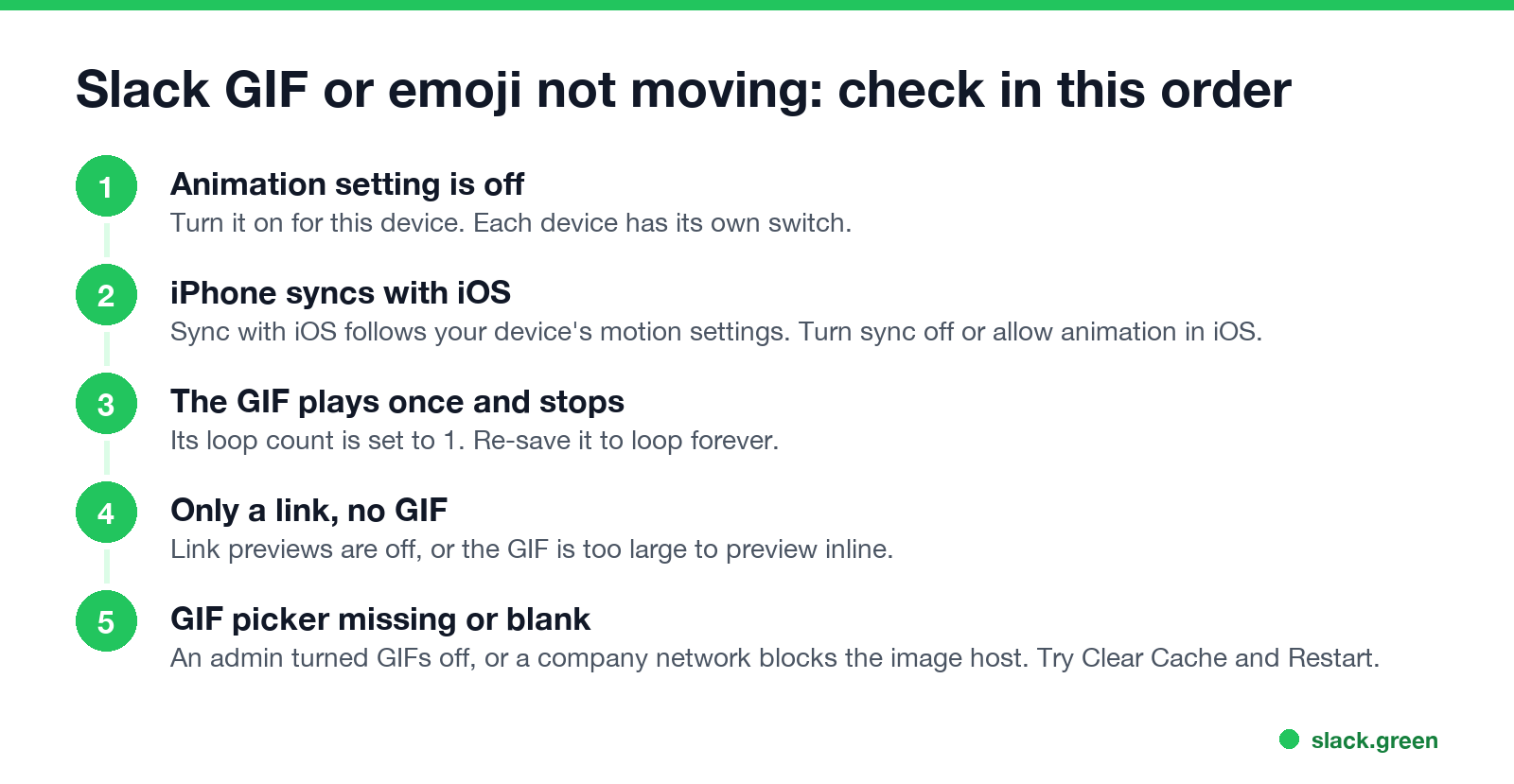
- The animation setting is off on this device. Turn it on as above.
- Sync with iOS is on, and your iPhone limits motion. Turn off sync in Slack, or allow animated images in the iPhone's Accessibility settings.
- The GIF plays once and stops. Every GIF file stores a loop count. Most loop forever, but some are saved to play once. See the next section.
- You see a link and no GIF. Link previews are turned off in Preferences, Messages & media, or the GIF is too big to preview. Slack only previews images under 25,000 pixels on the longest side and 45 million pixels in total.
- The GIF picker is missing or GIFs never load. An owner or admin can turn GIFs off for the workspace, which removes the GIFs tab. On a company network or VPN, a firewall can block the GIF host. On desktop, Help, Troubleshooting, Clear Cache and Restart fixes GIFs stuck from a bad cache.
- A custom emoji was uploaded as a still image. A PNG never moves. Only a GIF with more than one frame animates, and Slack allows up to 50 frames. Limits are in Slack GIF size limit.
iPhone and iPad:
Android:
The desktop setting and the phone settings are separate. GIFs can play on your laptop and stay still on your phone, or the other way round. A coworker who says your GIF does not move is looking at their own setting, not yours.
Why a Slack GIF or emoji is not moving
Slack GIF not looping
Never appear "away" on Slack again
Cloud-based. No downloads. Works 24/7 even when your laptop is off.
A GIF that plays once and freezes has its loop count set to play one time. Slack plays the file as it was saved. Re-save it to loop forever:
# gifsicle: set the loop count to forever
gifsicle --loopcount=forever input.gif -o looping.gif

# ImageMagick: -loop 0 means loop forever
magick input.gif -loop 0 looping.gif
Then upload the new file, or delete the old custom emoji and add it again under the same name.
How to stop GIFs from autoplaying in Slack
Uncheck Automatically play animations in Slack on desktop, and turn off the animation switch on your phone. GIFs and animated emoji then show as still images. This helps if moving images distract you or cause discomfort; Slack lists it among its accessibility features.
To hide one large image instead of all of them, click the arrow next to the image name on desktop to collapse it. To remove GIFs for the whole workspace, an owner or admin turns off the GIF picker in the workspace settings. That removes the GIFs tab, but people can still upload GIF files. The steps for sending GIFs are in how to add a GIF in Slack.
FAQ
Why are my GIFs not moving in Slack? Automatically play animations in Slack is unchecked in Preferences, Accessibility, or the phone setting is off.
Why is my custom Slack emoji not animated? The animation setting is off, the file is a PNG or a one-frame GIF, or the GIF plays once and stops.
How do I turn off GIFs in Slack? Uncheck Automatically play animations in Slack in Preferences, Accessibility. Admins can turn off the GIF picker for everyone.
Do Slack GIFs play on mobile? Yes, if Allow Animated Images is on. The phone setting is separate from desktop.
Why do my coworkers see my GIF as still? Each person's own animation setting decides. You cannot force a GIF to play for someone else.
Stop Jiggling Your Mouse.
Join hundreds of remote workers who never worry about their Slack status. Set it up once, stay green forever.
Related Articles
Slack Emoji for Announcements, Updates and Reminders
The standard Slack emoji for an announcement is 📣 :mega: or 📢 :loudspeaker: at the start of the post. Use 🚨 :rotating_light: only for real emergencies, 🆕 :new: for updates, ⏰ :alarm_clock: for reminders, and ask readers to react with ✅ :white_check_mark: once they have read it. Templates and a custom emoji idea.
Slack Status for a Doctor Appointment: 24 Statuses and Emoji
A Slack status for a doctor appointment says you are out and when you are back, such as 🏥 'At an appointment, back at 2 PM.' You do not have to say what kind. 24 statuses for doctor, dentist and other appointments, the emoji codes, and how to schedule the status so it clears by itself.
Slack Status for Limited Availability: 30 Statuses to Copy
A Slack status for limited availability says you are around but slow, until when, and how to reach you if it is urgent, such as ⏳ 'Limited availability today, replies after 3 PM. Urgent: @mention me.' 30 statuses for busy days, slow replies and catching up, the emoji to use, and when to pause notifications too.