
Slack Custom Emoji Not Showing? What Each Symptom Means
When a Slack custom emoji shows as its :name: code, it was deleted or renamed, it belongs to another workspace, or your emoji display is set to plain text. A blank square means the image did not load. Fixes for each case, plus emoji missing from the picker and emoji that do not move.
When a Slack custom emoji is not showing, look at what appears instead. If you see its code as text, such as :party-cat:, the emoji was deleted or renamed, it belongs to a different workspace, or your own emoji display is set to plain text. If you see a blank square or a broken image, the image did not load, and clearing Slack's cache usually fixes it. If the emoji is only missing from the picker, it is under the Slack icon tab. The fix for each case is below.
We build Slack Green, which keeps your Slack status green from our servers during the hours you set. We also make the free Slack emoji maker and Slack emoji resizer, so we see a lot of custom emoji that did not show up.
What you see, and what it means
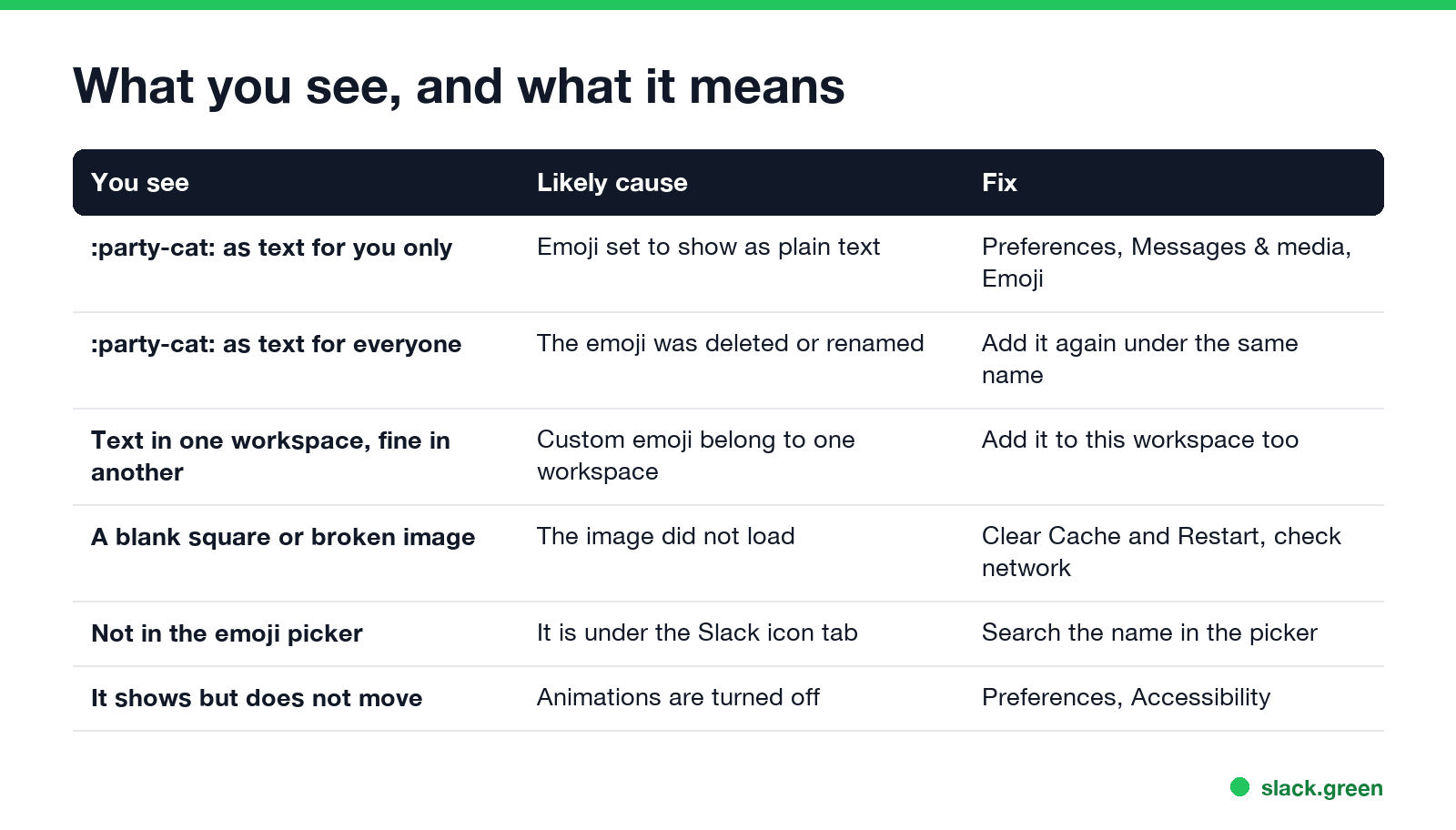
| You see | Likely cause | Fix |
|---|---|---|
| The :name: code, only on your screen | Your emoji display is set to plain text | Preferences, Messages & media, Emoji |
| The :name: code, for everyone | The emoji was deleted or renamed | Add it again under the same name |
| Works in one workspace, text in another | Custom emoji belong to one workspace | Add it to this workspace too |
| A blank square or broken image | The image did not load | Clear Cache and Restart |
| Not in the emoji picker | It is under the Slack icon tab | Search the name in the picker |
| Shows, but does not move | Animations are off | Preferences, Accessibility |
Emoji show as text codes
Only for you. Slack has an emoji display preference. Click your profile picture, choose Preferences, then Messages & media, and look under Emoji. Slack's help center lists an option to display emoji as Unicode or plain text there. With plain text on, every emoji shows as its code. Uncheck it.
For everyone. Someone deleted or renamed the custom emoji. Messages and reactions keep the old code, and Slack has no image for it anymore. An owner or admin can check the workspace's emoji list: click the workspace name, choose Customize, and search. To bring it back, upload the image again under the exact same name. Who can add and delete emoji is in how to delete a Slack emoji and how to add custom emoji to Slack.
In one workspace but not another. Custom emoji belong to the workspace or organization that added them. The :party-cat: in your company workspace does not exist in a community workspace, so the code shows as text there. Add the same file to each workspace where you want it. Emoji packs help when you move many at once; see Slack emoji packs.
A typo. Custom emoji names are exact. :partycat: and :party-cat: are different emoji. Type a colon and the first letters, and pick from the list Slack suggests.
Emoji show as blank squares or broken images
Never appear "away" on Slack again
Cloud-based. No downloads. Works 24/7 even when your laptop is off.
The emoji exists, but your app could not load the image.
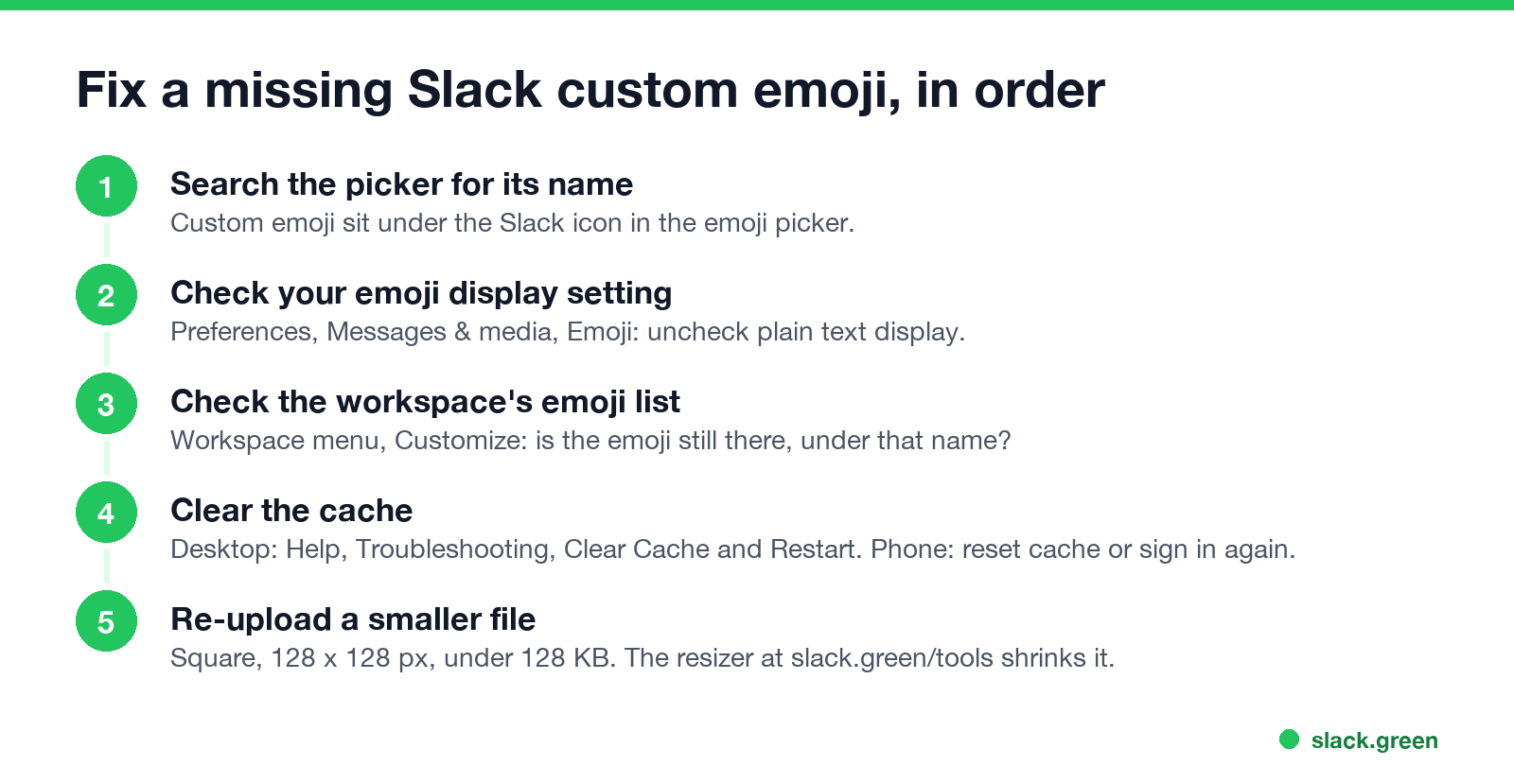
- Clear the cache on desktop. Choose Help, Troubleshooting, Clear Cache and Restart.
- On a phone, sign out and back in, or use the app's reset cache option in its settings if your version has one.
- Check the network. A company VPN, proxy or firewall can block the servers Slack loads images from. Try another network to test.
- Update Slack. Old app versions can fail to show newer emoji.
If only one new emoji fails and others load, delete it and upload it again. Keep the file square, 128 by 128 pixels and under 128 KB; the Slack emoji resizer shrinks it without losing animation. The limits are in Slack GIF size limit.
Custom emoji missing from the emoji picker
Slack's help center says custom emoji are in the emoji picker under the Slack icon. Open the picker with the smiley face in the message field and click that icon, or type the name in the picker's search box. A new emoji can take a moment to appear; reload Slack if it does not show after a minute.
Custom emoji not animating
A GIF emoji that shows but does not move is a display setting, not a broken emoji. Animations are off under Preferences, Accessibility, or in the phone app's settings. Every cause is in Slack GIF not playing.
FAQ
Never appear "away" on Slack again
Cloud-based. No downloads. Works 24/7 even when your laptop is off.
Why do my Slack emoji show as text? Your emoji display is set to plain text, or the custom emoji was deleted, renamed, or comes from another workspace.
Why did a custom emoji disappear from Slack? Someone deleted or renamed it. Upload it again under the same name to restore old messages.
Why can't I find a custom emoji in the Slack emoji picker? It is under the Slack icon tab. Search for its name.
Can I use my company's custom emoji in another workspace? Not directly. Custom emoji belong to one workspace. Upload the file there too.
Stop Jiggling Your Mouse.
Join hundreds of remote workers who never worry about their Slack status. Set it up once, stay green forever.
Related Articles
Slack Emoji for Announcements, Updates and Reminders
The standard Slack emoji for an announcement is 📣 :mega: or 📢 :loudspeaker: at the start of the post. Use 🚨 :rotating_light: only for real emergencies, 🆕 :new: for updates, ⏰ :alarm_clock: for reminders, and ask readers to react with ✅ :white_check_mark: once they have read it. Templates and a custom emoji idea.
Slack Status for a Doctor Appointment: 24 Statuses and Emoji
A Slack status for a doctor appointment says you are out and when you are back, such as 🏥 'At an appointment, back at 2 PM.' You do not have to say what kind. 24 statuses for doctor, dentist and other appointments, the emoji codes, and how to schedule the status so it clears by itself.
Slack Status for Limited Availability: 30 Statuses to Copy
A Slack status for limited availability says you are around but slow, until when, and how to reach you if it is urgent, such as ⏳ 'Limited availability today, replies after 3 PM. Urgent: @mention me.' 30 statuses for busy days, slow replies and catching up, the emoji to use, and when to pause notifications too.