
How to Delete a Slack Emoji (and Replace a Custom One)
To delete a custom Slack emoji, click your workspace name, choose Customize [workspace], open the Emoji tab, find the emoji and click the delete icon. Members can delete only emoji they added; owners and admins can delete any. How to replace one, remove packs, and what happens to old messages.
To delete a custom emoji in Slack, click your workspace name in the top left, choose Customize [workspace name] (owners and admins click Settings & administration first), open the Emoji tab, search for the emoji, click the delete icon, and confirm with Delete Emoji. Members can delete only the emoji they added. Workspace Owners and Admins, or Org Owners and Admins on Enterprise, can delete any custom emoji. Built-in emoji such as 👍 cannot be deleted.
How to delete a custom emoji in Slack
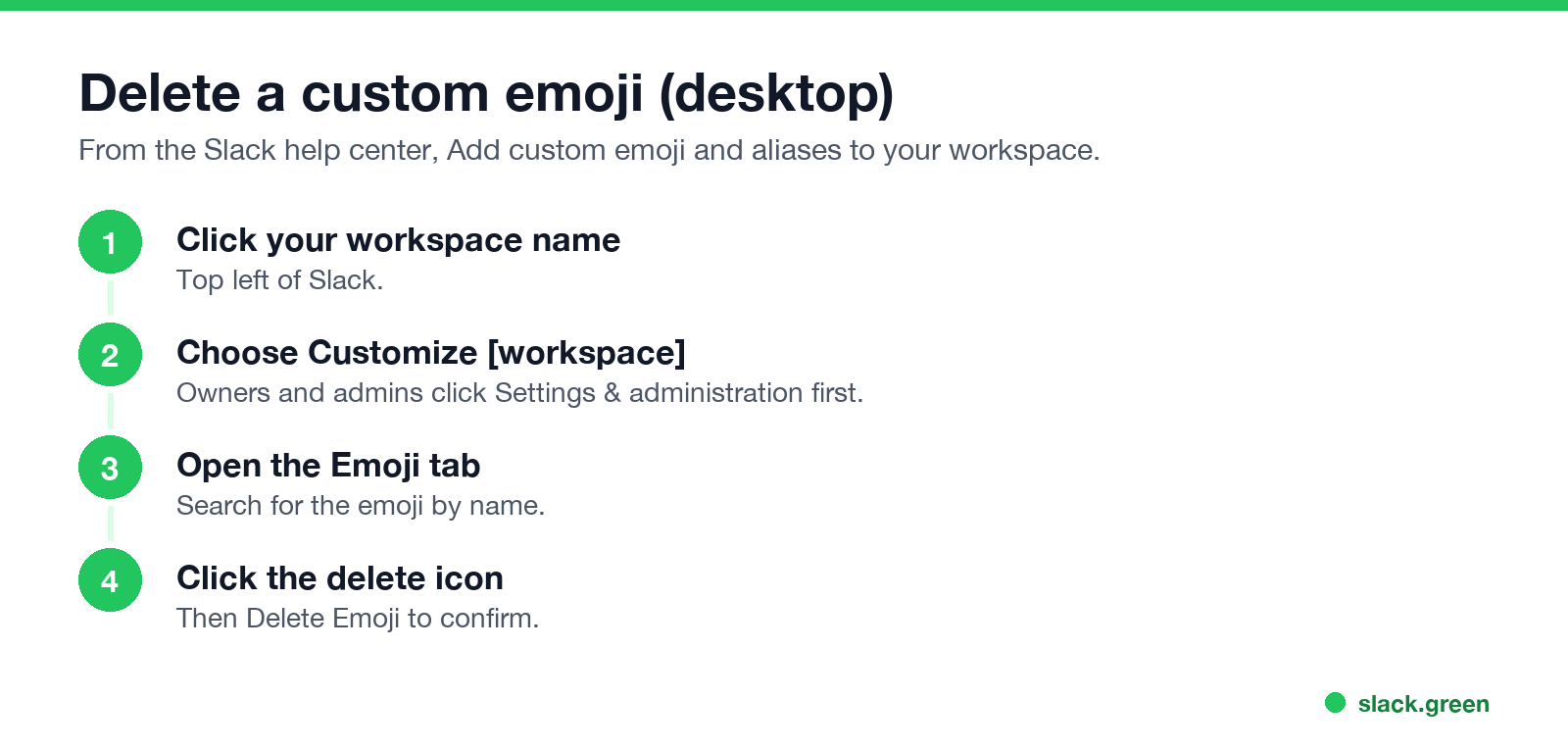
- Click your workspace name in the top left.
- Select Customize [workspace name]. If you are an owner or admin, click Settings & administration first.
- Click the Emoji tab at the top of the page.
- Search for the emoji you want to remove and click the delete icon.
- Select Delete Emoji to confirm.
This works on desktop. The mobile apps have no emoji management page.
Who can delete emoji in Slack
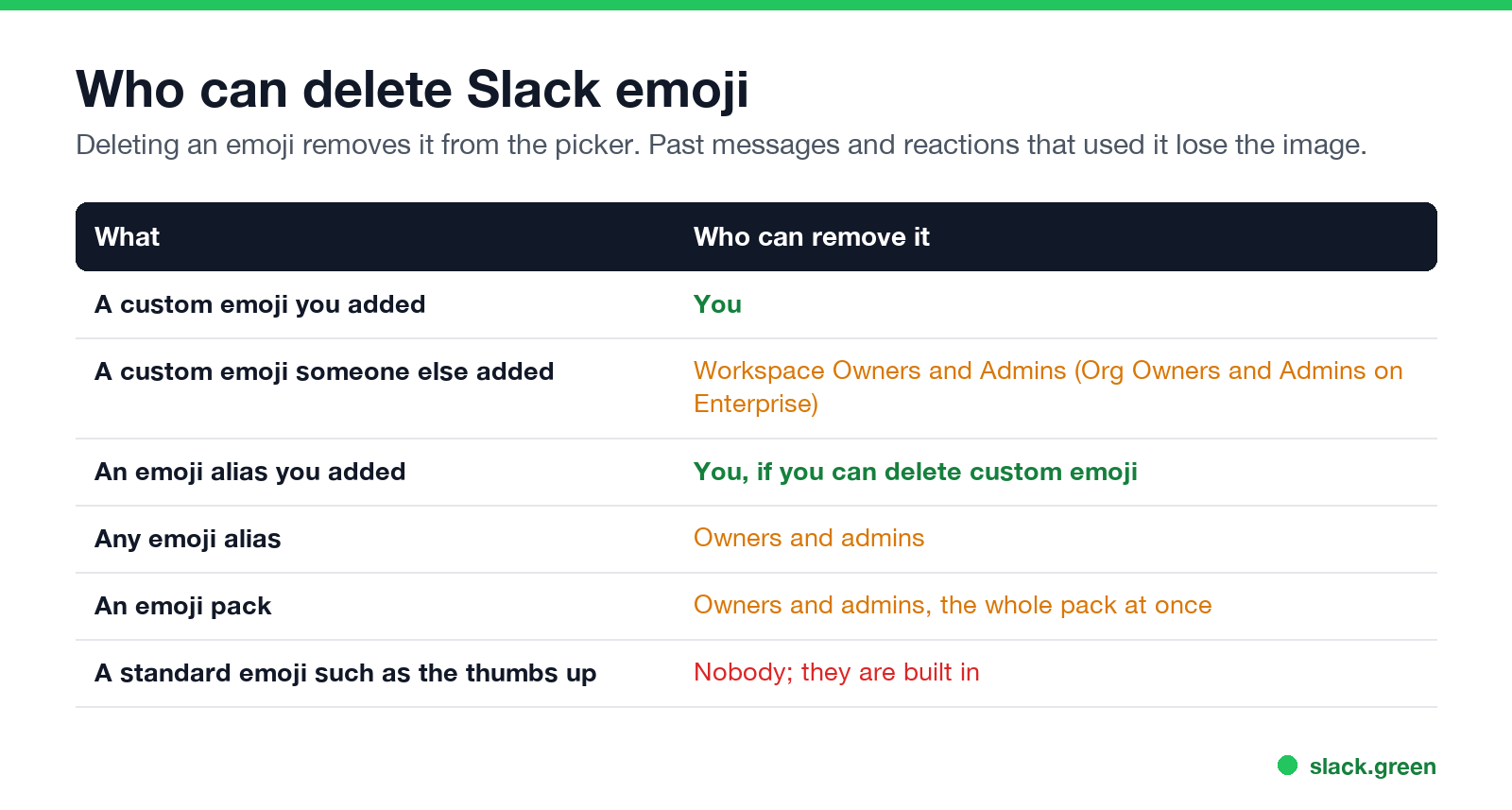
| What | Who can remove it |
|---|---|
| A custom emoji you added | You |
| Someone else's custom emoji | Owners and admins |
| An alias you added | You, if you can delete custom emoji |
| Any alias | Owners and admins |
| An emoji pack | Owners and admins, whole pack only |
| A standard emoji | Nobody |
If you do not see the delete icon, you did not add that emoji and you are not an admin. Ask an owner or admin.
How to replace a custom emoji
Never appear "away" on Slack again
Cloud-based. No downloads. Works 24/7 even when your laptop is off.
Slack has no "edit image" for an emoji. To replace one:
Messages and reactions that use the name then show the new image. If you need a better-sized image first, the Slack emoji resizer and Slack emoji maker prepare one in your browser.
How to remove an emoji pack
Owners and admins: open the emoji menu, click Add Emoji, open the Emoji packs tab, select the pack, and click Remove Pack. Slack does not let you remove single emoji from a pack.
What happens to old messages
Once an emoji is deleted, it disappears from the picker. Messages and reactions that used it can no longer show the image. If someone later adds a new emoji with the same name, those places show the new image.
FAQ
Never appear "away" on Slack again
Cloud-based. No downloads. Works 24/7 even when your laptop is off.
How do I delete a custom emoji in Slack?
Workspace name, Customize [workspace], Emoji tab, delete icon, Delete Emoji.
Why can't I delete an emoji in Slack?
You can delete only emoji you added, unless you are an owner or admin.
Can I delete Slack emoji on my phone?
No. Use Slack on a computer.
Can I delete a standard emoji?
No. Only custom emoji and packs can be removed.
How do I rename a Slack emoji?
Add an alias with the new name, or delete it and upload it again under the new name.
Stop Jiggling Your Mouse.
Join hundreds of remote workers who never worry about their Slack status. Set it up once, stay green forever.
Related Articles
Slack Workflow Builder Examples: 12 Workflows to Copy, With Triggers and Steps
Twelve Slack Workflow Builder examples with the exact trigger and steps for each: daily standups, channel welcomes, time-off approvals, help desk requests, emoji escalations, keyword routing, incidents, list updates and webhooks from other tools. Plus where Workflow Builder lives, what it costs and how branches work.
Slack Timer: How to Set a Countdown, Pomodoro or Focus Timer in Slack
Slack has no built-in timer, but four built-in tools act like one: /remind me to ... in 25 minutes, a status that clears itself, /dnd for a focus block, and Workflow Builder for dated countdowns. For a live countdown in a channel, use a Marketplace app or a 15-line bot script.
Slack Saved for Later: Where the Later Tab Is and How It Works
Saved messages in Slack live in the Later tab, which replaced stars and Saved items in 2023. Hover a message and click Save for later, or press A. Add a reminder, mark items complete, and find them with is:saved. Where Later is on desktop and mobile, and what changed.