
Slack Pronouns: How to Add Them, and Where They Show
Click your profile picture, then Profile, then Edit, and type your pronouns in the Pronouns field. If the field is missing, an admin has to turn on Pronouns Display first. We tested where pronouns appear on October 31.
To add pronouns in Slack, click your profile picture, choose Profile, click Edit next to your name, type them in the Pronouns field and click Save Changes. If there is no Pronouns field, your workspace has it switched off, which is Slack's default, and an Owner or Admin has to turn on Pronouns Display first. We tested both sides on a Free workspace on October 31, 2026: the admin setting, the profile field, the API, and every place the pronouns did and did not appear.
If you don't see a Pronouns field
In our workspace the setting was off when we started (display_pronouns: false), and the Edit your profile window went straight from Title to Name recording, with no Pronouns field. Name pronunciation was still there, so that field is not tied to the pronoun setting.
An Owner or Admin turns it on from the workspace settings page (https://<your-workspace>.slack.com/admin/settings, or the workspace name menu, then Tools & settings, then Workspace settings). Find Pronouns Display, click Expand, tick Show pronouns on profiles and click Save:

It was available on the Free plan, with no upgrade prompt. After the save, the field appeared for us once the Slack tab reloaded. If you are not an admin, Slack workspace owner vs admin explains who can change it.
Add your pronouns
With the setting on, Pronouns sits right under Title in Edit your profile, with the hint "Let people know which pronouns you use":
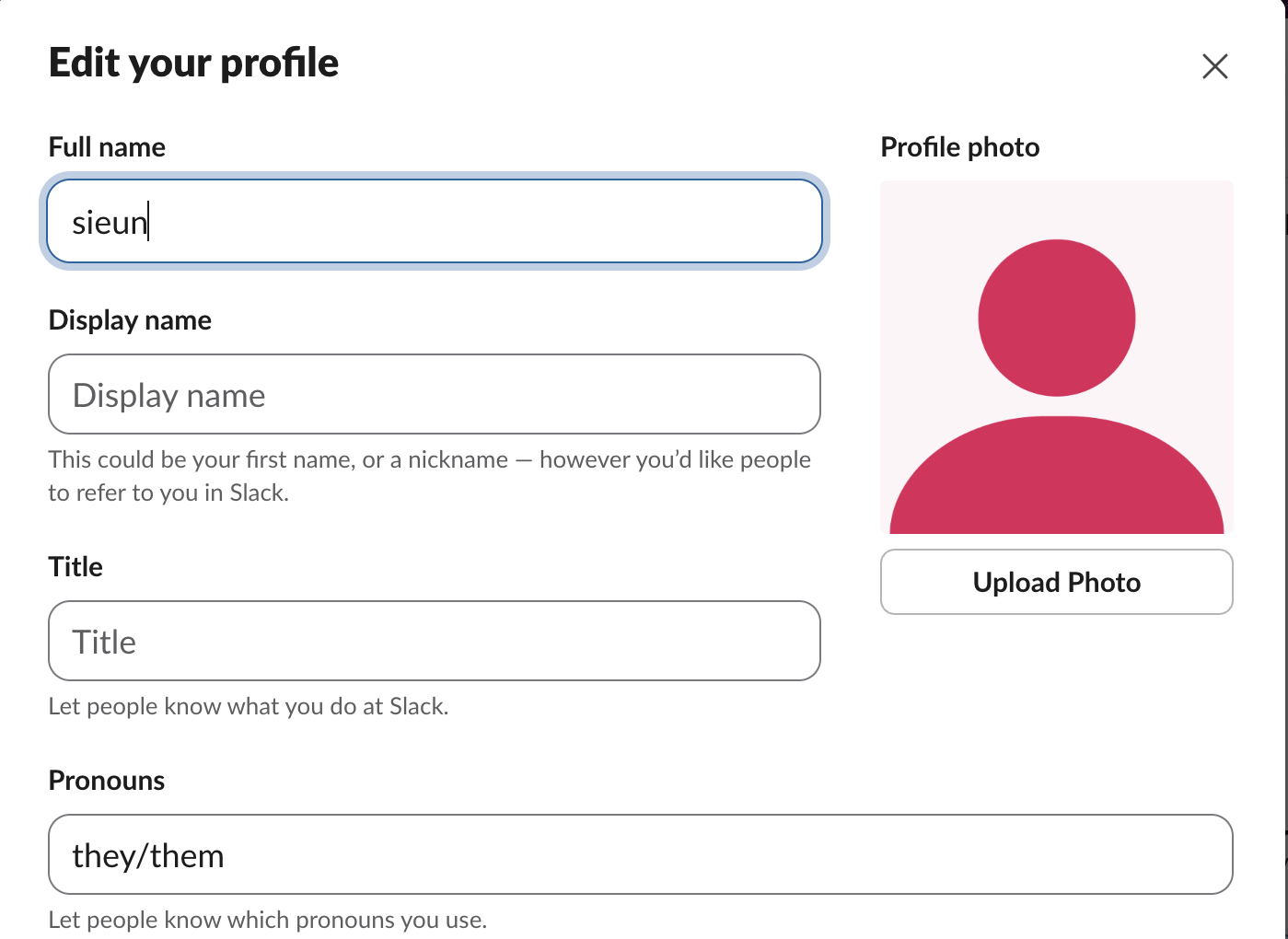
It is a free-text box, not a list, so "she/her", "they/them", "he/they" or a short note all work. The box itself has no length limit, but the API refused anything over 80 characters: 80 saved, 81 returned too_long.
Where pronouns show, and where they don't
We set "they/them" and checked each place a member's name appears:
| Place | Shows pronouns? |
|---|---|
| Profile pane, under the name | Yes |
| Hover card on a name in a channel | Yes |
| Next to your name on your messages | No |
| @mention autocomplete list | No |
| Edit your profile window | Yes, in the field |
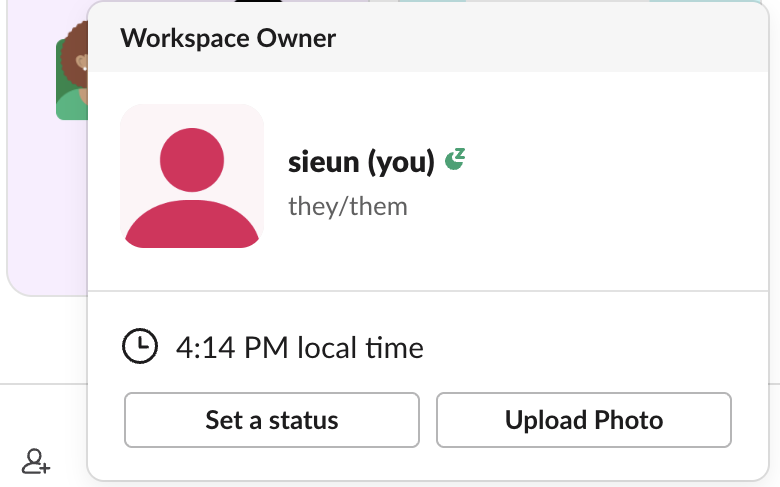
The hover card is the one most people will see, because it opens whenever someone points at your name in a conversation:
The @mention list does not show them. Typing @sie listed the member with only the name and the "(you)" tag:
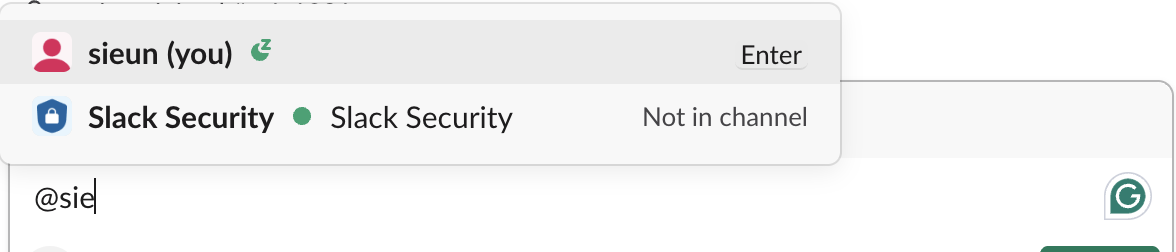
So people who are typing your name, or reading your messages, will not see your pronouns unless they open the hover card or your profile.
Never appear "away" on Slack again
Cloud-based. No downloads. Works 24/7 even when your laptop is off.
What happens when an admin turns the setting off
We turned Pronouns Display off while "they/them" was saved. The profile stopped showing it, and users.profile.get returned "pronouns": null. When we turned the setting back on, the API returned "they/them" again. So switching the setting off hides everyone's pronouns but does not delete them.
One trap for scripts: while the setting is off, users.profile.set with a pronouns value still returns "ok": true, but nothing is saved and the profile comes back with "pronouns": null. Check the returned profile, not just ok.
Set or clear pronouns through the API
The field is pronouns in the user profile object, written with users.profile.set and a user token that has users.profile:write:
curl -s https://slack.com/api/users.profile.set \
  -H "Authorization: Bearer $SLACK_USER_TOKEN" \
  --data-urlencode 'profile={"pronouns":"they/them"}' | jq -c '{ok, pronouns: .profile.pronouns}'
We ran it three times on October 31, once with Pronouns Display off, once with it on, and once with an empty value to clear it:
display off:  {"ok":true,"pronouns":null}
display on:   {"ok":true,"pronouns":"they/them"}
clear (""):   {"ok":true,"pronouns":""}
After the clear, the next users.profile.get returned null. Reading another member's pronouns needs users.profile:read; our bot token without that scope got missing_scope with "needed": "users.profile:read". The profile photo is not part of this call; it has its own method, users.setPhoto, covered in our profile picture API page.
FAQ
Why can I see a coworker's pronouns but not add my own?
If the setting is off, nobody's pronouns show, because it hides every member's. If you can see theirs but have no field, reload Slack: we reloaded the tab after changing the setting, and the field was there.
Can I make pronouns required for everyone?
Not from Pronouns Display; it only shows or hides the field. In our workspace the setting had no "required" option.
Stop Jiggling Your Mouse.
Join hundreds of remote workers who never worry about their Slack status. Set it up once, stay green forever.
Related Articles
How to Hide Your Email on Slack, and What Apps Still See
Only a workspace owner or admin can hide email addresses in Slack. We switched Email Display to No one, viewed a profile as a coworker, and read the same profile through the API.
How to Copy a Slack Profile Link (and What Others See)
Open the profile, click the three-dot button and choose Copy link to profile. Slack copies a link in the form https://yourworkspace.slack.com/team/U0123ABCDEF. We tested what that link does for a member, for someone signed out, and inside a message.
How to Make a Slack Channel Private, and Why It Can Fail for Members
Open the channel, click its name, go to Settings and choose Change to a private channel. We tried it as a regular member on a free workspace: Slack showed the option and then failed with Something went wrong.