
How to Make Slack Emoji Bigger
Send the emoji on its own, with no text. Slack shows emoji-only messages larger when the jumbomoji preference is on, under Preferences, Messages & media. Zoom, tight cropping for custom emoji, and the grid trick for one giant emoji are below.
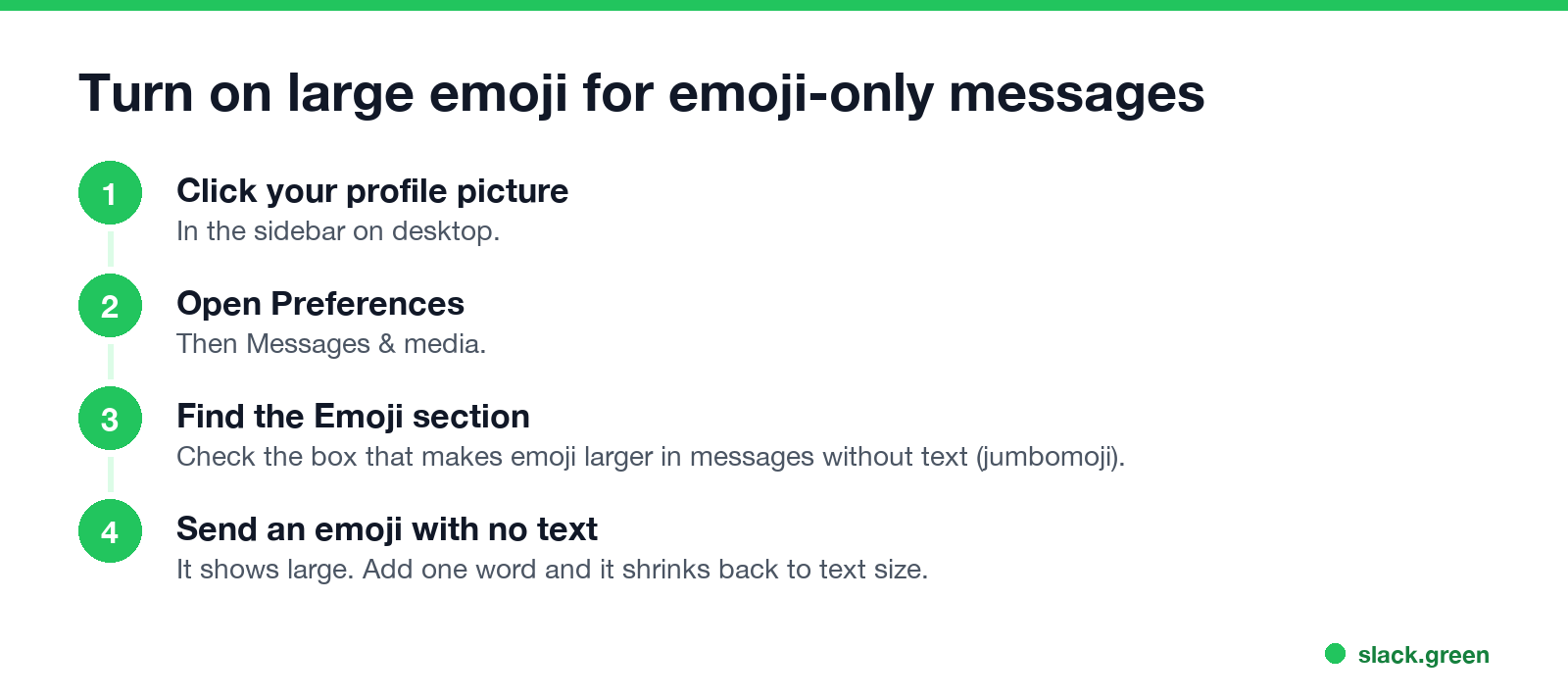
To make an emoji bigger in Slack, send it in a message with no text. Slack shows emoji-only messages large, a feature people call jumbomoji. If yours stay small, turn it on: click your profile picture, open Preferences, then Messages & media, and under Emoji check the box that makes emoji larger in messages without text. Add even one word and the emoji drops back to text size.
That covers most cases. Below are the other ways: zooming Slack, making a custom emoji fill its box, and the grid trick that builds one huge emoji from several small ones.
We build Slack Green, and our free Slack emoji resizer fits any image or GIF into Slack's 128 KB emoji limit.
Every way to make an emoji look bigger
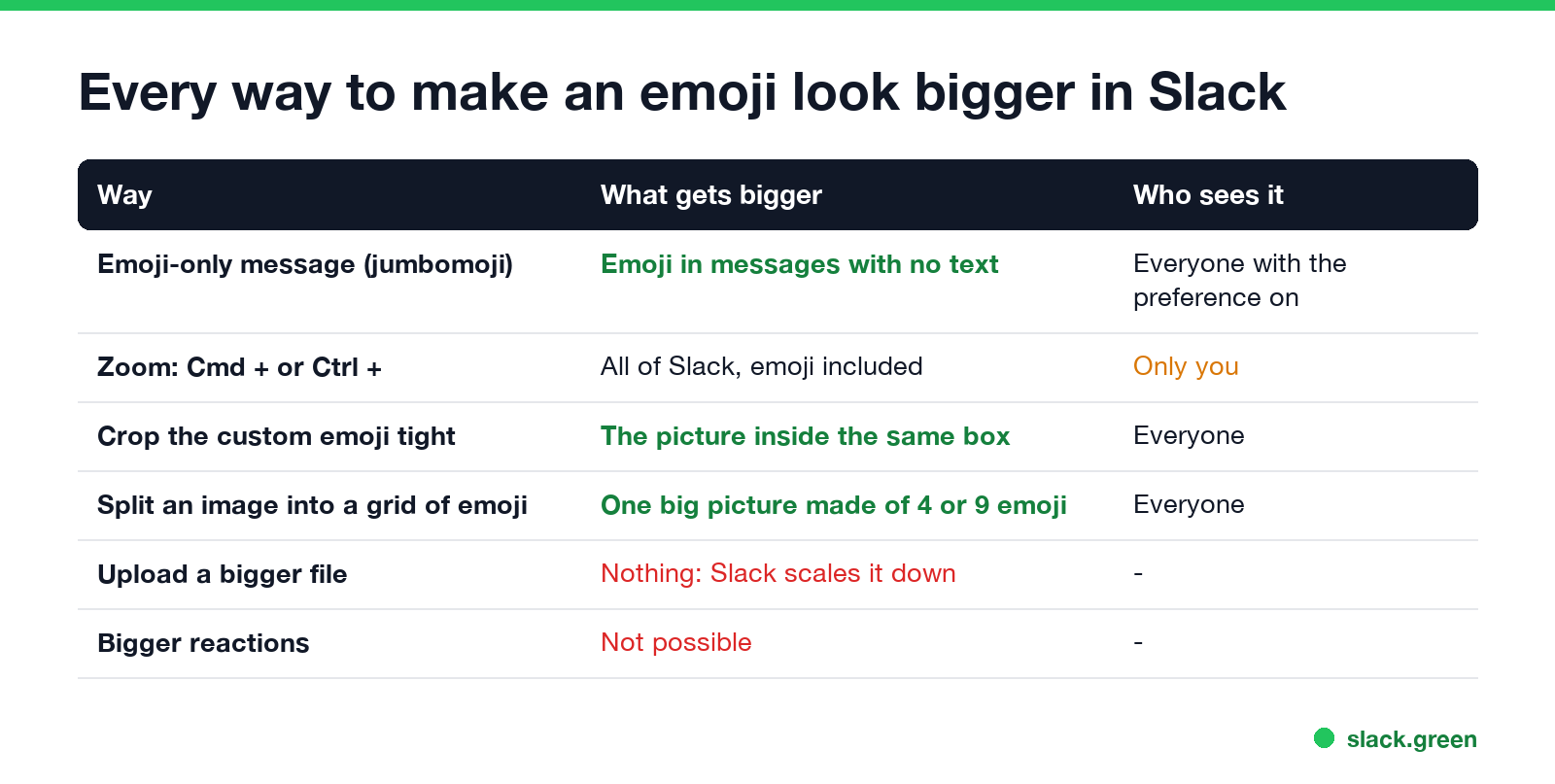
| Way | What gets bigger | Who sees it |
|---|---|---|
| Emoji-only message | Emoji in a message with no text | Everyone who has the preference on |
| Zoom, Cmd + or Ctrl + | All of Slack | Only you |
| Crop the custom emoji tight | The picture inside the same square | Everyone |
| Grid of emoji | One picture made of 4 or 9 emoji | Everyone |
| Upload a bigger file | Nothing, Slack scales it down | |
| Bigger reactions | Not possible |
Turn on large emoji for emoji-only messages
Slack's help page on emoji preferences lists three display choices: show emoji as Unicode or plain text, make emoji larger in messages without text, and convert typed emoticons like :) to emoji. The second one is jumbomoji.
- On desktop, click your profile picture in the sidebar.
- Select Preferences.
- Select Messages & media.
- Under Emoji, check the box for larger emoji in messages without text.
Then test it. Send :tada: on its own and it shows large. Send :tada: done and it shows at text size. Several emoji in a row, with no words, all show large.
The preference changes what you see. A coworker who turned it off sees your emoji-only message at normal size. If the box is checked and emoji are still small, check that the message has no text, no link and no mention. A space is fine; a word is not.
Zoom Slack to make every emoji bigger
Never appear "away" on Slack again
Cloud-based. No downloads. Works 24/7 even when your laptop is off.
To make all emoji bigger for yourself, zoom the whole app.
Emoji, text and reactions all grow together. Nobody else sees the change. Zoom levels and the text size settings are in how to change font size in Slack.
Why your custom emoji looks small
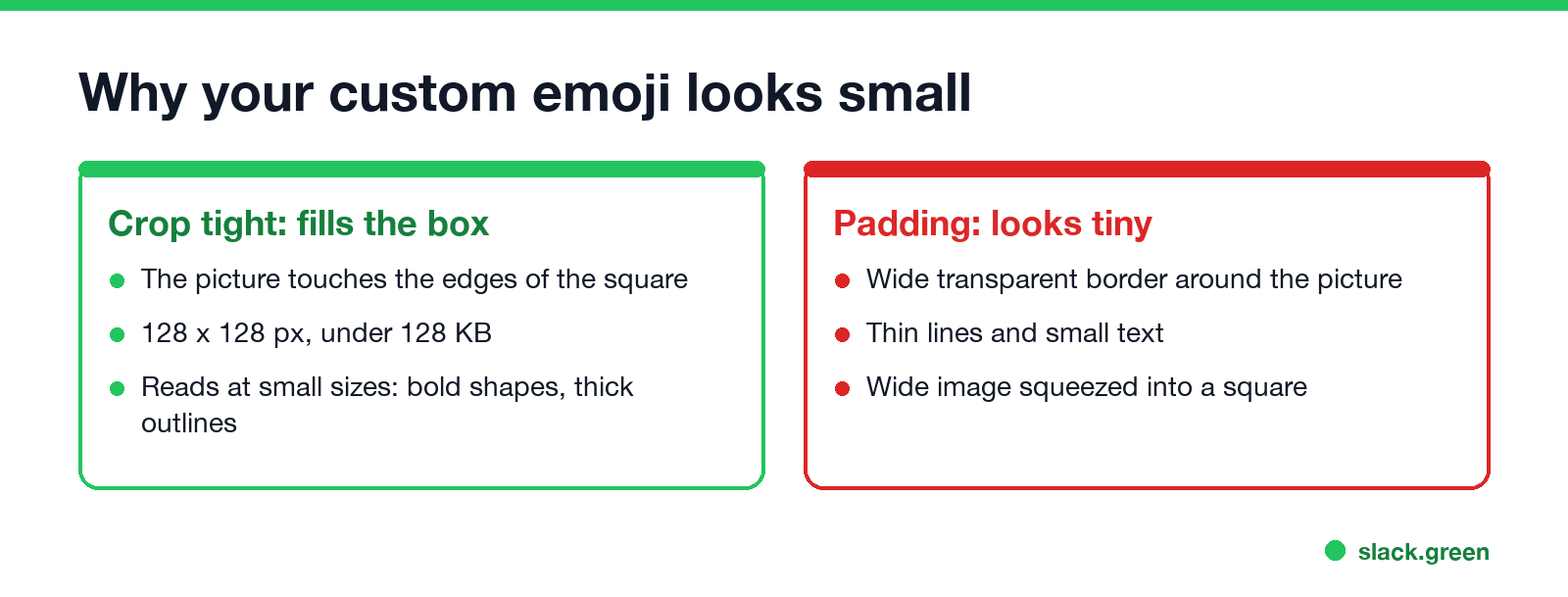
Every emoji in Slack gets the same square, and emoji show at 32 pixels or smaller in messages. Uploading a 512-pixel file does not make it bigger; Slack scales it down to the same square. What you can change is how much of the square the picture fills.
Our Slack emoji resizer has a Crop to square option and keeps GIF animation. To draw a text or image emoji from scratch, use the Slack emoji maker. If the background is the problem, see how to make an emoji background transparent for Slack. Slack's upload limits are in how to add custom emoji to Slack.
Make one giant emoji from a grid
People who want a really big picture in Slack cut it into tiles, upload each tile as its own custom emoji, and post the tiles in rows. A 3 x 3 grid of 128-pixel tiles reads as one image about three emoji wide. Open-source tools such as slack-emoji-enlarger on GitHub do this; the short script below does the same with Pillow.
# split logo.png into a 3 x 3 grid of Slack emoji
from PIL import Image

N = 3                     # tiles per side
SIZE = 128                # Slack emoji size in pixels
img = Image.open("logo.png").convert("RGBA")
side = min(img.size)
img = img.crop((0, 0, side, side)).resize((N * SIZE, N * SIZE))

for row in range(N):
    for col in range(N):
        box = (col * SIZE, row * SIZE, (col + 1) * SIZE, (row + 1) * SIZE)
        img.crop(box).save(f"logo-{row}-{col}.png")
Upload the nine files with the names logo-0-0 to logo-2-2, then send the rows as one message, each on its own line (Shift+Enter):
:logo-0-0::logo-0-1::logo-0-2:
:logo-1-0::logo-1-1::logo-1-2:
:logo-2-0::logo-2-1::logo-2-2:
Because the message has no text, the tiles show at jumbomoji size for people with the preference on. On narrow phone screens the rows can wrap, so keep grids to 3 or 4 tiles wide. Nine custom emoji also crowd the emoji picker, so ask before you add them to a shared workspace.
Reactions and statuses stay small
Never appear "away" on Slack again
Cloud-based. No downloads. Works 24/7 even when your laptop is off.
Reaction emoji have one size. You can zoom Slack to see them larger yourself, but there is no setting that makes a reaction bigger for others. The same goes for a status emoji next to your name; see how to put an emoji next to your name in Slack for how that one works.
FAQ
How do I make emoji bigger in Slack? Send the emoji alone, with no text. Turn on large emoji in Preferences, Messages & media, if they still look small.
What is jumbomoji in Slack? The name for Slack showing emoji large in a message that has only emoji.
Why are my Slack emoji small? The message has text in it, or the large emoji preference is off, or your custom emoji image has a wide empty border.
Can I make Slack reactions bigger? No. Zoom with Cmd + or Ctrl + to see them larger yourself.
What size should a Slack emoji be? Square, 128 x 128 pixels, under 128 KB. A bigger file does not display bigger.
Stop Jiggling Your Mouse.
Join hundreds of remote workers who never worry about their Slack status. Set it up once, stay green forever.
Related Articles
How to Show Your Discord Status on Steam Deck
Discord on Steam Deck does not show what you are playing by itself. Install Discord as a Flatpak, add it to Steam, then add the Discord Status plugin through Decky Loader. Keep Discord running and friends see 'Playing [game] on Steam Deck'. Setup, fixes, and the alternatives.
Slack Markdown File Preview: How to Read .md Files in Slack
Slack shows an uploaded .md file as raw text, with the # and ** characters visible. To read it formatted, paste the rendered text into a canvas, create the canvas from markdown with the API, or send it in a markdown block. HTML files and Mermaid diagrams do not render either; the workarounds are below.
8x8 Status Icons Meaning: Every Color and Symbol
In 8x8 Work, a green check means Available, solid red means Busy, red with a phone means On Call, red with a bar means Do Not Disturb, an amber clock means Away, and a grey X means Offline or Invisible. What each status does to your calls, which ones change by themselves, and the Contact Center agent statuses.