
What Does the Eyes Emoji Mean in Slack? 👀 and Other Reactions
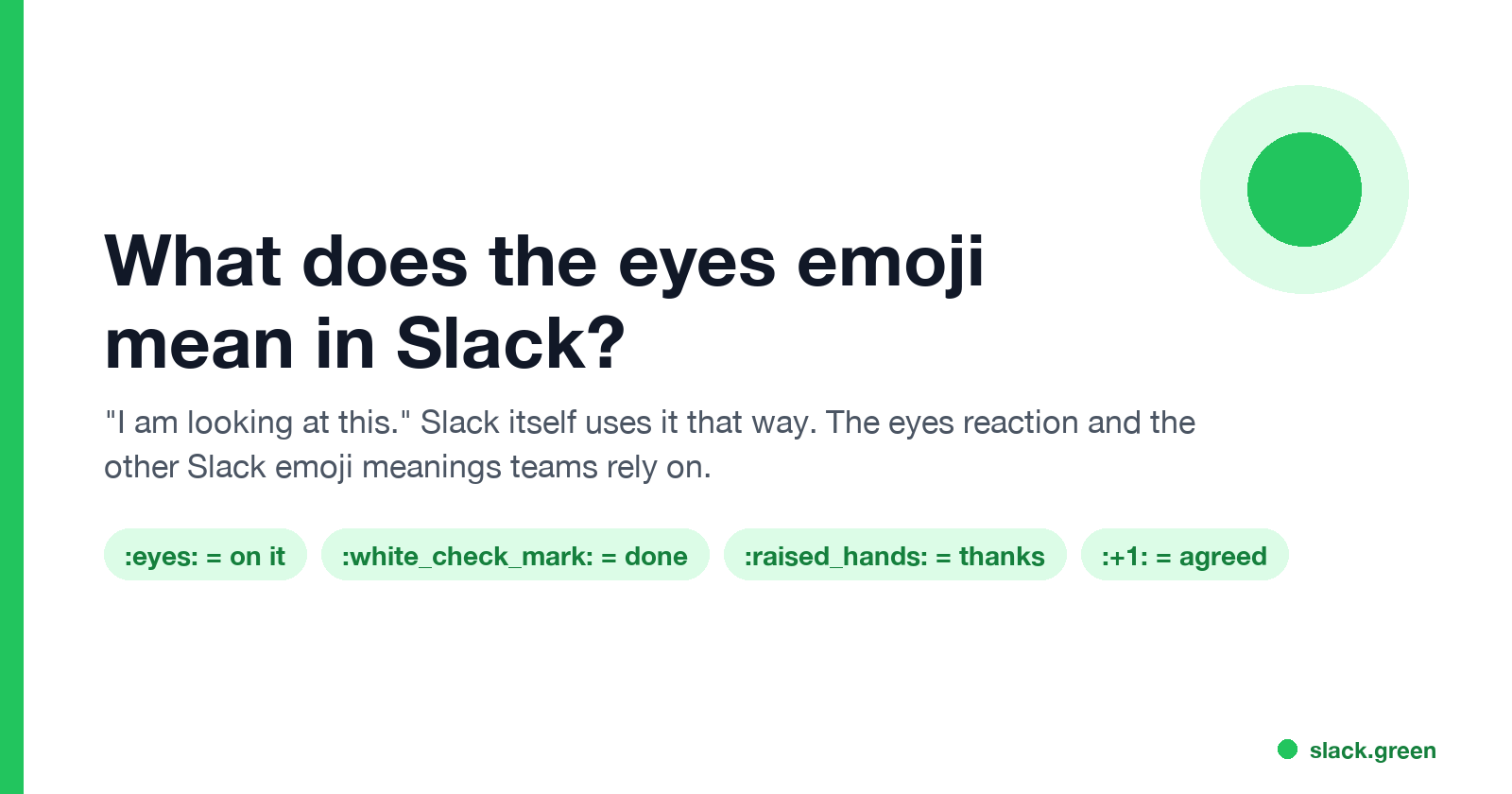
In Slack, the eyes emoji 👀 as a reaction means "I have seen this and I am looking at it." Slack's own help center and blog use it that way. What 👀 means, how teams use it with ✅, and the meaning of other common Slack reactions and status emoji.
In Slack, the eyes emoji 👀 as a reaction means "I have seen this and I am looking at it." It is the standard way to claim a request without writing a reply. Slack's help center describes the same convention for triage channels: a :eyes: reaction means "I'm looking at this for you", and a ✅ :white_check_mark: means "I've fixed the issue". Slack's own blog says employees react with 👀 to volunteer for a request and with ✅ once the work is done.
Outside work, 👀 can mean curiosity or "I see what you did there". In a Slack workspace, read it as "on it" unless your team uses it differently.
Reactions show you read something. Your dot shows whether you are around, and it turns grey 10 minutes after your last input in Slack. Slack Green keeps it green during the working hours you set, from the cloud, so your 👀 is not next to a grey dot.
What 👀 means in Slack
- • As a reaction on a request: "I have seen this and I am looking into it." Others can see the request is claimed.
- • As a reaction on news or a proposal: "Seen, reading it." A quiet read receipt, because Slack has no read receipts of its own.
- • In a message: "Look at this" or "interesting", the same as outside Slack.
- • As a status emoji: rare. A status with 👀 usually means "reviewing" or "heads down reading".
- • 👀
:eyes:means "I'm looking at this for you". - • ✅
:white_check_mark:means "I've fixed the issue". - • 🔴
:red_circle:marks an urgent issue, 🔵:blue_circle:a question or problem, ⚪:white_circle:feedback.
When someone reacts 👀 to your request, wait for the thread reply or the ✅. Chasing them right away defeats the point of the reaction.
How teams use 👀 and ✅ together
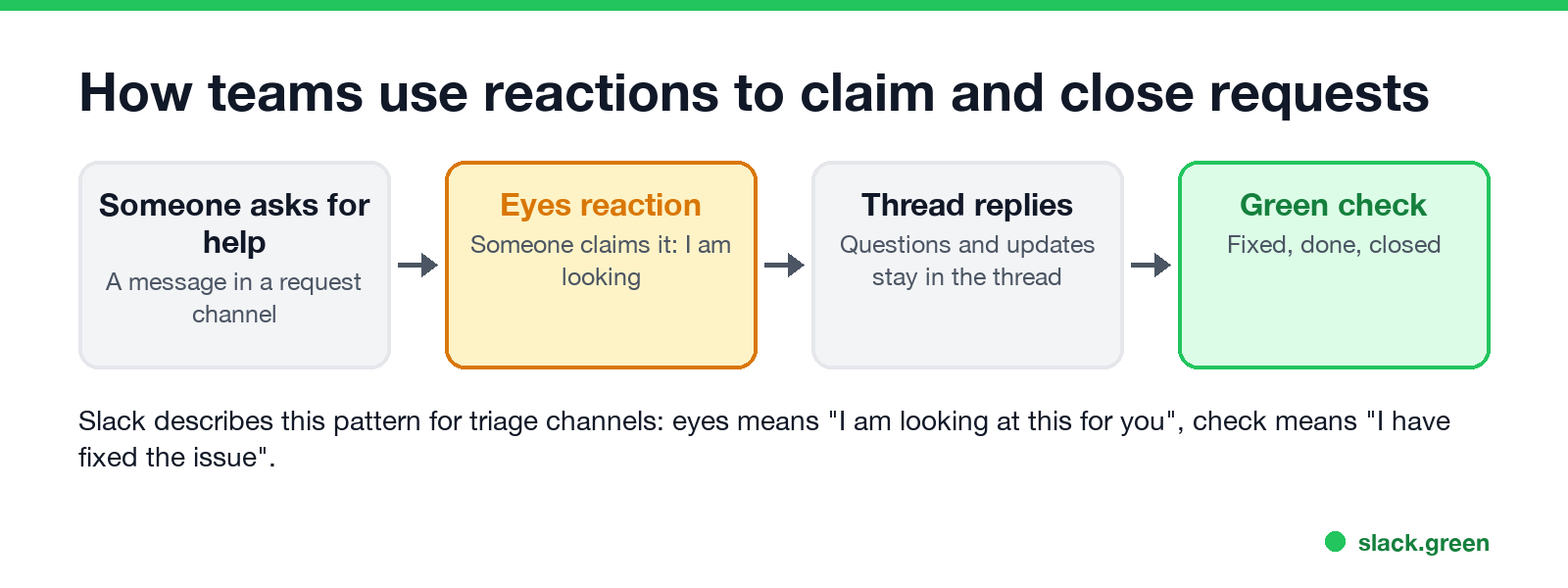
Slack's help center suggests this set for triage and request channels:
Slack's blog adds 🐛 :bug: for "logged as a bug". Pin your own set in the channel or its canvas so everyone reads the reactions the same way.
Slack emoji meanings list
Never appear "away" on Slack again
Cloud-based. No downloads. Works 24/7 even when your laptop is off.
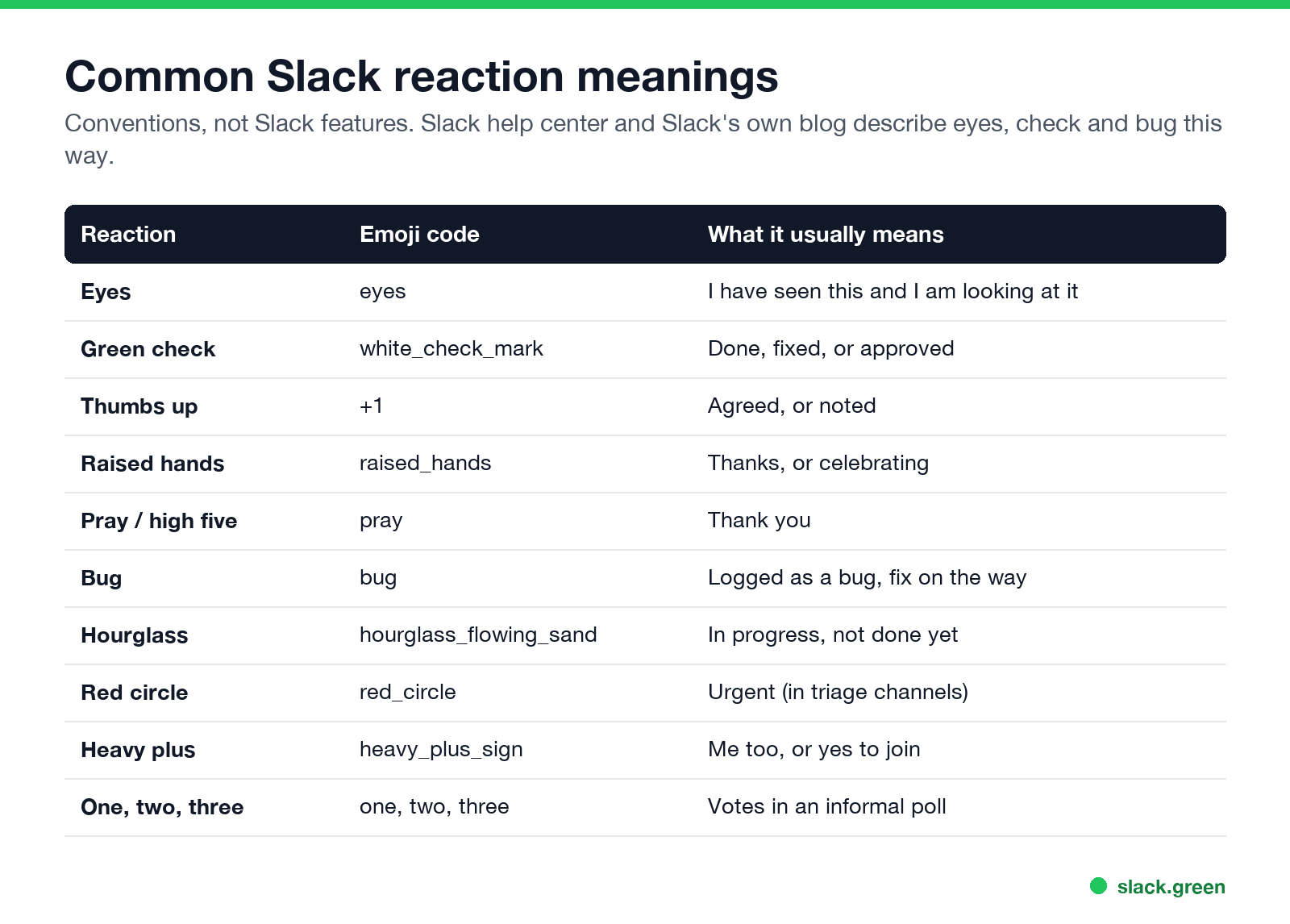
| Reaction | Code | What it usually means |
|---|---|---|
| 👀 | :eyes: | Seen, looking at it |
| ✅ | :white_check_mark: | Done, fixed or approved |
| 👍 | :+1: | Agreed, or noted |
| 🙌 | :raised_hands: | Thanks, or celebrating |
| 🙏 | :pray: | Thank you |
| 🐛 | :bug: | Logged as a bug |
| ⏳ | :hourglass_flowing_sand: | In progress |
| 🔴 | :red_circle: | Urgent |
| ➕ | :heavy_plus_sign: | Me too, or count me in |
| 1️⃣ 2️⃣ 3️⃣ | :one: :two: :three: | Votes in a quick poll |
These are conventions. Your team may use custom emoji with their own meaning; hover over any reaction to see its name.
Slack emoji for acknowledge
To say "got it" without a message, use 👍 for a simple yes, 👀 when you will act on it, or ✅ when it is done. Many teams also make a custom :ack: emoji. The Slack emoji maker turns any image into a custom emoji your workspace can add. Upload steps, size rules and permissions are in how to add custom emoji to Slack. To remove one, see how to delete a Slack emoji.
Slack emoji for busy
For your status rather than a reaction:
What each status emoji and dot means to others is in Slack status icons meaning. For lines to put next to them, see Slack status examples or the status ideas tool.
What does the palm tree mean on Slack?
Never appear "away" on Slack again
Cloud-based. No downloads. Works 24/7 even when your laptop is off.
🌴 is Slack's default emoji for the "Vacationing" status: the person is on holiday or out of office. Open their profile to see when it clears. More in Slack out of office.
FAQ
What does 👀 mean in Slack?
As a reaction, "I have seen this and I am looking at it." Slack's help center uses it to mean "I'm looking at this for you".
Is 👀 rude in Slack?
No. At work it signals attention. If a teammate reacts 👀 to your message, they are on it.
What is the difference between 👀 and ✅ in Slack?
👀 means someone is working on it. ✅ means it is done.
Does Slack have read receipts?
No. Teams use reactions such as 👀 or 👍 to show a message was read.
How do I add an emoji reaction in Slack?
Hover over the message, click the add reaction icon (a smiley face with a plus), and pick an emoji. On mobile, tap and hold the message. With a message in focus you can also press R; more in the Slack keyboard shortcuts cheat sheet.
Stop Jiggling Your Mouse.
Join hundreds of remote workers who never worry about their Slack status. Set it up once, stay green forever.
Related Articles
Slack Saved for Later: Where the Later Tab Is and How It Works
Saved messages in Slack live in the Later tab, which replaced stars and Saved items in 2023. Hover a message and click Save for later, or press A. Add a reminder, mark items complete, and find them with is:saved. Where Later is on desktop and mobile, and what changed.
How to Keep Your Outlook Status Green (It Comes From Teams)
Your Outlook status shows your Microsoft Teams presence, so to keep Outlook green you keep Teams Available: Teams signed in and running, input on the computer, no lock or sleep, and no leftover status. What sets you Away, and what you can change.
Slack Multiple Workspaces: Use, Switch and Stay Active in Each
You can sign in to several Slack workspaces in one app and switch with Ctrl+Tab or Cmd/Ctrl plus a number. Each workspace has its own account, status, presence and Do Not Disturb, so you can be active in one and away in another. How to add, switch and manage them.