
How to Search Slack by Emoji Reaction (has:: and hasmy::)
Type has::eyes: in the Slack search bar to find every message with an :eyes: reaction. Use hasmy::eyes: for messages you reacted to, has:reaction for any reaction, and a minus sign to exclude one. Tested modifiers, recipes and an export script.
To search Slack by emoji reaction, type has:: followed by the emoji code in the search bar, for example has::eyes: to find every message someone reacted to with 👀. Use hasmy::eyes: for messages you reacted to yourself, has:reaction for messages with any reaction, and -has::white_check_mark: to leave out messages that already have a ✅. You can add words, a channel, a person or a date to the same search.
We build Slack Green, which keeps your Slack status green from our servers during the hours you set. The results below come from real searches in our own workspace on 28 September 2026, so every modifier on this page was checked, including two that do not work.
The reaction search modifiers
Slack's help center lists has: and hasmy: with an emoji code. We also tested the variants people guess at. The emoji code keeps both of its colons, so has: plus :eyes: becomes has::eyes: with two colons in the middle.
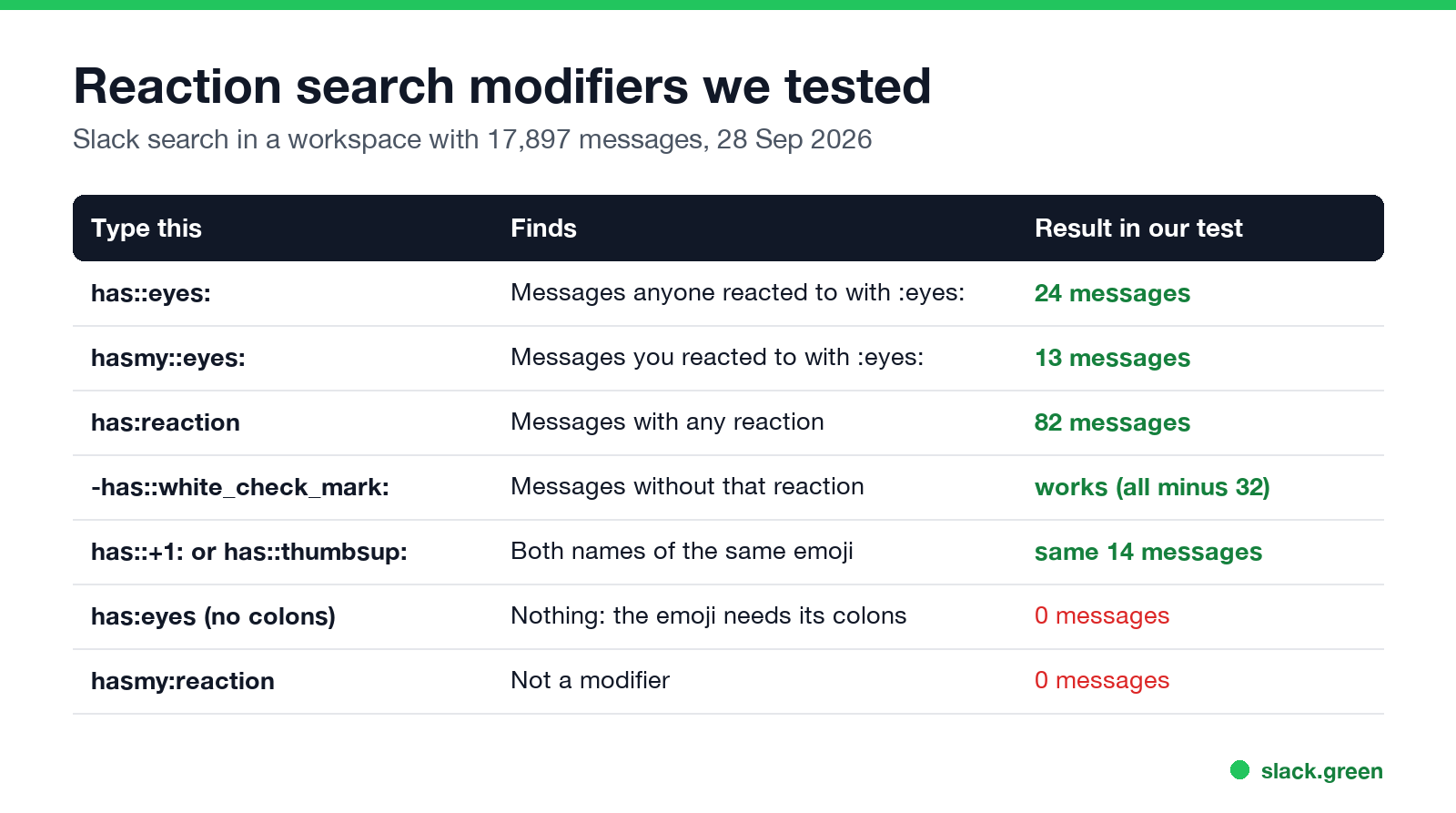
| Type this | What it finds | Works? |
|---|---|---|
has::eyes: | Messages anyone reacted to with 👀 | Yes |
hasmy::eyes: | Messages you reacted to with 👀 | Yes |
has:reaction | Messages with at least one reaction of any kind | Yes |
-has::white_check_mark: | Messages without a ✅ reaction | Yes |
-has:reaction | Messages nobody reacted to | Yes |
has::+1: or has::thumbsup: | The same messages, both names work | Yes |
has::loading-2: | A custom workspace emoji | Yes |
has:eyes | Nothing, the colons are missing | No |
hasmy:reaction | Nothing, not a modifier | No |
has:reaction is not in Slack's help article, but it worked in our test: it returned 82 messages, every one we opened had a reaction, and -has:reaction returned the rest of the workspace. If you do not know an emoji's code, hover over the reaction under a message or look it up in our Slack emoji codes list.
How to search by reaction, step by step
- Click the search bar at the top of Slack, or press Cmd+G on a Mac (Ctrl+G on Windows).
- Type
has::and then the emoji code, such ashas::eyes:. You can leave out search words entirely. - Press Enter. Slack shows messages with that reaction, newest or most relevant first.
- To narrow it down, add more modifiers in the same box, or use the filters above the results.
Two has:: filters in one search mean both reactions must be on the message. In our workspace has::eyes: found 24 messages, has::white_check_mark: found 32, and both together found 0. Slack has no OR for reactions, so run two searches when you want either one.
Find messages you reacted to
Never appear "away" on Slack again
Cloud-based. No downloads. Works 24/7 even when your laptop is off.
hasmy:: shows only your own reactions. This is the useful one for personal to-do lists: many people react with 🔖 :bookmark:, ✅ or 👀 to mark things to come back to, then search for them later.
hasmy::eyes: shows everything you said you would look at.hasmy::white_check_mark: shows what you marked done.hasmy::eyes: -has::white_check_mark: shows what you looked at that nobody has closed yet.There is no hasmy:reaction for all of your reactions at once; it returned 0 in our test even though we had reacted to many messages. Slack's own Saved items (the bookmark icon on a message) is the built-in alternative for a personal list, and is:saved finds those.
Reaction search recipes for teams
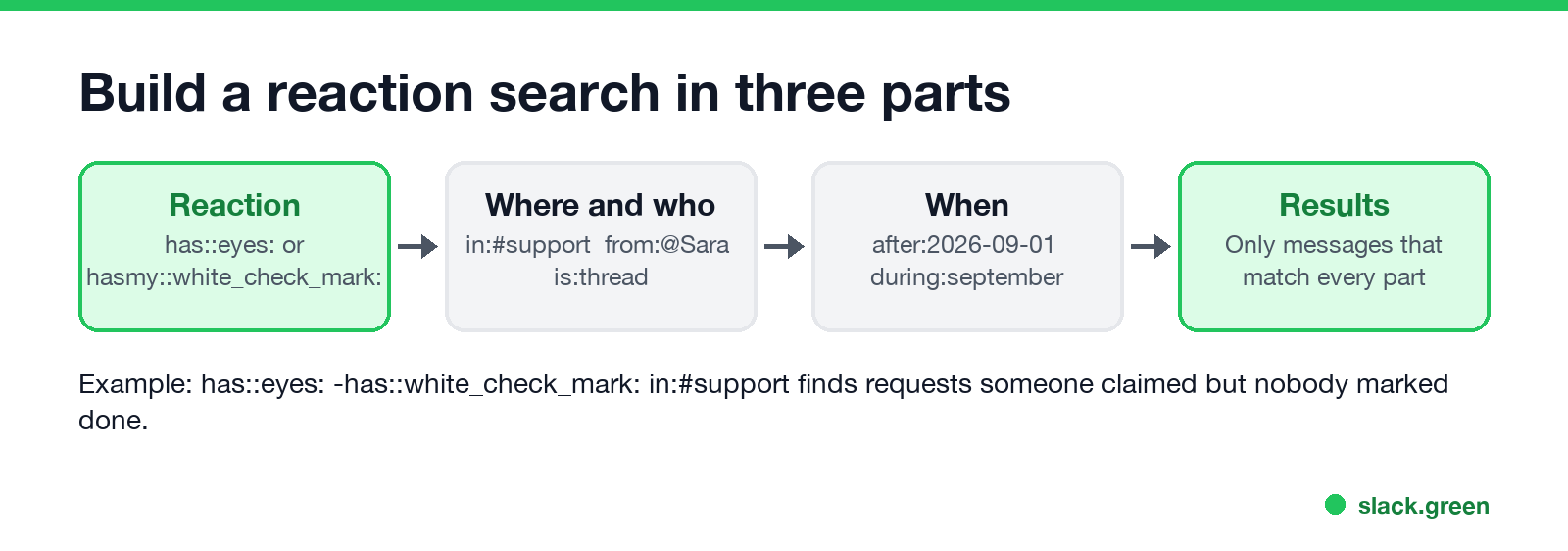
Teams that use reactions as a lightweight status system get the most out of this. Some searches we use:
| You want | Search |
|---|---|
| Requests someone claimed but nobody closed | has::eyes: -has::white_check_mark: in:#support |
| Messages in a channel nobody reacted to | -has:reaction in:#help |
| Your posts people reacted to | has:reaction from:me |
| Announcements people confirmed they read | has::white_check_mark: in:#announcements |
| Links the team liked last month | has::+1: has:link during:august |
| Kudos given in a channel | has::raised_hands: in:#wins |
The 👀 convention, where a reaction means "I'm on it", is explained in what does the eyes emoji mean in Slack. The other modifiers used here (in:, from:, during:, is:thread) are covered in full in our Slack search operators guide.
What reaction search cannot do
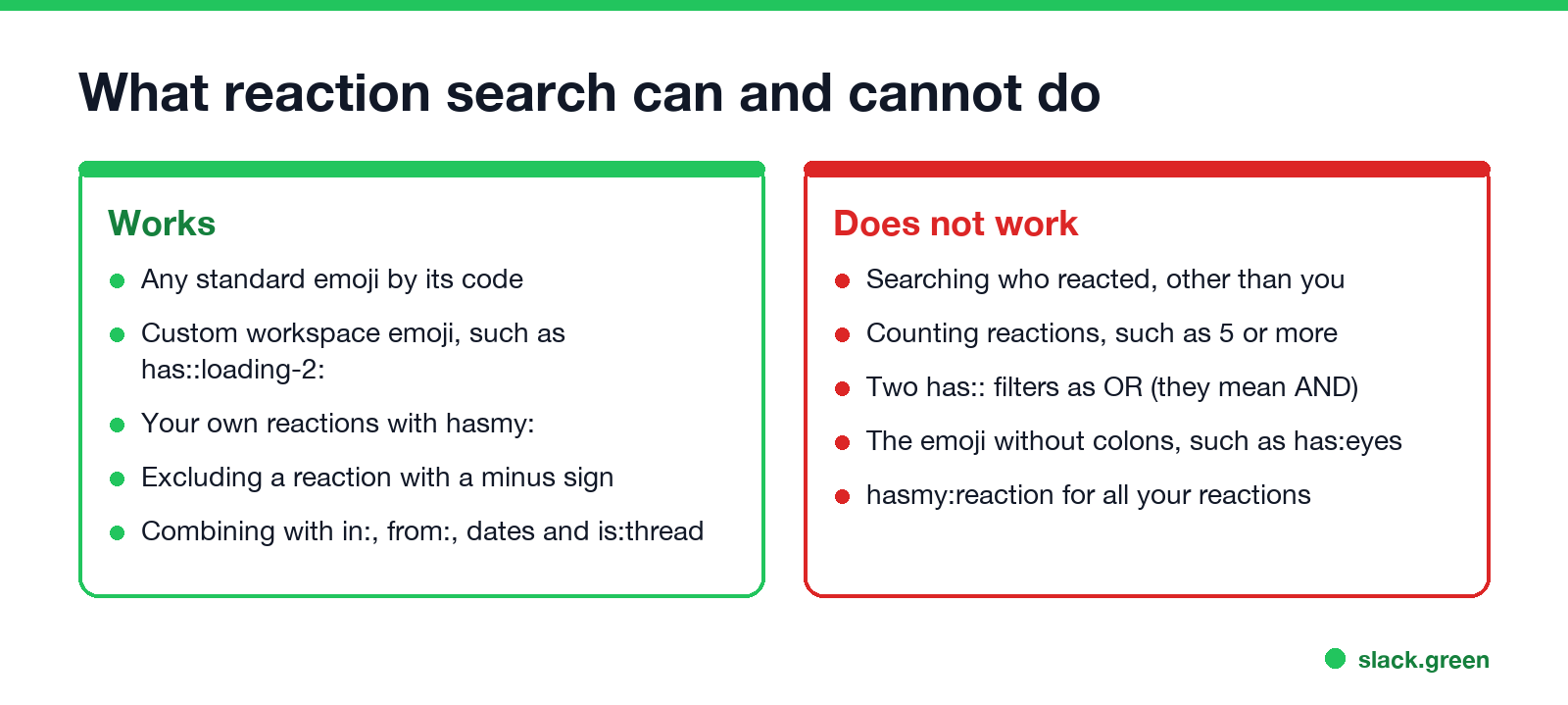
hasmy:: works only for you. To see who reacted to one message, hover over the reaction under it.Reactions are also the closest Slack gets to read receipts; see does Slack have read receipts. If you wonder whether admins can see what you type into the search bar, that is in can Slack admins see what you search.
Export every message with a reaction
Never appear "away" on Slack again
Cloud-based. No downloads. Works 24/7 even when your laptop is off.
For a weekly report, such as every request marked ✅ in #support, the Web API method search.messages accepts the same search text. It needs a user token with the search:read scope, because bots cannot search. This Python script writes the results to a CSV file:
# pip install slack_sdk
import csv, os
from slack_sdk import WebClient

client = WebClient(token=os.environ["SLACK_USER_TOKEN"])  # xoxp- token with search:read
query = "has::white_check_mark: in:#support after:2026-09-01"

rows, page = [], 1
while True:
    res = client.search_messages(query=query, count=100, page=page, sort="timestamp")
    for m in res["messages"]["matches"]:
        rows.append([m["ts"], m["channel"]["name"], m.get("username", ""), m["text"][:200], m["permalink"]])
    if page >= res["messages"]["paging"]["pages"]:
        break
    page += 1

with open("reactions.csv", "w", newline="") as f:
    csv.writer(f).writerows([["ts", "channel", "user", "text", "link"], *rows])
print(len(rows), "messages")
Slack marks search.messages as a legacy method, but it still accepts the reaction modifiers.
Make an emoji worth searching for
Custom emoji work in search too, so a team-only reaction such as :approved: or :shipped: gives you a filter nobody else uses by accident. Make one from a word or your logo with the free Slack emoji maker, shrink an existing image with the Slack emoji resizer, then search it with has::approved:. More ideas are in Slack emoji ideas.
FAQ
How do I search for a specific emoji reaction in Slack?
Type has:: plus the emoji code in the search bar, for example has::eyes:.
How do I find messages I reacted to in Slack?
Search hasmy:: plus the emoji code, such as hasmy::white_check_mark:. You need one search per emoji.
Can I search for any reaction in Slack?
Yes. has:reaction returns messages with at least one reaction, and -has:reaction returns messages with none.
Can I see everything someone else reacted to? Not in the Slack app. Hover over a reaction to see who added it to that one message.
Stop Jiggling Your Mouse.
Join hundreds of remote workers who never worry about their Slack status. Set it up once, stay green forever.
Related Articles
How to Schedule a Meeting Across Time Zones (Without Guessing)
Write down each person's working hours in UTC, pick the hour where most of them overlap, rotate the slot nobody likes, and send the invite from a calendar that shows each guest their own time. A worked example for San Francisco, New York, London and Bangalore, the daylight saving weeks that break recurring meetings, and a script that finds the best hour.
Halloween Slack Emojis and Holiday Emoji Codes to Copy
Slack's built-in Halloween emojis are :jack_o_lantern:, :ghost:, :bat:, :spider_web:, :candy: and :zombie:. Christmas has :christmas_tree:, :santa: and :gift:. Every holiday code checked in Slack, custom holiday emoji ideas, where to get packs, and how to make your own in a minute.
Holiday Slack Profile Pictures: Christmas, Halloween and Free Frames
A holiday Slack profile picture works best as your own photo with a seasonal touch: a Santa hat, a candy-cane frame, a Halloween hat. Ideas for Christmas, Halloween, Hanukkah, Diwali, Thanksgiving and New Year, six free transparent frame overlays, a script that adds them to your photo, and the size Slack needs.