
Tips for Working Across Time Zones: 10 Habits That Work
Working across time zones works when the team writes things down, keeps a short overlap window for live talk, says the zone with every time, and lets tools deliver messages in each person's working hours. Ten habits, a follow-the-sun handoff note, the Slack settings that help, and a script that shows your team's local times.
The short version: default to writing, keep two shared hours a day for live talk, put a time zone on every time you write, and let tools deliver your messages during the other person's working day. Everything else on this page follows from those four habits. The hardest part is not the clock; it is that a question sent at the end of your day waits a full day for an answer unless you write it so it can be answered without you.
The Slack settings we name were checked in the Slack desktop app on 28 September, and the script below was run the same day.
Across time zones, your Slack dot also says less than people think. It turns grey 10 minutes after your last input in the Slack window, so a colleague in another zone may see you as away in the middle of your day. Slack Green keeps it green from our servers during the working hours you set.
10 habits for teams across time zones
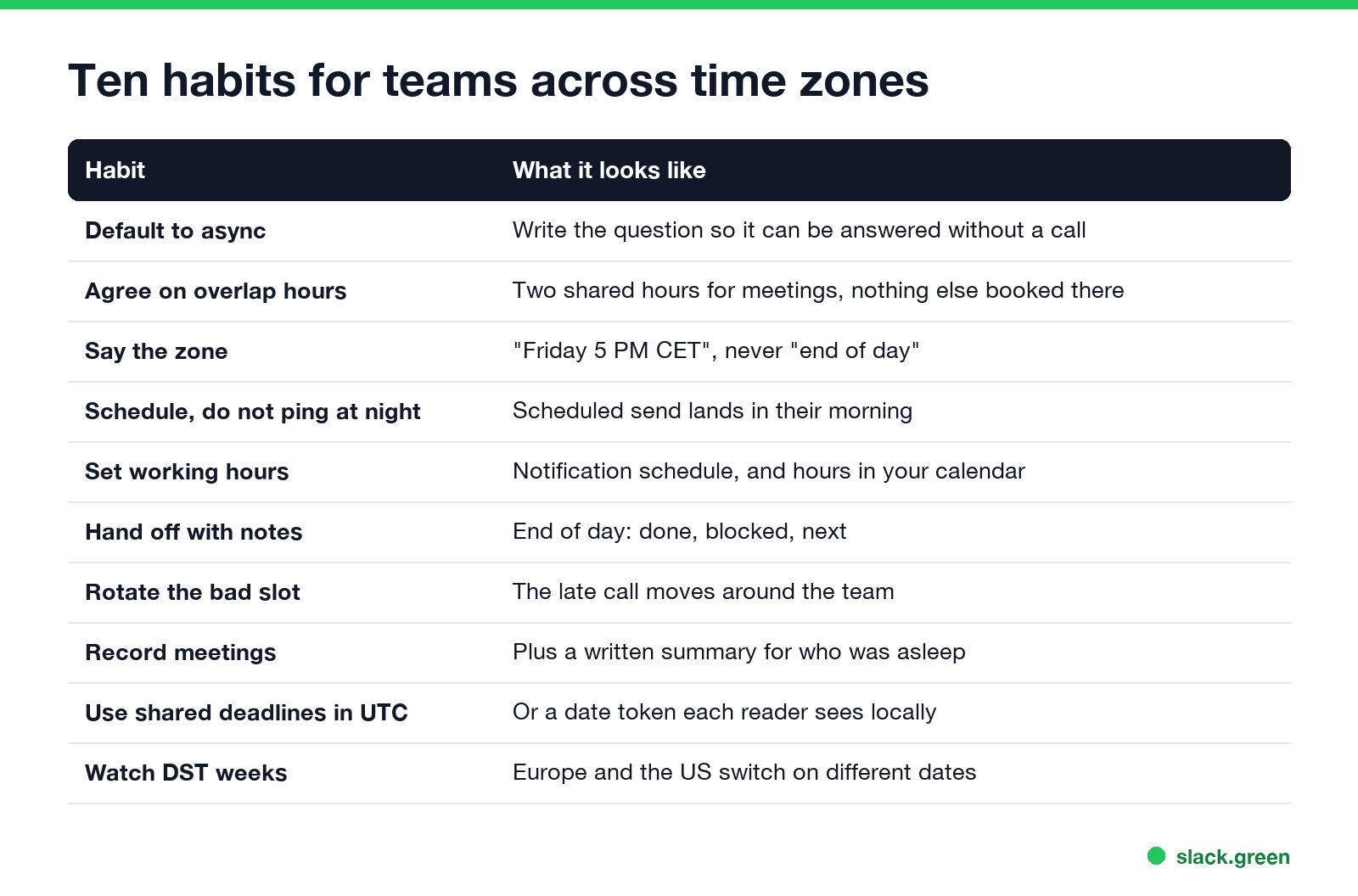
- Default to async. Write a question so it can be answered without a call: the context, what you already tried, and what you need by when. "Can we chat?" costs a day; "Should the export include deleted rows? I lean no because of X. Need an answer by Thursday" does not.
- Agree on overlap hours. Pick one or two hours a day when everyone is online, and keep meetings inside them. How to find that window is in how to schedule a meeting across time zones.
- Say the zone every time. "Friday 5 PM CET", not "end of day". "EOD" means three different moments in a team of three.
- Schedule, do not ping at night. Write the message when you think of it, and schedule it to arrive at 9 AM their time. See how to delay and schedule Slack messages.
- Show your working hours. Set them in Slack and in your calendar, so people can see when you will answer without asking.
- Hand off with a note. At the end of your day, write what is done, what is blocked, and what the next person should do first.
- Rotate the bad slot. If one region always takes the 10 PM call, move it around every few weeks.
- Record and summarize meetings for the people who were asleep, and give them a day to comment before decisions are final.
- Write deadlines in UTC, or in a form that each reader sees in their own time.
- Watch daylight saving weeks. Europe and the US change clocks on different dates, so for a few weeks a year the gap moves by an hour.
Follow-the-sun handoffs
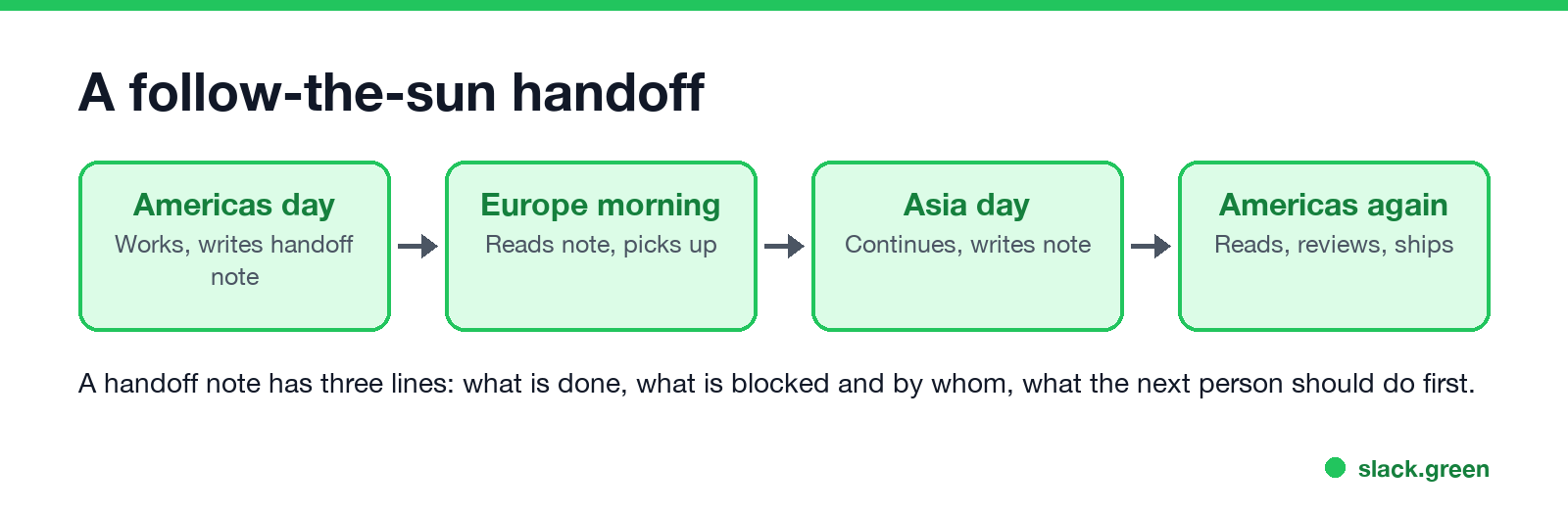
When a team covers most of the 24 hours, work can move with the sun: one region picks up where the last one stopped. It only works with a written handoff, because the person who knows the context is asleep. A handoff note that fits in a Slack thread:
Handoff, Mon 18:00 GMT (Chloe)
Done: migrated 3 of 5 customer exports, logs in #data-ops
Blocked: export 4 fails on a null date, waiting for Ben's answer in the thread above
Next: Dev, please rerun export 5 first, it has no dependency on 4
Three lines are enough. Post it in the same thread or channel every day so people know where to look.
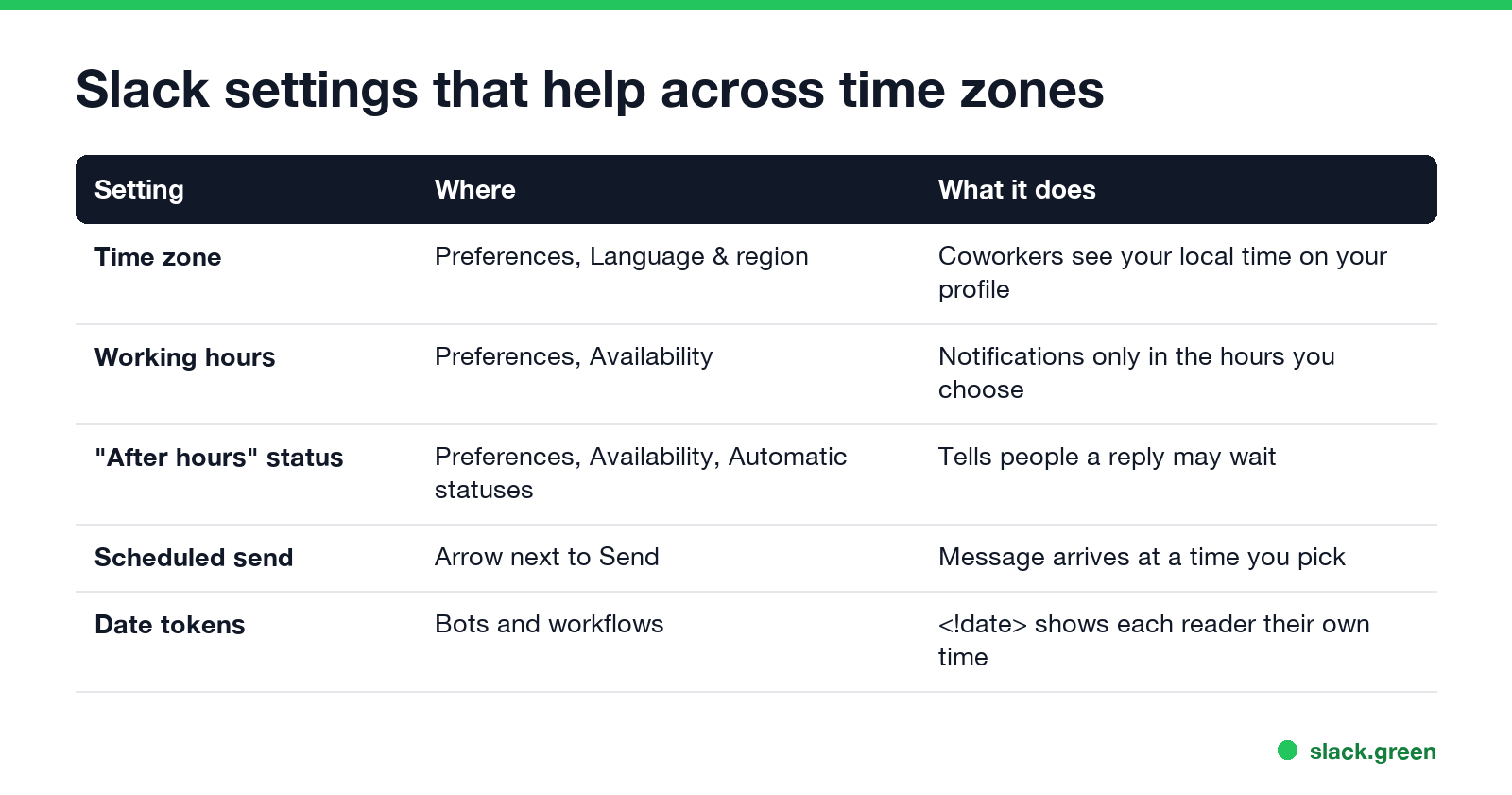
Slack settings that help across time zones
Never appear "away" on Slack again
Cloud-based. No downloads. Works 24/7 even when your laptop is off.
See your team's local times in a terminal
A quick check before you message someone: this Python script prints each teammate's local time and whether they are inside working hours. It uses only the standard library (Python 3.9 or newer):
from datetime import datetime
from zoneinfo import ZoneInfo

TEAM = {
    "Ana": "America/Los_Angeles",
    "Ben": "America/New_York",
    "Chloe": "Europe/London",
    "Dev": "Asia/Kolkata",
    "Mei": "Asia/Tokyo",
}
WORK = range(9, 18)  # 9 AM to 6 PM local

now = datetime.now(ZoneInfo("UTC"))
for name, tz in TEAM.items():
    local = now.astimezone(ZoneInfo(tz))
    state = "working" if local.hour in WORK and local.weekday() < 5 else "off"
    print(f"{name:<6} {local:%a %H:%M} {local.tzname():<5} {state}")
When we ran it on Monday at 02:03 UTC it printed:
Ana    Sun 19:03 PDT   off
Ben    Sun 22:03 EDT   off
Chloe  Mon 03:03 BST   off
Dev    Mon 07:33 IST   off
Mei    Mon 11:03 JST   working
Only Mei in Tokyo was working. Ben's Sunday evening message would have waited for his Monday anyway. Edit TEAM with IANA zone names and change WORK to your hours.
Common mistakes
FAQ
Never appear "away" on Slack again
Cloud-based. No downloads. Works 24/7 even when your laptop is off.
How do you work effectively across time zones?
Write things down so they can be answered async, keep one or two overlap hours for live talk, say the zone with every time, and schedule messages for the other person's working hours.
How do I show my working hours in Slack?
Preferences, Availability, Working hours. Add the After hours automatic status so people see when a reply may wait.
What is a good overlap for a remote team?
Two hours a day is enough for most teams. More than that is hard between the US and Asia.
How do you schedule meetings across time zones?
Put everyone's hours in UTC and pick the widest overlap. The steps are in how to schedule a meeting across time zones.
Should I answer messages outside my working hours?
Not by default. Set working hours so notifications pause, and reply in your morning.
Stop Jiggling Your Mouse.
Join hundreds of remote workers who never worry about their Slack status. Set it up once, stay green forever.
Related Articles
Slack Emoji for Approved, Perfect and Sounds Good
The Slack emoji for approved is ✅ :white_check_mark:. For perfect, use 💯 :100: or 🤌 :pinched_fingers:; for sounds good or sure, 👍 :+1: or 👌 :ok_hand:. Every code checked in Slack, what each one means to readers, custom LGTM and SGTM emoji, and a pinned legend for approval channels.
Slack Webhook curl Example, Plus Python and Node.js
Send a Slack message with one curl command: POST a JSON body with a text field to your incoming webhook URL, and Slack answers ok. Tested examples for curl, jq, Block Kit, Python with retries and Node.js, how to escape quotes and new lines, and what 400 invalid_payload and 429 mean in code.
RingCentral Status Stuck on In a Meeting? Turn Off Calendar Presence
RingCentral usually shows In a meeting when you are not in one because Calendar presence is on: it shows In a meeting for every event on a connected calendar, whether you join or not. How to turn it off, the other four causes (Teams presence sync, a meeting that never ended, another RingCentral app, old events), and what each presence icon means.