
Does Slack Show When You Were Last Active or Online?
No. Slack shows coworkers a present-tense dot and never a last-seen time. On paid plans, admins get a Last active date per member. Who sees what, and how to find someone's last message.
No, Slack does not show coworkers when you were last seen. The dot next to your name answers one question in the present tense: are you active right now, or away right now. There is no "last seen 2 hours ago" and no "online yesterday" on anyone's profile. One exception exists: on paid plans, workspace owners and admins can open member analytics and see the date you last read or sent a message. To keep that dot green while you read or step away, Slack Green holds it from a server on the schedule you pick, even with the laptop closed, free for 7 days with no card.
We checked all three views on 30 September 2026 in a Slack workspace we own: a member's profile, Slack's API, and the admin pages of a Free plan workspace. Microsoft Teams, unlike Slack, shows a last seen time; see what does Last seen mean on Teams.
What we checked
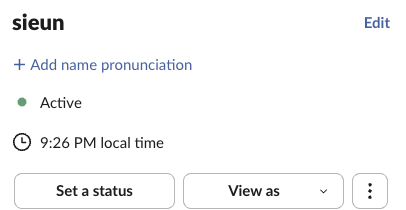
The profile. A profile shows the dot, the status and the person's local time. There is no last seen line, whether the dot is green or hollow.
Slack's API. users.getPresence returns a last activity time only for your own account. For anyone else it returns the dot and nothing more. This is what we got back:
users.getPresence, own account:
{"presence":"active","online":true,"auto_away":false,"manual_away":false,"connection_count":1,"last_activity":1790775264}

users.getPresence, another member (Slackbot):
{"presence":"away"}
We saw the same on 29 September 2026 when we asked for a human member's presence as the workspace's primary owner: only presence came back. So no app built on Slack's API can show a coworker's last seen time either.
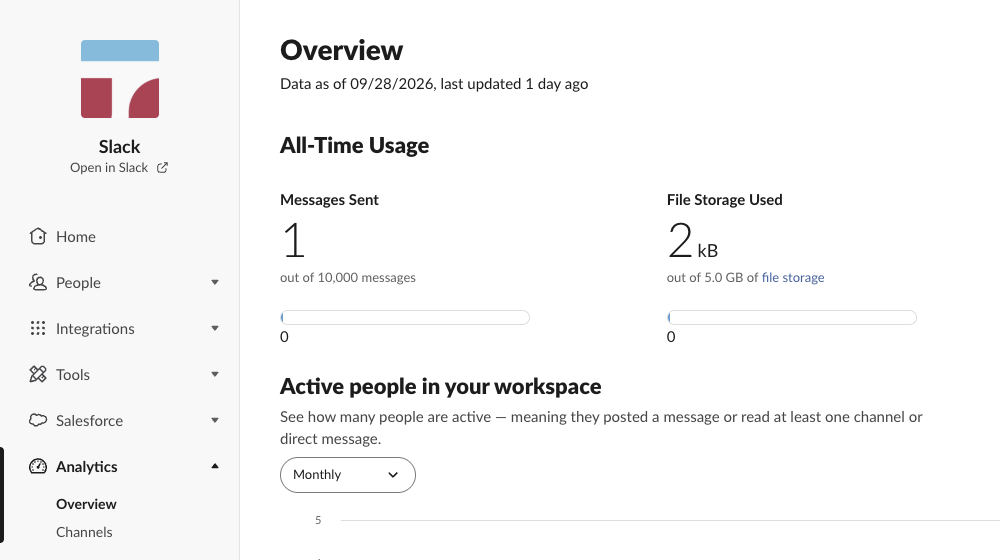
The admin pages on the Free plan. Analytics has only Overview and Channels, with no Members tab, and the data was two days old ("Data as of 09/28/2026"). Slack analytics on the Free plan shows what the overview and its CSV export do contain. The member list shows Date Joined, but no last active column.

Who can see what
| Viewer | Live dot | Last active date | Sign-in times | Device |
|---|---|---|---|---|
| Coworker | Yes | No, unless the owner opens member analytics to everyone | No | No |
| Owner or admin, Pro or Business+ | Yes | Yes, split by desktop, iOS and Android | Yes, in access logs | Yes |
| Owner or admin, free plan | Yes | No | No | No |
| Anyone who shares a channel with you | No | Your last message's timestamp | No | No |
What the dot does and does not say
A filled green dot means Slack saw input in the last 10 minutes on some device. A hollow gray dot means it did not. That is the whole vocabulary. The gray dot carries no timestamp, and manual away looks the same as signed out, so a coworker cannot tell "stepped away 5 minutes ago" from "on vacation since Monday". Slack also sends no alert when the dot turns green; the workaround is in get notified when someone comes online in Slack.
Coworkers see no last-seen time, only your dot right now, and Slack turns it away 10 minutes after your last keyboard or mouse input. A server-side tool keeps your Slack dot green with no input, even with the laptop closed or the phone locked.
Slack's help center describes the rule in one line: you are set to away "after 10 minutes of desktop inactivity, or if you navigate away or close the app on your mobile device". The full logic is in how Slack decides when you're away.
Where a last-active date does exist: member analytics
On the Pro and Business+ plans, the analytics dashboard has a Members tab. Slack's help article on analytics data lists these columns for each member:
- • Last active. The date the member last read or sent a message in any channel or DM.
- • Last active, iOS / Android / Desktop. The same date, split by device.
- • Days active. How many days in the range the member read or sent a message, also split by device.
- It is a date, not a time. Nobody sees "3:42 PM".
- Slack shows it only for members who were active in the last 90 days.
- By default only owners and admins see member analytics. A workspace owner can open them to all members, or turn member metrics off.
- Open search with Cmd+G on Mac or Ctrl+G on Windows and Linux.
- Type
from:@nameand pick the person. - Sort newest first. The top result is their latest message in channels and DMs you can see, with its timestamp.
- • To read without showing up as active, set yourself away by hand. Notifications keep arriving and the dot stays gray.
- • To look present during working hours wherever you are, a server-side schedule holds the dot green, and how to keep Slack active compares it with the other options.
- • Your status text and the dot are separate systems. Neither shows a time.
- • Nothing you do as a member changes what admin analytics record. Reading a message counts as activity there.
Three limits matter:
To look at it as an admin: click Admin in the sidebar, choose Workspace analytics, open the Members tab, and use Edit columns to add Last active. On the free plan there is no Members tab. The full admin workflow, with billing and deactivation, is in how to find inactive users in Slack.
Access logs: sign-ins and app opens
Owners and admins on paid plans can also open access logs. Slack adds an entry when someone signs in, opens the Slack app or web client on a computer or phone, signs in from a new IP address, or acts through an app on their behalf. While a member is using Slack, the log updates every 5 to 10 minutes. Each entry shows the device, client and IP.
This is real login history, but only admins see it. Message content is a separate question; who can read DMs, plan by plan, is in can Slack admins see DMs. What admins can monitor overall is in can Slack be used to monitor employees.
How to see when someone was last active
As a coworker, you cannot open a last-seen field, because none exists. You can find the person's latest message:
More filters like this are in Slack search operators. Reactions and edits also carry times, and a person staring at your profile sees the moment your dot turns gray. Automated watching of someone's presence breaks Slack's API terms; a human glancing now and then is just a human.
Screenshots are not on this list. Slack sends no alert when someone captures a message, as covered in does Slack notify screenshots.
Controlling what is visible
Frequently asked questions
Can my boss see when I was last active on Slack? If your boss is a workspace owner or admin on a paid plan, yes, as a date in member analytics, plus sign-in and app-open entries in access logs. A manager without admin rights sees only the dot.
Is there a Slack status history? No, for the dot or the custom status. What admins can see, and how to log your own, is in can you see Slack status history.
Does Slack show if someone read my message? No. Slack has no read receipts in DMs or channels. Details in does Slack have read receipts.
Related Articles
Slack Inactive vs Deactivated vs Away: What Each One Means
Away is the grey dot, inactive is a billing status after 28 days without Slack, and deactivated is an account an admin turned off. We checked where each one shows in a real workspace admin page.
Will I Get Caught Using Slack Green? What Admins Can See
What coworkers, workspace admins and IT can see when Slack Green runs, measured in a real Slack access log: a web session from our server's IP, every 6 hours.
Does Slack Track Your Mouse Movement or Detect a Jiggler?
No. The Slack desktop app reads one number, how long the computer has been idle, plus each device's connection state. It does not record your mouse path, your screen or your keystrokes. The check, printed from the app's code.