
Can Slack Be Used to Monitor Employees? What Your Employer Sees
Yes, within limits. Owners and admins see days active, messages posted, sign-ins and, on some plans, exports of DMs. Apps can log your green dot. Slack does not record keystrokes, mouse movement outside its window or screenshots.
Yes, Slack can be used to monitor employees, within limits. Workspace owners and admins can see how many days each person was active, when they were last active on desktop and phone, how many messages they posted, and every sign-in with its IP address and device. On Business+ and Enterprise plans, owners can apply to export private channels and DMs. Any app installed in the workspace can read whether you are active or away and keep a log of it. Slack itself does not record keystrokes, mouse movement outside its window, screenshots or the other apps you use. That kind of tracking comes from monitoring software on your laptop, not from Slack.
The piece most people underestimate is the dot. Your active or away state is visible to everyone, live, and apps can turn it into a timesheet. On a computer it goes away 10 minutes after your last input in the Slack window, even while you work in another app. Slack Green keeps the dot active from the cloud during the working hours you set, so reading a long document does not look like a gap. The rest of this page covers each thing your employer can see, by plan.
What your employer can see through Slack
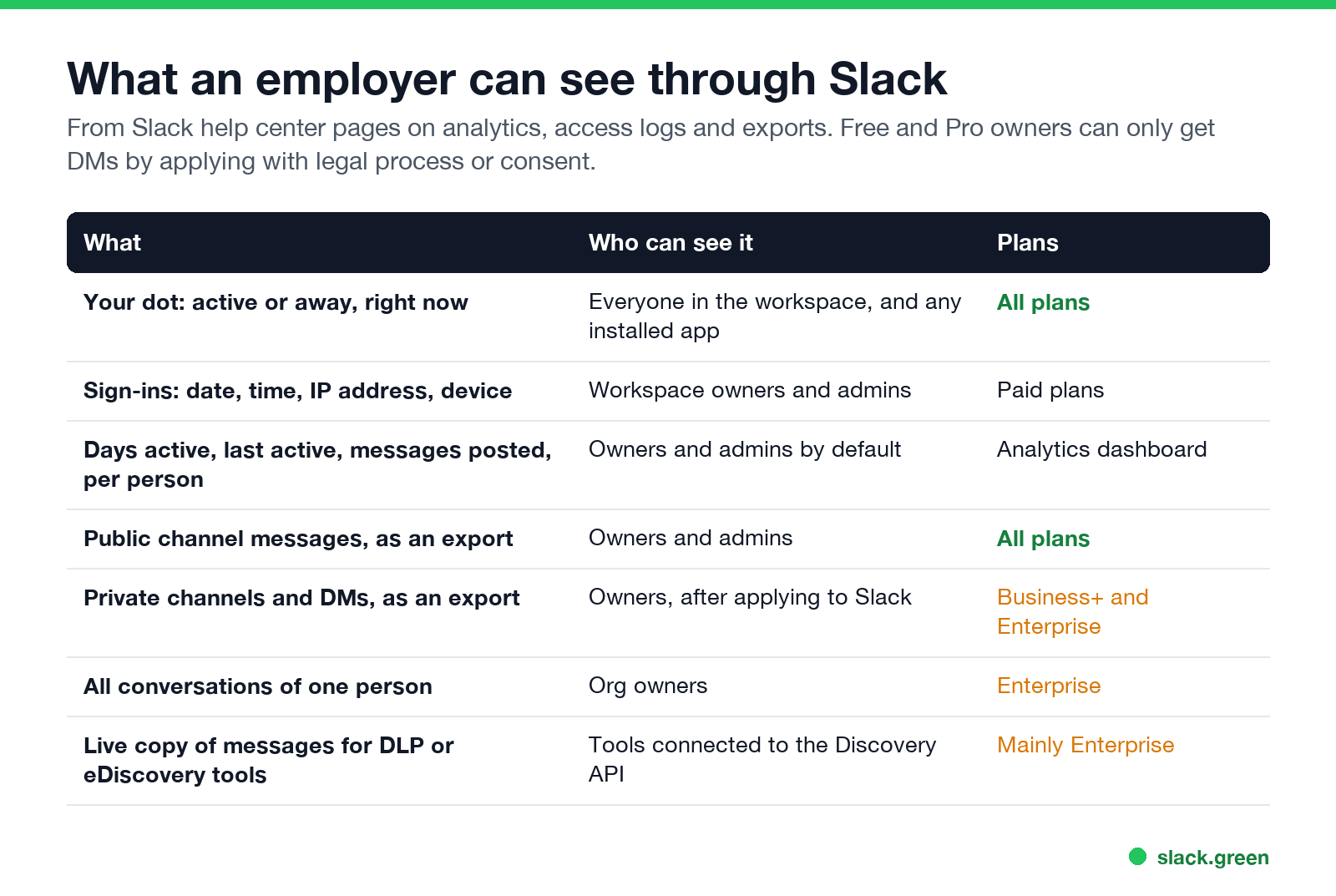
| What | Who can see it | Plans |
|---|---|---|
| Your dot, active or away, right now | Everyone in the workspace, and any installed app | All plans |
| Sign-ins: date, time, IP address, device | Workspace owners and admins | Paid plans |
| Days active, last active, messages posted, per person | Owners and admins by default | Analytics dashboard |
| Public channel messages, as an export | Owners and admins | All plans |
| Private channels and DMs, as an export | Owners, after applying | Business+ and Enterprise |
| All conversations of one person | Org owners | Enterprise |
Each row comes from Slack's help center. The sections below explain what each one means in practice.
Slack analytics: days active and messages per person
The Members tab of Slack's analytics dashboard lists every person with these numbers, according to Slack's own definitions:
- • Days active. The number of days you read or sent a message in at least one channel or DM. It is split by desktop, iOS and Android.
- • Last active. The date you last read or sent a message, again per device.
- • Messages posted and messages posted in channels. Counts, not content.
- • Reactions added and files uploaded.
On Enterprise plans, org-level metrics also include how many huddles you joined and how many searches you ran.
By default only workspace owners and admins can see member analytics. Owners can also let every member see it, or turn the tab off.
These are daily numbers. A manager can see that you were active on 19 of 20 workdays and posted 340 messages. The dashboard does not show what hours you worked, how long your dot was green, or what you did outside Slack.
Access logs: when and where you signed in
Never appear "away" on Slack again
Cloud-based. No downloads. Works 24/7 even when your laptop is off.
On paid plans, owners and admins can open access logs for the whole workspace. Each entry shows the date and time of a sign-in, the IP address, and the device or browser. You can see your own list at my.slack.com/account under Access Logs.
Access logs show where you signed in from. A new country or an unfamiliar device stands out. What that means for your location is in does Slack track your location. They do not show activity inside a session.
Can your employer read your DMs in Slack?
Sometimes, and it depends on the plan:
In practice, exports are pulled for a reason: a legal hold, an HR investigation, or a security alert. They are not a live feed a manager reads over your shoulder. The full breakdown of admins and private messages is in can Slack admins see DMs.
Can Slack track your activity outside Slack?
No. Slack runs no tracking outside its own window.
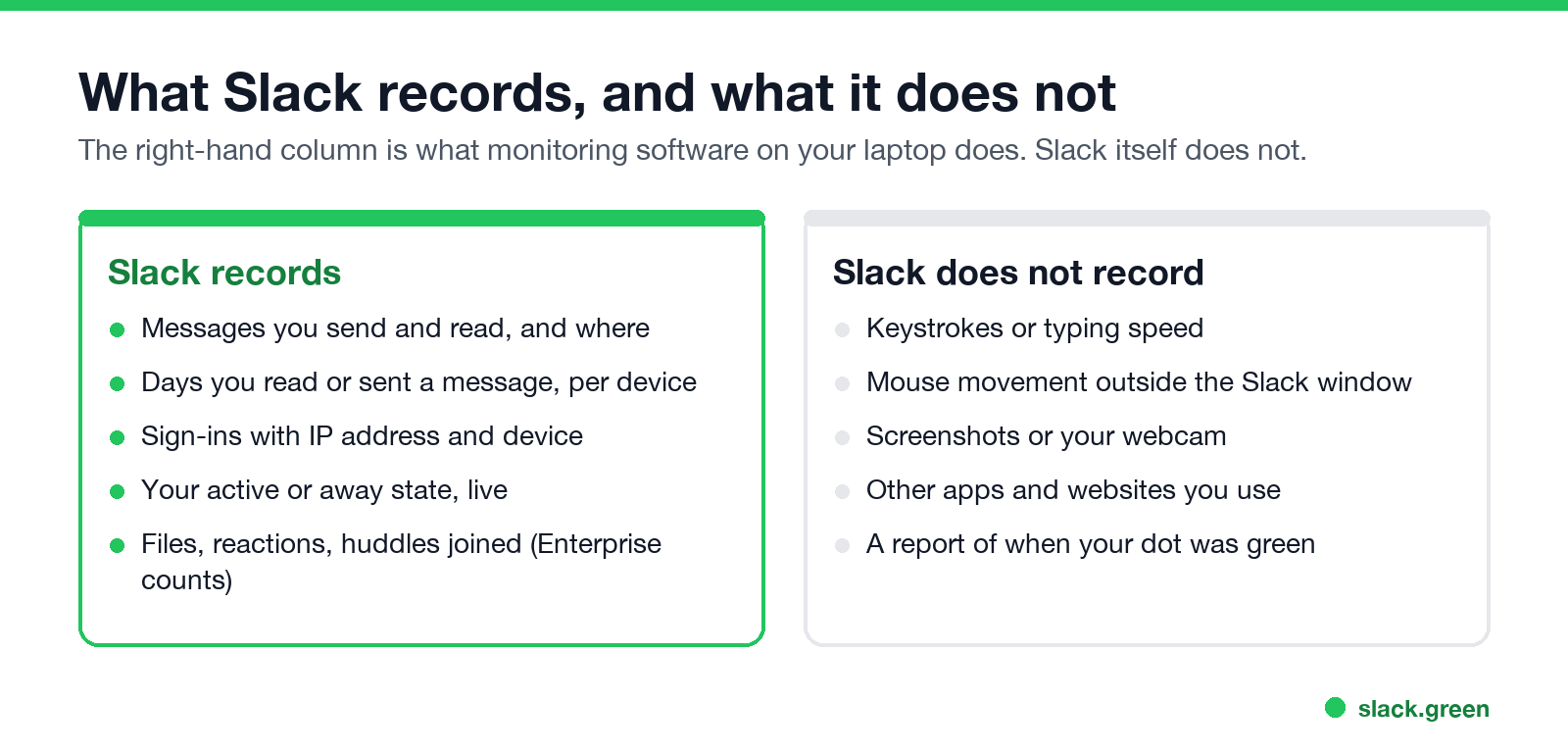
Slack counts only input inside its own window, and it uses that input for one thing: deciding whether your dot is green. It does not log keystrokes, typing speed, mouse paths, screenshots, your webcam, or which websites you visit. We looked at this in detail in does Slack track mouse movement.
If your company tracks those things, it uses separate monitoring software installed on your laptop, such as Teramind, ActivTrak, Hubstaff or Time Doctor. Some of these vendors sell "Slack monitoring", but they work from the laptop: they record screens, active apps and input, and some scan message content. That software is also how mouse jigglers get detected.
How your green dot becomes a timesheet
Never appear "away" on Slack again
Cloud-based. No downloads. Works 24/7 even when your laptop is off.
Slack's admin tools show no history of when your dot was green. Apps can build one.
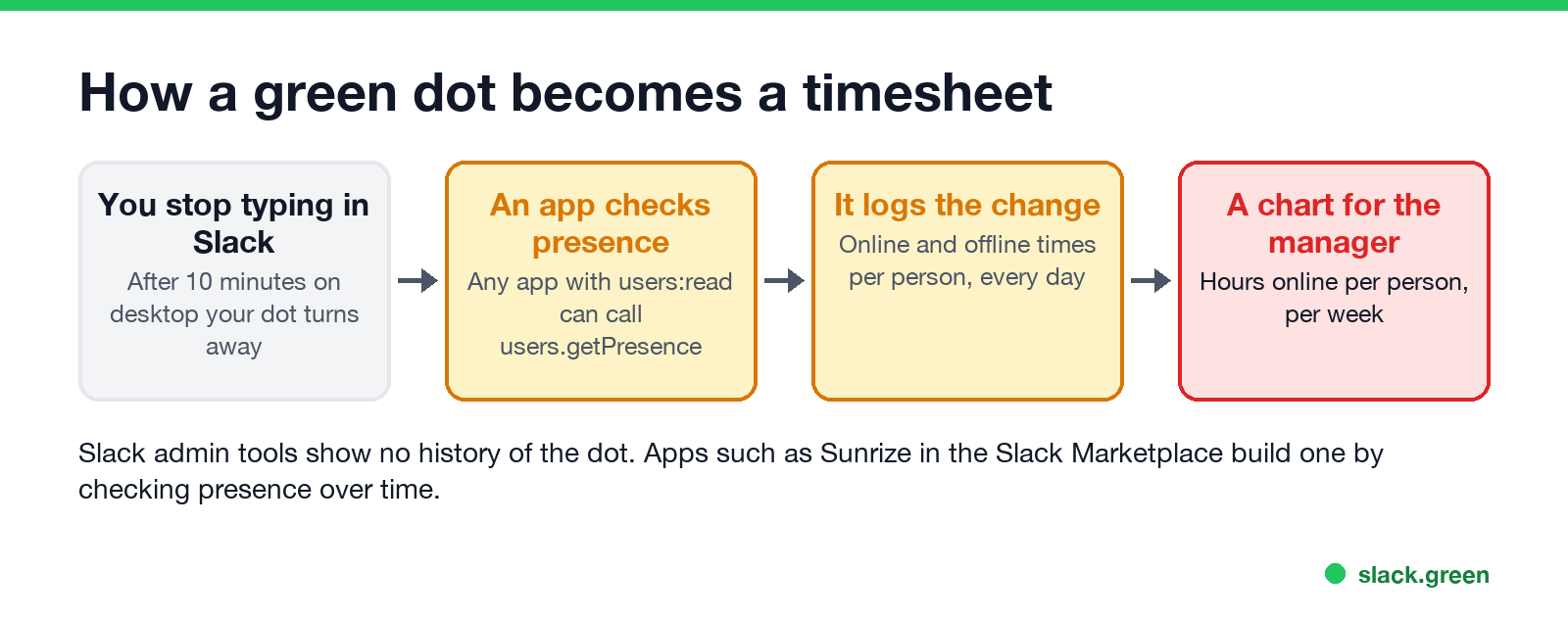
Any app installed in the workspace with the users:read permission can ask Slack whether a person is active right now:
bash
curl -s -H "Authorization: Bearer $SLACK_BOT_TOKEN" \
  "https://slack.com/api/users.getPresence?user=U0123ABCD"
{"ok": true, "presence": "away"}
An app that asks every few minutes, for every person, gets a list of online and offline times. Some Slack Marketplace apps do exactly that. Sunrize, for example, describes itself as an app that "automatically logs employees' online and offline time right in Slack" and shows managers charts of work-hour trends.
This is where the 10-minute rule hurts. On desktop your dot goes away after 10 minutes with no input in the Slack window. Reading a spec, writing in a document or sitting in a Zoom call all count as away. A presence log turns those minutes into gaps. How the rule works on each device is in how Slack decides when you are away, and how long each device keeps you green is in how long does Slack stay active.
Slack Green keeps your dot active from its own servers during the working hours you set, with nothing installed on your laptop and with the lid closed. Outside your hours, normal Slack behavior returns. It changes only the dot. Your messages, sign-ins and analytics stay exactly as they are, and what an admin can see is covered in will I get caught using Slack Green. If you compare every way to stay green, start with how to keep Slack active.
Is monitoring employees through Slack legal?
In the US, an employer can generally monitor company accounts on company systems, and a paid workspace belongs to the company. Some states require notice first:
In the EU and UK, data protection law requires a legitimate reason and proportionate monitoring, and reading private messages needs a strong justification. This is general information, not legal advice. Your employee handbook or IT policy says what your company does.
FAQ
Can my boss see my Slack activity?
Your boss sees your dot, active or away, like everyone else. If they are a workspace owner or admin, they can also see your days active, last active date and message counts in analytics, and your sign-ins in access logs.
Does Slack monitor your activity?
Slack records what happens inside Slack: messages, reads, sign-ins and whether you are active. It does not record keystrokes, screenshots, or what you do in other apps.
Can Slack track how long you are active?
Not as a report in the admin tools. Analytics counts days active, not hours. An installed app can log your presence every few minutes and build an hours report.
Can employees tell if they are being monitored through Slack?
Partly. You can see installed apps in the workspace app directory, and you can view your own access logs. You cannot see whether an owner ran an export or opened analytics. If you leave the company, deactivating your account does not delete your messages.
Can Slack admins see deleted messages?
It depends on the retention settings. On Enterprise plans, a legal hold keeps messages even after you edit or delete them. See can Slack admins see DMs for the full list.
Does Slack show when you are on your phone?
Not to coworkers: the dot looks the same on every device. Admins see days and last active per device in analytics. We tested the dot in does Slack show when you are on mobile.
Stop Jiggling Your Mouse.
Join hundreds of remote workers who never worry about their Slack status. Set it up once, stay green forever.
Related Articles
How to Keep Google Chat Active: Idle at 5 Minutes, Away at 10
Google Chat shows you as Idle after 5 minutes without activity in Gmail or Chat on desktop, and Away after more than 10 minutes. There is no always-active setting. How the status works, what you can set, and what keeps it green.
Slack Status Not Updating? How to Fix a Stuck Status
A Slack status that will not update is usually a status you set yourself blocking the calendar, an app that has not synced, a status set in another workspace, automatic statuses turned off, or a stale client. How to tell which one, fix it, and tell a stuck status from a stuck dot.
Can Slack See Deleted Messages? What Your Company Can Recover
Nobody can see a deleted Slack message in the app, including admins. Your company can still have it if the workspace retention setting saves edits and deletions, or if a legal hold is on, and read it through an export or eDiscovery tool. What each plan keeps, and whether you can recover a deleted message.