
Why Slack Messages You as "Slack" Instead of Slackbot
Slack has a second system account named Slack. We tested which notices it sends, where reminders went, and how to filter both users in an app.
Slack now sends some system notices from a user called Slack instead of Slackbot. It is a second built-in account with its own DM, listed under Apps in your sidebar, and it carries notices about channel membership and management, such as being removed from a channel. Reminders moved too: in our test they fired into Activity and To-dos, and nothing landed in the Slackbot DM. We checked this on 20 and 21 November 2026 in a Free workspace, as a regular member, with a test app doing the removing.
What the Slack DM looks like
The DM opens with Slack's own description: 'Slack notifications deliver messages about channel management, membership, and more — the things that happen in the background of your work day, but are still good to know about.' There is no message box. The bottom of the DM reads 'This conversation is for notifications only', so you cannot reply.
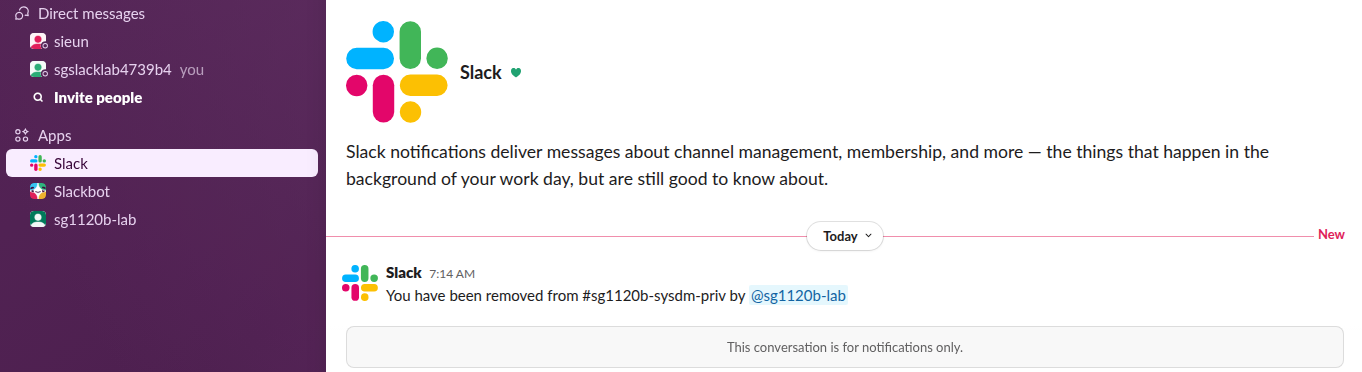
Slackbot is still there as a separate DM right below it. In our workspace its DM held only the welcome text, 'Hi, Slackbot here!', and a note that Slackbot's AI features are not available on the Free plan.
Which notice went where
We triggered five kinds of event with a test app and a member account, then checked both DMs and the Activity tab:
| What happened | Where the member saw it |
|---|---|
| App removed the member from a private channel | Slack DM: 'You have been removed from #channel by @app' |
| App invited the member to a public channel | Activity, as ' |
| App renamed, then archived that public channel | No DM from Slack or Slackbot |
/remind me to check the build in 1 minute | Activity as Reminder with a Mark Complete button, and To-dos |
reminders.add with 'in 1 minute' | Same as /remind: Activity and To-dos |
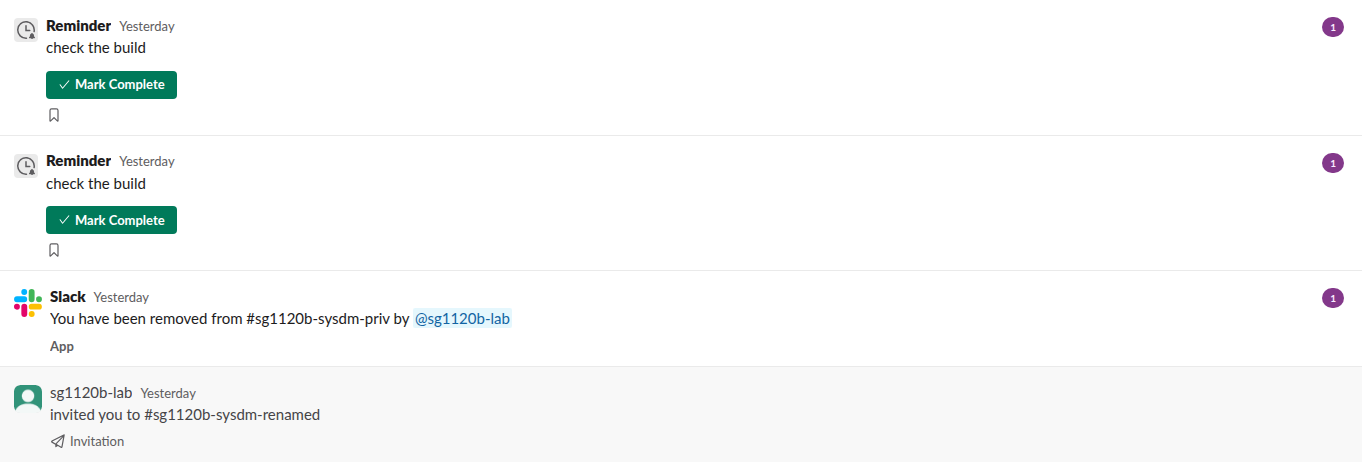
The two reminders stayed in To-dos as overdue items a day later, until we cleared them by right-clicking and choosing Clear. After firing, reminders.list returned an empty list and reminders.info answered not_found, so the API no longer sees a reminder that is waiting in To-dos.

If you are used to Slackbot posting 'Reminder: ...' in its DM, look in Activity instead. Our guide to editing a Slack reminder and the /remind examples cover the commands themselves.
Never appear "away" on Slack again
Cloud-based. No downloads. Works 24/7 even when your laptop is off.
The two system users in the API
Both accounts answer users.info. Neither is marked as a bot, which matters if your code filters on is_bot:
USLACK     name: slack     real_name: Slack     is_bot: False  is_app_user: False
USLACKBOT  name: slackbot  real_name: Slackbot  is_bot: False  is_app_user: False
The removal notice arrived as a plain message from USLACK, with no subtype and no bot_id:
{
  "user": "USLACK",
  "type": "message",
  "text": "You have been removed from #sg1120b-sysdm-priv by <@U0CKMMPEHB6>",
  "blocks": [{"type": "rich_text", "elements": ["..."]}]
}
Slackbot still writes some messages into channels. When we deleted a message that had a thread reply, the placeholder 'This message was deleted.' came back from conversations.history as user: USLACKBOT with subtype: tombstone.
Filter both in your app
An app that skips Slackbot by checking user == "USLACKBOT" will now treat the Slack user's notices as human messages. This is the filter we ran over three real events from our test, the USLACK notice, the Slackbot tombstone and a member's message:
SYSTEM_USERS = {"USLACKBOT", "USLACK"}

def is_system_notice(event):
    return event.get("user") in SYSTEM_USERS or event.get("subtype") in {"tombstone", "channel_join"}
USLACK 'You have been removed from #sg1120b-sysdm-' -> True
USLACKBOT 'This message was deleted.' -> True
U0CDVBA6TMZ 'Deploy notes are in the doc' -> FalseIf your bot keeps custom Slackbot replies, those still come from Slackbot; see Slackbot custom responses.
FAQ
Is the Slack DM a scam or a third-party app?
No. It is a built-in account like Slackbot: its user ID is USLACK, users.info lists it as part of the workspace, and nobody can send messages to it.
Can I reply to it? No. The message box is replaced by 'This conversation is for notifications only'.
Do I still need the Slackbot DM? It stays for Slackbot's own features. In our Free workspace it posted nothing during the test.
Stop Jiggling Your Mouse.
Join hundreds of remote workers who never worry about their Slack status. Set it up once, stay green forever.
Related Articles
Why Slack Says LEGACY Next to Slackbot and Huddle Notices
The grey LEGACY tag marks messages from the old, automated Slackbot in your Slackbot DM. Slack shows it on Free and Pro workspaces to tell those notices apart from the new AI Slackbot. We read the code that draws it.
Slack After Hours Status: Working Hours, Messages and Examples
To show you are off after hours in Slack, set your working hours in Preferences so Slack pauses notifications outside them, tick the after-hours option under Automatic statuses, and add a status that says when you are back. Examples, what coworkers see, and a script for a daily status.
How to Hide Slack Message Previews in Notifications
To hide Slack message previews, open Preferences, Notifications, scroll to Sounds & appearance, and uncheck Include a preview of the message in each notification. On iPhone, Mac and Android, set Slack's notification previews to Never or When Unlocked. Screen sharing, lock screens and email notifications.