
How to Edit a Slack Reminder (and Why Some Only Let You Delete)
One-time Slack reminders can only be moved to a new time from the Later tab. Recurring and channel reminders cannot be edited at all: delete them from /remind list and set them again.
To edit a one-time Slack reminder, open Later, hover over the reminder and click the clock icon, then pick a new time. That is the only edit Slack allows: the reminder text cannot be changed, and recurring reminders and channel reminders cannot be edited at all. For those, type /remind list, click Delete next to the reminder, and set it again.
We checked all of this on 29 September 2026 in the Slack web app, in a one-person test workspace, with reminders made with /remind and with Slack's API.
Change the time of a one-time reminder
- Click Later in the left sidebar. One-time reminders sit under In progress, next to messages you saved.
- Hover over the reminder. Three icons appear: a checkmark, a clock and three dots.
- Click the clock. The menu offers In 30 mins, In 1 hour, In 3 hours, Tomorrow at 9:00 AM, Monday at 9:00 AM and Custom... for any date and time.
- Type
/remind listin any channel or DM and send it. - Slack replies with a list only you can see. Your repeating reminders are under Recurring.
- Each line has one button, Delete. There is no edit.
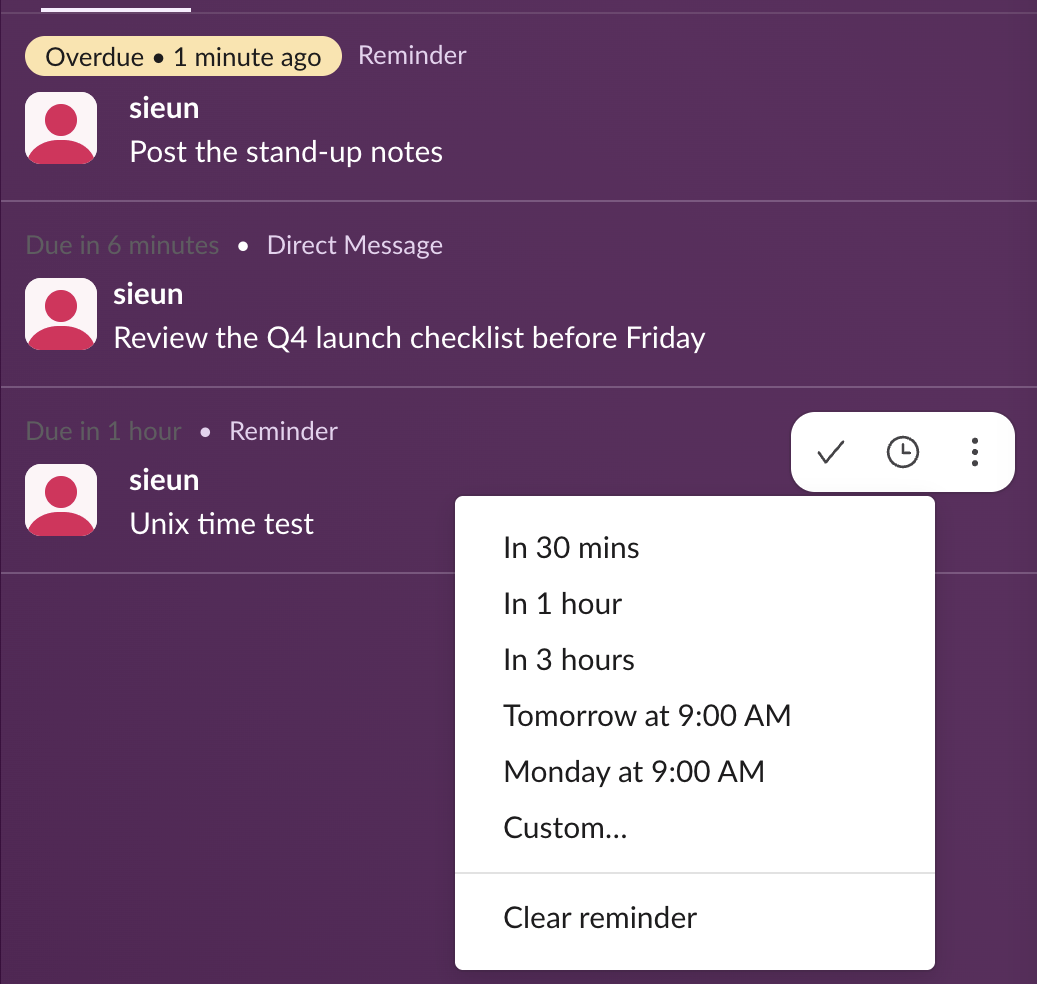
The three-dot menu has Edit reminder, which opens the same time menu, and Delete reminder. Clicking the reminder itself opens nothing. There is no field for the text, so to fix a typo you delete the reminder and create a new one with the + at the top of the Later list or with /remind me. An overdue reminder stays in Later with a yellow "Overdue" label, so you can still move it after it fires.
Clear reminder at the bottom of the clock menu does not delete anything. In our test it removed the due time and left the item in Later labelled only "Reminder", so it will never fire. Use it only if you want to keep the note without an alert.
Where recurring reminders are, and how to change one
A reminder that repeats, such as /remind me to water the plants every weekday at 9am, never showed up in our Later tab. Before it first fires, the only place it is listed is /remind list:
To change the day, time or text, delete it and run /remind again with the new wording. The /remind syntax, with examples for every day, weekday and month, is in our Slack /remind command examples, and the commands Slack misreads are in Slack reminder not working; the /remind builder writes the command for you if you would rather pick the schedule from menus.
One-time reminders are the reverse. They are in Later and do not appear in /remind list at all. We had seven one-time reminders open during the test, and the list showed none of them.
Never appear "away" on Slack again
Cloud-based. No downloads. Works 24/7 even when your laptop is off.
Channel reminders: delete from the channel
A channel reminder has to be managed from the channel it posts in. Run /remind list there, and the reply adds an In this channel section above your recurring ones:
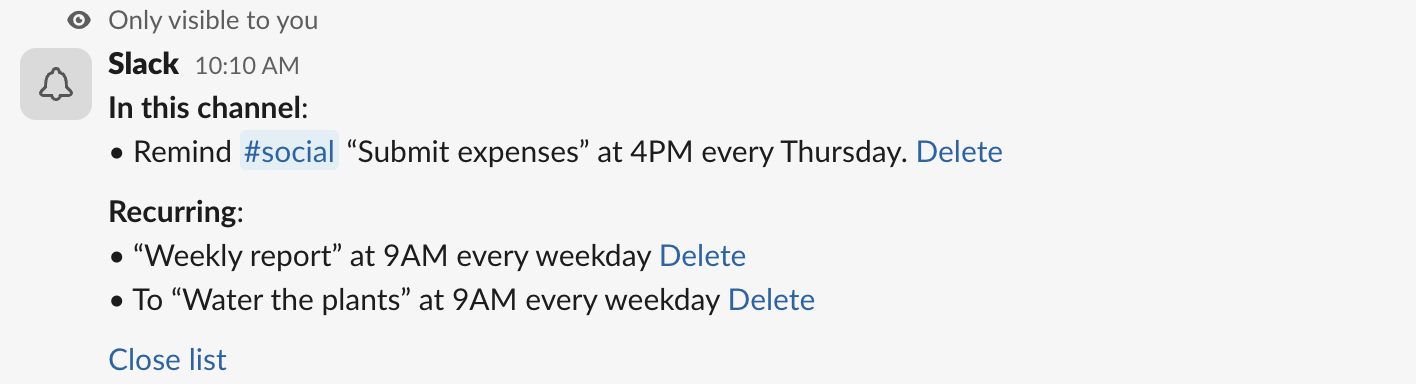
Click Delete next to it. The list refreshed right away without that line, and the reminder was gone.
Two things we saw that the help center does not mention:
/remind has its own Delete button. We clicked it under a new weekly reminder, and Slackbot answered "OK! I've deleted the reminder" at once. It is the fastest undo when you spot a wrong time.Edit a Slack reminder on your phone
We did not test the phone app. Slack's help center says it follows the same rules: open Later, tap the reschedule icon to change the time, or tap and hold a reminder and choose Remove from Later to delete it. For recurring and channel reminders, type /remind list in the message field, as on desktop.
FAQ
Can I snooze a Slack reminder?
Yes, for one-time reminders. When it fires, it shows in Activity and in Later as "Overdue". Hover it in Later, click the clock and pick a new time, which works as a snooze.
Why is my reminder not in the Later tab?
It is probably a recurring or channel reminder. Those are only listed by /remind list. For a channel reminder, run it in the channel the reminder posts to.
How do I cancel a reminder I just set with /remind?
Click Delete under Slackbot's "I will remind you..." reply. If you have scrolled past it, delete the reminder from Later (one-time) or from /remind list (recurring and channel).
Stop Jiggling Your Mouse.
Join hundreds of remote workers who never worry about their Slack status. Set it up once, stay green forever.
Related Articles
Slack Headphones Icon: What It Means in Each Spot, and Huddling Alone
The headphones icon in Slack means huddles: the button that starts one, a live huddle next to a channel, the bar you are in. We started a huddle alone to show every spot, and checked whether you can huddle in your own DM.
Slack Canvas Formatting: Shortcuts That Work and Ones That Stay as Text
We typed every common markdown shortcut into a Slack canvas. Headings, lists, checklists, quotes and code convert as you type; a single *star* makes bold, not italic; links, dashes for a divider and ==highlight== stay as plain text.
Slack Huddle Background: Blur, Pictures, Uploads and Themes
A Slack huddle has two backgrounds: the one behind you on camera, and the theme behind the whole huddle window. Where each one is, what you can pick, and why many people see no upload button.