
How to Hide Slack Message Previews in Notifications
To hide Slack message previews, open Preferences, Notifications, scroll to Sound & appearance, and uncheck Include a preview of the message in each notification. On iPhone, Mac and Android, set Slack's notification previews to Never or When Unlocked. Screen sharing, lock screens and email notifications.
To hide Slack message previews, click your profile picture in Slack, choose Preferences, then Notifications, and scroll down to Sound & appearance. Uncheck Include a preview of the message in each notification. Notifications still arrive, but they no longer show the message text. On your phone, do it in the phone's settings: on iPhone, Settings, Notifications, Slack, Show Previews, and pick Never or When Unlocked. On a Mac, the same option is in System Settings, Notifications, Slack.
We build Slack Green, which keeps your Slack status green from our servers during the hours you set. People who care about what coworkers see of their Slack tend to care about what the lock screen shows too.
Hide previews in the Slack desktop app
Slack's help center gives these steps:
- Click your profile picture in the sidebar.
- Select Preferences, then click Notifications.
- Scroll down to Sound & appearance.
- Uncheck Include a preview of the message in each notification.
The banner then shows that a message arrived, and from where, without the text. Your notification sounds and the badge on the Slack icon keep working. The same section holds the sound choices; see how to change the Slack notification sound.
Hide Slack previews by device
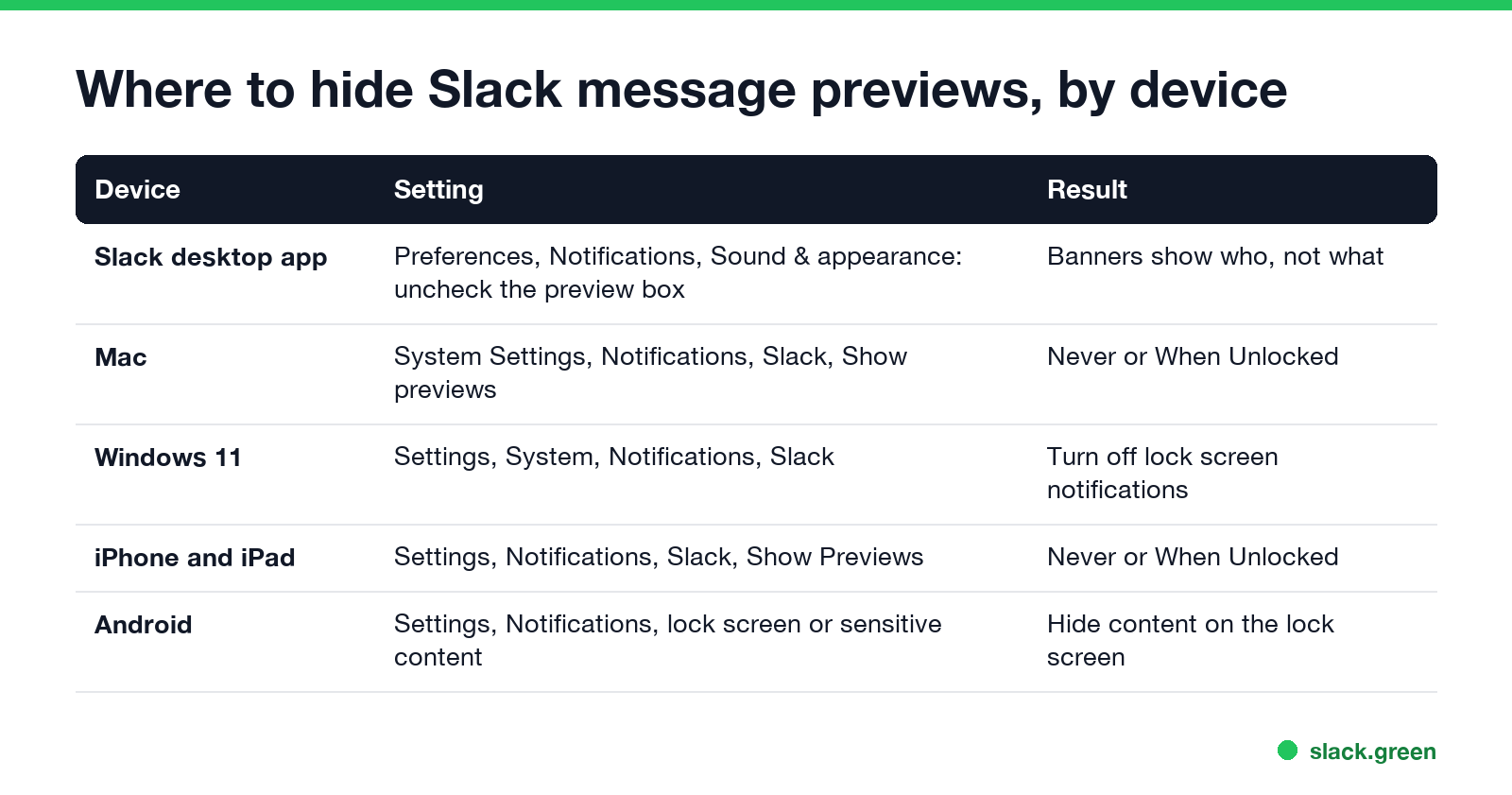
| Device | Setting | Result |
|---|---|---|
| Slack desktop app | Preferences, Notifications, Sound & appearance, uncheck the preview box | Banners without message text |
| Mac | System Settings, Notifications, Slack, Show previews | Never, or When Unlocked |
| Windows 11 | Settings, System, Notifications, Slack | Turn off notifications on the lock screen |
| iPhone and iPad | Settings, Notifications, Slack, Show Previews | Never, or When Unlocked |
| Android | Settings, Notifications, lock screen notifications | Hide sensitive content |
When Unlocked is the middle ground on Apple devices: the lock screen shows only that Slack has a message, and the text appears once you unlock with Face ID, Touch ID or your password. Never hides the text even when the device is unlocked.
Android menus differ by phone maker. Search the Settings app for "lock screen" or "sensitive" to find the option that hides notification content.
When hidden previews matter
Never appear "away" on Slack again
Cloud-based. No downloads. Works 24/7 even when your laptop is off.
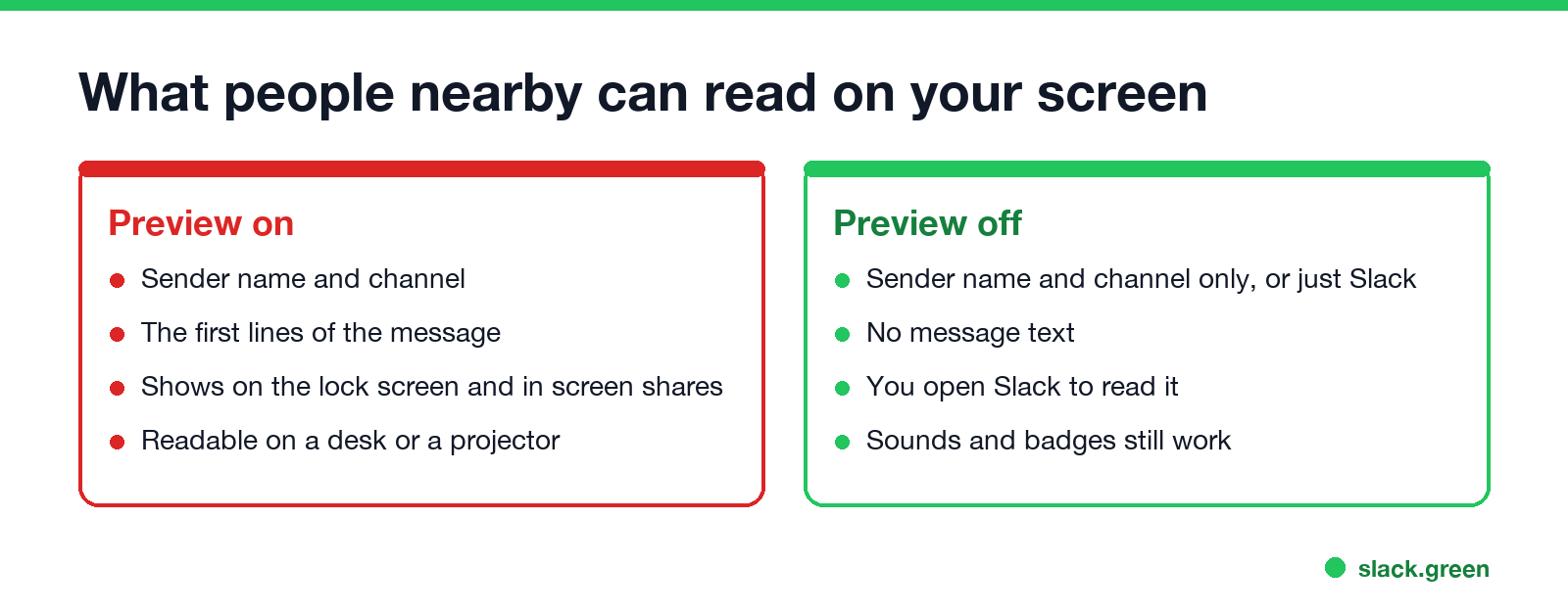
Hiding previews changes only what shows on your devices. It does not change what Slack stores or what your company can see. For that, see can my employer see what I do on my phone.
Email notifications also include message text
If Slack sends you email notifications for missed mentions and DMs, those emails can include the message. Change or turn them off under Preferences, Notifications, in the email notification setting. That matters if your work email shows on a shared or personal device.
Previews still showing? Check these
FAQ
Never appear "away" on Slack again
Cloud-based. No downloads. Works 24/7 even when your laptop is off.
How do I turn off Slack message previews? In Slack, Preferences, Notifications, Sound & appearance, uncheck Include a preview of the message in each notification.
How do I hide Slack messages on my iPhone lock screen? Settings, Notifications, Slack, Show Previews, then Never or When Unlocked.
Will I still get Slack notifications with previews off? Yes. You get the alert and the sound, without the message text.
Does hiding previews stop my employer from seeing messages? No. It changes only what your screen shows.
Stop Jiggling Your Mouse.
Join hundreds of remote workers who never worry about their Slack status. Set it up once, stay green forever.
Related Articles
Slack Emoji for Announcements, Updates and Reminders
The standard Slack emoji for an announcement is 📣 :mega: or 📢 :loudspeaker: at the start of the post. Use 🚨 :rotating_light: only for real emergencies, 🆕 :new: for updates, ⏰ :alarm_clock: for reminders, and ask readers to react with ✅ :white_check_mark: once they have read it. Templates and a custom emoji idea.
Slack Status for a Doctor Appointment: 24 Statuses and Emoji
A Slack status for a doctor appointment says you are out and when you are back, such as 🏥 'At an appointment, back at 2 PM.' You do not have to say what kind. 24 statuses for doctor, dentist and other appointments, the emoji codes, and how to schedule the status so it clears by itself.
Slack Status for Limited Availability: 30 Statuses to Copy
A Slack status for limited availability says you are around but slow, until when, and how to reach you if it is urgent, such as ⏳ 'Limited availability today, replies after 3 PM. Urgent: @mention me.' 30 statuses for busy days, slow replies and catching up, the emoji to use, and when to pause notifications too.