
Teams Status for Lunch: Be Right Back Plus a Message
The cleanest Teams status for lunch is Be right back with a 1-hour duration, plus a status message such as "Out to lunch, back at 1:30" set to clear after 1 hour. Both end on their own. Steps for desktop and phone, lunch messages to copy, and what an Outlook lunch block does to your Teams status.
For lunch in Microsoft Teams, set your status to Be right back with a duration of 1 hour, and add a status message like "Out to lunch, back at 1:30" that clears after 1 hour. Click your profile picture, choose your current status, then Duration to pick the status and when it resets. Then choose Set status message from the same menu for the text. Both end by themselves, so you do not come back to a status that says you are still at lunch at 4 p.m. Typing /brb in the Teams search box also sets Be right back, without a timer.
If you use Slack at work too, the lunch steps for Slack are in Slack status for lunch. For the rest of the day, Slack Green keeps your Slack dot green during the hours you set, from the cloud.
How to set a lunch status in Teams
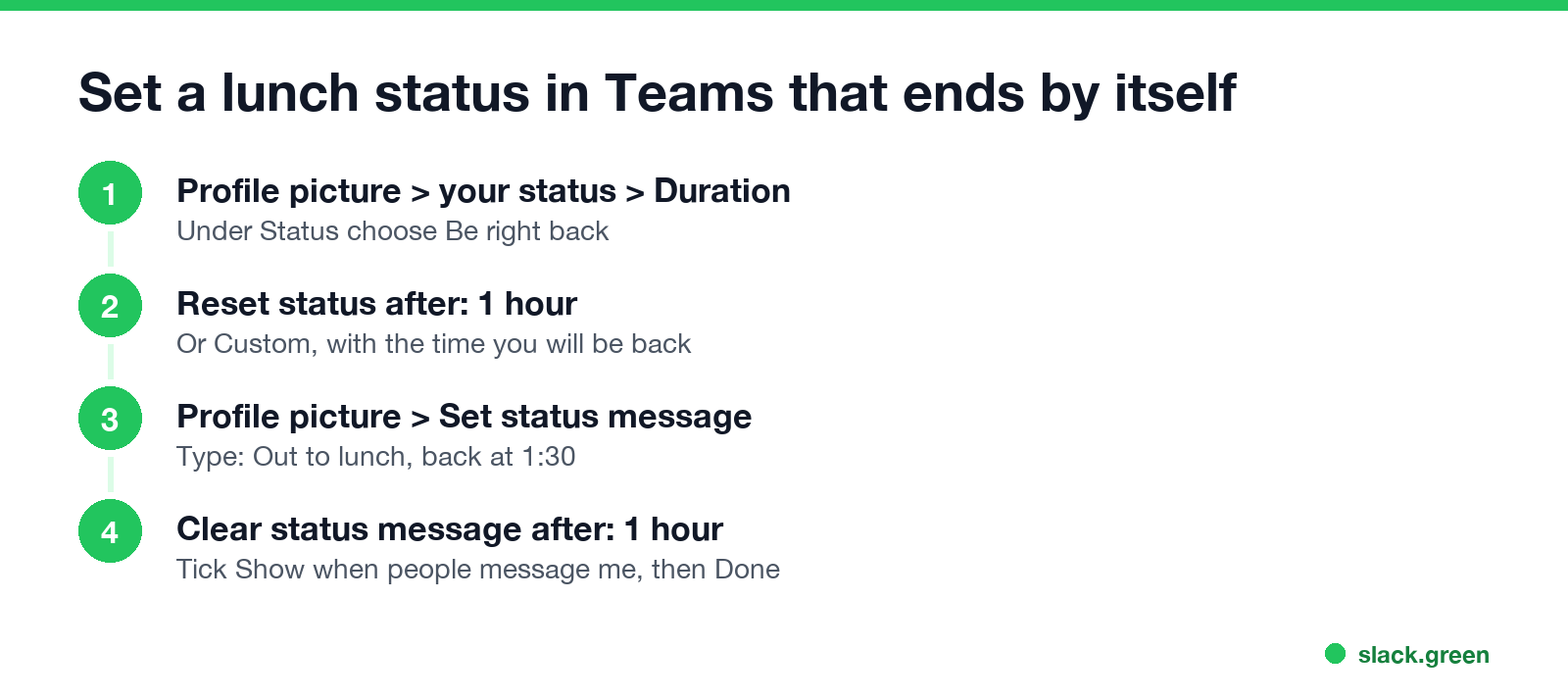
Step 1, the status (the dot):
- Click your profile picture at the top right of Teams.
- Click your current status, then Duration.
- Under Status, choose Be right back.
- Under Reset status after, choose 1 hour, or Custom with the time you will be back.
- Click Done.
- Click your profile picture, then Set status message.
- Type your lunch line, with the time you are back.
- Tick Show when people message me, so anyone who opens a chat with you sees it above the message box.
- Under Clear status message after, choose 1 hour.
- Click Done.
- • Be right back fits lunch best. It says you left on purpose and will return.
- • Appear away looks the same as being idle. Use it if you are eating at your desk and do not want to be pinged.
- • Doing nothing works too. Teams sets you Away after about 5 minutes without keyboard or mouse input, or at once when you lock the computer; see how long before Teams shows away. The difference is that nobody knows when you will be back.
- • Do not disturb is the wrong choice. It mutes notifications and shows a red dot, which reads as "busy", not "at lunch".
Step 2, the message (the words):
On the Teams phone app, tap your profile picture, then your status, and the same Duration and Set status message options are there.
Microsoft's support page describes Be right back as the status for when "you want to say you're temporarily away. It's never set automatically." That is the point of using it: people know you chose it, and will be back soon. When the duration ends, Teams goes back to setting your status from your activity, your calendar and your computer.
Which Teams status to use at lunch
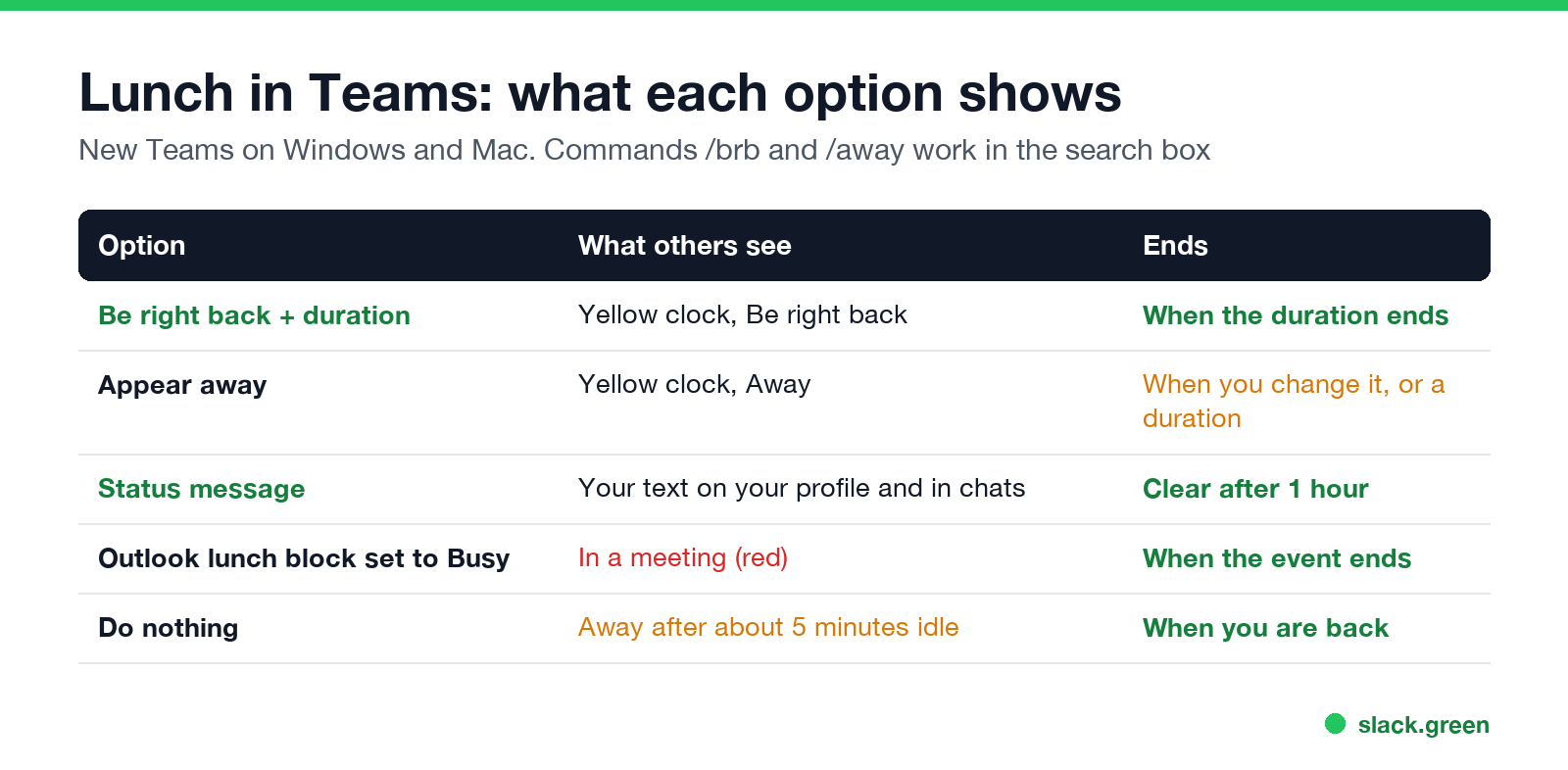
| Option | What others see | When it ends |
|---|---|---|
| Be right back with a duration | Yellow clock, "Be right back" | When the duration ends |
| Appear away | Yellow clock, "Away" | When you change it, or at the end of a duration |
| Status message only | Your text; the dot follows your activity | When the clear-after time ends |
| Outlook lunch event shown as Busy | Red dot, "In a meeting" | When the event ends |
| Do nothing | Away after about 5 minutes without input | When you touch the computer again |
Should you block lunch in your Outlook calendar?
Never appear "away" on Slack again
Cloud-based. No downloads. Works 24/7 even when your laptop is off.
A lunch event in Outlook protects the time from meeting invites, but it changes your Teams status. With Show as: Busy, Teams shows "In a meeting" in red for the whole hour, which is misleading. With Show as: Free, the event blocks nothing in scheduling assistants.
A common setup: a recurring lunch event shown as Busy so nobody books it, plus Be right back and a status message on the days you leave your desk. How Busy and In a meeting differ is in Teams Busy vs In a meeting.
Teams lunch status messages to copy
Plain, with the return time:
A bit lighter:
Put the time you are back in the first few words; that is the part people read. Teams allows up to 280 characters, and you can @mention the colleague who covers for you. More lines are in funny Teams status messages.
Can you set an automatic lunch status every day?
Not in Teams itself. A status message and a duration last for one lunch, and Teams has no daily repeat for either. The options:
For longer absences, use the out-of-office scheduler, which also sends an Outlook auto-reply: how to set an away message in Teams.
FAQ
Never appear "away" on Slack again
Cloud-based. No downloads. Works 24/7 even when your laptop is off.
What is the best Teams status for lunch? Be right back with a 1-hour duration, plus a status message with the time you are back.
How do I set Be right back for 1 hour in Teams? Click your profile picture, click your current status, choose Duration, select Be right back, set Reset status after to 1 hour, and click Done.
Does Teams set me to Away when I go to lunch? Yes, after about 5 minutes without keyboard or mouse input, or immediately when you lock the computer.
Does a lunch block in Outlook change my Teams status? If the event is shown as Busy, Teams shows In a meeting for its length. If it is shown as Free, your status does not change.
Can I type a command to set Be right back? Yes. Type /brb in the Teams search box. It has no timer, so set it back to Available when you return.
Stop Jiggling Your Mouse.
Join hundreds of remote workers who never worry about their Slack status. Set it up once, stay green forever.
Related Articles
How to Change Sleep Settings on a Mac (Ventura to Tahoe)
On macOS Ventura and newer, the Mac's sleep timer is its display timer: set it in System Settings > Lock Screen, under Turn display off on battery and on power adapter when inactive. The Mac sleeps about a minute after the display turns off, unless you turn on Prevent automatic sleeping in Battery > Options, or in Energy on a desktop Mac. Every setting, where it lives by macOS version, and the pmset commands.
Caffeine vs KeepingYouAwake: Which Mac Keep-Awake Cup to Use
Caffeine and KeepingYouAwake are both free, open-source coffee cups for the Mac menu bar. KeepingYouAwake runs on macOS 10.13 and newer, wraps Apple's caffeinate, and can let the display sleep or stop on low battery. Caffeine needs macOS 14.6 and adds an optional cursor nudge that keeps Teams green. Which to pick.
Can My Employer See My Google Chat Messages? Yes, in Vault
On a work Google account, yes. Workspace admins can search, export and keep your Google Chat DMs, group chats and spaces with Google Vault, often including messages you deleted. Messages sent with history off are not covered: they disappear after 24 hours. A personal Google account is out of your employer's reach.