
What Does Inactive Mean on Teams? It Is the Automatic Away
Inactive on Microsoft Teams means Teams set you to Away by itself: about 5 minutes with no input on the computer, a locked screen, or the phone app in the background. How it differs from Appear away, Be right back and Offline.
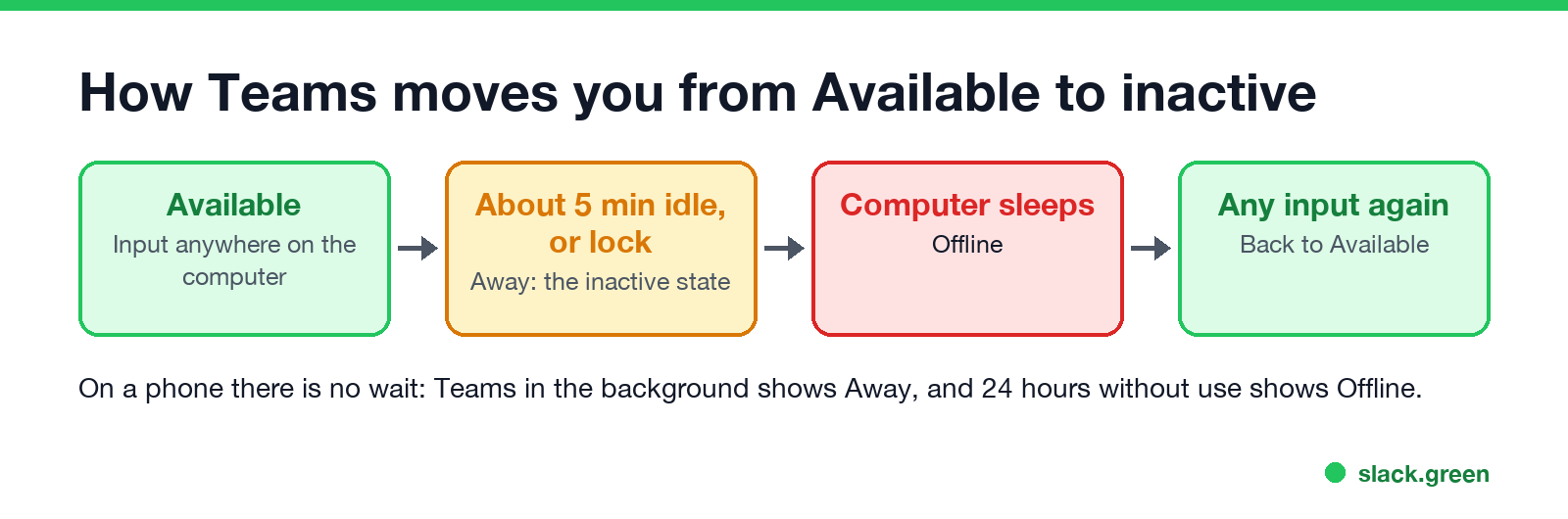
On Microsoft Teams, inactive means Teams has set you to Away by itself because it saw no activity from you. On a computer, that happens after a few minutes with no keyboard or mouse input anywhere on the machine, about 5 minutes in most reports, or at once when you lock the screen. On a phone, it happens as soon as the Teams app goes to the background. Your dot turns into a yellow clock. Teams has no separate status called "Inactive". The word describes why you are Away.
It ends the moment you are active again: touch the keyboard or mouse, or open Teams on your phone, and Teams sets you back to Available. The rest of this page covers how to tell inactive Away apart from the statuses that look the same, and what you can change.
The same idea exists in Slack with a stricter rule: 10 minutes, and only input inside Slack counts. We build Slack Green, which keeps your Slack dot green from a server during the hours you set.
How Teams decides you are inactive
Microsoft's admin page on presence gives the rules:
- • On a computer, your presence "becomes Away automatically if they're inactive for a few minutes or if the computer is locked; and it becomes Offline when the computer enters sleep mode."
- • On a phone, it "becomes Away whenever the Teams app is in the background, and then becomes Offline after 24 hours of inactivity."
- • On more than one device, "the device where they were active most recently determines their presence."
Activity on a computer means input in any app. Typing in Word or scrolling in a browser keeps you Available, because Teams reads the computer's idle state, not only the Teams window. Reading a long document without touching anything makes you inactive. The timings are in how long before Teams shows Away.
Inactive Away vs Appear away, Be right back and Offline
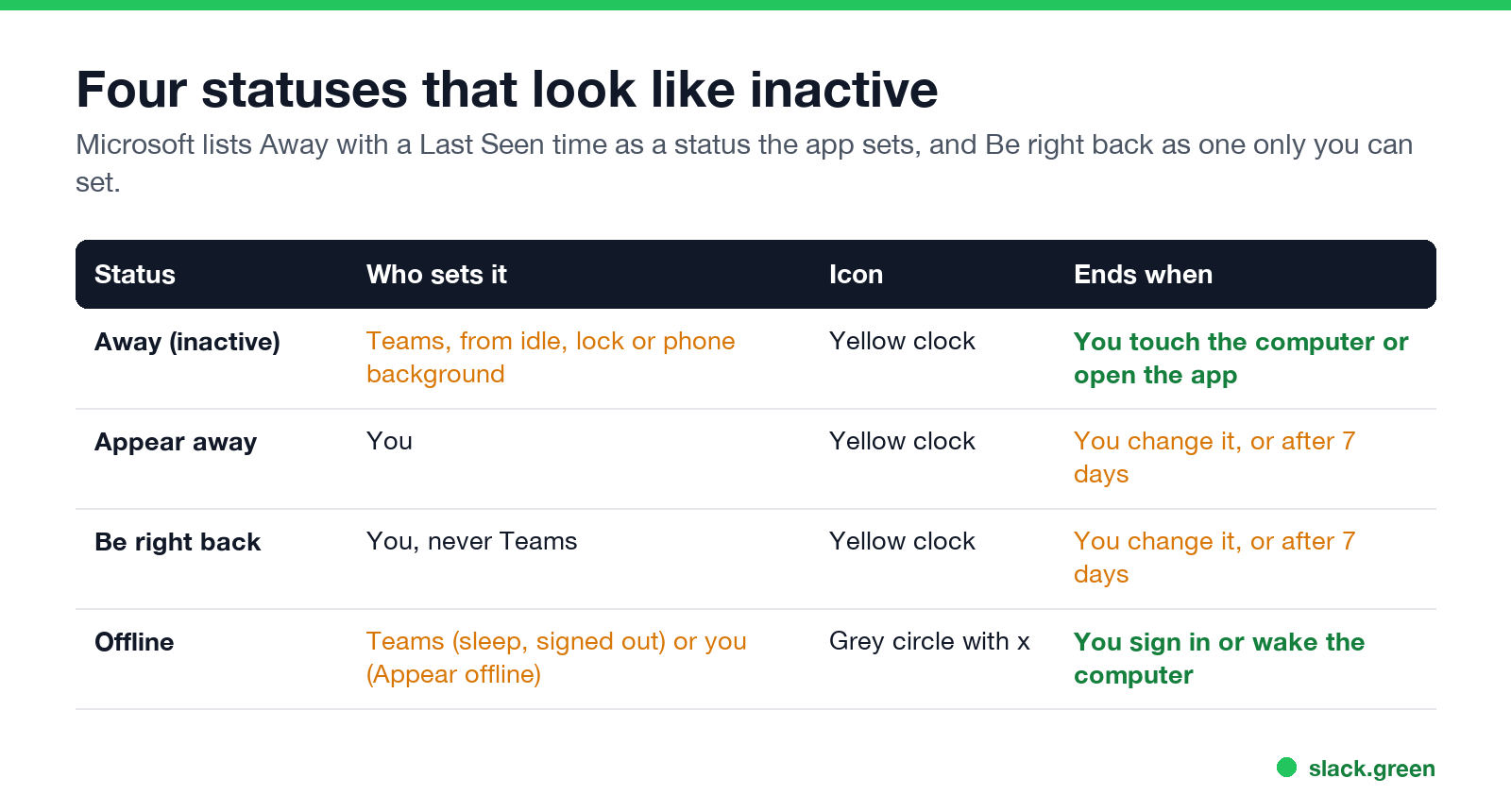
| Status | Who sets it | Icon | Ends when |
|---|---|---|---|
| Away (inactive) | Teams, from idle, lock or phone background | Yellow clock | You touch the computer or open the app |
| Appear away | You | Yellow clock | You change it, or after 7 days |
| Be right back | You, never Teams | Yellow clock | You change it, or after 7 days |
| Offline | Teams (sleep, signed out), or you with Appear offline | Grey circle with an x | You sign in or wake the computer |
Microsoft's presence table splits statuses into ones the user sets and ones the app sets. Away with a Last Seen time is on the app side: that is inactive. Be right back is on the user side only, and Microsoft's support page says it is "never set automatically". So if someone shows Be right back, they chose it. If they show Away, they may have chosen Appear away or they may have gone idle. The icon alone does not tell you which.
Manual statuses last a long time. Without a duration, Microsoft says a status you set lasts 7 days, except Busy and Do not disturb (1 day) and Appear offline (indefinitely). Every icon and color is in Microsoft Teams status icons meaning.
Idle vs Away on Teams
Never appear "away" on Slack again
Cloud-based. No downloads. Works 24/7 even when your laptop is off.
Teams does not show an "Idle" status. Idle is the condition, Away is the status. The older Skype for Business showed "Inactive" as a separate state, which is where the word comes from. In Teams, idle on the computer, a lock, or the phone in the background all lead to the same Away.
Can you stop Teams from marking you inactive?
You cannot change the idle time. Neither can your admin. What you can do:
Choosing Available by hand does not stop it. Microsoft lets you choose only a status less available than the one Teams calculates, so a calculated Away cannot be overridden with Available.
You show inactive while you are working
The fixes for each are in Teams status stuck on Away.
Other places Teams says "inactive"
Never appear "away" on Slack again
Cloud-based. No downloads. Works 24/7 even when your laptop is off.
Inactive on Teams vs inactive on Slack
| Microsoft Teams | Slack | |
|---|---|---|
| Name for it | Away, yellow clock | Away, hollow grey dot |
| Idle time on a computer | About 5 minutes | 10 minutes |
| What counts as activity | Input anywhere on the computer | Input in the Slack window only |
| Phone app in background | Away | Away |
Both at once are covered in keep Teams and Slack active. For Slack, Slack Green keeps you active from a server, with nothing installed on your laptop.
FAQ
What does inactive mean on Teams? Teams set you to Away by itself because there was no input on your computer for about 5 minutes, your screen locked, or the Teams phone app went to the background.
How long before Teams shows me as inactive? About 5 minutes without input on the computer. At once when the screen locks or the phone app goes to the background.
What is the difference between Away and Be right back on Teams? Away can be set by Teams when you are inactive, or by you. Be right back is only ever set by you.
Can people see that I am inactive rather than Appear away? Both show a yellow clock. Microsoft lists Away with a Last Seen time as the status Teams sets, so the profile card can show more detail.
Does inactive on Teams mean I am offline? No. Inactive is Away. Offline is a grey circle with an x, set when your computer sleeps, you sign out everywhere, or you choose Appear offline.
Can my admin see how long I was inactive? Teams does not give managers a history of your status. Admin reports show activity counts, such as messages and meetings per day. Apps with Microsoft Graph access can read your current presence, and some monitoring tools record it over time.
Stop Jiggling Your Mouse.
Join hundreds of remote workers who never worry about their Slack status. Set it up once, stay green forever.
Related Articles
How to Keep Skype Status Active: Skype for Business Idle Timers
To keep your Skype for Business status active, open Options, Status, and raise both idle timers, Inactive and then Away, from 5 minutes to as much as 360 minutes each. Consumer Skype shut down on May 5, 2025 and Skype for Business Online in 2021, so for most people the real question is now Teams. What still works, status icons, Outlook, and status not updating.
Is It Legal for My Employer to Monitor Me? US, EU and UK Rules
In the US it is mostly legal for an employer to monitor company devices, accounts and premises, often without asking. The limits are state notice laws in New York, Connecticut and Delaware, consent rules for audio recording and biometrics, bans on cameras in restrooms, and your personal devices. The EU, UK and parts of Canada and Australia add notice and proportionality rules.
Can My Employer See My Personal Email on My Work Computer?
Your employer cannot sign in to your Gmail, and doing so without permission can break the Stored Communications Act. But on a work computer, screenshot and keystroke monitoring, browser history, HTTPS inspection and Outlook's local cache can all expose personal email. Work email is fully visible, deleted messages included. Case by case, with what to do.