
Does Caffeine Keep Slack Active? Tested, and No
Caffeine keeps the screen on, which stops the instant away flip from sleep and lock. It creates no input inside Slack, so the 10-minute timer still turns you gray. The test, the reason, and the fix.
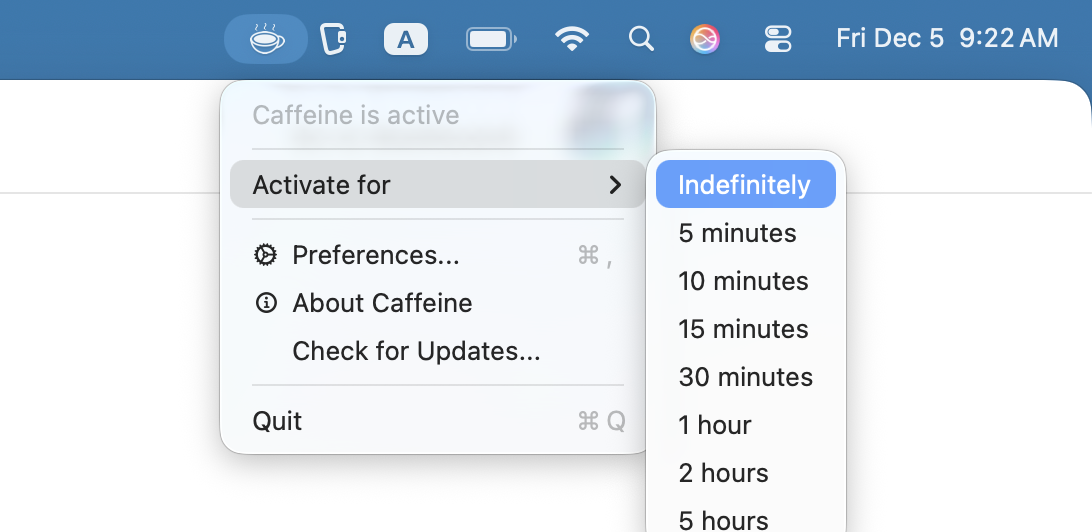
No. We tested it. Caffeine keeps your screen awake, Slack stayed green until the 10-minute mark, and then it flipped to away with the display still lit. Caffeine solves sleep, and sleep is only one of the away triggers.
We build Slack Green, which covers what Caffeine cannot, so here is the precise split.
What Caffeine does
Caffeine, and the built-in caffeinate command on macOS, stop the display
and system from sleeping. A sleeping or locked machine reports away within
seconds, so Caffeine genuinely removes that trigger. If your dot dies the
moment you step away, this is your free fix.
Why Slack still flips you
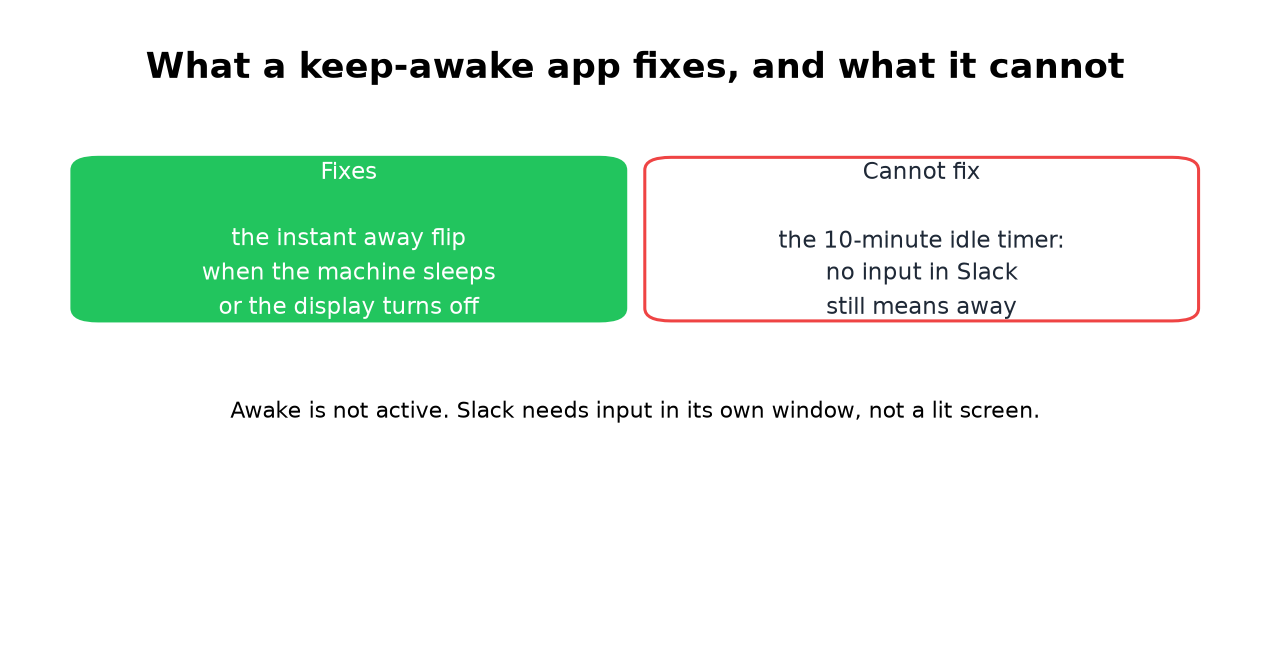
Slack counts input inside its own window: clicks, keys, scrolling. A lit screen produces none of it. Ten minutes after your last touch of Slack, the idle timer fires, screen on or not.

That is the whole mechanism, and it is why every keep-awake tool gives the same result: Amphetamine included. Awake is not active.
What actually holds the dot
Never appear "away" on Slack again
Cloud-based. No downloads. Works 24/7 even when your laptop is off.
- • Input inside Slack, from you, an extension, or a jiggler aimed at the Slack window. Works while the machine stays on and unlocked.
- • A server-side schedule. Slack Green
Frequently asked questions
Does caffeinate keep Slack active?
No. Same result as the app: screen stays on, dot goes gray at 10 minutes. Every caffeinate flag is in our
caffeinate guide, and the Windows and Linux
equivalents are in
keep a work computer awake without admin rights.
Does Caffeine work for Teams or Zoom presence? Teams and Zoom use a different rule from Slack. They count keyboard and mouse input anywhere on the computer, not only in their own window. Caffeine for Mac sends no input, so Teams still turns yellow after about 5 minutes, and Zoom shows Away after its idle limit, 15 minutes by default. Caffeine for Windows is a different app that presses F15 every 59 seconds, and Windows counts that as input, so it usually keeps Teams green. The full split is in does Caffeine keep Teams active. In Slack, videos and calls do not count as input either; see does playing a YouTube video keep Slack active.
Then why do people recommend Caffeine for Slack? Because it fixes the most visible symptom, the instant flip when the machine sleeps. If you never noticed the 10-minute flip, Caffeine looks like a full fix. It is half of one.
What is the free complete fix? There is none that needs nothing from you: free options all require the machine on and input flowing. The trade-offs are in how to keep Slack active.
The short version
Caffeine keeps the screen on. Slack wants input in its own window. Those are different problems, and only the first one is Caffeine's job. For the second, feed the timer at your desk or put the dot on a schedule.
Stop Jiggling Your Mouse.
Join hundreds of remote workers who never worry about their Slack status. Set it up once, stay green forever.
Related Articles
How to Show Spotify in Your Slack Status (3 Ways, One Free Script)
Slack has no built-in Spotify status. To show the song you are playing, add a Slack Marketplace app such as SpotMyStatus or Now Playing, sign in to Spotify, and it writes the track and artist into your status and clears it when you stop. Setup for each option, a free script for Mac, and what the status does not change.
How to Sync Your Zoom Status With Slack
The Zoom app for Slack can set your Slack status when you join a Zoom meeting or a Zoom Phone call: type /zoom config in Slack, open Settings, and turn on Enable Zoom Sync presence to Slack status. Steps, admin approvals, the calendar and third-party alternatives, and why none of them keeps your Slack dot green.
How to Add a GIF in Slack: Picker, /giphy and Uploads
Slack has a built-in GIF picker: click the smiley face in the message field, click GIFs, search, pick one and press Send. It works on desktop and mobile with no app. The /giphy command, uploading your own GIF, and animated GIF emoji are the other ways, plus what to check when GIFs are missing.