
PowerShell Script to Keep Teams Active: F15, Num Lock and a Work-Hours Timer
A PowerShell script that presses F15 once a minute keeps Microsoft Teams Available, because Teams goes Away only after about 5 minutes with no input anywhere on the PC. Copy-ready scripts for PowerShell (F15, Num Lock, stop at a set time), Python and Mac, why SetThreadExecutionState does not work for Teams, and what the script cannot hide.
A PowerShell script that presses F15 once a minute keeps Microsoft Teams Available. Teams switches you to Away after about 5 minutes with no keyboard or mouse input anywhere on the computer. F15 is a key no keyboard has, but Windows counts it as input, so the idle timer never reaches 5 minutes. The script needs no admin rights. Here it is, with a stop time so it ends with your work day:
# keep-teams-active.ps1 - presses F15 every 60 seconds until 17:30, Ctrl+C to stop
$shell = New-Object -ComObject WScript.Shell
$end = Get-Date '17:30'
while ((Get-Date) -lt $end) {
    $shell.SendKeys('{F15}')
    Start-Sleep -Seconds 60
}
A script that only blocks sleep, such as one calling SetThreadExecutionState, does not keep Teams green: it sends no input. Scripts also do not help with Slack, which counts only input inside the Slack window. For Slack, Slack Green keeps your dot green from the cloud during the working hours you set, with no script on your PC. Many people use both apps; see keep Teams and Slack active at the same time.
Why an F15 script keeps Teams Available
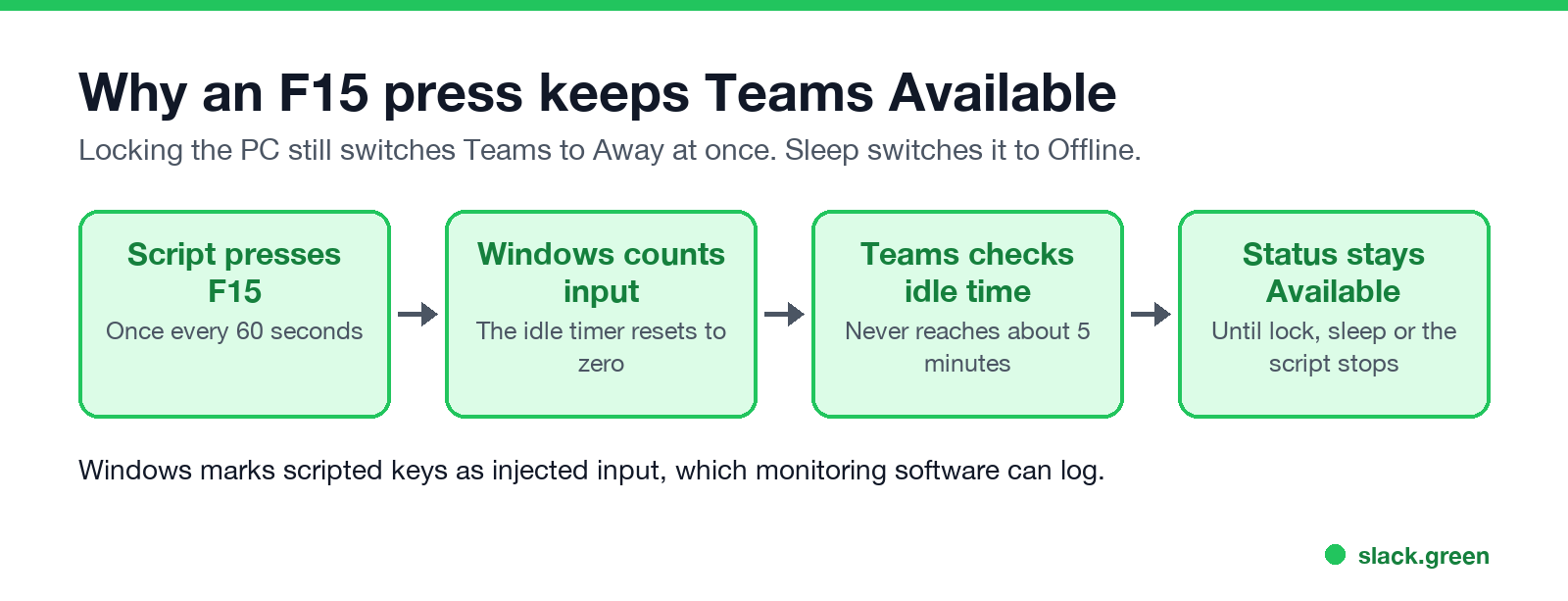
Microsoft Learn, in User presence in Teams, says your presence becomes Away "if they're inactive for a few minutes or if the computer is locked", and Offline when the computer sleeps. Teams judges "inactive" from the computer's idle time, not from activity in the Teams window. Typing in Excel keeps you green. So does a scripted keypress. The timings are in how long before Teams shows you as Away.
Two things a script cannot beat:
- • Locking the PC switches Teams to Away at once, script or not. If your screen locks after 5 idle minutes by policy, the keypresses also stop that lock, because they are input.
- • Sleep switches Teams to Offline. Input keeps a PC from idle sleep, but closing the lid still sleeps it.
The PowerShell scripts
Plain F15 loop
The shortest version. It runs until you press Ctrl+C:
# f15.ps1 - presses F15 once a minute until you press Ctrl+C
$shell = New-Object -ComObject WScript.Shell
while ($true) {
    $shell.SendKeys('{F15}')
    Start-Sleep -Seconds 60
}
This is the same loop as script 2 in keep a Windows PC awake with PowerShell. SendKeys sends the key to whatever window has focus. Most apps ignore F15, which is why it is the usual choice.
Num Lock version
Some scripts on Reddit and GitHub press Num Lock twice instead, so the key state ends where it started:
# numlock.ps1 - toggles Num Lock off and on every 60 seconds
$shell = New-Object -ComObject WScript.Shell
while ($true) {
    $shell.SendKeys('{NUMLOCK}')
    Start-Sleep -Milliseconds 200
    $shell.SendKeys('{NUMLOCK}')
    Start-Sleep -Seconds 60
}
It works the same way for Teams. The Num Lock light on your keyboard flickers each minute, and if the script is stopped between the two presses, Num Lock stays off. F15 has neither problem.
Work-hours version
The script at the top of this page stops at 17:30. To start later in the day and stop at a set time, check the clock on every loop:
# keep-teams-active-hours.ps1 - presses F15 every 60 s between 09:00 and 17:30
$shell = New-Object -ComObject WScript.Shell
$start = [TimeSpan]'09:00'
$stop  = [TimeSpan]'17:30'
while ((Get-Date).TimeOfDay -lt $stop) {
    if ((Get-Date).TimeOfDay -ge $start) { $shell.SendKeys('{F15}') }
    Start-Sleep -Seconds 60
}
Change the two times to your own hours. After 17:30 the script ends by itself, and Teams goes Away about 5 minutes later.
How to run a PowerShell script to keep Teams active
Never appear "away" on Slack again
Cloud-based. No downloads. Works 24/7 even when your laptop is off.
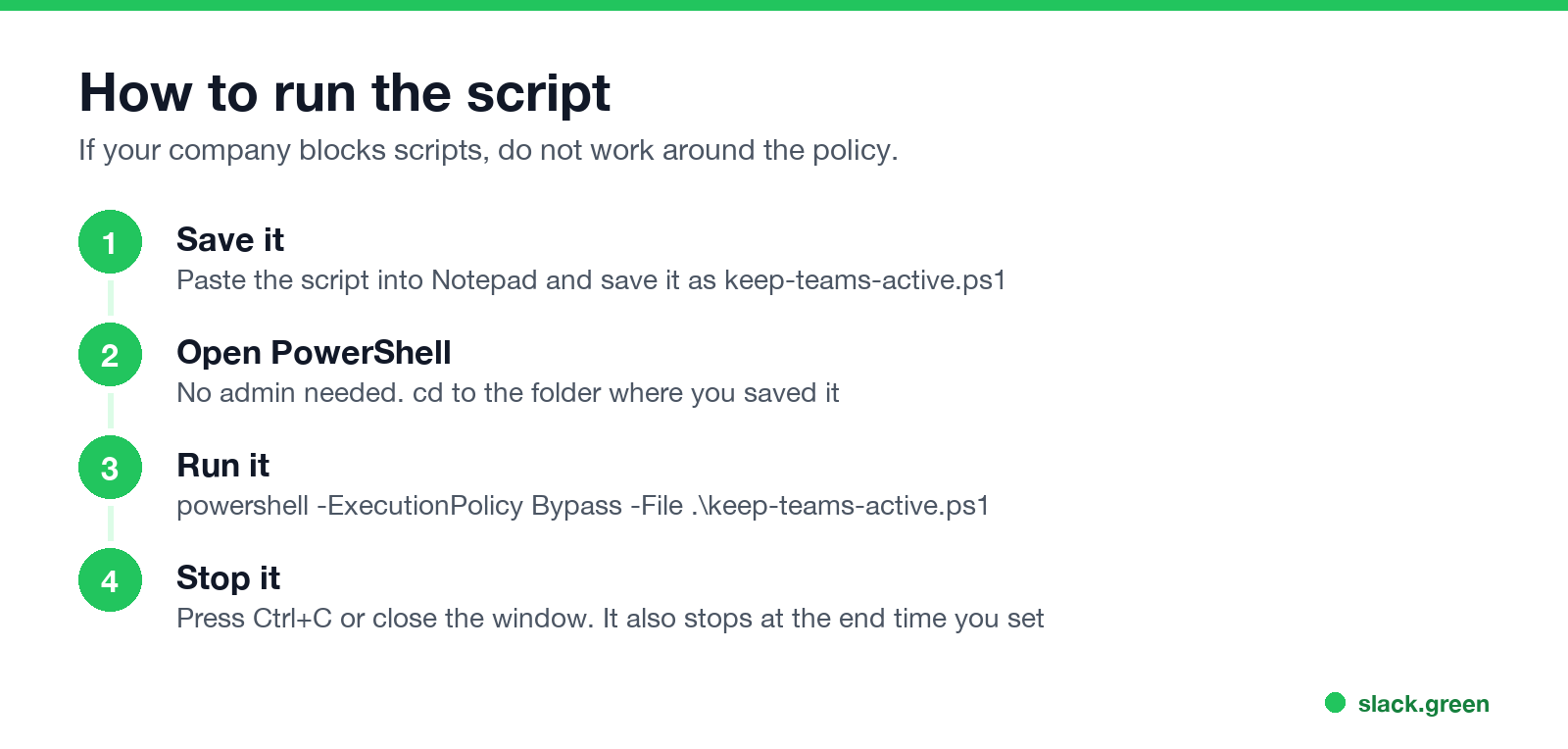
keep-teams-active.ps1.cd.powershell -ExecutionPolicy Bypass -File .\keep-teams-active.ps1-ExecutionPolicy Bypass applies to this one run only and does not change a system setting. If your company blocks PowerShell through Group Policy or AppLocker, the script will not start, and you should not work around that. The settings-only options are in keep a work computer awake without admin rights.
Python and Mac scripts to keep Teams active
Python, on Windows or Mac. pyautogui can move the pointer one pixel and back once a minute:
# keep_teams_active.py - pip install pyautogui, then: python keep_teams_active.py
import time
import pyautogui

while True:
    pyautogui.moveRel(1, 0)
    pyautogui.moveRel(-1, 0)
    time.sleep(60)
Moving the pointer to a screen corner stops it (a pyautogui safety rule), and so does Ctrl+C. On a Mac, allow Terminal in System Settings, Privacy & Security, Accessibility first. Avoid pressing F15 on a Mac: on some Apple keyboards F14 and F15 change the screen brightness.
Mac, no Python. cliclick from Homebrew does the same from Terminal:
brew install cliclick
while true; do cliclick m:+1,+0 m:-1,+0; sleep 60; done
To also stop the Mac from sleeping, wrap it in caffeinate, which ships with macOS. More Mac options, including free jiggler apps, are in mouse jiggler for Mac. A Mac script that stops by itself after 8 hours is in how to keep Teams active on a Mac.
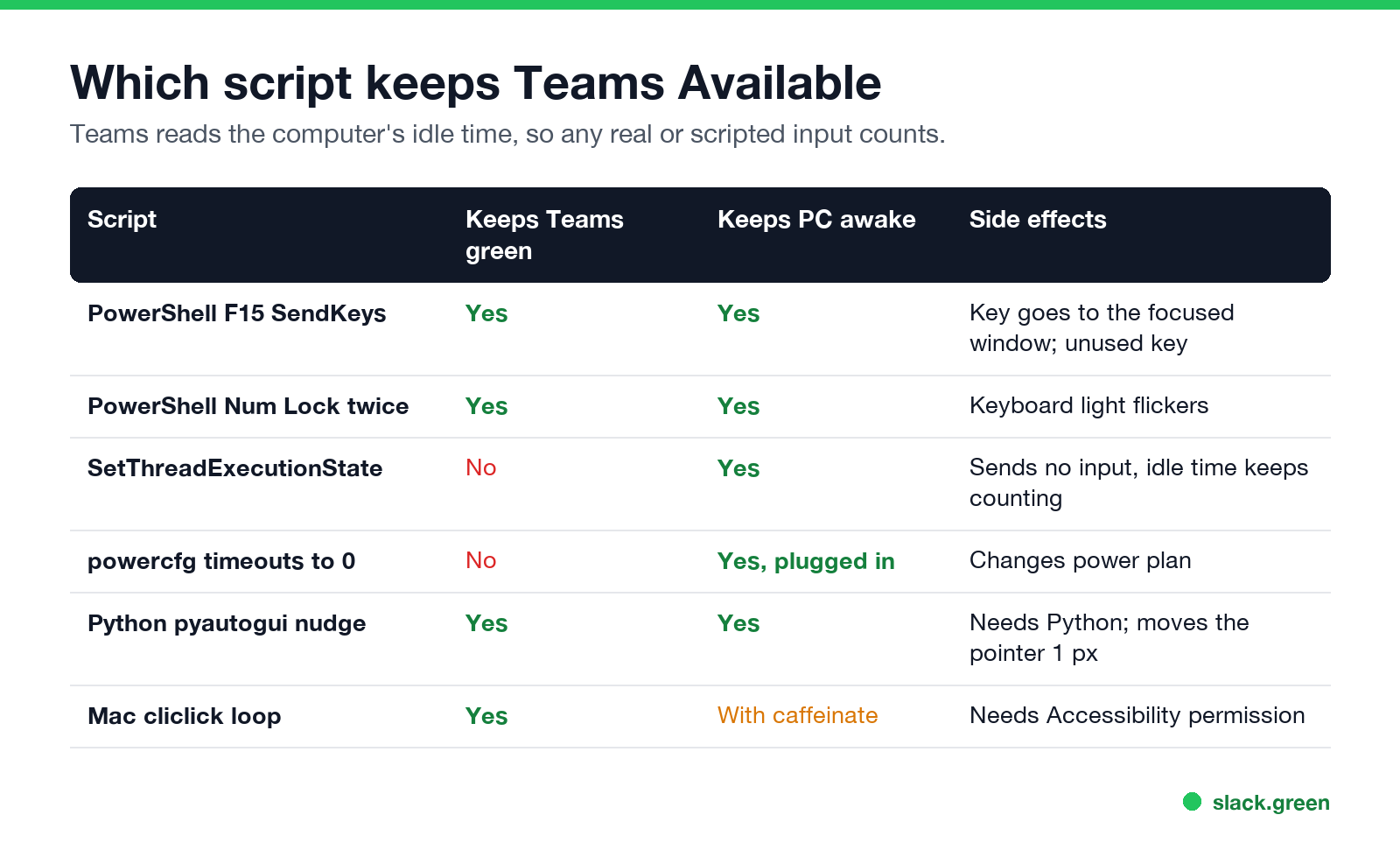
| Script | Keeps Teams green | Keeps PC awake |
|---|---|---|
| PowerShell F15 | Yes | Yes |
| PowerShell Num Lock twice | Yes | Yes |
| PowerShell SetThreadExecutionState | No | Yes |
| powercfg timeouts set to 0 | No | Yes, while plugged in |
| Python pyautogui nudge | Yes | Yes |
| Mac cliclick loop | Yes | With caffeinate |
Can your employer see a keep-Teams-active script?
Teams itself shows only the status: Available, not "Available because of a script". But the input is not invisible. Windows flags keys sent by SendKeys as injected input, and endpoint monitoring software can log that, along with the PowerShell process and its command line. A script that presses F15 at exactly 60-second intervals for eight hours is also an easy pattern to spot in activity data. What Teams reports to admins is in does Microsoft Teams track your activity, and detection of jigglers in general is in can a mouse jiggler be detected.
Teams has no setting that holds you at Available. The status Duration option works for Busy, Do not disturb and the others, but not for Available, so idle time still decides. The options that do not need a script are in how to keep your Teams status available.
Quick answers
Never appear "away" on Slack again
Cloud-based. No downloads. Works 24/7 even when your laptop is off.
Does it work in the new Teams app? Yes. New Teams reads the computer's idle time the same way.
Will the script keep my Teams mobile status green? No. The phone's Teams status depends on the app being on screen; see does Teams stay green on mobile.
Why does Teams still show Away with the script running? The PC locked, the lid closed, or the script window closed. Check that PowerShell is still running, and that nothing locks the screen by policy.
Stop Jiggling Your Mouse.
Join hundreds of remote workers who never worry about their Slack status. Set it up once, stay green forever.
Related Articles
Can My Employer See My Browsing If I Use a VPN? It Depends Whose
A personal VPN hides the sites you visit from the office network, but not from monitoring software, a managed browser or IT on a work laptop. The company VPN shows your employer every site it carries. What each setup hides.
Teams Status on Multiple Devices: The Last Device You Used Wins
Signed in to Teams on a computer and a phone? Your status comes from the device you used most recently. That is why a quick look at your phone can turn you Away, and why a phone in your pocket shows Away instead of Offline at night.
Zoom Do Not Disturb: How to Turn It On, Schedule It, and What It Blocks
To turn on Do not disturb in Zoom, click your profile picture, point at your status and choose Do not disturb, then a time from 20 minutes to 24 hours, or Custom for a daily schedule. It blocks pop-up notifications for Zoom Team Chat and Zoom Phone calls. Busy, by contrast, mutes nothing. How the two differ, and how to keep a Zoom meeting free of pop-ups.