
The Best App to Keep Your Mac Awake, Free and Paid
Amphetamine is the best free app to keep a Mac awake: it runs from the menu bar, has triggers for apps, Wi-Fi and power, and can keep a MacBook awake with the lid closed. KeepingYouAwake and Caffeine are the one-click open-source picks, Lungo is the paid one, and the built-in caffeinate command needs no install.
The best app to keep a Mac awake is Amphetamine. It is free on the Mac App Store, has no ads or in-app purchases, and can keep your Mac awake for a set time, until a download ends, while an app runs, or whenever you are on a certain Wi-Fi network. It can also keep a MacBook awake with the lid closed. If you want one click and nothing else, use KeepingYouAwake or Caffeine, both free and open source. If you would rather install nothing, macOS already has the caffeinate command.
One thing none of these apps do is keep Slack green. Slack sets you away after 10 minutes with no input inside the Slack window, and a Mac that is awake but untouched sends Slack no input. We build Slack Green, which keeps your Slack status active during the hours you choose from our servers, with the lid open or closed. More on that split below.
Keep-awake apps for Mac compared
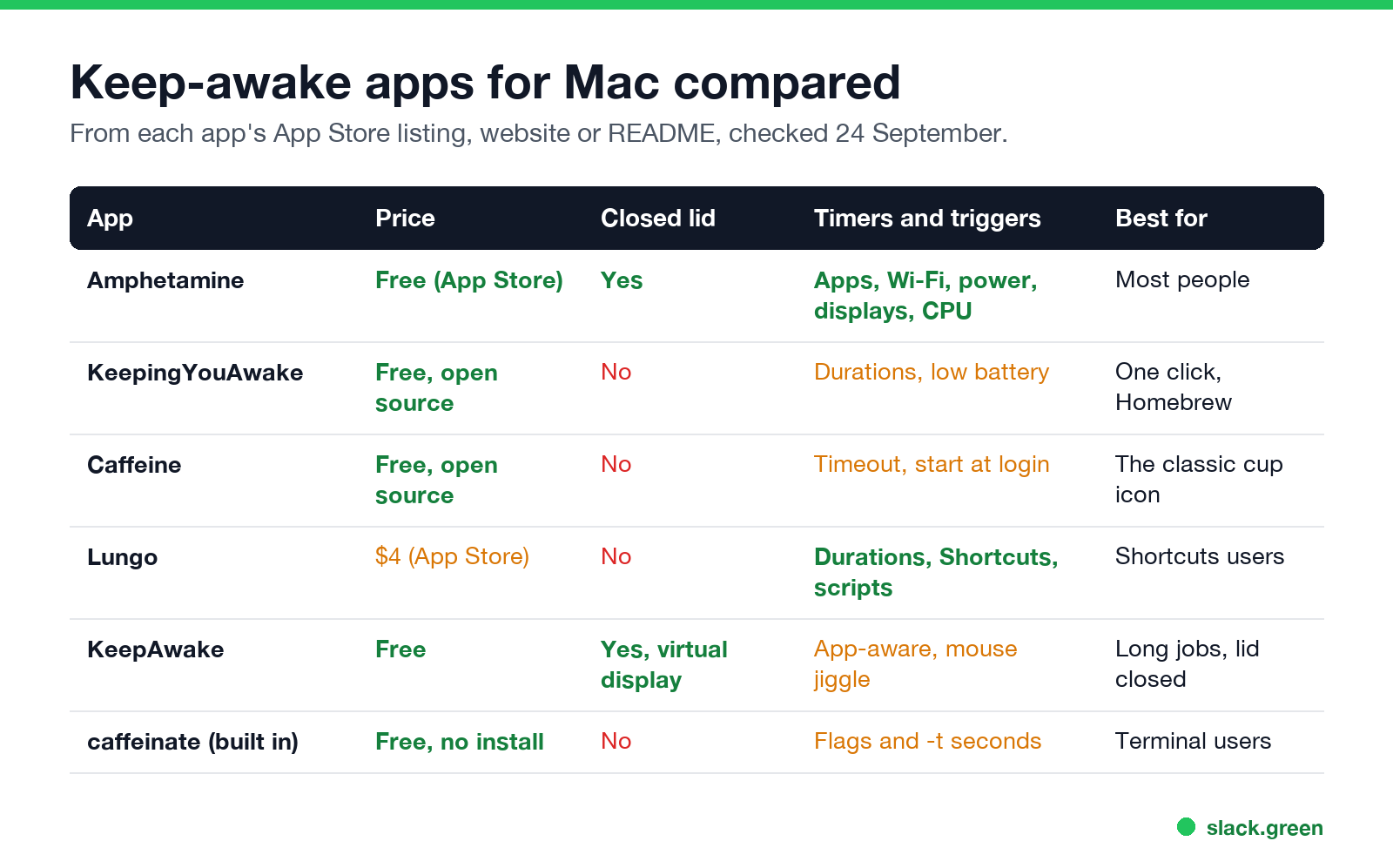
| App | Price | Works with the lid closed | Timers and triggers | Best for |
|---|---|---|---|---|
| Amphetamine | Free, Mac App Store | Yes | Apps, Wi-Fi, power, displays, USB devices, CPU load, idle time | Most people |
| KeepingYouAwake | Free, open source | No | Set durations, stop at low battery | One click, Homebrew install |
| Caffeine | Free, open source | No | Timeout, start at login | The original cup icon |
| Lungo | $4, Mac App Store | No | Durations, keyboard shortcut, Shortcuts, scripts | Shortcuts users |
| KeepAwake | Free | Yes, with a virtual display | App-aware triggers, mouse movement | Long jobs with the lid closed |
caffeinate | Built into macOS | No | Flags and a timer in seconds | Terminal users |
Prices and features come from each app's App Store listing, website or README, read on 24 September.
Amphetamine: the best free keep-awake app
Amphetamine, by William Gustafson, is the app most Mac users end up with. You start a session from the menu bar: forever, for a set time, until a time of day, while a file downloads, or while a chosen app runs. Its triggers start a session on their own when a condition is true, such as an external display plugged in, a certain Wi-Fi network, the power adapter connected, a VPN connection, or headphones in use.
During a session you choose whether to allow display sleep, the screen saver, screen lock and system sleep with the lid closed. It can also move the mouse cursor on a schedule. It is 100% free with no ads, tracking or pro version, and needs macOS 10.11 or later.
Pick it if you want one app that covers every case, including the lid closed.
KeepingYouAwake: one click, open source
Never appear "away" on Slack again
Cloud-based. No downloads. Works 24/7 even when your laptop is off.
KeepingYouAwake, by Marcel Dierkes, puts a cup in the menu bar. Click it and your Mac stays awake; click again and it sleeps normally. You can pick a preset duration, and it can turn itself off when the battery runs low. It is a small wrapper around Apple's own caffeinate tool, so it does nothing macOS cannot already do. It works on macOS 10.13 and later. Install it from its website or with Homebrew:
brew install --cask keepingyouawakeIts README states the limit plainly: it does not keep a MacBook awake with the lid closed.
Caffeine: the classic, now open source
Caffeine is the original keep-awake app for the Mac. Tomas Franzén of Lighthead Software released it in 2006. It is now open source and maintained again at caffeine-app.net, at version 1.6.4, with builds for current macOS. A full coffee cup in the menu bar means your Mac will not sleep, dim the screen or start the screen saver. Right-click the cup to set a timeout or open the preferences.
If you used Caffeine years ago and want the same app, this is it. We tested it with Slack: see does Caffeine keep Slack active.
Lungo: the paid pick
Lungo, by Sindre Sorhus, costs $4 on the Mac App Store. It adds a keyboard shortcut, Shortcuts actions and control from scripts, and it can turn itself off when you unplug the charger. The listing says it will not keep the Mac awake with the lid closed, which it calls a Mac App Store limit, and it cannot stop a scheduled sleep set in the battery settings.
KeepAwake: for a closed lid
Never appear "away" on Slack again
Cloud-based. No downloads. Works 24/7 even when your laptop is off.
KeepAwake, from keepawakeapp.com, is free and aimed at long-running jobs. It adds a virtual display, so macOS treats a closed MacBook as if an external display were connected and keeps running. It can also move the mouse and start from app triggers. It needs macOS 13 or later.
If a closed lid is your main problem, see how to keep a laptop awake with the lid closed for the settings and the heat risks.
No app at all: caffeinate
Every Mac ships with caffeinate, the tool KeepingYouAwake is built on. Open Terminal and run one of these:
# keep the display on until you press Control-C
caffeinate -d

# keep the Mac awake for two hours (7,200 seconds)
caffeinate -i -t 7200
Every flag is in caffeinate on the Mac terminal.
Does a keep-awake app keep Slack or Teams active?
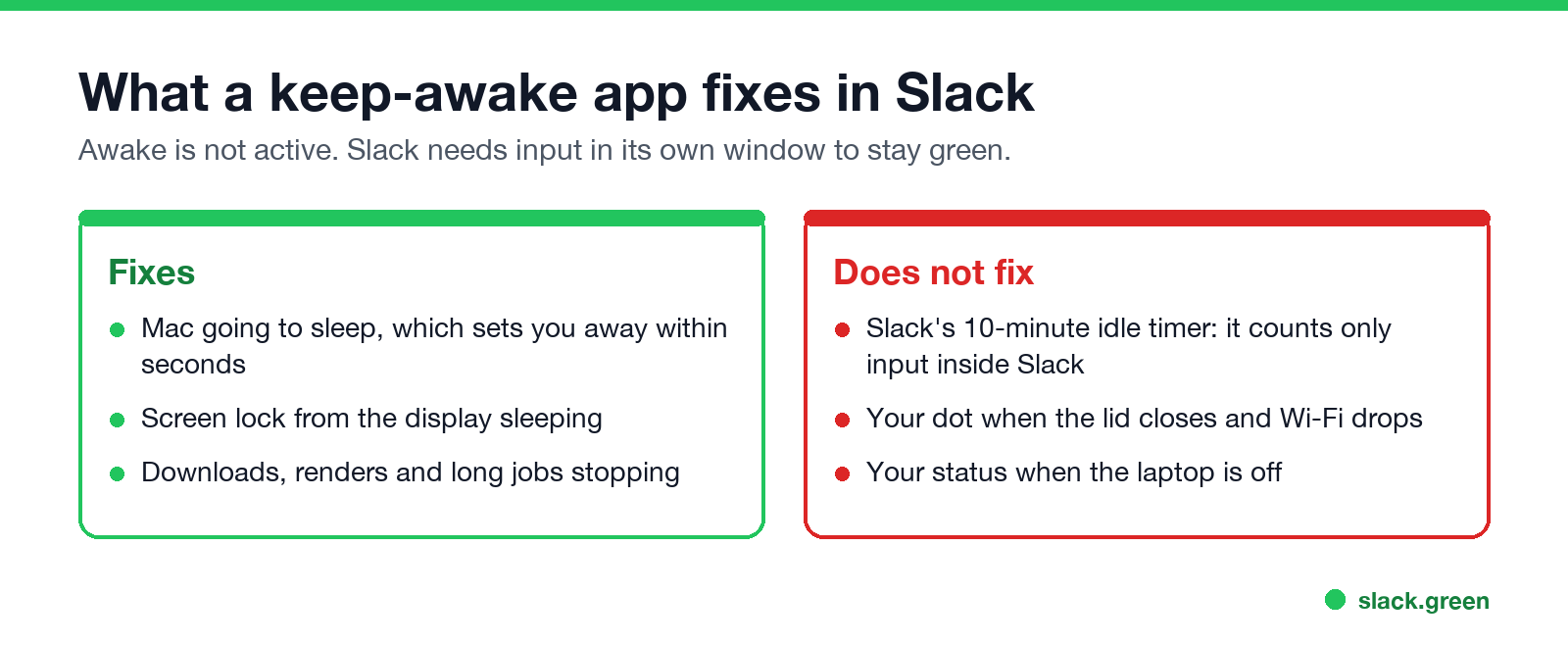
Only half. A sleeping or locked Mac sets you away in Slack within seconds, and a keep-awake app stops that. But Slack also sets you away after 10 minutes with no input inside the Slack window, and an awake Mac with nobody typing into Slack gives it none. Our test pages cover the details for Amphetamine and Caffeine.
Amphetamine's mouse movement and apps like KeepAwake only count if the cursor is over the Slack window when they move it, which you cannot count on while you work in other apps. For the Mac options that do keep the dot green, see how to keep Slack active on a Mac and mouse jigglers for Mac.
How to pick
Never appear "away" on Slack again
Cloud-based. No downloads. Works 24/7 even when your laptop is off.
- You want the most control for free: Amphetamine.
- You want one click and open source: KeepingYouAwake or Caffeine.
- You use Shortcuts or scripts and do not mind paying $4: Lungo.
- You need the Mac to run with the lid closed: Amphetamine or KeepAwake.
- You cannot install apps on a work Mac:
caffeinatein Terminal, or change the lock settings in keep a Mac screen from locking.
FAQ
What is the best free app to keep a Mac awake?
Amphetamine. It is free with no in-app purchases and has the most options, including triggers and closed-lid support.
Is there an app to keep a Mac awake when the lid is closed?
Yes. Amphetamine and KeepAwake can. KeepingYouAwake, Caffeine and Lungo cannot, because macOS sleeps a closed MacBook unless a display, a charger or a virtual display keeps it running.
What is a good Caffeine alternative for Mac?
KeepingYouAwake works the same way with one click and is open source. Amphetamine adds timers and triggers.
Is it safe to keep a Mac awake all the time?
These apps use Apple's own sleep controls, so they do not harm the Mac. A MacBook left awake with the lid closed can run warm, so keep it on a hard surface.
Does Amphetamine keep Teams green?
It stops the away status caused by sleep. Teams also sets you away after about 5 minutes with no input, so on its own it does not keep you green. See how long before Teams shows away.
Stop Jiggling Your Mouse.
Join hundreds of remote workers who never worry about their Slack status. Set it up once, stay green forever.
Related Articles
How to Keep Skype Status Active: Skype for Business Idle Timers
To keep your Skype for Business status active, open Options, Status, and raise both idle timers, Inactive and then Away, from 5 minutes to as much as 360 minutes each. Consumer Skype shut down on May 5, 2025 and Skype for Business Online in 2021, so for most people the real question is now Teams. What still works, status icons, Outlook, and status not updating.
Is It Legal for My Employer to Monitor Me? US, EU and UK Rules
In the US it is mostly legal for an employer to monitor company devices, accounts and premises, often without asking. The limits are state notice laws in New York, Connecticut and Delaware, consent rules for audio recording and biometrics, bans on cameras in restrooms, and your personal devices. The EU, UK and parts of Canada and Australia add notice and proportionality rules.
Can My Employer See My Personal Email on My Work Computer?
Your employer cannot sign in to your Gmail, and doing so without permission can break the Stored Communications Act. But on a work computer, screenshot and keystroke monitoring, browser history, HTTPS inspection and Outlook's local cache can all expose personal email. Work email is fully visible, deleted messages included. Case by case, with what to do.