
Caffeine App for Mac: Download, Settings and Alternatives
Caffeine is a free, open-source menu bar app that keeps your Mac awake: click the coffee cup and the Mac will not sleep, dim the screen or start the screen saver. Where to download the real one, which version fits your macOS, every setting, how to check it works, and the alternatives.
Caffeine for Mac is a free, open-source menu bar app that keeps your Mac awake. Click the coffee cup and the Mac will not go to sleep, dim the screen or start the screen saver until you click it again or a timer ends. The current version is 1.6.4 from April 2026, a 4.5 MB download from caffeine-app.net or the project's GitHub page, and it needs macOS 14.6 Sonoma or newer. It is not on the Mac App Store; the apps called Caffeine there are different apps by other developers.
Caffeine keeps the Mac awake. It does not keep Slack active, because Slack sets you to away after 10 minutes without input in the Slack window, awake Mac or not. Slack Green keeps your Slack status active during the hours you set, from the cloud, with the Mac asleep or shut.
Where to download Caffeine for Mac
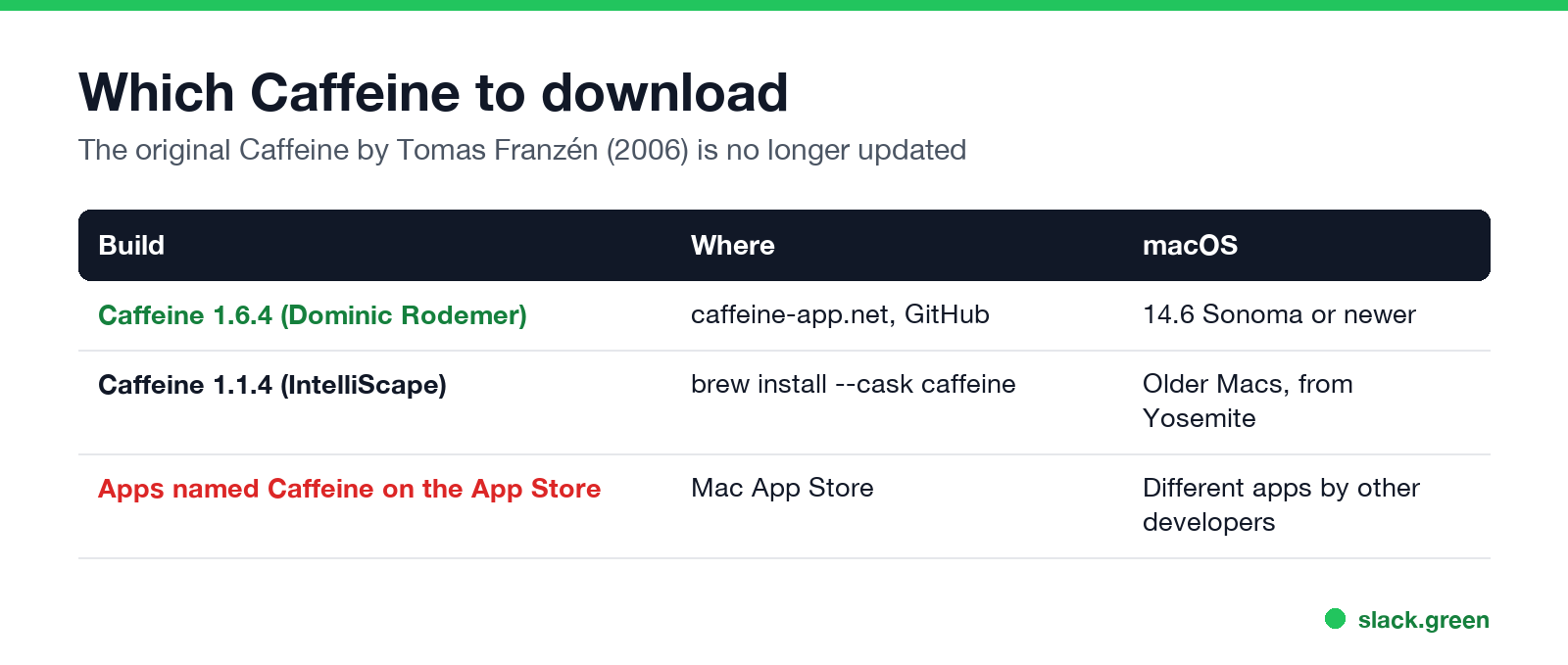
Caffeine has had three owners. Tomas Franzén of Lighthead Software wrote it in 2006, and it went years without updates. IntelliScape took over the code in 2018, and the version now on caffeine-app.net is maintained by Dominic Rodemer and released under the MIT license on GitHub.
| Build | Where to get it | Runs on |
|---|---|---|
| Caffeine 1.6.4 | caffeine-app.net, or Releases on github.com/domzilla/Caffeine | macOS 14.6 Sonoma and newer |
| Caffeine 1.1.4 (IntelliScape) | brew install --cask caffeine, or intelliscapesolutions.com | Older Macs, from Yosemite |
| "Caffeine Utility", "Caffeine ." and similar | Mac App Store | Different apps, most of them paid |
The Caffeine website says the current version needs macOS 11, but the Info.plist inside the 1.6.4 download sets the minimum to 14.6. On an older Mac, use the IntelliScape build. Homebrew's caffeine cask installs that older 1.1.4 build too, not 1.6.4, so download the zip if you want the new version.
How to install and use Caffeine
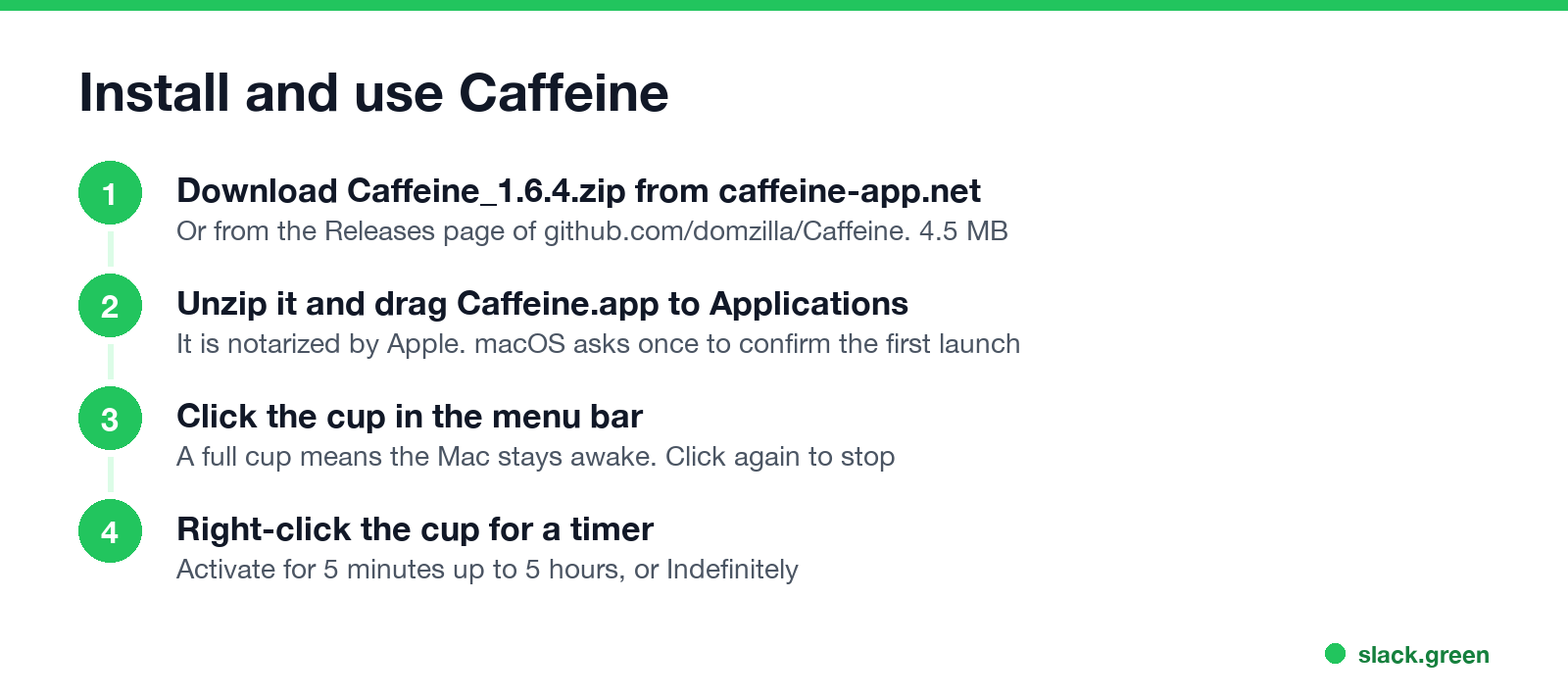
- Download
Caffeine_1.6.4.zipfrom caffeine-app.net. - Unzip it and drag Caffeine.app into Applications. It is signed and notarized by Apple, so macOS asks once to confirm the first launch and then opens it.
- Click the cup in the menu bar. A full cup means Caffeine is on and the Mac stays awake. An empty cup means normal sleep.
- Right-click (or Control-click) the cup for the menu: Activate for with Indefinitely, 5, 10, 15 and 30 minutes, 1, 2 or 5 hours, then Preferences, About Caffeine, Check for Updates and Quit.
While a timer runs, the menu shows the time left at the top.
Caffeine settings
Never appear "away" on Slack again
Cloud-based. No downloads. Works 24/7 even when your laptop is off.
Open Preferences from the right-click menu. Version 1.6.4 has five settings:
| Setting | What it does | Default |
|---|---|---|
| Default duration | How long a click on the cup keeps the Mac awake: 5 minutes to 5 hours, or Indefinitely | Indefinitely |
| Activate when starting Caffeine | Turns the cup on as soon as the app opens | Off |
| Deactivate when device goes to sleep manually | Turns Caffeine off if you put the Mac to sleep yourself | Off |
| Show this message when starting Caffeine | The welcome note on launch | On |
| Keep apps active | Nudges the cursor after 90 seconds of idle time, so apps like Microsoft Teams do not show Away | Off |
"Keep apps active" needs Accessibility permission in System Settings > Privacy & Security > Accessibility, because moving the cursor counts as input. Everything else works without any permission.
There is no "open at login" switch in 1.6.4. To start Caffeine with your Mac, add it in System Settings > General > Login Items (called Login Items & Extensions on macOS 15 and newer) under Open at Login, and turn on Activate when starting Caffeine.
Check that Caffeine is working
Caffeine asks macOS not to sleep through a power assertion, the same system Apple's caffeinate command uses. Open Terminal and run:
pmset -g assertions | grep -i caffeineOn our Mac (macOS 26.5.2, M2 Max), five seconds after launch it printed:
pid 56767(Caffeine): PreventUserIdleDisplaySleep named: "Caffeine prevents sleep"pmset -g also listed "display sleep prevented by Caffeine". The source code renews this assertion every 10 seconds with an 8-second timeout, so if Caffeine quits or crashes the Mac goes back to normal sleep within seconds. If the line is missing, the cup is empty; click it.
What Caffeine does not do
caffeinate -i does that, see caffeinate on Mac.Caffeine alternatives for Mac
Never appear "away" on Slack again
Cloud-based. No downloads. Works 24/7 even when your laptop is off.
| App | Price | Best for |
|---|---|---|
| Amphetamine | Free, Mac App Store | Triggers, schedules, closed lid |
| KeepingYouAwake | Free, open source | The same one-click cup, Homebrew install, older Macs; see Caffeine vs KeepingYouAwake |
| Caffeinated (Yugen) | $3.99, Mac App Store | A paid one-click app with a timer |
| Theine (App ahead) | $8.99, Mac App Store | Needs macOS 15.6 |
caffeinate | Built in | No install, scripts, work Macs |
Prices are from the US App Store on 2026-09-27. Caffeine and Amphetamine side by side, with both tested in pmset, are in Amphetamine vs Caffeine. The wider list is in best app to keep a Mac awake. On Windows, a different app with the same name presses F15 every 59 seconds; see Caffeine app for Windows.
FAQ
Is Caffeine for Mac free? Yes. It is free and open source under the MIT license.
Is Caffeine on the Mac App Store? No. Download it from caffeine-app.net or GitHub. The App Store apps named Caffeine are made by other developers.
Is Caffeine safe for Mac?
The download from caffeine-app.net is signed with a Developer ID and notarized by Apple; spctl on our Mac reported "accepted, source=Notarized Developer ID".
Does Caffeine work on macOS Tahoe? Yes. Version 1.6.4 ran on macOS 26.5.2 in our test.
How do I uninstall Caffeine? Right-click the cup, choose Quit, then drag Caffeine from Applications to the Trash.
Stop Jiggling Your Mouse.
Join hundreds of remote workers who never worry about their Slack status. Set it up once, stay green forever.
Related Articles
Can My Employer See What I Watch on YouTube at Work?
On a work laptop or the office network, your employer can see that you used YouTube, when, and for how long. With HTTPS inspection or monitoring software, they can see which videos, because the video address and the browser tab title both name it. On your own phone on mobile data, they see nothing.
Can My Employer See My iMessages on a Work Mac?
Not through device management or the network: Jamf or Intune cannot read Messages, and iMessage is end-to-end encrypted. But if you sign in to Messages on a work Mac, your texts are stored on that Mac, where monitoring screenshots, backups and admin access can reach them. How to check, and how to take iMessage off the Mac without deleting it from your iPhone.
Can My Boss See My Private Outlook Calendar Events?
Usually not the details. When you mark an Outlook event Private, someone who can read your calendar sees only Private appointment, the time and a lock. The exceptions are delegates you gave Can view private items, the people invited to the event, anyone with full access to your mailbox in new Outlook or the web, and compliance admins. How to check who has which access, and what Private does not hide.