
caffeinate on Mac: Keep Your Mac Awake From Terminal
caffeinate is the built-in macOS command that keeps a Mac awake. Run caffeinate -d to stop the display sleeping, -i to stop idle sleep, add -t for a time limit, and press Ctrl+C to stop. Every flag with examples, and why it does not keep Slack active.
caffeinate is a command built into macOS that keeps your Mac awake. Open Terminal and run caffeinate -d to stop the display from sleeping, or caffeinate with no flags to stop the system from idle sleep. It runs until you press Ctrl+C. Add -t 3600 to stop after an hour, or put a command after it, such as caffeinate -i ./backup.sh, to stay awake only while that command runs. It needs no admin password and no install.
It does not keep Slack active. Slack sets you away 10 minutes after your last input in the Slack window, whether the Mac is awake or not. caffeinate only stops the instant away you get when the Mac sleeps. To keep your dot green without the Mac, Slack Green keeps your presence active from its own servers during the working hours you set.
caffeinate flags
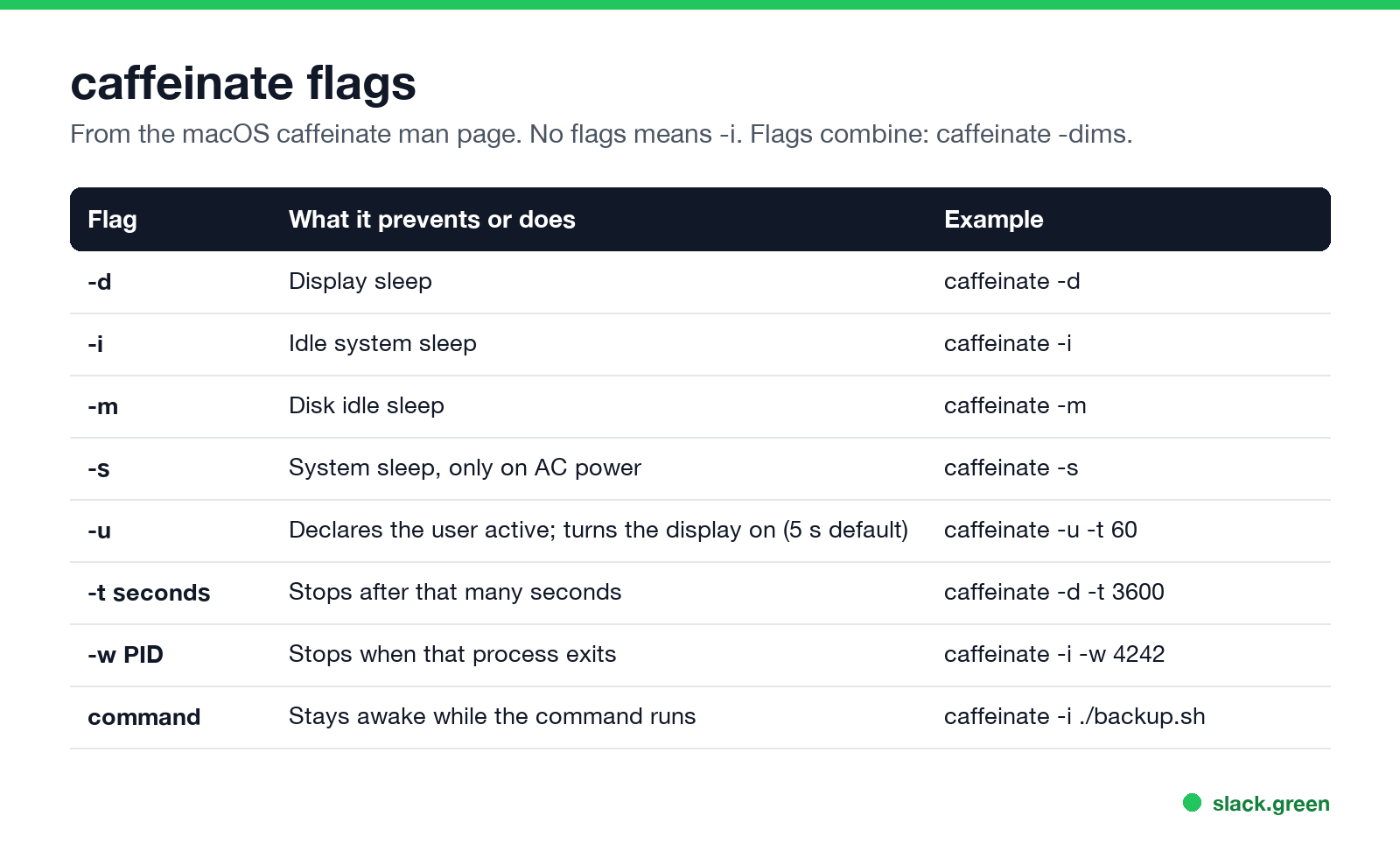
From man caffeinate:
| Flag | What it does |
|---|---|
-d | Prevents the display from sleeping |
-i | Prevents the system from idle sleeping (the default with no flags) |
-m | Prevents the disk from idle sleeping |
-s | Prevents the system from sleeping, only on AC power |
-u | Declares that the user is active; turns the display on if it is off. Lasts 5 seconds unless you add -t |
-t seconds | Drops the assertion after that many seconds |
-w PID | Keeps it until the process with that ID exits |
command | Keeps it while the command runs |
caffeinate -i vs -d
- •
caffeinate -ikeeps the computer running, but the display can still turn off. Use it for downloads, backups and builds. - •
caffeinate -dkeeps the display on. Use it when you want the screen visible, or to stop the screen saver and the lock that follows it. - •
caffeinate -didoes both. Flags combine, socaffeinate -dimssets four at once.
caffeinate examples
Never appear "away" on Slack again
Cloud-based. No downloads. Works 24/7 even when your laptop is off.
# Keep the display on until you press Ctrl+C
caffeinate -d

# Keep the Mac awake for two hours, then stop
caffeinate -di -t 7200

# Stay awake only while a command runs
caffeinate -i rsync -a ~/Projects /Volumes/Backup/

# Stay awake until another app quits (find its PID with pgrep)
caffeinate -i -w "$(pgrep -x Transmission)"

# Run it in the background and keep using the same Terminal window
caffeinate -d &
Check that it is working with pmset -g assertions. The output lists PreventUserIdleDisplaySleep or PreventUserIdleSystemSleep held by caffeinate.
How to stop caffeinate
killall caffeinate.-t, it stops on its own when the time is up.caffeinate and the MacBook lid
Closing the lid puts a MacBook to sleep even with caffeinate running, unless the Mac is on power with an external display, keyboard and mouse attached. caffeinate keeps an open Mac awake; it does not replace clamshell mode. Lid-closed options for Mac and Windows are in keep a laptop awake with the lid closed.
Does caffeinate keep Slack active?
Never appear "away" on Slack again
Cloud-based. No downloads. Works 24/7 even when your laptop is off.
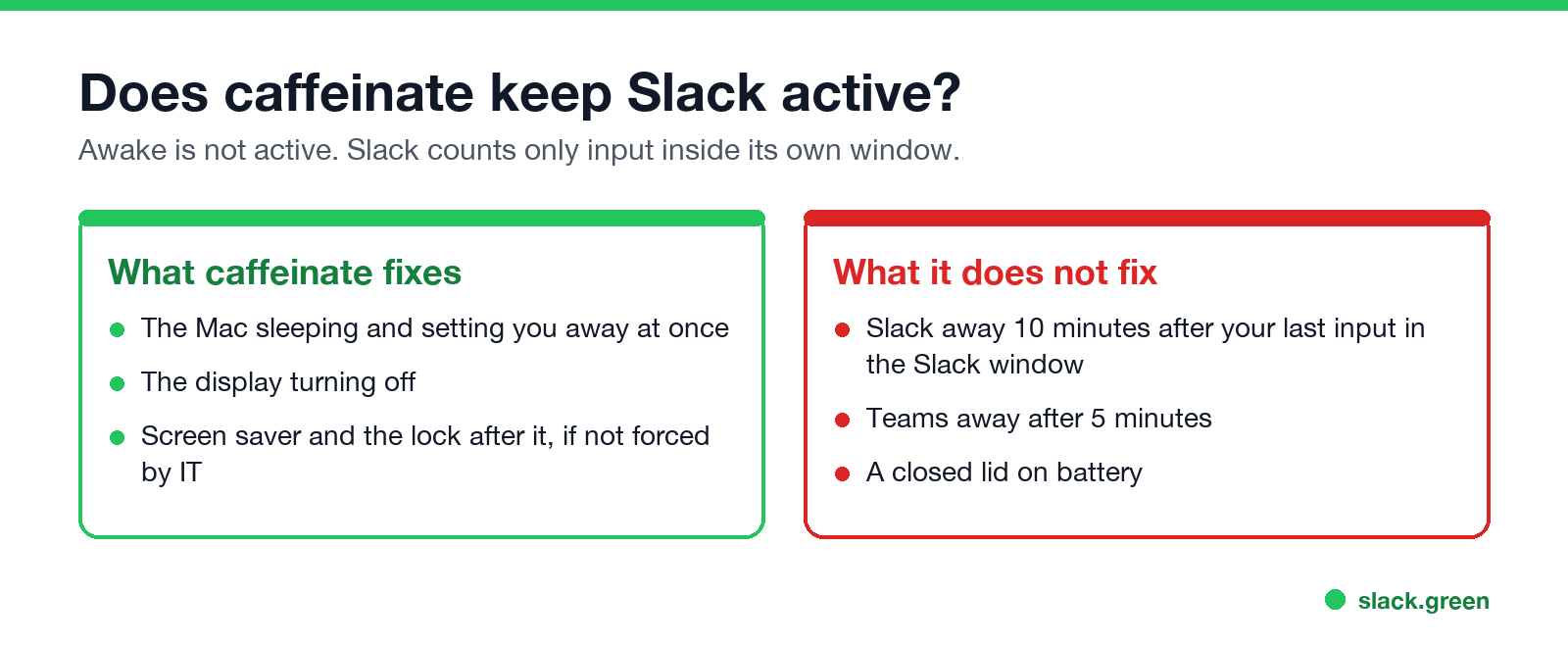
No. We tested the same thing with the Caffeine app: Slack stayed green until minute 10, then went away with the screen still on. The full test is in does Caffeine keep Slack active.
caffeinate removes one trigger, the Mac sleeping or locking, which sets you away at once. Slack's idle timer counts only input inside the Slack window, and caffeinate creates none. caffeinate -u wakes the display for a few seconds, which is still not input in Slack. The Mac-specific rules are in keep Slack active on Mac, and every method is compared in how to keep Slack active.
If the goal is a green dot, not an awake Mac, Slack Green keeps it active on your schedule from a server, with the lid closed. For the same question about the Amphetamine app, see does Amphetamine keep Slack active.
caffeinate on a work Mac
caffeinate is built in and needs no admin rights, so it works on most managed Macs. A screen lock enforced by your company through MDM still applies. Lock Screen settings that stop locks for good are in keep a Mac screen from locking. For Windows and Linux equivalents, see keep a work computer awake without admin rights.
FAQ
What does caffeinate do on a Mac?
It creates power assertions that stop the display, the system or the disk from sleeping, until you stop it or its time limit ends.
How do I keep my Mac awake from Terminal?
Run caffeinate -d for the display, or caffeinate -di -t 3600 for display and system for one hour.
How do I stop caffeinate?
Press Ctrl+C in its Terminal window, or run killall caffeinate.
Does caffeinate need sudo?
No. It runs as your user.
Does caffeinate keep Teams active?
No. Teams sets you away after 5 minutes of inactivity in Teams, whether the Mac is awake or not.
Stop Jiggling Your Mouse.
Join hundreds of remote workers who never worry about their Slack status. Set it up once, stay green forever.
Related Articles
Slack Saved for Later: Where the Later Tab Is and How It Works
Saved messages in Slack live in the Later tab, which replaced stars and Saved items in 2023. Hover a message and click Save for later, or press A. Add a reminder, mark items complete, and find them with is:saved. Where Later is on desktop and mobile, and what changed.
Slack Multiple Workspaces: Use, Switch and Stay Active in Each
You can sign in to several Slack workspaces in one app and switch with Ctrl+Tab or Cmd/Ctrl plus a number. Each workspace has its own account, status, presence and Do Not Disturb, so you can be active in one and away in another. How to add, switch and manage them.
Microsoft Teams Status Icons Meaning: Every Colour and Symbol
In Microsoft Teams, a green check means Available, red means Busy, In a meeting or In a call, red with a white bar means Do not disturb or Presenting, a yellow clock means Away or Be right back, a grey circle with an x means Offline, and a purple arrow means Out of office. Which ones Teams sets for you, and which wins.