
How to Turn Off the Screen Saver on a Mac (Ventura to Tahoe)
To turn off the screen saver on a Mac, open System Settings, then Lock Screen, and set Start Screen Saver when inactive to Never. On macOS Monterey and older, it is in System Preferences, Desktop & Screen Saver. The display-off timer and the password delay are separate settings, and a Hot Corner can still start the screen saver. All of them, plus a Terminal command.
To turn off the screen saver on a Mac, open System Settings, select Lock Screen in the sidebar, and set Start Screen Saver when inactive to Never. That works on macOS Ventura, Sonoma, Sequoia and Tahoe. On macOS Monterey and older, open System Preferences, Desktop & Screen Saver, the Screen Saver tab, and set the start time to Never.
Two other timers on the same Lock Screen page can still give you a dark or locked screen: Turn display off when inactive, and Require password after screen saver begins or display is turned off. And a Hot Corner can start the screen saver on demand. All four are below.
A screen that stays on does not keep chat apps active. Microsoft Teams reads input anywhere on the Mac; Slack counts only input inside its own window, and turns you grey after 10 minutes without it. Slack Green keeps your Slack status active from the cloud during the working hours you set, so the Mac can lock whenever it likes.
Turn off the screen saver on macOS Ventura, Sonoma, Sequoia and Tahoe
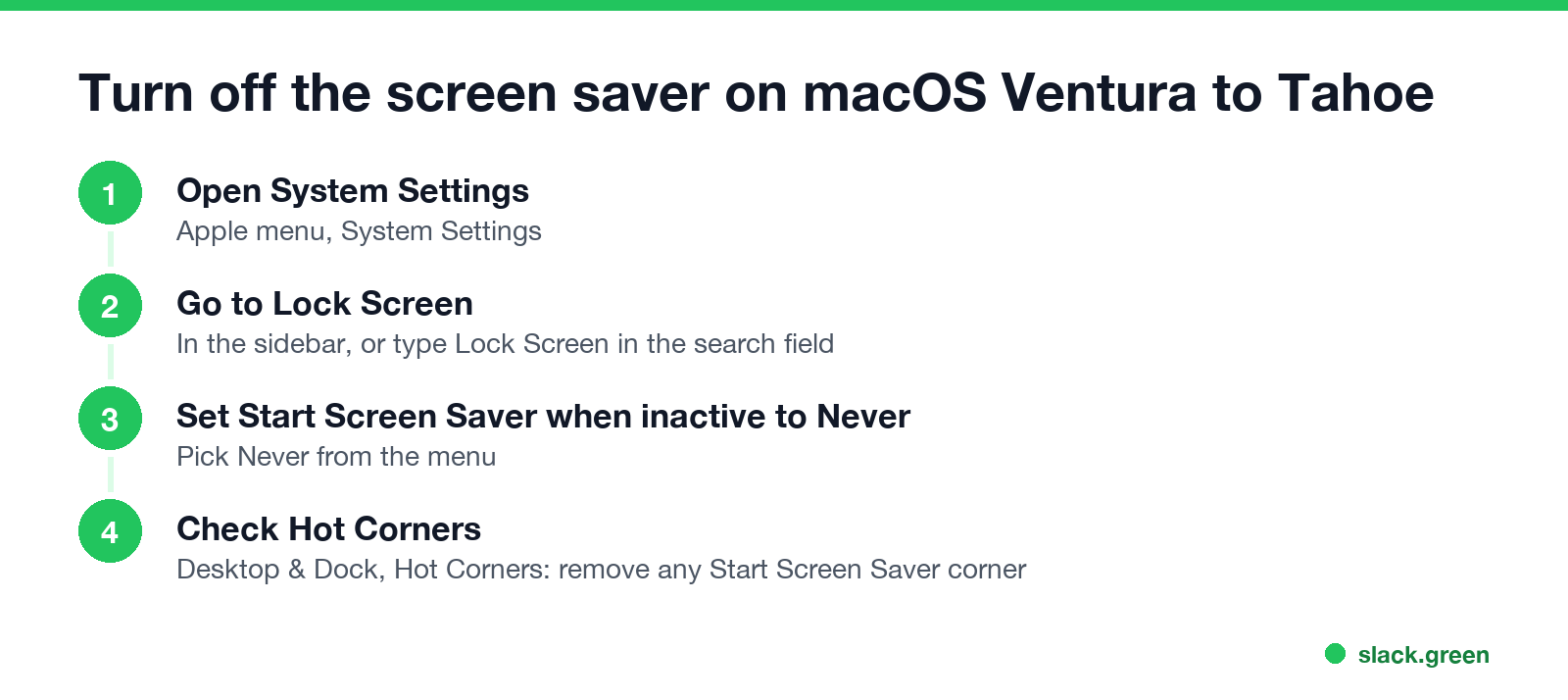
- Open the Apple menu and choose System Settings.
- Select Lock Screen in the sidebar. If you do not see it, type "Lock Screen" in the search field at the top of the sidebar.
- Set Start Screen Saver when inactive to Never.
- Open Desktop & Dock, select Hot Corners at the bottom, and set any corner that says Start Screen Saver to the dash (-).
- Open Apple menu, System Preferences, Desktop & Screen Saver.
- Select the Screen Saver tab.
- Set Start after (called Show screen saver after on some versions) to Never.
- Select Hot Corners on the same tab and clear any Start Screen Saver corner.
The setting takes effect at once; no restart. If the menu is greyed out with a note that your organization manages it, the Mac has a configuration profile from IT, and only IT can change it.
The Screen Saver page in System Settings is where you choose which screen saver runs. It no longer holds the timer; that moved to Lock Screen in macOS Ventura.
Turn off the screen saver on macOS Monterey and older
The Mac timers that give you a dark or locked screen
Never appear "away" on Slack again
Cloud-based. No downloads. Works 24/7 even when your laptop is off.
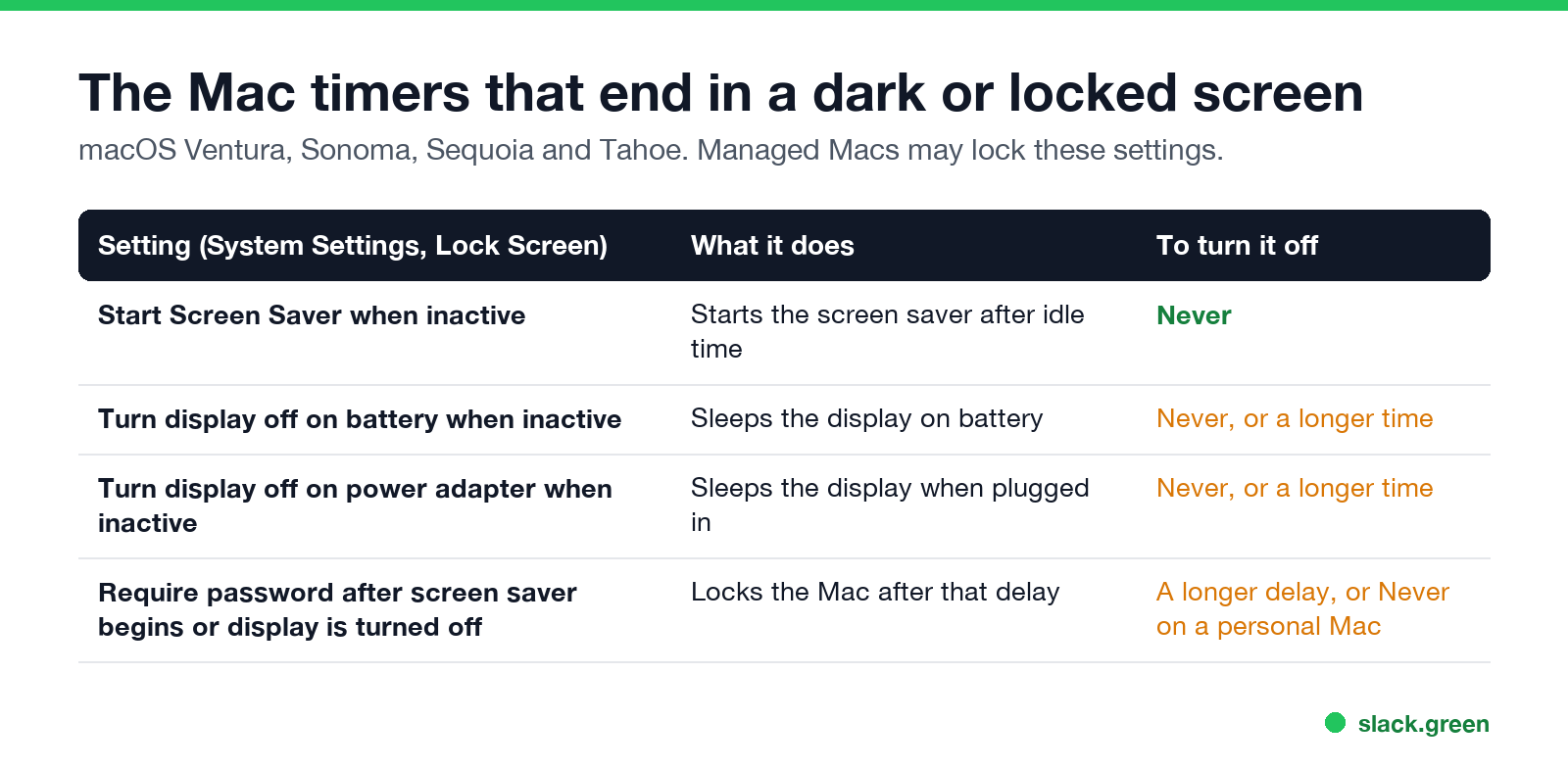
| Setting in System Settings, Lock Screen | What it does | To turn it off |
|---|---|---|
| Start Screen Saver when inactive | Starts the screen saver after the idle time | Never |
| Turn display off on battery when inactive | Sleeps the display on battery | Never, or a longer time |
| Turn display off on power adapter when inactive | Sleeps the display when plugged in | Never, or a longer time |
| Require password after screen saver begins or display is turned off | Locks the Mac after that delay | A longer delay, or Never on a personal Mac |
If you turn off the screen saver but leave the display timer at 10 minutes, the screen still goes black at 10 minutes, and many people read that as the screen saver. Set both.
Turn off the password after the screen saver
In Lock Screen, set Require password after screen saver begins or display is turned off to a longer delay, such as 1 hour, or to Never. macOS asks for your password to make the change.
Leave it on for a work Mac or any Mac in a shared space: without it, anyone who walks up can use the Mac. Many company Macs enforce a short delay through a profile, and that setting cannot be changed there. How locking works, and what to do on a managed Mac, is in keep a Mac screen from locking.
Turn off the screen saver from Terminal
The screen saver timer is stored per user and per Mac. This sets it to never:
defaults -currentHost write com.apple.screensaver idleTime -int 0To check the value, and to put it back to 20 minutes (1,200 seconds) later:
defaults -currentHost read com.apple.screensaver idleTime
defaults -currentHost write com.apple.screensaver idleTime -int 1200
Open Lock Screen afterwards to confirm the menu shows the value you set. If you only need the screen on for a while, caffeinate -d keeps the display awake until you press Ctrl+C; every flag is in caffeinate on Mac. Menu-bar apps that do the same are compared in the best app to keep your Mac awake.
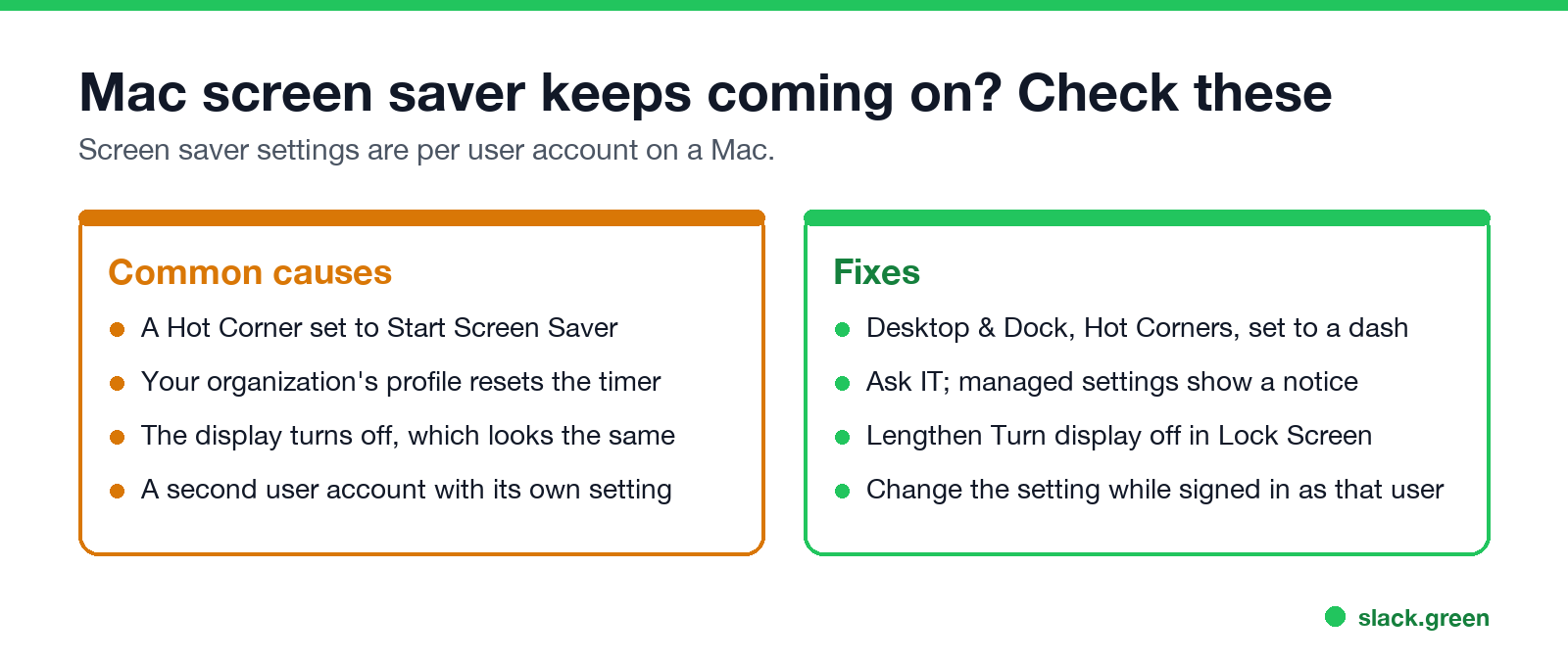
Mac screen saver keeps coming on
Never appear "away" on Slack again
Cloud-based. No downloads. Works 24/7 even when your laptop is off.
Does turning off the screen saver keep Teams or Slack active?
It stops the lock that follows the screen saver, which matters because both apps show you as away when the Mac locks. It does not create input. Microsoft Teams still turns Away after about 5 minutes without keyboard or mouse input, as covered in how to keep Teams active on a Mac. Slack still turns grey after 10 minutes without input in the Slack window; the Mac options for Slack are in how to keep Slack active on a Mac.
Quick answers
Where is the screen saver setting in macOS Tahoe? System Settings, Lock Screen, Start Screen Saver when inactive.
Why is Never missing from the menu? Your organization manages the setting, or the Mac uses an older macOS where the option is in Desktop & Screen Saver.
Does turning off the screen saver use more battery? The screen saver itself does not save power; the display turning off does. Keep the display timer on for a MacBook on battery.
How do I start the screen saver by hand? Set a Hot Corner to Start Screen Saver, or press Control-Command-Q to lock the screen instead.
Stop Jiggling Your Mouse.
Join hundreds of remote workers who never worry about their Slack status. Set it up once, stay green forever.
Related Articles
Can My Employer See My Browsing If I Use a VPN? It Depends Whose
A personal VPN hides the sites you visit from the office network, but not from monitoring software, a managed browser or IT on a work laptop. The company VPN shows your employer every site it carries. What each setup hides.
Teams Status on Multiple Devices: The Last Device You Used Wins
Signed in to Teams on a computer and a phone? Your status comes from the device you used most recently. That is why a quick look at your phone can turn you Away, and why a phone in your pocket shows Away instead of Offline at night.
Zoom Do Not Disturb: How to Turn It On, Schedule It, and What It Blocks
To turn on Do not disturb in Zoom, click your profile picture, point at your status and choose Do not disturb, then a time from 20 minutes to 24 hours, or Custom for a daily schedule. It blocks pop-up notifications for Zoom Team Chat and Zoom Phone calls. Busy, by contrast, mutes nothing. How the two differ, and how to keep a Zoom meeting free of pop-ups.