
Mac Keeps Going to Sleep? Find the Reason, Then Fix the Timer
A Mac that keeps going to sleep usually has a short display timer: when the display turns off, the Mac sleeps about a minute later. On battery the default can be 2 minutes. How to read the exact reason in pmset -g log, the System Settings that control it, and Terminal commands for when you need the Mac awake.
A Mac that keeps going to sleep is almost always following its display timer. On current macOS, when the display turns off for inactivity, the Mac itself goes to sleep about a minute later. On battery that timer is often very short: the MacBook we tested for this page turns its display off after 2 minutes on battery. To fix it, open System Settings > Lock Screen and set Turn display off on battery when inactive and Turn display off on power adapter when inactive to a longer time. On a laptop plugged in, also turn on System Settings > Battery > Options > Prevent automatic sleeping on power adapter when the display is off. If the Mac sleeps even while you use it, or the settings are greyed out, read the reason in the power log first, below.
If you keep your Mac awake so Slack stays green, you do not need to. Slack counts input only inside its own window, so an awake Mac still shows you away after 10 minutes. Slack Green keeps your Slack status green from a server during the hours you set, with the Mac asleep.
The opposite problem, a Mac that will not sleep, is in why is my Mac not going to sleep.
Find out why your Mac went to sleep
macOS writes every sleep and wake to a power log, with the reason. Open Terminal and run:
# every sleep in the log, with the reason macOS recorded
pmset -g log | grep "Entering Sleep"
Each line reads like this real one from a MacBook Pro (Mac14,5, M2 Max, macOS 26.5):
2026-09-26 23:34:35 +0900 Sleep Entering Sleep state due to 'Clamshell Sleep':TCPKeepAlive=active Using AC (Charge:80%) 30 secsThe part in quotes is the reason. To count the reasons over the whole log, which covers about a week:
pmset -g log | grep -oE "due to '[^':]+" | sort | uniq -c | sort -rn 169 due to 'Maintenance Sleep
31 due to 'Sleep Service Back to Sleep
4 due to 'Clamshell Sleep
2 due to 'Software Sleep pid=396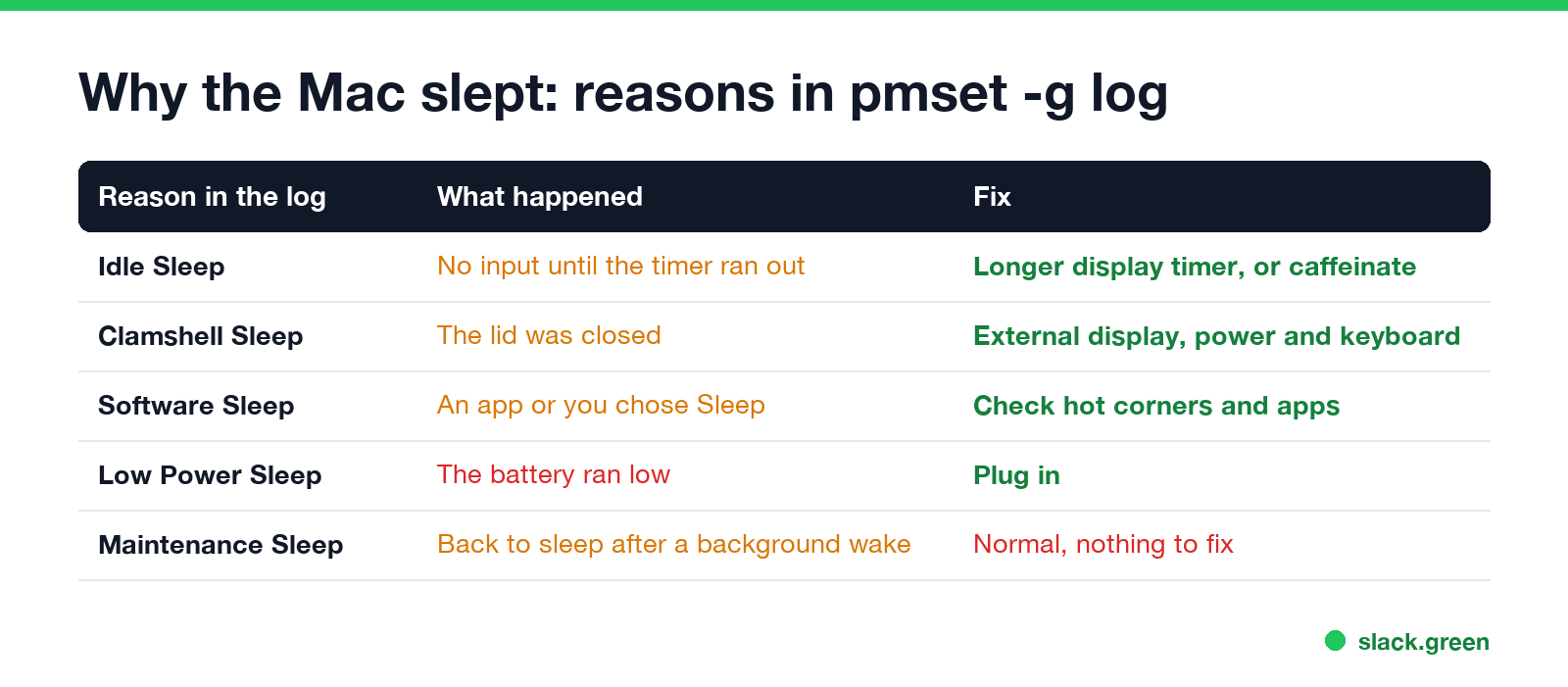
| Reason in the log | What happened | Fix |
|---|---|---|
| Idle Sleep | No keyboard or mouse input until the timer ran out | Lengthen the display timer, or use caffeinate |
| Clamshell Sleep | The lid was closed | Use closed-lid mode, see below |
| Software Sleep | An app, a hot corner or you chose Sleep; the pid is the process | Check hot corners and the app with that pid |
| Low Power Sleep | The battery ran low | Plug in |
| Maintenance Sleep, Sleep Service Back to Sleep | The Mac woke briefly in the background and went back | Normal, nothing to fix |
Most lines in a normal log are Maintenance Sleep: the Mac wakes in the dark for Power Nap, network upkeep or backups and goes straight back. Those are not what you notice. Look for Idle Sleep and Clamshell Sleep near the time the Mac slept on you.
Check your sleep timers
The timers live in pmset. Run:
pmset -g customThis is the battery section from the same MacBook:
Battery Power:
 displaysleep         2
 sleep                1
 disksleep            10
displaysleep 2 turns the display off after 2 minutes without input. sleep 1 means the Mac sleeps about a minute after that. So this MacBook sleeps roughly 3 minutes after you stop typing on battery. On power it waits for its 10-minute display timer.
Fix it in System Settings
Never appear "away" on Slack again
Cloud-based. No downloads. Works 24/7 even when your laptop is off.
Every sleep setting and where it lives on each macOS version is in how to change sleep settings on a Mac.
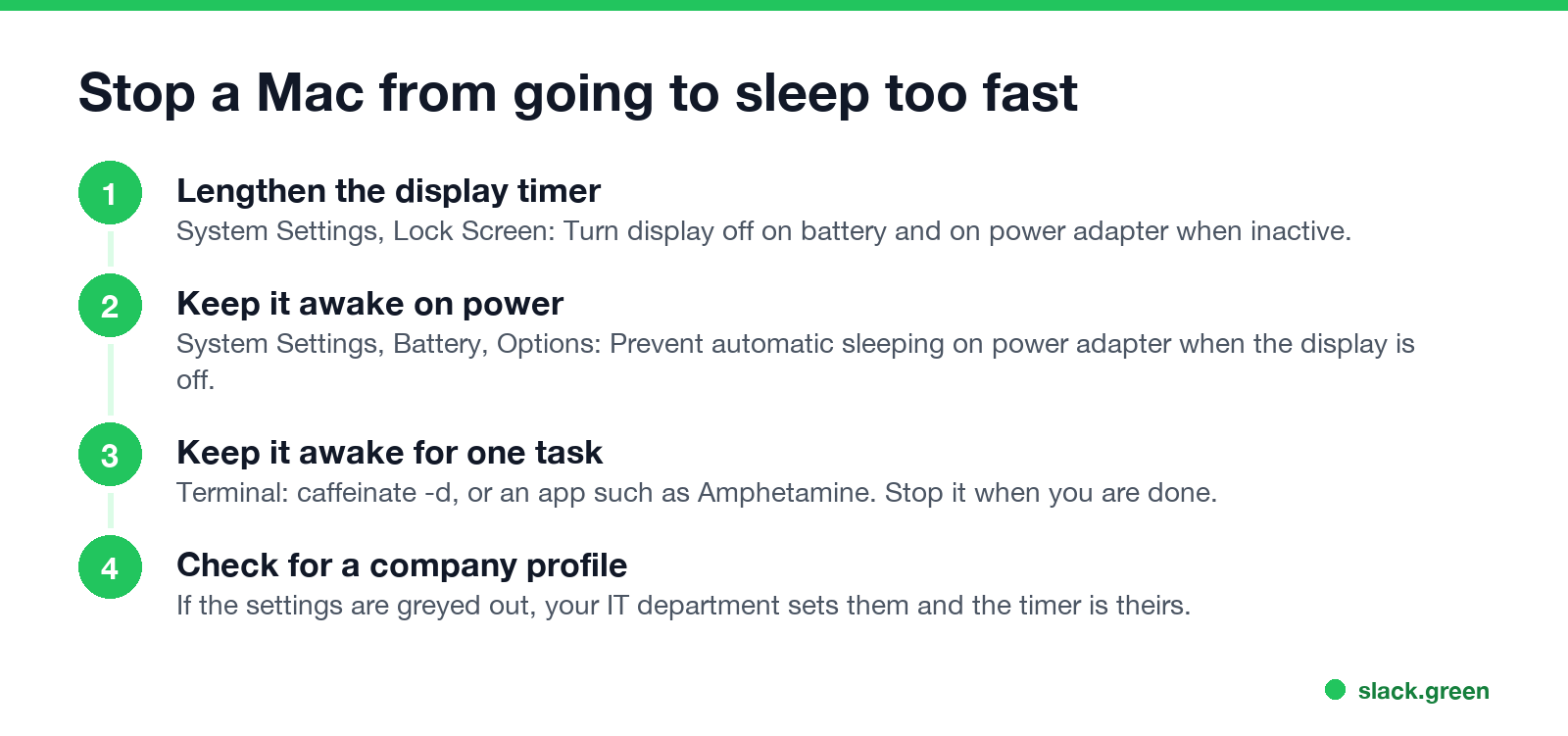
- Lengthen the display timer. Open System Settings > Lock Screen. Set Turn display off on battery when inactive and Turn display off on power adapter when inactive to the time you want, or Never on power.
- Keep a plugged-in laptop awake with the display off. Open System Settings > Battery > Options and turn on Prevent automatic sleeping on power adapter when the display is off. On a desktop Mac the same switch is under System Settings > Energy.
- Separate the screen lock from sleep. In Lock Screen, Require password after screen saver begins or display is turned off sets when you need your password. A long display timer with a short password delay keeps the Mac awake but locked.
- Check hot corners. In System Settings > Desktop & Dock > Hot Corners, a corner set to Put Display to Sleep sends the Mac to sleep whenever the pointer touches it. This is a common cause of "Software Sleep" in the log.
- Turn off Low Power Mode to test. System Settings > Battery > Low Power Mode. It reduces energy use and can make a MacBook feel quicker to dim.
The Mac also sleeps whenever you close the lid, unless it is in closed-lid mode: connected to power, an external display, and an external keyboard or mouse. The setup is in keep a laptop awake with the lid closed.
Keep the Mac awake from Terminal
For a download, a render or a long call, macOS includes caffeinate. It keeps the Mac awake until you press Control-C:
# keep the display and the Mac awake until Control-C
caffeinate -d

# keep the Mac awake for one hour (3600 seconds), display may sleep
caffeinate -i -t 3600
To change the timers themselves from Terminal, use pmset with -b for battery and -c for the charger:
# display off after 15 minutes on battery, 30 on power
sudo pmset -b displaysleep 15
sudo pmset -c displaysleep 30
Setting sleep 0 stops system sleep completely. Use it on a desktop Mac, not on a laptop you carry, because a laptop that never sleeps drains its battery in a bag. Menu bar apps such as Amphetamine and KeepingYouAwake do the same as caffeinate with a timer and a switch; they are compared in KeepingYouAwake vs Amphetamine.
Settings greyed out: your company controls the timer
On a work Mac, a configuration profile from your IT department can set the display timer and the screen lock, and the settings appear greyed out or reset after you change them. Check System Settings > General > Device Management. If a profile is listed there, the short timer is a security policy, and the fix is to ask IT. Keep-awake apps may still keep the Mac awake, but the lock may still come on; the same policy on Windows is explained in why your computer locks after 15 minutes, and Mac options are in keep your Mac screen from locking.
FAQ
Never appear "away" on Slack again
Cloud-based. No downloads. Works 24/7 even when your laptop is off.
Why does my Mac go to sleep after 2 minutes? Its battery display timer is set to 2 minutes, and the Mac sleeps a minute after the display turns off. Change it in System Settings > Lock Screen.
Why does my MacBook go to sleep when I close the lid with an external monitor? Closed-lid mode needs the charger connected and an external keyboard or mouse as well as the display.
Why does my Mac sleep while I am watching a video? Video players normally keep the display awake. If the log says Idle Sleep, the app did not ask; if it says Software Sleep, check hot corners.
Does my Mac need to stay awake for Slack to show me active? No. Slack shows you away after 10 minutes without input in the Slack window, awake or not. Keep Slack active on Mac covers the options.
Stop Jiggling Your Mouse.
Join hundreds of remote workers who never worry about their Slack status. Set it up once, stay green forever.
Related Articles
Can My Employer See My iMessages on a Work Mac?
Not through device management or the network: Jamf or Intune cannot read Messages, and iMessage is end-to-end encrypted. But if you sign in to Messages on a work Mac, your texts are stored on that Mac, where monitoring screenshots, backups and admin access can reach them. How to check, and how to take iMessage off the Mac without deleting it from your iPhone.
Can My Boss See My Private Outlook Calendar Events?
Usually not the details. When you mark an Outlook event Private, someone who can read your calendar sees only Private appointment, the time and a lock. The exceptions are delegates you gave Can view private items, the people invited to the event, anyone with full access to your mailbox in new Outlook or the web, and compliance admins. How to check who has which access, and what Private does not hide.
Productivity Theater: Meaning, Numbers and How It Starts
Productivity theater is work done to look busy rather than to get results: extra messages, status updates, meetings to show progress, and keeping a green dot on. Slack's 2023 survey of 18,000 desk workers put it at 32% of the working week. Microsoft ties it to productivity paranoia, where 85% of leaders doubt remote staff are productive.