
Amphetamine Alternatives for Mac, and When to Switch
Amphetamine is free and covers almost every keep-awake case, so switch only for a reason: open source, one click, Shortcuts, a lid-closed setup without Enhancer, or nothing to install. The alternative for each, compared on price and features.
The best alternative to Amphetamine depends on why you are leaving it. For a free, open-source app with one click, use KeepingYouAwake. For a paid one-click app with a timer, Caffeinated costs $3.99. For keyboard shortcuts and Shortcuts automation, Lungo costs $4. To install nothing at all, macOS has the caffeinate command built in. Amphetamine itself is free, with no ads or in-app purchases, and has more triggers than any of them, so if it works for you there is little reason to switch.
None of these apps, Amphetamine included, keep Slack green. They stop the Mac from sleeping, but Slack goes away after 10 minutes with no input in the Slack window. Slack Green keeps your Slack presence active from a server during the hours you set, with the Mac asleep or awake.
Pick an Amphetamine alternative by the reason you are switching
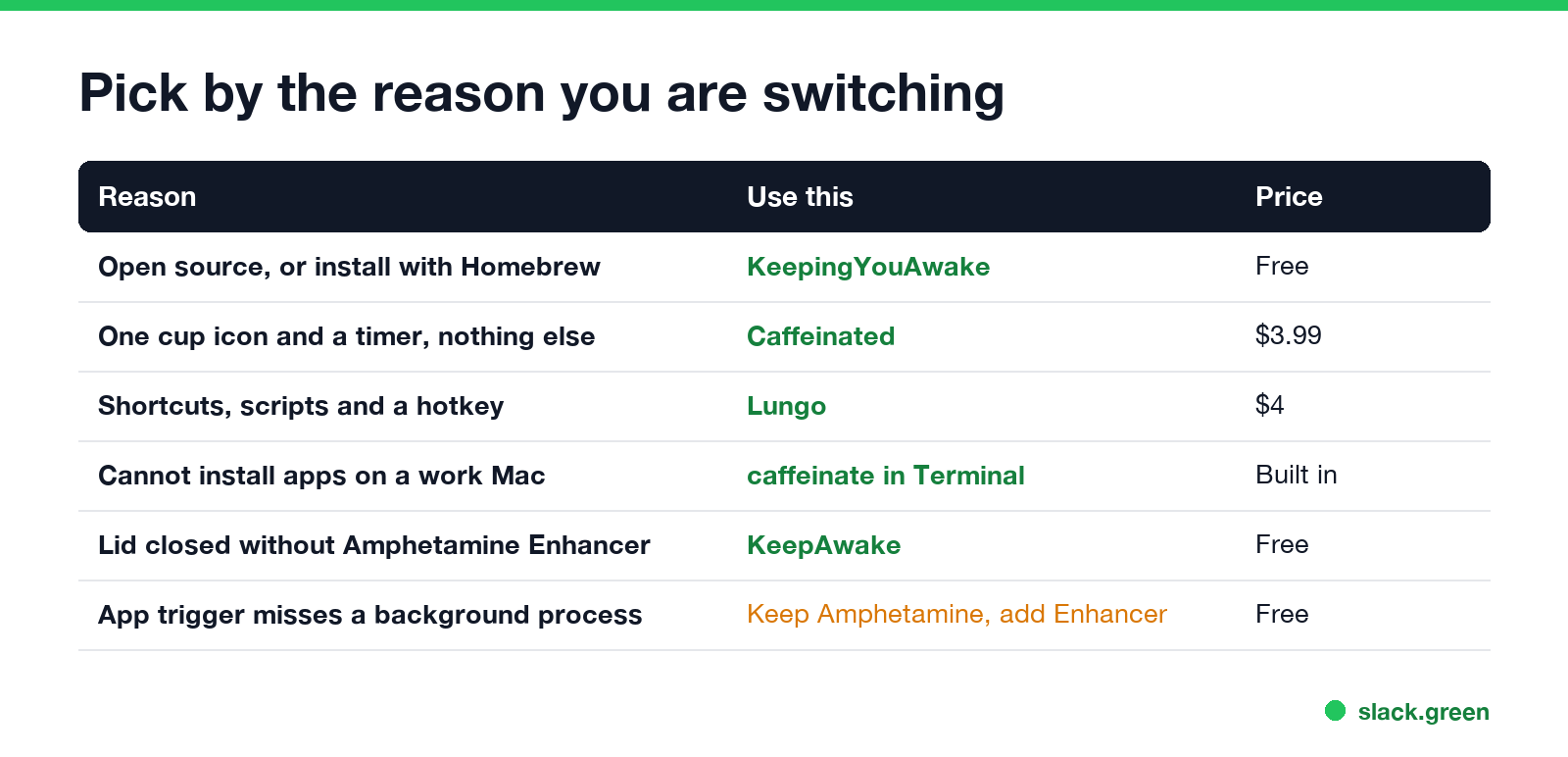
| Reason you want something else | Use this | Price |
|---|---|---|
| You want open source, or to install with Homebrew | KeepingYouAwake | Free |
| You want a single cup icon and a timer, nothing else | Caffeinated | $3.99, Mac App Store |
| You want Shortcuts, scripts and a hotkey | Lungo | $4, Mac App Store |
| You cannot install apps on a work Mac | caffeinate in Terminal | Built in |
| You need the lid closed and do not want Amphetamine Enhancer | KeepAwake, or an external display and power | Free |
| Amphetamine's app trigger misses a background process | Amphetamine plus Amphetamine Enhancer | Free |
The last two rows are not reasons to leave. They are the two most common "Amphetamine not working" cases, covered further down.
Amphetamine alternatives compared
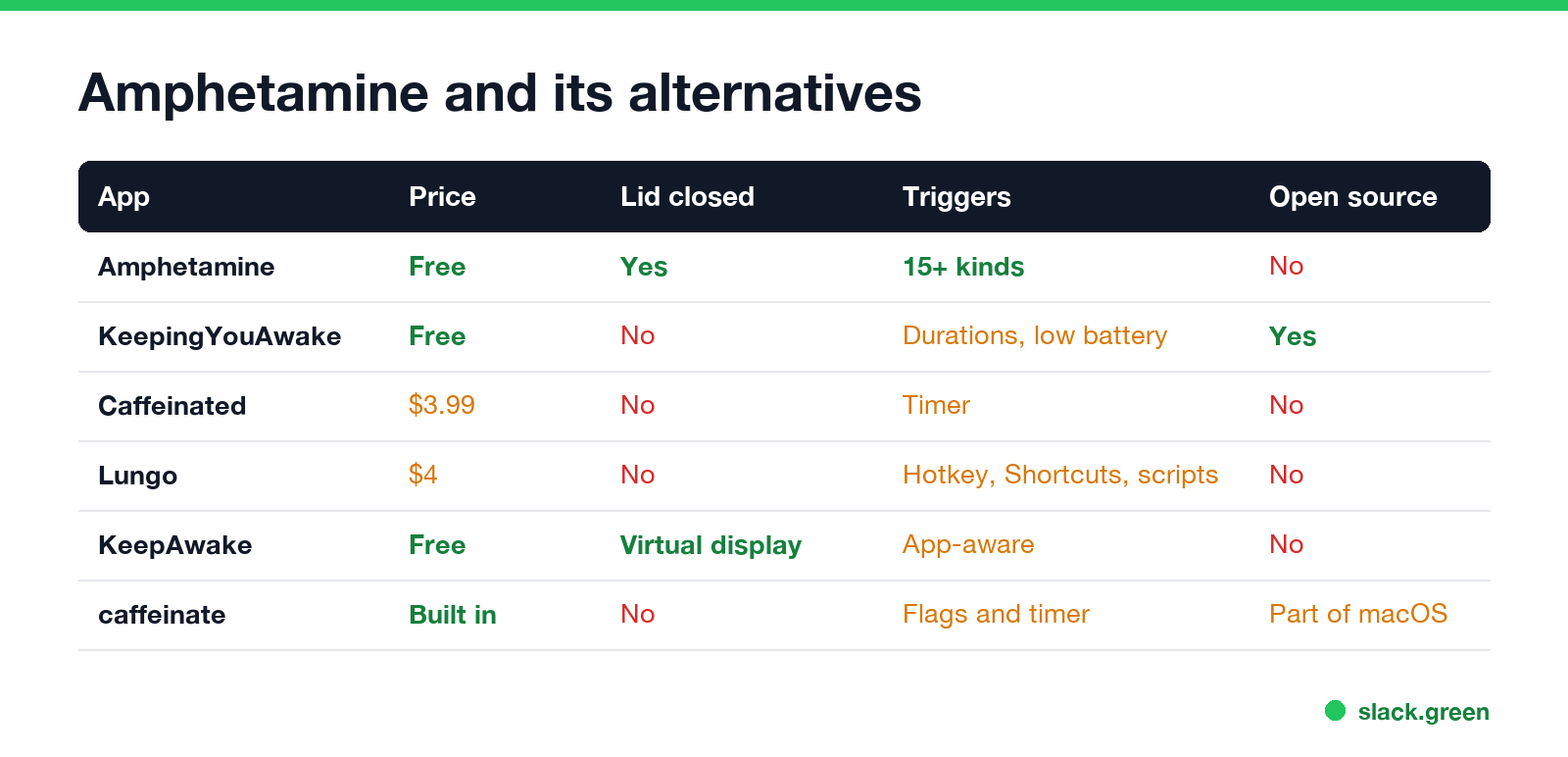
| App | Price | Lid closed | Triggers and automation | Open source |
|---|---|---|---|---|
| Amphetamine | Free | Yes | Apps, Wi-Fi, IP, VPN, displays, USB and Bluetooth devices, power, battery, CPU, idle time | No |
| KeepingYouAwake | Free | No | Preset durations, stop at low battery | Yes |
| Caffeinated | $3.99 | No | Timer with notifications | No |
| Lungo | $4 | No | Durations, hotkey, Shortcuts, scripts | No |
| KeepAwake | Free | Yes, with a virtual display | App-aware triggers | No |
caffeinate | Built in | No | Flags, a timer in seconds, or the length of a command | Part of macOS |
Amphetamine's feature list comes from its Mac App Store page: sessions that run forever, for a set time, until a set time, while a file downloads or while an app runs, and over 15 kinds of trigger. The others come from each app's store page or README, as in our longer best app to keep your Mac awake.
Amphetamine vs Caffeinated
Never appear "away" on Slack again
Cloud-based. No downloads. Works 24/7 even when your laptop is off.
Caffeinated, by Yugen GmbH in Frankfurt, is the closest one-click rival and the name most people compare. Its App Store page says it "was developed based on the helpful tool Caffeine."
| Amphetamine | Caffeinated | |
|---|---|---|
| Price | Free, no in-app purchases | $3.99 |
| Start a session | Menu bar, hotkey, triggers, AppleScript | One click on the cup, left or right click |
| Timer | Set time, until a time, while a download or an app runs | Timer with optional notifications |
| Lid closed | Yes, closed-display mode | No. The listing says "the anti-sleep feature does not work when you close the lid" |
| Automatic triggers | Over 15 kinds | None listed |
| Developer | William Gustafson | Yugen GmbH |
Pick Caffeinated if you want a paid app from a small studio with a short options screen. Pick Amphetamine if you want triggers or the lid closed. Both keep the Mac awake the same way.
KeepingYouAwake: the free, open-source alternative
KeepingYouAwake, by Marcel Dierkes, puts a cup in the menu bar. It is a small wrapper around Apple's caffeinate tool, with preset durations and an option to stop when the battery runs low. It is open source and installs with Homebrew:
brew install --cask keepingyouawakeIt has no triggers and no lid-closed mode. For most people who only click "keep awake" and "stop", that is all Amphetamine was doing anyway.
No app at all: caffeinate in Terminal
Every Mac has caffeinate. It needs no admin rights and nothing from the App Store, which helps on a managed work Mac where you cannot install apps.
# keep the Mac and the display awake until you press Ctrl+C
caffeinate -d -i

# keep it awake for 2 hours (7200 seconds), then stop
caffeinate -d -i -t 7200

# keep it awake only while a long command runs
caffeinate -i rsync -a ~/Projects /Volumes/Backup/
-d stops display sleep, -i stops idle system sleep, and -t ends it after the given seconds. Close the Terminal window or press Ctrl+C and normal sleep returns. More flags and examples are in caffeinate on Mac.
Amphetamine app on Mac not working
Never appear "away" on Slack again
Cloud-based. No downloads. Works 24/7 even when your laptop is off.
Most failures come from four causes:
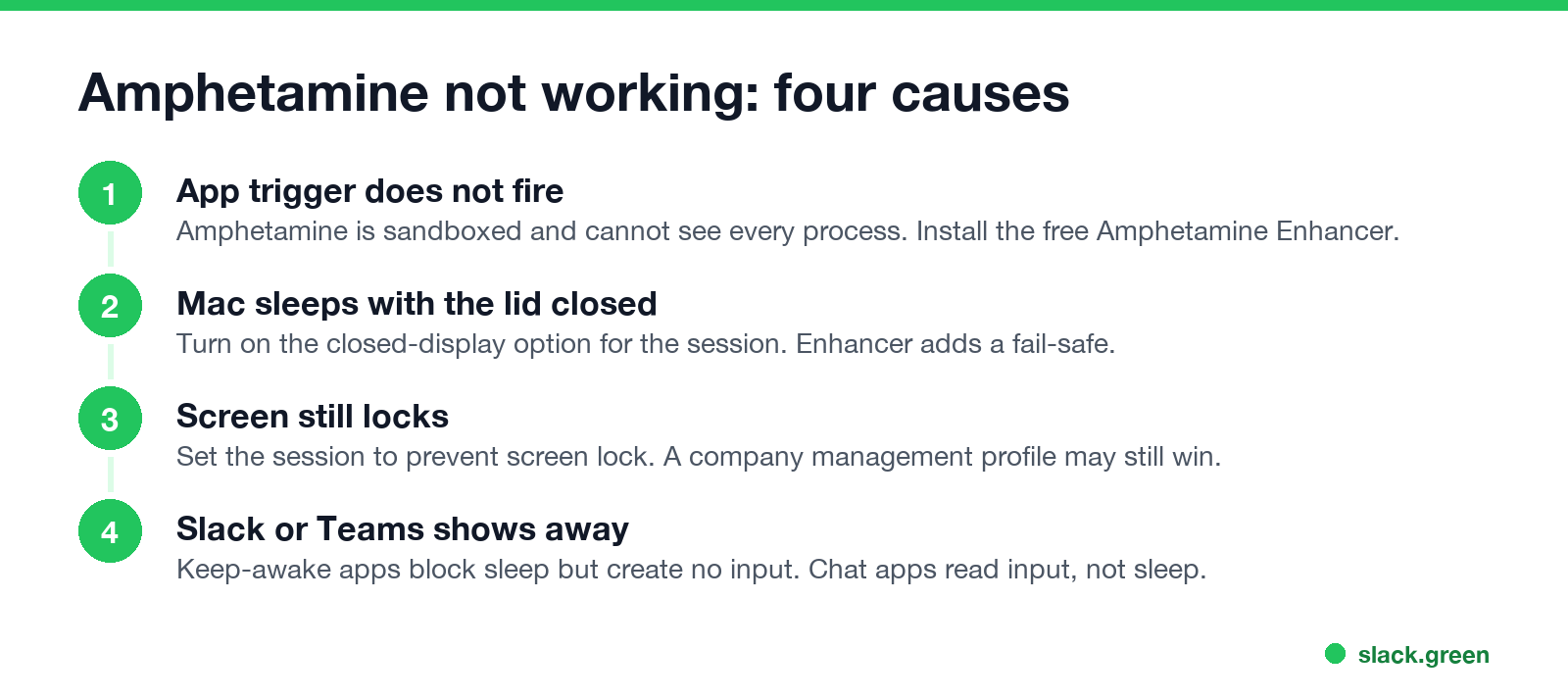
- • An app trigger does not fire. Amphetamine is sandboxed, like every Mac App Store app, so it cannot see every running process. Its developer ships a free helper, Amphetamine Enhancer, that lets triggers and app-based sessions use all running processes.
- • The Mac sleeps with the lid closed. Turn on the closed-display option for the session. Amphetamine Enhancer also adds a fail-safe for closed-display mode. Most other keep-awake apps cannot do this; the options are in how to keep a laptop awake with the lid closed.
- • The screen still locks. Check that the session is set to prevent screen lock. On a company Mac, a management profile can set a maximum lock time, and a keep-awake app may not be able to override it; see how to keep a Mac screen from locking.
- • Slack or Teams still shows you away. A keep-awake app blocks sleep. It does not create keyboard or mouse input, and that is what chat apps read. We checked this on a Mac:
caffeinate -u, which tells macOS a user is active, did not reset the system's input idle counter at all.
Why no keep-awake app keeps Slack or Teams active
Awake is not active. Slack counts only input inside its own window and sets you away after 10 minutes. Teams counts input anywhere on the computer and sets you Away after about 5 minutes. A Mac that is awake but untouched gives neither app any input, so both go away on schedule. The Slack side is in does Amphetamine keep Slack active; the Teams side is in does a mouse jiggler work for Teams.
For Slack, Slack Green sets your presence from a server during the hours you choose. The Mac can sleep, the lid can close, and no app has to run.
FAQ
What is the best free alternative to Amphetamine? KeepingYouAwake. It is free, open source and installs with Homebrew. It has no triggers or lid-closed mode.
Is Caffeinated better than Amphetamine? It is simpler and costs $3.99. Amphetamine is free, has triggers and works with the lid closed.
Is Amphetamine still on the Mac App Store? Yes. It is free, by William Gustafson, and needs macOS 10.11 or later.
Why is Amphetamine not working with the lid closed? Turn on the closed-display option for the session and install Amphetamine Enhancer for its fail-safe.
Can I keep my Mac awake without installing anything? Yes. Run caffeinate -d -i in Terminal. Press Ctrl+C to stop.
Does Amphetamine keep Slack green? No. It keeps the Mac awake, but Slack still goes away after 10 minutes with no input in the Slack window.
Stop Jiggling Your Mouse.
Join hundreds of remote workers who never worry about their Slack status. Set it up once, stay green forever.
Related Articles
Can My Employer See My Browsing If I Use a VPN? It Depends Whose
A personal VPN hides the sites you visit from the office network, but not from monitoring software, a managed browser or IT on a work laptop. The company VPN shows your employer every site it carries. What each setup hides.
Teams Status on Multiple Devices: The Last Device You Used Wins
Signed in to Teams on a computer and a phone? Your status comes from the device you used most recently. That is why a quick look at your phone can turn you Away, and why a phone in your pocket shows Away instead of Offline at night.
Auto Clicker vs Mouse Jiggler: Which Keeps You Active, and the Risks
A mouse jiggler moves the pointer; an auto clicker clicks wherever the pointer sits. Both keep Teams and the screen awake, but an auto clicker can click the wrong thing, and fixed-interval clicks are exactly what monitoring tools flag.