
Mouse Jiggler vs Caffeine: Which One Keeps You Active?
Caffeine stops your computer from sleeping; a mouse jiggler fakes input so apps see you as active. On a Mac, Caffeine sends no input by default, so Teams still goes Away; on Windows, Caffeine presses F15 and usually keeps Teams green. Neither keeps Slack green. How they differ, and which one you need.
A keep-awake app like Caffeine and a mouse jiggler solve different problems. Caffeine asks the operating system not to sleep, dim or lock, and on a Mac it does that without creating any input. A mouse jiggler moves the pointer, so the computer and your apps see activity. That difference decides what stays green: apps like Microsoft Teams set you Away when there is no input, so Caffeine for Mac does not keep Teams green while a jiggler does. Caffeine for Windows is a different app that presses the F15 key every 59 seconds, which is input, so it usually keeps Teams green too.
Slack is the exception to both: it counts input only inside the Slack window, so it goes grey after 10 minutes with either tool running. Slack Green keeps your Slack status active from the cloud during the hours you set, with nothing running on the computer.
Mouse jiggler vs Caffeine, side by side
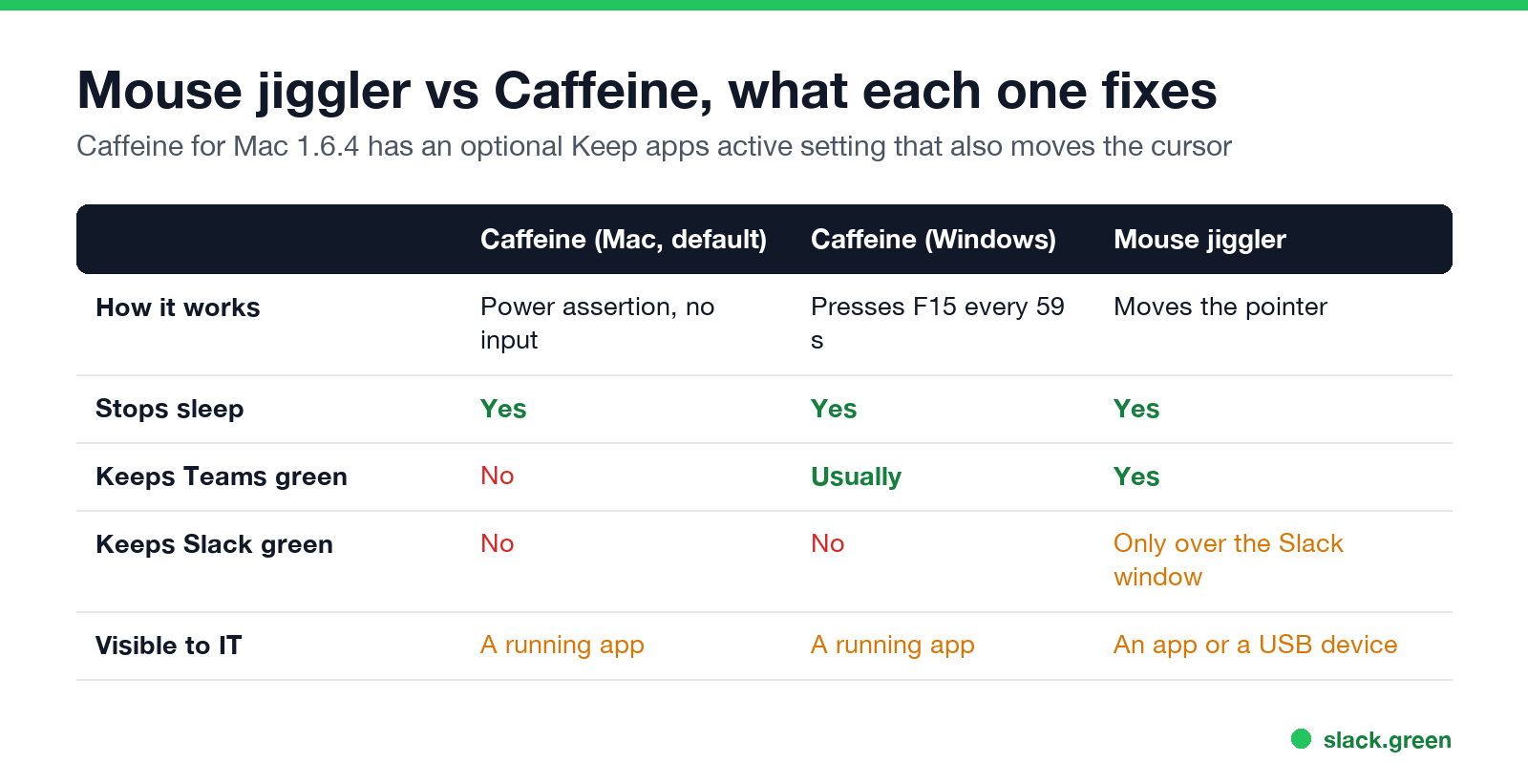
| Caffeine for Mac (default) | Caffeine for Windows | Mouse jiggler | |
|---|---|---|---|
| How it works | Power assertion, no input | Presses F15 every 59 seconds | Moves the pointer, as software or a USB device |
| Stops sleep and screen dimming | Yes | Yes | Yes |
| Resets the idle timer | No | Yes | Yes |
| Keeps Teams green | No | Usually | Yes |
| Keeps Slack green | No | No | Only when the pointer moves over the Slack window |
| What IT can see | A running app | A running app | A running app, or a new USB device |
We checked Caffeine for Mac 1.6.4 on macOS 26.5.2: pmset -g assertions showed a single PreventUserIdleDisplaySleep assertion named "Caffeine prevents sleep", and no input. Setup and settings are in Caffeine app for Mac. The Windows app is covered in Caffeine app for Windows.
Does Caffeine work like a mouse jiggler?
On a Mac, not by default. Caffeine for Mac holds the display awake and does nothing else, so your idle time keeps counting. Version 1.6.4 has an optional setting, Keep apps active, that changes this: after 90 seconds without input it posts a mouse-move event, checking every 30 seconds. With that setting on, Caffeine behaves like a software jiggler, and it needs Accessibility permission to do it. Amphetamine has a similar Move Cursor Every... option.
On Windows, Caffeine is already a kind of jiggler that uses a key instead of the mouse. F15 exists in Windows but not on most keyboards, so the press does not type anything, yet Windows counts it as input.
What each one fixes
Never appear "away" on Slack again
Cloud-based. No downloads. Works 24/7 even when your laptop is off.
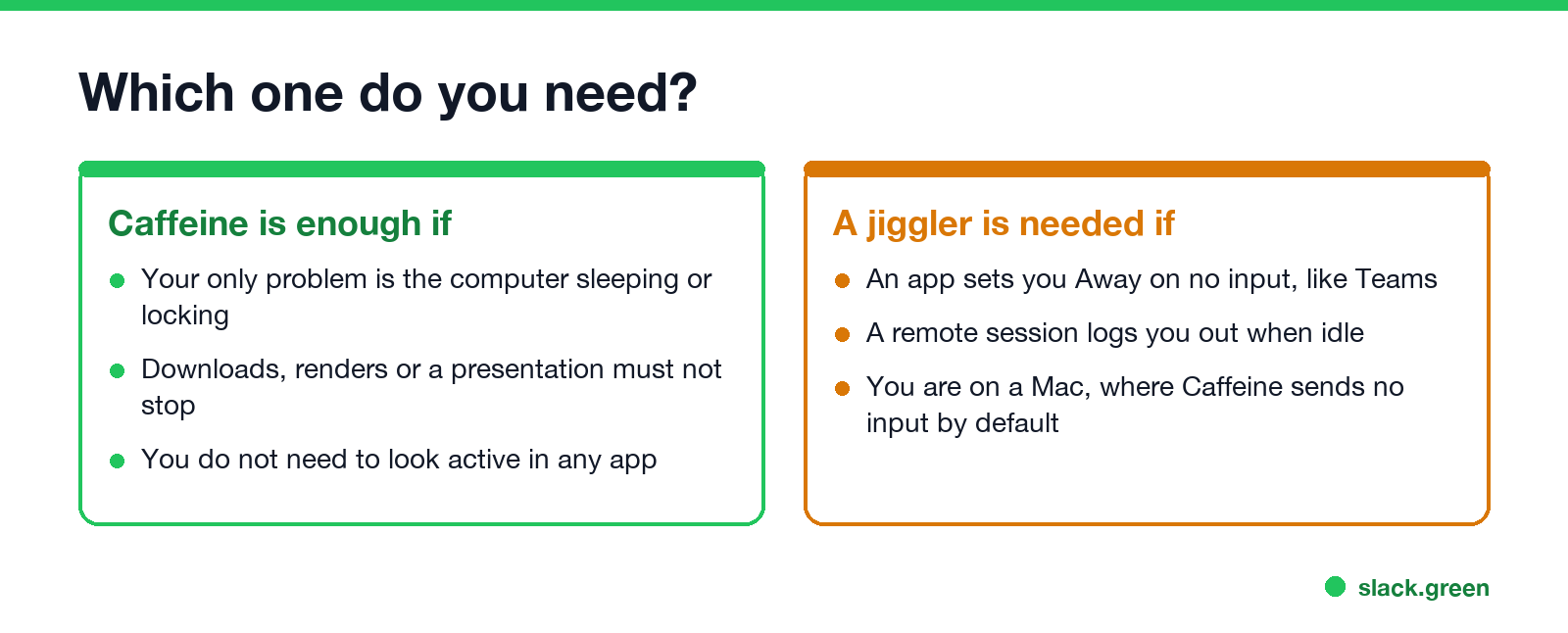
Caffeine is enough if the problem is the computer itself: a download, render, backup or presentation that stops when the machine sleeps, or a screen that locks while you read. Nothing needs to think you are active.
A jiggler, or an input-sending tool, is needed if something watches for input:
- • Teams sets you Away after about 5 minutes without keyboard or mouse input; see does a mouse jiggler work for Teams.
- • Remote desktop and Citrix sessions disconnect after an idle limit; see how to keep a remote desktop session active.
- • Monitoring tools that measure active time.
A software jiggler and a USB jiggler differ again, in what they need and what they leave behind; see mouse mover vs mouse jiggler and what is a mouse jiggler.
Why neither keeps Slack green
Slack sets your dot from input inside the Slack window: clicks, keys and scrolling there. We tested Caffeine on a Mac: Slack stayed green until the 10-minute mark and then went grey with the screen still on; see does Caffeine keep Slack active. A jiggler moves the pointer wherever it is, usually over another app, and Slack ignores that. The comparison with a server-side approach is in Slack Green vs mouse jiggler.
Which is easier for IT to spot?
Both leave traces. Caffeine and software jigglers are running processes that endpoint tools list by name. A USB jiggler shows up as an extra mouse in the device log, and input from software jigglers carries an "injected" flag on Windows. A keep-awake app is less likely to raise questions, because keeping a screen on during a presentation is routine. What each detection method catches is in how to detect a mouse jiggler.
FAQ
Never appear "away" on Slack again
Cloud-based. No downloads. Works 24/7 even when your laptop is off.
Is Caffeine a mouse jiggler? Caffeine for Mac is not, unless you turn on Keep apps active. Caffeine for Windows presses F15, which acts like a keyboard jiggler.
Does Caffeine keep Teams active? Caffeine for Windows usually does. Caffeine for Mac does not by default, because it sends no input.
Does a mouse jiggler stop my computer from sleeping? Yes. The movement resets the idle timer, so sleep and screen lock never start.
Which is better, Caffeine or a mouse jiggler? Caffeine if you only need the computer awake. A jiggler if an app or session must see you as active.
Does either keep Slack active? No. Slack counts input only inside its own window, and goes grey after 10 minutes without it.
Stop Jiggling Your Mouse.
Join hundreds of remote workers who never worry about their Slack status. Set it up once, stay green forever.
Related Articles
How to Change Sleep Settings on a Mac (Ventura to Tahoe)
On macOS Ventura and newer, the Mac's sleep timer is its display timer: set it in System Settings > Lock Screen, under Turn display off on battery and on power adapter when inactive. The Mac sleeps about a minute after the display turns off, unless you turn on Prevent automatic sleeping in Battery > Options, or in Energy on a desktop Mac. Every setting, where it lives by macOS version, and the pmset commands.
Caffeine vs KeepingYouAwake: Which Mac Keep-Awake Cup to Use
Caffeine and KeepingYouAwake are both free, open-source coffee cups for the Mac menu bar. KeepingYouAwake runs on macOS 10.13 and newer, wraps Apple's caffeinate, and can let the display sleep or stop on low battery. Caffeine needs macOS 14.6 and adds an optional cursor nudge that keeps Teams green. Which to pick.
Can My Employer See My Google Chat Messages? Yes, in Vault
On a work Google account, yes. Workspace admins can search, export and keep your Google Chat DMs, group chats and spaces with Google Vault, often including messages you deleted. Messages sent with history off are not covered: they disappear after 24 hours. A personal Google account is out of your employer's reach.