
How to Detect a Mouse Jiggler: Four Checks, and a Script
How IT teams and monitoring tools detect mouse jigglers: the process list, the injected-input flag on Windows, the USB device log, and the movement pattern. Includes a 30-line script that flags tiny pointer moves on a fixed timer, tested against a real jiggler.
To detect a mouse jiggler, check four things in order: the list of running apps, the "injected" flag Windows puts on software mouse input, the USB device log for an extra mouse, and the movement pattern itself. The first three each catch one type of jiggler. The pattern catches all of them: a jiggler moves the pointer a few pixels on a fixed timer, while a person moves it by hundreds of pixels at uneven times and types in between. Monitoring tools such as ActivTrak, Teramind and Insightful look for that pattern, and the script below does the same in 30 lines.
This page is the detection side. The same topic from the employee's side, including what Wells Fargo cited when it fired staff in 2024, is in can a mouse jiggler be detected. We build Slack Green, which keeps a Slack status active from a server and runs nothing on the computer, so none of the checks below apply to it; it shows up in Slack's own access logs instead.
Detection signals, and which jiggler each one catches
There are three kinds of mouse jiggler: software that moves the pointer, a USB dongle that tells the computer it is a mouse, and a mechanical platform that moves a real mouse. Each leaves a different trace.
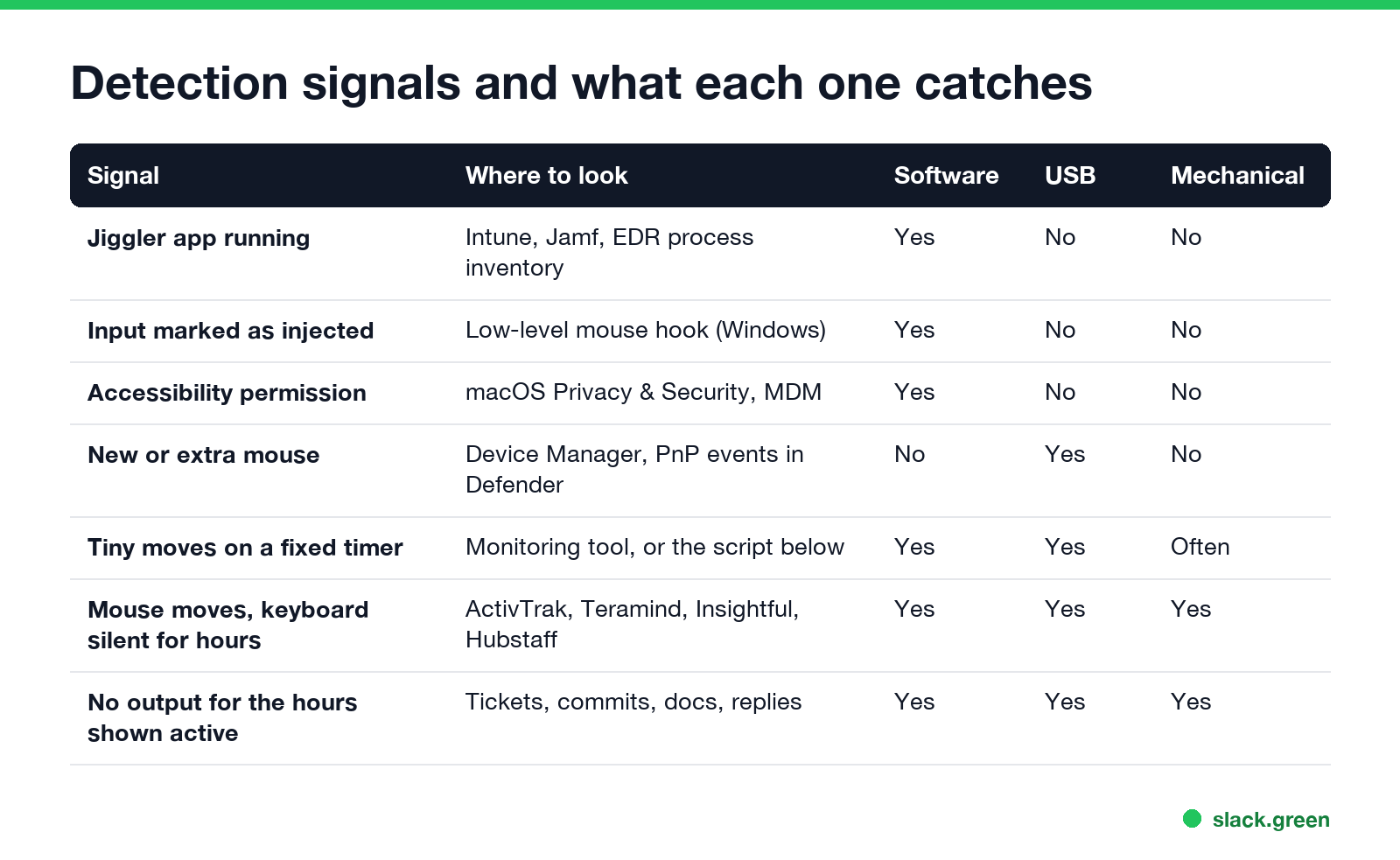
| Signal | Where to look | Software | USB | Mechanical |
|---|---|---|---|---|
| Jiggler app running | Intune, Jamf, EDR process inventory | Yes | No | No |
| Input marked as injected | Low-level mouse hook on Windows | Yes | No | No |
| Accessibility permission | macOS Privacy & Security, MDM report | Yes | No | No |
| New or extra mouse | Device Manager, PnP events in Defender | No | Yes | No |
| Tiny moves on a fixed timer | Monitoring tool, or the script below | Yes | Yes | Often |
| Mouse moves, keyboard silent for hours | ActivTrak, Teramind, Insightful, Hubstaff | Yes | Yes | Yes |
| No output for the hours shown active | Tickets, commits, documents, replies | Yes | Yes | Yes |
Check 1: jiggler apps and scripts
A software jiggler is a running process. Look for Mouse Jiggler (Arkane Systems), Move Mouse, Jiggler and Caffeine, and for AutoHotkey, PowerShell or Python processes that run all day. Endpoint tools list them: Microsoft Intune and Jamf report installed apps, and EDR agents such as Defender for Endpoint keep process history.
On a Mac, any app that moves the pointer needs Accessibility access. The list is in System Settings > Privacy & Security > Accessibility, and MDM tools can report it. The common jiggler apps by platform are in the best mouse jiggler by type, and home-made script versions are in DIY mouse jiggler.
Check 2: the injected-input flag on Windows
Never appear "away" on Slack again
Cloud-based. No downloads. Works 24/7 even when your laptop is off.
Windows marks every mouse event created by software, through SendInput or mouse_event, with the LLMHF_INJECTED flag. A program with a low-level mouse hook can read it. This is how monitoring agents tell software movement from a real mouse:
LRESULT CALLBACK LowLevelMouseProc(int nCode, WPARAM wParam, LPARAM lParam) {
    MSLLHOOKSTRUCT *m = (MSLLHOOKSTRUCT *)lParam;
    if (nCode == HC_ACTION && (m->flags & LLMHF_INJECTED)) {
        /* this movement came from software, not a physical mouse */
    }
    return CallNextHookEx(NULL, nCode, wParam, lParam);
}
The flag catches software jigglers only. A USB jiggler is real hardware, so its input is not marked.
Check 3: an extra mouse in the USB device log
A USB jiggler works by acting as a mouse, so the computer records a mouse. List the mice on a Windows PC in PowerShell:
Get-PnpDevice -Class Mouse -PresentOnly | Format-Table FriendlyName, InstanceIdOn a Mac:
system_profiler SPUSBDataTypeThe VID_ part of a Windows InstanceId is the vendor ID. A laptop with a trackpad, a known mouse and a third HID mouse from an unknown vendor is worth a closer look. Home-made jigglers often keep their board name: an Arduino Leonardo reports vendor ID 2341. Sellers of "undetectable" dongles copy the vendor ID of a common mouse brand, which hides the name but not the fact that a device was plugged in.
With Defender for Endpoint, security teams search device connections across the fleet:
DeviceEvents
| where ActionType == "PnpDeviceConnected"
| extend Desc = tostring(parse_json(AdditionalFields).DeviceDescription),
         Vendor = tostring(parse_json(AdditionalFields).VendorIds)
| where Desc has "mouse" or Desc has "HID"
| project Timestamp, DeviceName, Desc, Vendor
Check 4: the movement pattern
This is the check that catches every type, including a mechanical platform that moves a real mouse. A jiggler moves the pointer a few pixels at a fixed interval. People move it far, at uneven times, and they type.
This Python script watches the pointer and flags moves of 4 pixels or less that repeat on a steady timer. It needs pip install pyautogui. Run it with the number of minutes to watch, for example python jiggle_watch.py 10.
# jiggle_watch.py: flag tiny pointer moves that repeat on a fixed timer
import statistics
import sys
import time

import pyautogui

minutes = float(sys.argv[1]) if len(sys.argv) > 1 else 10
end = time.time() + minutes * 60
last = pyautogui.position()
bursts = []  # [start_time, pixels_moved]
while time.time() < end:
    time.sleep(0.05)
    pos = pyautogui.position()
    if pos != last:
        px = abs(pos.x - last.x) + abs(pos.y - last.y)
        if bursts and time.time() - bursts[-1][0] < 1:
            bursts[-1][1] += px
        else:
            bursts.append([time.time(), px])
        last = pos

tiny = [t for t, px in bursts if px <= 4]  # a person rarely moves 4 px or less
gaps = [b - a for a, b in zip(tiny, tiny[1:])]
print(f"moves: {len(bursts)}, tiny moves: {len(tiny)}")
if len(gaps) >= 4:
    mean = statistics.mean(gaps)
    spread = statistics.pstdev(gaps) / mean
    print(f"tiny moves every {mean:.1f} s, spread {spread:.2f}")
    if spread < 0.1:
        print("LIKELY JIGGLER: tiny moves on a fixed timer")
We tested it on macOS 26 against a Python jiggler that moved the pointer 1 pixel and back every 5 seconds, while other pointer movement happened on the same machine. Output:
moves: 10, tiny moves: 8
tiny moves every 5.2 s, spread 0.00
LIKELY JIGGLER: tiny moves on a fixed timer
A spread near 0 means the gaps are the same length every time; a person's gaps vary a lot. Jigglers with a "random interval" mode raise the spread, and a mechanical platform that draws a small circle makes larger moves. Commercial tools add the keyboard: hours of pointer movement with no keystrokes, or activity that never pauses for 8 hours, scores as idle or suspicious in ActivTrak and Hubstaff; see can ActivTrak detect a mouse jiggler and can Hubstaff detect a mouse jiggler. Insightful checks each finished shift against a list of known jiggler apps and repetitive input; see can Insightful detect a mouse jiggler.
A detection check in order
Never appear "away" on Slack again
Cloud-based. No downloads. Works 24/7 even when your laptop is off.
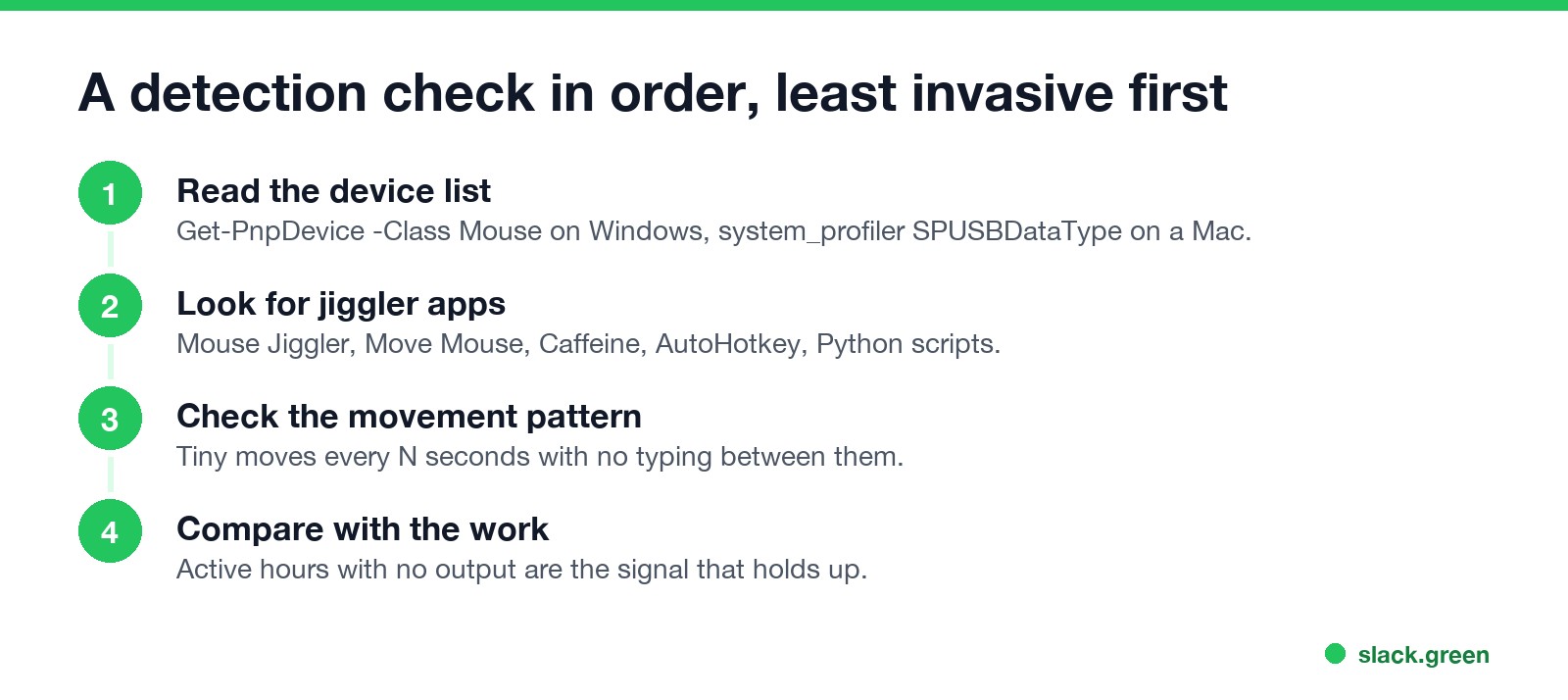
- Read the device list for mice you do not recognize.
- Look for jiggler apps and all-day scripts.
- Check the pattern with a monitoring tool or the script above.
- Compare with the work. Hours shown as active with no tickets, commits, documents or replies are the signal that holds up in an HR review. The other checks only show that a device or app was present.
Monitoring employees has legal limits that depend on the country and state, and many require notice. What employers may do is in is it legal for my employer to monitor me.
FAQ
How do companies detect mouse jigglers? Through endpoint software that lists apps and USB devices, and monitoring tools that score activity patterns. Tiny moves on a fixed timer with no typing stand out.
Can IT detect a USB mouse jiggler? On a managed laptop, yes. It shows up as an extra mouse in the device list and in endpoint logs such as Defender's PnpDeviceConnected events.
Can a mechanical mouse jiggler be detected? Not by device logs, because it moves your real mouse. The movement pattern and the missing keyboard input still show.
How does software detect a mouse jiggler? On Windows, it reads the LLMHF_INJECTED flag on mouse events. Across all systems, it looks for small, regular movements with no other input.
Can Teams or Slack detect a mouse jiggler? Neither app flags jigglers. Teams reads system input, so a jiggler keeps it Available. Slack counts only input in its own window.
Stop Jiggling Your Mouse.
Join hundreds of remote workers who never worry about their Slack status. Set it up once, stay green forever.
Related Articles
Don't Sleep for Windows: Download, Settings and Start Parameters
Don't Sleep is a free, portable 267 KB Windows app from SoftwareOK that blocks standby, hibernate, the screen saver, log off and shutdown while it runs, with a timer and CPU or network rules. Where to get the real one, what each option does, the command line for a batch file, and what it does not do for Slack or Teams.
Skype Status Icons Meaning: Every Color in Skype and Skype for Business
In Skype for Business, green means Available, yellow means Inactive, Away, Be right back or Off work, red means Busy, In a call or In a meeting, red with a bar means Do not disturb or Presenting, and grey means Offline or Unknown. A red star means Out of office. Consumer Skype used a green check, yellow clock, red minus and an empty circle.
Best Chrome Extensions for Remote Workers, by the Job They Do
14 Chrome extensions for remote work, grouped by the job: async video, meetings, focus, writing, passwords, tabs, screenshots, time tracking and keeping the screen on. Each checked on the Chrome Web Store, with user counts, cost, and the extensions to avoid on a work laptop.