
Can Upwork Detect a Mouse Jiggler? What the Work Diary Shows
Upwork does not publish a jiggler detector, but it does not need one. The Upwork time tracker takes a screenshot in every 10-minute segment and counts keyboard and mouse activity, and your client sees both in the Work Diary. What a jiggler looks like there, and what Upwork does about fake hours.
Upwork does not publish a check that names mouse jigglers the way Hubstaff does. It does not need one. The Upwork time tracker cuts your hours into 10-minute segments, takes a screenshot of your screen at a random moment in each one, and counts how many minutes had keyboard or mouse activity. A jiggler fills the activity meter, but the screenshots show the same idle screen segment after segment, and your client reviews those screenshots in the Work Diary. That is how jiggled hours get caught: by the client, followed by a dispute, a refund and often a suspended account.
We build Slack Green, which keeps a Slack status green from a server. It creates no activity in Upwork or any other time tracker, and nothing on this page is a way to bill hours you did not work. We wrote it because freelancers ask us whether jigglers are safe, and on Upwork the answer comes down to the screenshots.
What the Upwork time tracker records
For hourly contracts, time counts only when you track it with the Upwork desktop app (or add it by hand as manual time). While the tracker runs, it records per 10-minute segment:
| Record | What it contains | Who sees it |
|---|---|---|
| Screenshot | Your whole screen, at a random moment in the segment | You and the client |
| Activity level | How many minutes of the 10 had keyboard or mouse input | You and the client |
| Input counts | Numbers of keystrokes and mouse events, not what you typed | You and the client |
| Memo | The note you typed for the segment | You and the client |
| Manual time | Time you added by hand, marked as manual | You and the client |
The tracker counts input. It does not log which keys you pressed. So it cannot tell "wrote code" from "pressed Shift 400 times" by the counts alone. The screenshot is what shows the work.
You can delete a segment before the client is billed, which removes its time too. You cannot edit a screenshot or an activity count.
How a mouse jiggler shows up in the Work Diary
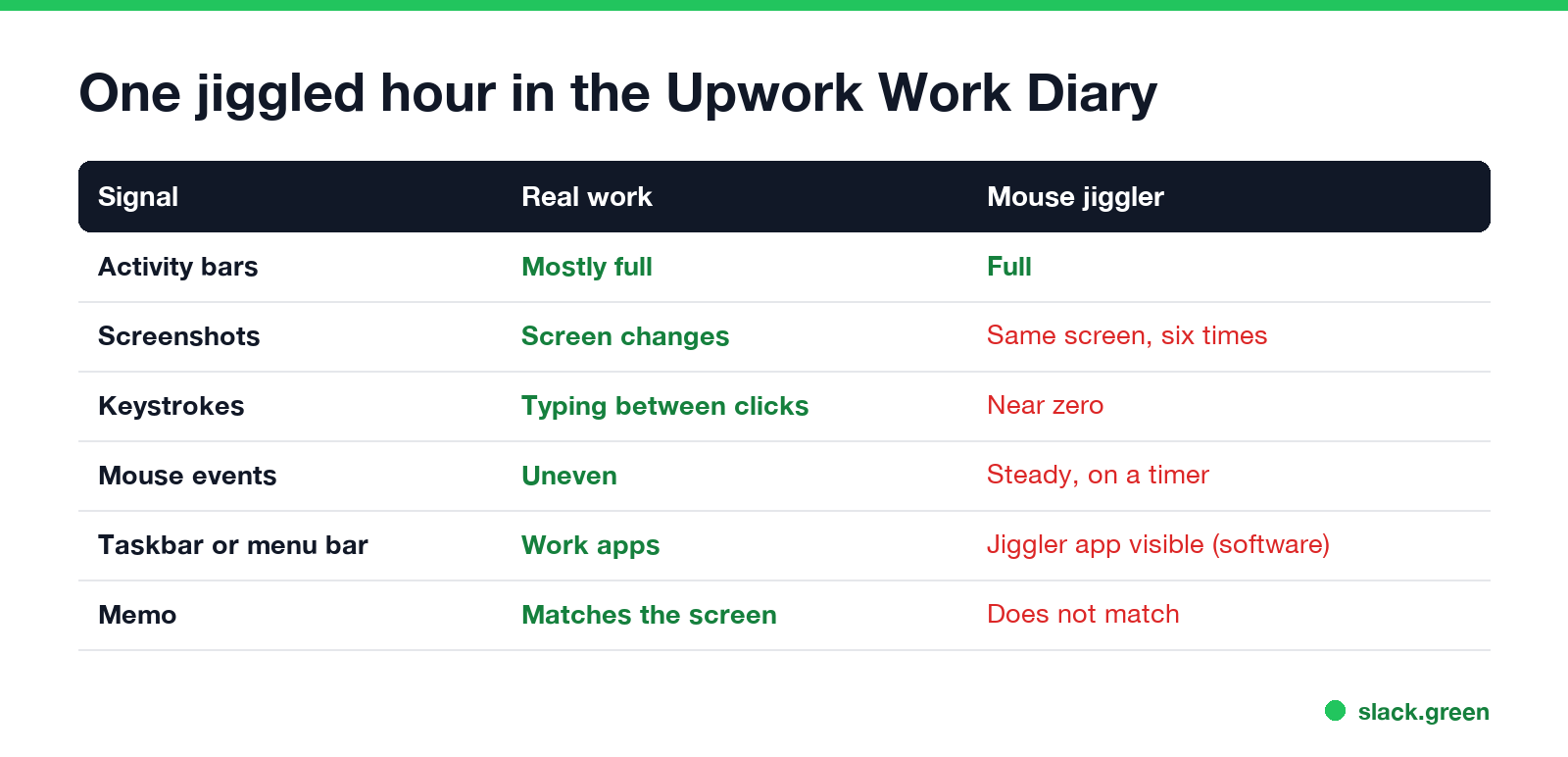
A jiggler moves the pointer every few seconds, so each minute counts as active. The meter looks full. Three other things give it away:
- The screenshots do not change. The same document, the same scroll position, the same clock in the corner moving forward. A client scrolling the Work Diary sees six identical frames an hour.
- Mouse events with almost no keystrokes. Coding, writing and design all involve typing and clicking. An hour of steady mouse events with keystrokes near zero looks like no work.
- Software jigglers appear in the screenshot. Apps such as Move Mouse or Jiggler sit in the taskbar or menu bar, and the screenshot captures the whole screen.
A USB jiggler hides the third one. It cannot hide the first two. Other trackers go further and flag jigglers by name or by input pattern; can Hubstaff detect a mouse jiggler lists five such checks, and can ActivTrak detect a mouse jiggler covers the employer-side tools. Upwork's own checks are not published, so do not assume it has none.
What happens if a client or Upwork decides the hours are fake
Never appear "away" on Slack again
Cloud-based. No downloads. Works 24/7 even when your laptop is off.
Hourly contracts on Upwork run on trust in the Work Diary. When a client thinks a segment does not show work, they can dispute that time during the review period, and Upwork compares the screenshots and memos with the contract.
The money from a few jiggled hours is small next to the risk to a freelancing account that took years to build.
Low activity is not fraud
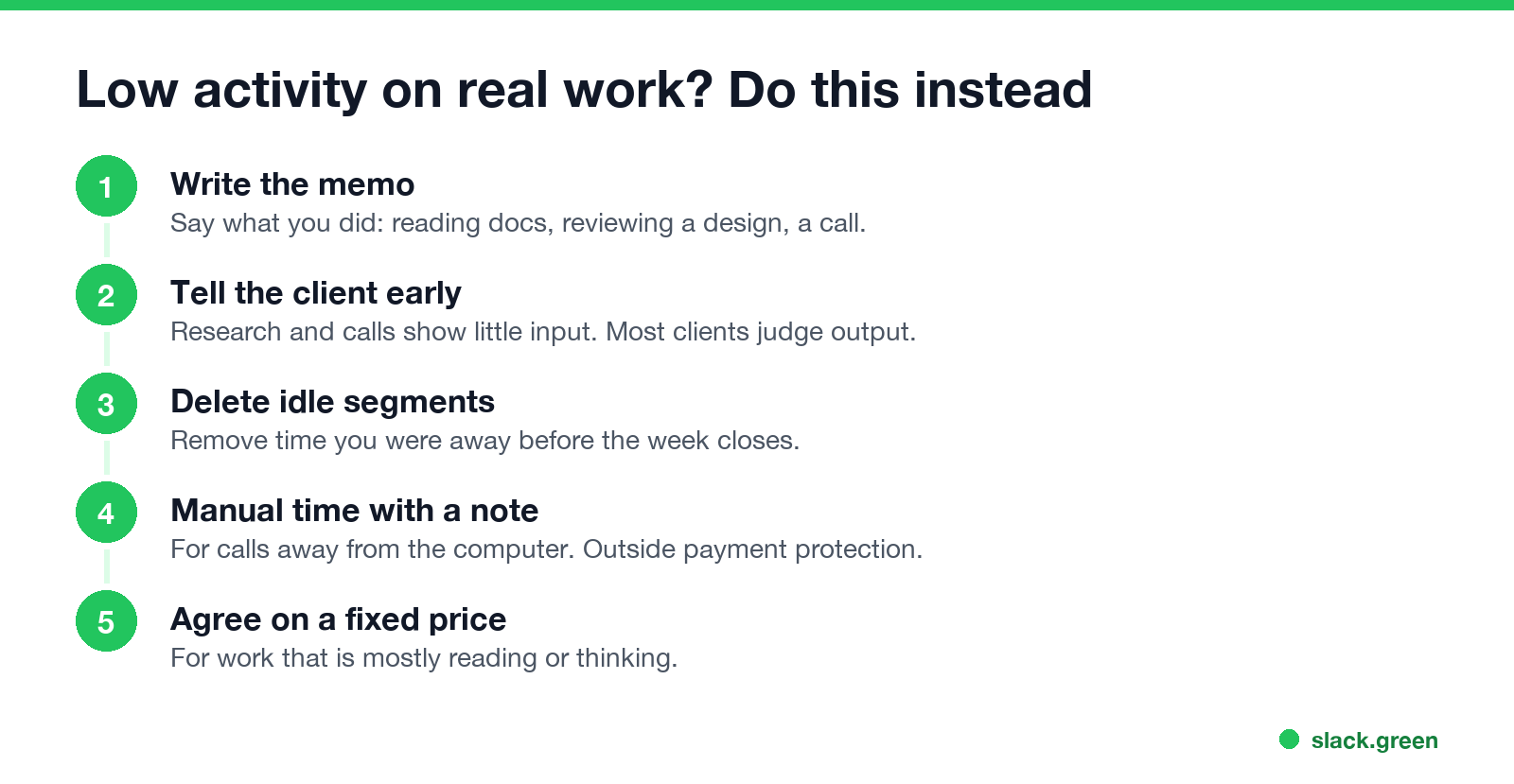
Many freelancers look at jigglers because their real work has low activity: reading a spec, reviewing a design, thinking through a bug, a call on a phone. The tracker counts little input for that work, and it looks thin in the Work Diary. The fixes:
Mouse jigglers outside Upwork
A jiggler does what it says for a computer: the screen does not lock and the computer does not sleep. It also keeps Microsoft Teams Available while it runs, as does a mouse jiggler work for Teams explains. It does not keep Slack active unless the pointer sits over the Slack window, because Slack counts input only in its own window. Whether a jiggler is allowed at all depends on your contract and company rules; are mouse jigglers legal covers the law and can a mouse jiggler be detected the general detection methods.
FAQ
Never appear "away" on Slack again
Cloud-based. No downloads. Works 24/7 even when your laptop is off.
Does Upwork track mouse movement? It counts mouse events per minute to build the activity level. It does not record where the pointer went.
Does Upwork take screenshots all the time? No. One screenshot at a random moment in each 10-minute segment while the tracker runs, so six an hour.
Can a client see my activity level? Yes. The client sees the same Work Diary you do: screenshots, activity and memos.
Will a USB mouse jiggler show up in Upwork? Not by name. It shows up as full activity bars next to screenshots that do not change.
Stop Jiggling Your Mouse.
Join hundreds of remote workers who never worry about their Slack status. Set it up once, stay green forever.
Related Articles
KeepingYouAwake vs Amphetamine: Which Mac Keep-Awake App to Use
KeepingYouAwake is a free, open-source menu bar switch that runs Apple's caffeinate for you. Amphetamine is a free App Store app with triggers, schedules and a closed-lid mode. Pick KeepingYouAwake for one click and Homebrew, Amphetamine for automation. Neither keeps Slack or Teams active.
Computer Locks After 15 Minutes? How to Tell If Group Policy Set It
A work laptop that locks after exactly 15 minutes, with screen settings greyed out, is almost always following a policy from IT: the Windows machine inactivity limit, a forced screen saver, or an Intune device lock. Security baselines and PCI DSS ask for 15 minutes. How to see which policy it is, and what you can and cannot change.
How to Keep a Citrix Session Active: Find Which Timeout Logs You Out
A Citrix session can end from four different timers: Windows locking inside the virtual desktop, the Citrix session idle timer, the Citrix Gateway session time-out, and the StoreFront web page timeout. Only input from your own device into the Citrix window resets them. How to tell which one hit you and what keeps each one quiet.