
Does Clockify Track Idle Time? What It Records and Who Sees It
Clockify tracks idle time only if you turn on idle detection, and only you see it: after the minutes you set with no mouse or keyboard input, it asks whether to keep or discard that time. Admins can see screenshots and GPS on paid plans, not idle time or the auto tracker.
Clockify tracks idle time only if idle detection is on, and the idle data is for you alone. When there is no mouse movement or keystroke for the number of minutes you set, Clockify marks the timer as idle. When you come back, it asks whether to discard that time or keep it. Clockify's help center says this data stays on your computer, and no one else in the workspace, admins included, can see your idle activity.
Admins can see other things. On the Pro and Enterprise plans an admin can turn on screenshots and GPS location, and both are visible to admins. The facts on this page are from Clockify's help articles on idle detection, the auto tracker, screenshots and GPS tracking, read on 28 September.
What Clockify tracks and who can see it
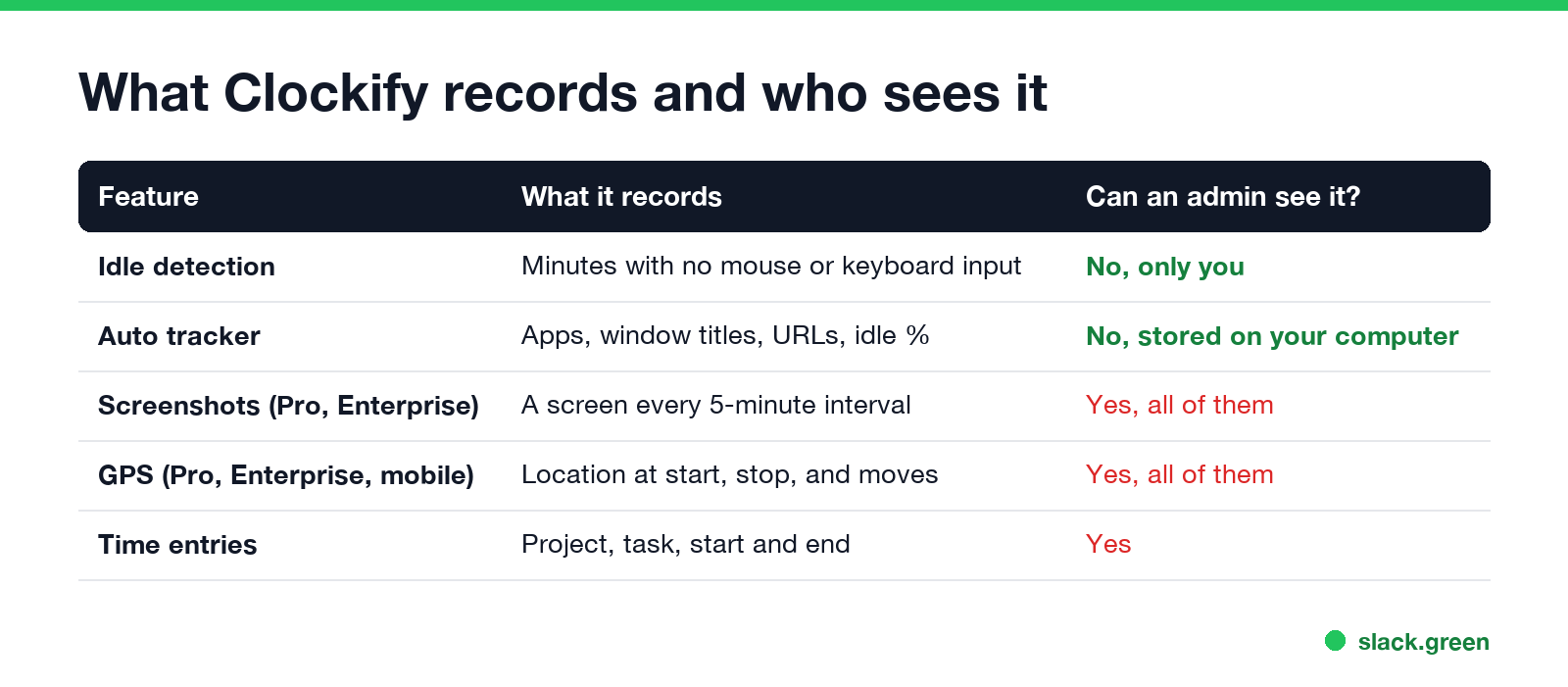
| Feature | What it records | Visible to admins? | Plan |
|---|---|---|---|
| Idle detection | Minutes with no mouse or keyboard input while a timer runs | No | Free |
| Auto tracker | Apps, window titles, website URLs, idle % per block | No, stored on your computer, deleted after 45 days | Desktop app |
| Screenshots | One screen capture in each 5-minute interval of a running timer | Yes | Pro, Enterprise |
| GPS tracking | Location when a mobile timer starts or stops, and on big moves | Yes | Pro, Enterprise |
| Time entries | Project, task, description, start and end | Yes | All |
Screenshots and GPS cannot run in secret. Clockify's help says an admin has to turn each one on in the workspace settings, and every member gets a notification in the web and desktop or mobile app when that happens.
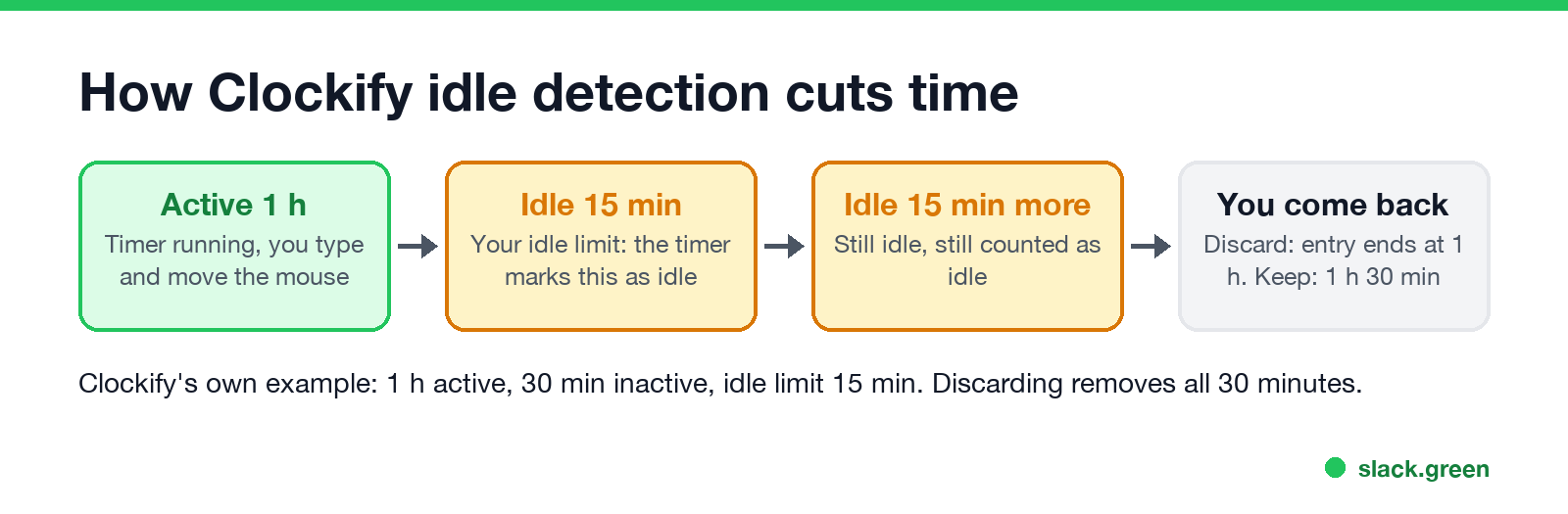
How Clockify idle detection works
- You start a timer from the browser extension or the desktop app.
- After X minutes with no mouse movement and no keystrokes, the timer goes into idle mode. It keeps running, but those minutes and everything after them count as idle.
- When you move the mouse or type again, a notification asks what to do: - Discard idle time stops the timer and removes the idle minutes. - Discard and continue removes the idle minutes and starts a new timer for the same task. - Keep idle time leaves the timer as it is.
Clockify's own example: you work for 1 hour, then leave for 30 minutes, with idle detection set to 15 minutes. Discarding removes all 30 minutes, so the entry ends at 1 hour. If you stopped the timer from your phone in the meantime, the idle pop-up does not appear.
How to turn on idle detection in Clockify
It works in three places:
| App | Idle detection | How to turn it on |
|---|---|---|
| Chrome or Firefox extension | Yes | Extension icon > menu > Settings > tick Idle detection and set the minutes |
| Mac desktop app (from clockify.me) | Yes | Three dots > Preferences |
| Windows desktop app | Yes | Three dots > Preferences |
| Mac app from the App Store | No | Clockify says App Store rules removed it; use the website version |
| Web app and mobile apps | No | Not listed in Clockify's feature table |
The extension only checks for idle time when you started the timer from the extension. A timer started in the web app does not trigger it, even with the extension installed. If no pop-up appears, allow notifications from your browser in your system settings.
Never appear "away" on Slack again
Cloud-based. No downloads. Works 24/7 even when your laptop is off.
Does Clockify track mouse movement, apps or your screen?
Can Clockify detect a mouse jiggler?
Clockify's idle detection counts any mouse movement as activity. Its help center says so: if someone moves your mouse while you are away, Clockify "can't tell the difference". A mouse jiggler therefore stops the idle pop-up, and the online mouse jiggler does the same in a browser tab. That changes only what you see, because the idle data is private anyway.
What an admin can see is different. If screenshots are on, a series of screenshots of the same still screen, with a timer running, is easy to spot. Other trackers look harder at input patterns; see can Hubstaff detect a mouse jiggler, ActivTrak idle time and can Time Doctor detect a mouse jiggler. The general rules are in can a mouse jiggler be detected.
FAQ
Can my boss see my idle time in Clockify?
No. Clockify's help says idle detection data stays on your computer and admins cannot see it. They see the time entries you keep.
Does Clockify take screenshots?
Only if an admin turns on screenshots in a Pro or Enterprise workspace, and only while a timer runs in the desktop app. Everyone gets a notification when it is turned on.
Does Clockify track what websites I visit?
Only the auto tracker in the desktop app does, after you start recording, and that data stays on your computer.
How many minutes before Clockify detects idle time?
You choose. In the extension, tick Idle detection in Settings and enter the number of minutes.
Does the Clockify web app detect idle time?
No. Idle detection runs in the browser extension and the Mac and Windows desktop apps.
Stop Jiggling Your Mouse.
Join hundreds of remote workers who never worry about their Slack status. Set it up once, stay green forever.
Related Articles
How to Use Slack Block Kit Builder: Templates, Preview, Payload
Slack's Block Kit Builder at app.slack.com/block-kit-builder lets you pick a template, add blocks, preview the message on Desktop or Mobile, and copy the JSON payload for a webhook or chat.postMessage. A walk through the current builder, a working deploy message, and the steps to send it.
Wireless Mouse With a Jiggler: How the Built-in Mode Works
A wireless mouse with a jiggler is a normal mouse with a jiggle mode in its firmware: hold the DPI button for about 3 seconds and the cursor moves on its own. Two models in the top results, how they compare with a USB dongle and a mechanical mover, and what they do for Teams and Slack.
Does Sapience Track Mouse Movement? What It Records and Flags
Sapience records that you used the mouse and keyboard, with a timestamp, and which app, website and window title were in front. It does not record keystrokes, clicks or screenshots. What that means for idle time, meetings, private time and mouse jigglers, from Sapience's own help center.