
Keep a Windows PC Awake With PowerShell: Two Tested Scripts
Keep Windows awake from PowerShell without admin rights: call SetThreadExecutionState to block sleep and screen-off, or press F15 every minute to reset the idle timer. The scripts, how to run and stop them, a powercfg one-liner, and what each does for Teams and Slack.
You can keep a Windows PC awake from PowerShell without admin rights in two ways. The clean one calls the Windows API SetThreadExecutionState to tell Windows the system and display are needed, which blocks sleep and screen-off while the script runs and sends no input. The other presses the F15 key every minute with SendKeys, which resets the idle timer, so it also keeps Microsoft Teams green. Neither keeps Slack green: Slack counts only input inside its own window, so an F15 press helps only while Slack is the focused window.
If a green Slack dot is the goal, a script on the PC is the wrong tool. Slack Green keeps your Slack presence active from its own servers during the working hours you set, and the PC can sleep.
Script 1: block sleep with SetThreadExecutionState
This asks Windows to keep the system and display on, the same mechanism video players use. It creates no keyboard or mouse input.
# keepawake.ps1 - keeps Windows and the display awake until you press Ctrl+C
$sig = '[DllImport("kernel32.dll")] public static extern uint SetThreadExecutionState(uint esFlags);'
$power = Add-Type -MemberDefinition $sig -Name 'Power' -Namespace 'Win32' -PassThru

# ES_CONTINUOUS (0x80000000) | ES_SYSTEM_REQUIRED (0x1) | ES_DISPLAY_REQUIRED (0x2)
$null = $power::SetThreadExecutionState([uint32]2147483651)
Write-Host "Keeping this PC awake. Press Ctrl+C to stop."
try {
    while ($true) { Start-Sleep -Seconds 60 }
} finally {
    $null = $power::SetThreadExecutionState([uint32]2147483648)   # ES_CONTINUOUS: back to normal
}
Check it works: in a second PowerShell window run powercfg /requests. PowerShell appears under DISPLAY and SYSTEM while the script runs.
Script 2: press F15 every minute
F15 is a key no keyboard has, so most apps ignore it, but Windows counts it as input.
# f15.ps1 - presses F15 once a minute until you press Ctrl+C
$shell = New-Object -ComObject WScript.Shell
while ($true) {
    $shell.SendKeys('{F15}')
    Start-Sleep -Seconds 60
}
Because it is input, it resets the idle timer that Teams uses, so Teams usually stays Available. It sends the key to whatever window is in focus. Software input like this is marked as injected by Windows and can be seen by monitoring tools; see can a mouse jiggler be detected.
How to run and stop a PowerShell keep-awake script
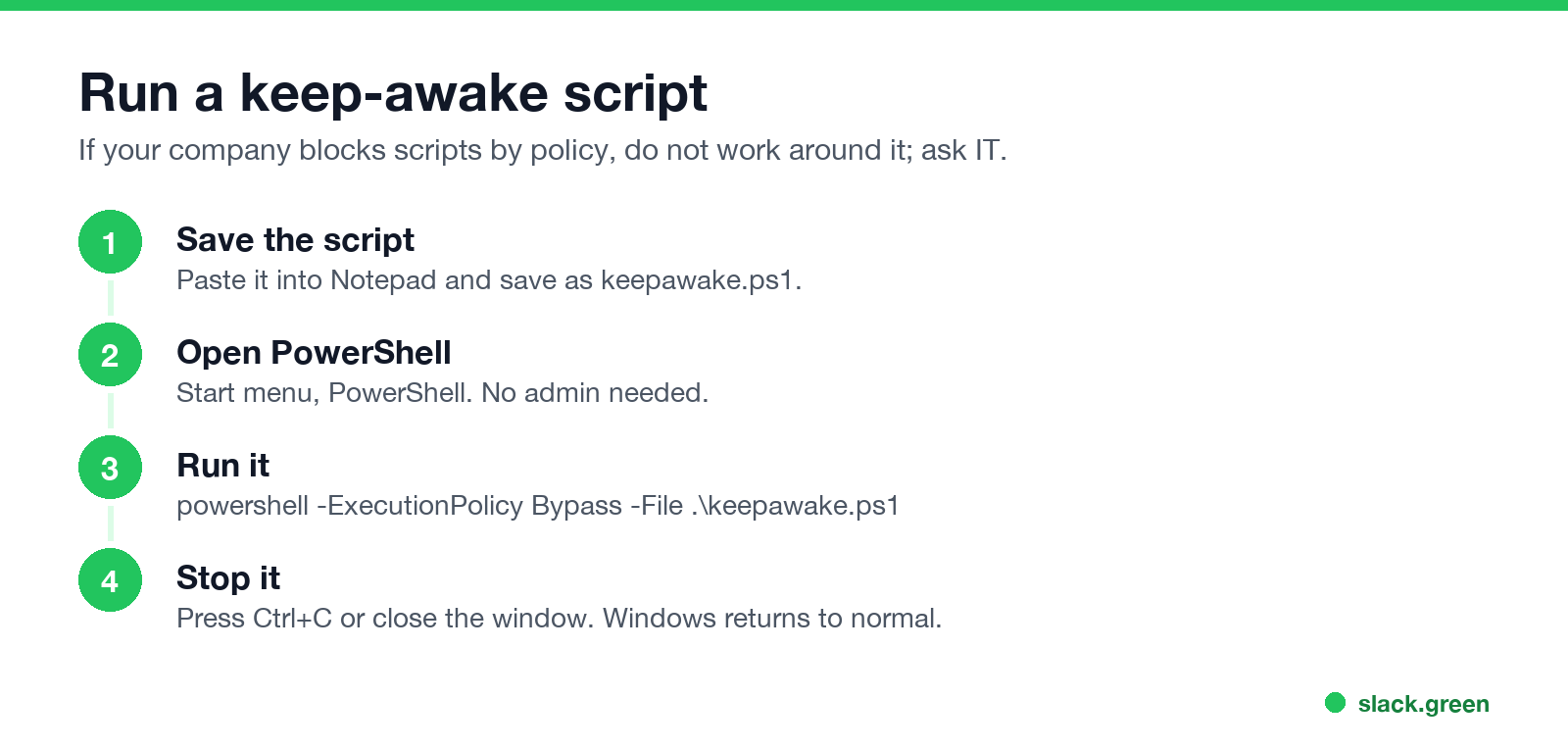
- Paste a script into Notepad and save it as
keepawake.ps1. - Open PowerShell (no admin needed) and go to the folder.
- Run:
powershell -ExecutionPolicy Bypass -File .\keepawake.ps1 - Press Ctrl+C or close the window to stop. Windows goes back to its normal power settings.
If your company blocks PowerShell scripts, do not work around the policy. Use the settings or tools in keep a work computer awake without admin rights instead.
Batch and cmd: change the timeouts instead
To stop sleep while plugged in, without a running script:
powercfg /change standby-timeout-ac 0
powercfg /change monitor-timeout-ac 0
0 means never. Set them back later with the minutes you want, for example powercfg /change standby-timeout-ac 30. On a managed PC these may be locked by policy.
Which script to use
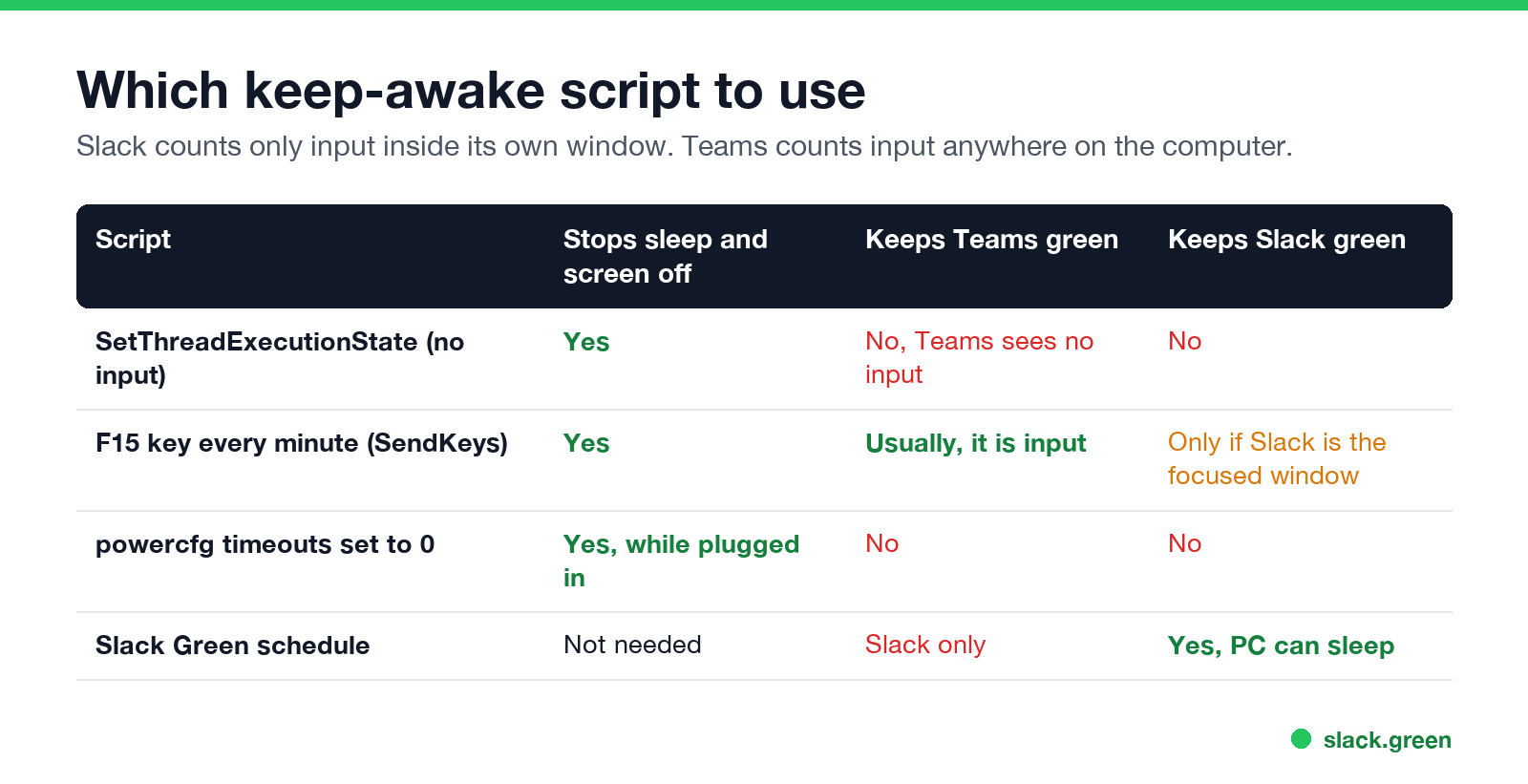
| Script | Stops sleep | Teams green | Slack green |
|---|---|---|---|
| SetThreadExecutionState | Yes | No | No |
| F15 every minute | Yes | Usually | Only with Slack focused |
| powercfg timeouts | Yes, plugged in | No | No |
| Slack Green schedule | Not needed | No, Slack only | Yes |
For Teams timings see how long before Teams shows you as Away. For Slack, the rules are in how long does Slack stay active, and Windows options in keep Slack active on Windows. The ready-made app equivalent of script 1 is PowerToys Awake; see does PowerToys Awake keep Slack active.
FAQ
How do I keep my computer awake with PowerShell?
Run a script that calls SetThreadExecutionState with the system and display flags, or one that presses F15 every minute.
Does a PowerShell script keep Teams green?
The F15 script usually does, because it is input. The SetThreadExecutionState script does not.
Does a PowerShell script keep Slack active?
No, unless the Slack window is focused and receives the keypress. Slack counts only input in its own window.
Do I need admin rights?
No, unless your company blocks PowerShell scripts.
How do I stop the script?
Press Ctrl+C or close the PowerShell window.
Related Articles
How to Connect Slack and Microsoft Teams: Calls, Messages and Status
Slack and Teams do not connect natively for chat. You can start Teams calls from Slack with the free Microsoft Teams Calls app, relay messages with a paid bridge such as Mio, and sync your Teams status to Slack with a short script. Every option, what it costs, and the setup steps.
Slack Active on Multiple Devices: Which One Sets Your Status?
When you use Slack on a phone and a computer at once, one active device is enough to keep you green, and a manual away on any device sets you away on all of them. The rule, common cases, and how notifications pick a device.
Slack Huddles vs Zoom: Which to Use for Team Calls
Slack huddles are quick calls inside Slack: 1:1 on the free plan, up to 50 people on paid plans, no recording. Zoom is built for scheduled, recorded and large meetings, with a free plan of 100 people for 40 minutes. Limits, cost, recording and privacy side by side.