
Keep a Windows PC Awake With PowerShell: Two Tested Scripts
Keep Windows awake from PowerShell without admin rights: call SetThreadExecutionState to block sleep and screen-off, or press F15 every minute to reset the idle timer. The scripts, how to run and stop them, a powercfg one-liner, and what each does for Teams and Slack.
Free tool, runs in this tab
Keep your screen awake and see when Slack sets you away
Press Start. This tab keeps the screen on while it stays open, and shows the minute Slack, Teams and Zoom would set you away if nothing touches the keyboard or mouse.
This tab cannot move your pointer or press keys, so on its own it cannot keep Slack or Teams active. It reads the same idle time the Slack desktop app, Teams and Zoom read. To test a jiggler, start, then take your hands off for 6 minutes: if Your computer stays green, the jiggler keeps them active.
- Your computerNot measured yetPress Start and allow idle detection.
- Slack desktop app-Away after 10 min, any input.
- Microsoft Teams-Away after about 5 min, any input.
- Zoom-Away after 15 min by default, any input.
You can keep a Windows PC awake from PowerShell without admin rights in two ways. The clean one calls the Windows API SetThreadExecutionState to tell Windows the system and display are needed, which blocks sleep and screen-off while the script runs and sends no input. The other presses the F15 key every minute with SendKeys, which resets the idle timer, so it also keeps Microsoft Teams green. The F15 script should keep the Slack desktop app active too, because the app reads the same idle timer every 10 seconds (Slack desktop 4.52.178 code, checked 7 Oct 2026); we have not timed it on Windows. The SetThreadExecutionState script sends no input, so Slack still goes away after 10 minutes. Slack Green keeps your Slack status green from a server with the PC asleep and no script running, free for 7 days with no card.
A script on the PC cannot keep Slack green while the PC is locked, asleep or off; how to keep Slack active has the options that can.
Script 1: block sleep with SetThreadExecutionState
This asks Windows to keep the system and display on, the same mechanism video players use. It creates no keyboard or mouse input.
# keepawake.ps1 - keeps Windows and the display awake until you press Ctrl+C
$sig = '[DllImport("kernel32.dll")] public static extern uint SetThreadExecutionState(uint esFlags);'
$power = Add-Type -MemberDefinition $sig -Name 'Power' -Namespace 'Win32' -PassThru

# ES_CONTINUOUS (0x80000000) | ES_SYSTEM_REQUIRED (0x1) | ES_DISPLAY_REQUIRED (0x2)
$null = $power::SetThreadExecutionState([uint32]2147483651)
Write-Host "Keeping this PC awake. Press Ctrl+C to stop."
try {
    while ($true) { Start-Sleep -Seconds 60 }
} finally {
    $null = $power::SetThreadExecutionState([uint32]2147483648)   # ES_CONTINUOUS: back to normal
}
Check it works: in a second PowerShell window run powercfg /requests. PowerShell appears under DISPLAY and SYSTEM while the script runs.
Script 2: press F15 every minute
F15 is a key no keyboard has, so most apps ignore it, but Windows counts it as input.
# f15.ps1 - presses F15 once a minute until you press Ctrl+C
$shell = New-Object -ComObject WScript.Shell
while ($true) {
    $shell.SendKeys('{F15}')
    Start-Sleep -Seconds 60
}
Because it is input, it resets the idle timer that Teams uses, so Teams usually stays Available. It sends the key to whatever window is in focus. Software input like this is marked as injected by Windows and can be seen by monitoring tools; see can a mouse jiggler be detected. A Teams-only version with Num Lock and work-hours variants is in PowerShell script to keep Teams active. To build a jiggler that moves the pointer instead, in Python, AutoHotkey or on a $5 USB board, see DIY mouse jiggler. The same two scripts written in AutoHotkey v2 are in AutoHotkey script to keep your computer awake.
At best, the F15 script keeps Slack active while the PC is awake and unlocked. Once the PC locks or sleeps, or the lid closes, Slack sets you away. A server-side tool keeps your Slack dot green with no input, even while the laptop sleeps or the lid is closed.
How to run and stop a PowerShell keep-awake script
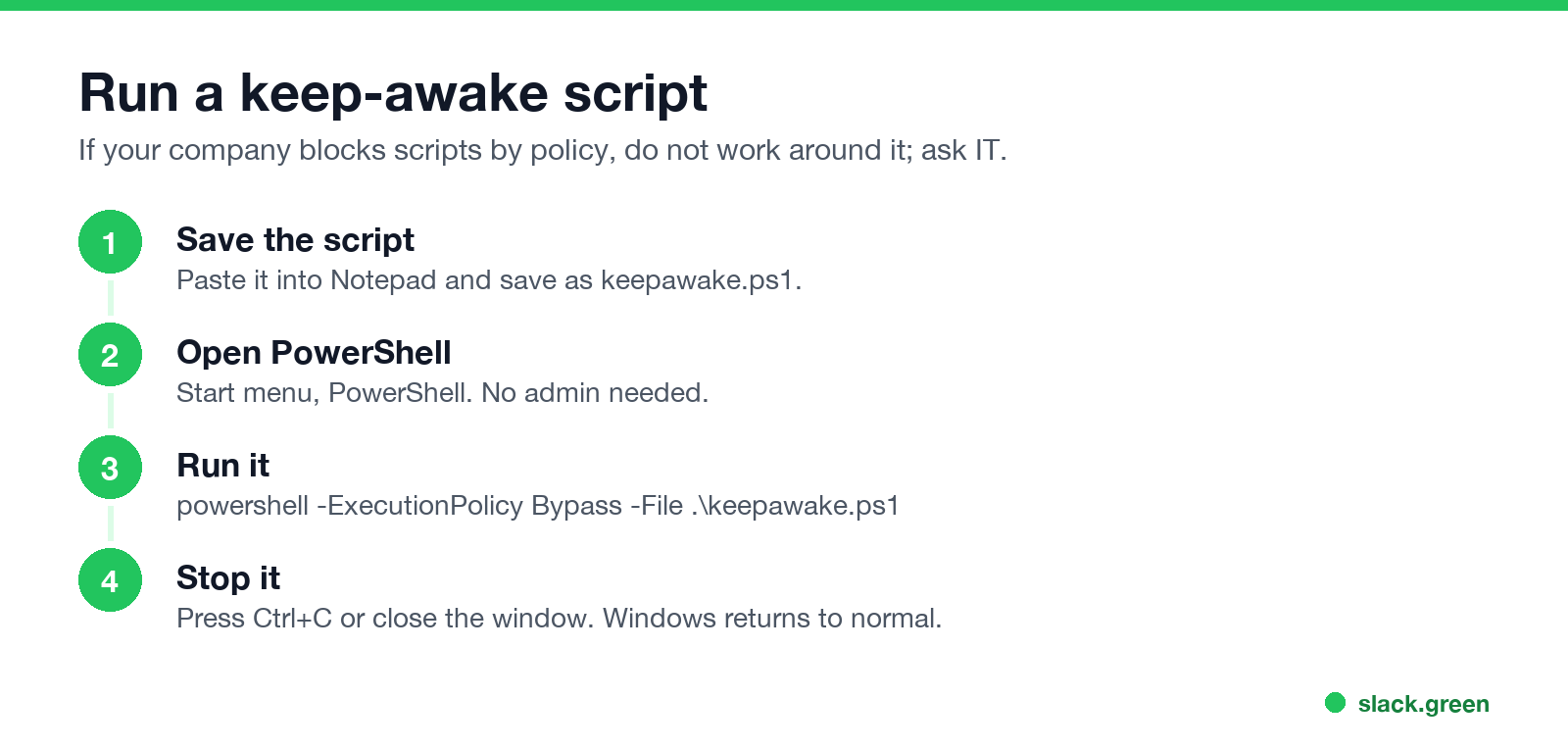
- Paste a script into Notepad and save it as
keepawake.ps1. - Open PowerShell (no admin needed) and go to the folder.
- Run:
powershell -ExecutionPolicy Bypass -File .\keepawake.ps1 - Press Ctrl+C or close the window to stop. Windows goes back to its normal power settings.
If your company blocks PowerShell scripts, do not work around the policy. Use the settings or tools in keep a work computer awake without admin rights instead. Inside a Remote Desktop session the F15 script also resets the session idle timer; the policy side of RDP timeouts is in how to keep a Remote Desktop session active.
Batch and cmd: change the timeouts instead
To stop sleep while plugged in, without a running script:
powercfg /change standby-timeout-ac 0
powercfg /change monitor-timeout-ac 0
0 means never. Set them back later with the minutes you want, for example powercfg /change standby-timeout-ac 30. On a managed PC these may be locked by policy. For the display timer in seconds and the lock screen timer, see how to change the screen timeout on Windows 11.
Keep the PC awake until a download finishes
Sleep stops a download. Windows parks the disk and cuts the network, Steam shows the download as paused until the PC wakes, and a browser download often fails with a network error. A dark screen or a locked screen stops nothing, because the computer keeps running. So for a download you only need to block sleep, and the display can still turn off.
| State | Download keeps going? |
|---|---|
| Awake, screen off or locked | Yes |
| Sleep, hibernate or shut down | No |
| Laptop lid closed, default action | No, the lid starts sleep |
This version of Script 1 drops the display flag and lets Windows sleep again once the folder has had no new writes for 5 minutes:
# awake-while-downloading.ps1 - no sleep while files in the folder are still changing
param(
    [string]$Folder = "$env:USERPROFILE\Downloads",
    [int]$QuietMinutes = 5
)
$sig = '[DllImport("kernel32.dll")] public static extern uint SetThreadExecutionState(uint esFlags);'
$power = Add-Type -MemberDefinition $sig -Name 'Power' -Namespace 'Win32' -PassThru

# ES_CONTINUOUS (0x80000000) | ES_SYSTEM_REQUIRED (0x1): no sleep, the screen may still turn off
$null = $power::SetThreadExecutionState([uint32]2147483649)
try {
    do {
        Start-Sleep -Seconds 60
        $since = (Get-Date).AddMinutes(-$QuietMinutes)
        $busy = Get-ChildItem $Folder -Recurse -File -ErrorAction SilentlyContinue |
            Where-Object { $_.LastWriteTime -gt $since } | Select-Object -First 1
    } while ($busy)
} finally {
    $null = $power::SetThreadExecutionState([uint32]2147483648)   # back to normal
}
Write-Host "No writes for $QuietMinutes minutes. Sleep is allowed again."
Start it after the download begins. Steam does not block sleep on its own, so point the script at Steam's download folder and leave Steam running:
powershell -ExecutionPolicy Bypass -File .\awake-while-downloading.ps1 -Folder "C:\Program Files (x86)\Steam\steamapps\downloading"On a Mac the same idea takes two lines in Terminal. caffeinate -i blocks idle sleep, and -w $$ ends the hold when the shell exits:
caffeinate -i -w $$ &
while [ -n "$(find ~/Downloads -type f -mmin -5 | head -n 1)" ]; do sleep 60; done
We ran it on macOS 26.5.2 on 4 October 2026 with a 1-minute quiet time on a test folder. While a file was being written, pmset -g assertions listed PreventUserIdleSystemSleep named: "caffeinate command-line tool". After the writes stopped, the loop ended and the hold was gone. The flags are explained in caffeinate on Mac.
Which script to use
| Script | Stops sleep | Teams green | Slack active |
|---|---|---|---|
| SetThreadExecutionState | Yes | No | No |
| F15 every minute | Yes | Usually | Should, desktop app, while unlocked |
| powercfg timeouts | Yes, plugged in | No | No |
| Server-side presence schedule | Not needed | No, Slack only | Yes |
For Teams timings see how long before Teams shows you as Away. For Slack, the rules are in how long does Slack stay active, and Windows options in keep Slack active on Windows. The ready-made app equivalent of script 1 is PowerToys Awake; see does PowerToys Awake keep Slack active.
FAQ
How do I keep my computer awake with PowerShell?
Run a script that calls SetThreadExecutionState with the system and display flags, or one that presses F15 every minute.
Does a PowerShell script keep Teams green?
The F15 script usually does, because it is input. The SetThreadExecutionState script does not.
Does a PowerShell script keep Slack active?
The F15 script resets the Windows idle timer, which the Slack desktop app reads, so it should, while the PC is unlocked. The SetThreadExecutionState script does not.
Do I need admin rights?
No, unless your company blocks PowerShell scripts.
How do I stop the script?
Press Ctrl+C or close the PowerShell window.
Related Articles
Move Mouse App: Download, Settings and Alternatives
Move Mouse is a free, open-source Windows app by Steve Williams that moves, clicks or scrolls on a timer so your PC does not lock or sleep. Get it from the Microsoft Store or GitHub, not from look-alike download sites. It keeps Microsoft Teams and the Slack desktop app green while the PC is unlocked. Settings, why it stops working, and alternatives for Mac.
How to Stop Windows 11 From Locking Itself
Windows 11 locks itself for one of six reasons: the sign-in-on-wake setting, a short screen timeout, Dynamic lock, presence sensing, a secure screen saver, or a company policy. How to find which one it is, turn it off, and what to do when the setting is greyed out.
How to Keep a Laptop Awake With the Lid Closed (Windows and Mac)
On Windows, set closing the lid to Do nothing in Power Options. On a Mac, use clamshell mode: power adapter, external display, keyboard and mouse. Commands for both, the admin and heat caveats, and why Slack still shows you away with the lid closed.