
AutoHotkey Script to Keep Your Computer Awake (v2 Code)
Three AutoHotkey v2 scripts that keep a Windows PC awake: one calls SetThreadExecutionState and sends no input, one presses F15 after 4 idle minutes so Teams stays green, and one nudges the mouse by a pixel. How to run them, start them with Windows, and what they do not fix.
The shortest AutoHotkey script to keep a Windows computer awake is a few lines of AutoHotkey v2: it calls the Windows function SetThreadExecutionState with the flags for "system required" and "display required", then stays running. Windows will not sleep or turn off the screen until you exit the script, and it sends no keystrokes or mouse moves. If you also need Microsoft Teams to stay green, use the second script below, which presses the unused F15 key after 4 minutes without input. A third script nudges the mouse by one pixel instead.
None of these keeps Slack green unless Slack is the window in focus, because Slack counts only input inside its own window. Slack Green keeps your Slack status active from the cloud during the hours you set, with no script running on the PC.
Script 1: block sleep with no input
#Requires AutoHotkey v2.0
#SingleInstance Force
; ES_CONTINUOUS (0x80000000) | ES_DISPLAY_REQUIRED (0x2) | ES_SYSTEM_REQUIRED (0x1)
DllCall("SetThreadExecutionState", "UInt", 0x80000003)
Persistent
SetThreadExecutionState is the Windows API that video players and presentation apps use to stop sleep. ES_CONTINUOUS keeps the request in force until the script ends, so Windows goes back to its normal sleep settings the moment you exit. Persistent keeps a script with no hotkeys or timers running.
To keep the PC awake but let the screen turn off, use 0x80000001 instead of 0x80000003.
This script does not reset the idle timer. Apps that watch for input, such as Teams, still set you Away after about 5 minutes, and a lock-screen policy set by your IT department still locks the screen on time.
Script 2: press F15 when idle, for Teams
#Requires AutoHotkey v2.0
#SingleInstance Force
SetTimer(Nudge, 60000)          ; check once a minute

Nudge() {
    if (A_TimeIdle > 240000)    ; 4 minutes with no keyboard or mouse input
        Send("{F15}")
}
Most keyboards have no F15 key, so no app reacts to it, but Windows counts it as input and resets the idle timer. The script only presses it after 4 minutes without input, so it stays out of the way while you work. Teams reads the Windows idle time and sets you Away after about 5 minutes, so this keeps Teams green; the timing is in how long before Teams shows away. The Caffeine app for Windows uses the same F15 trick; see Caffeine app for Windows.
Script 3: nudge the mouse, a mouse jiggler in AutoHotkey
Never appear "away" on Slack again
Cloud-based. No downloads. Works 24/7 even when your laptop is off.
#Requires AutoHotkey v2.0
#SingleInstance Force
SetTimer(Jiggle, 60000)

Jiggle() {
    if (A_TimeIdle > 240000) {
        MouseMove(1, 0, 0, "R")    ; one pixel right
        MouseMove(-1, 0, 0, "R")   ; and back
    }
}
"R" makes the move relative to where the pointer is, and speed 0 moves it instantly. The pointer ends where it started. Use this if a program ignores key presses but reacts to mouse movement. How the one-pixel approach compares with USB and mechanical jigglers is in DIY mouse jiggler.
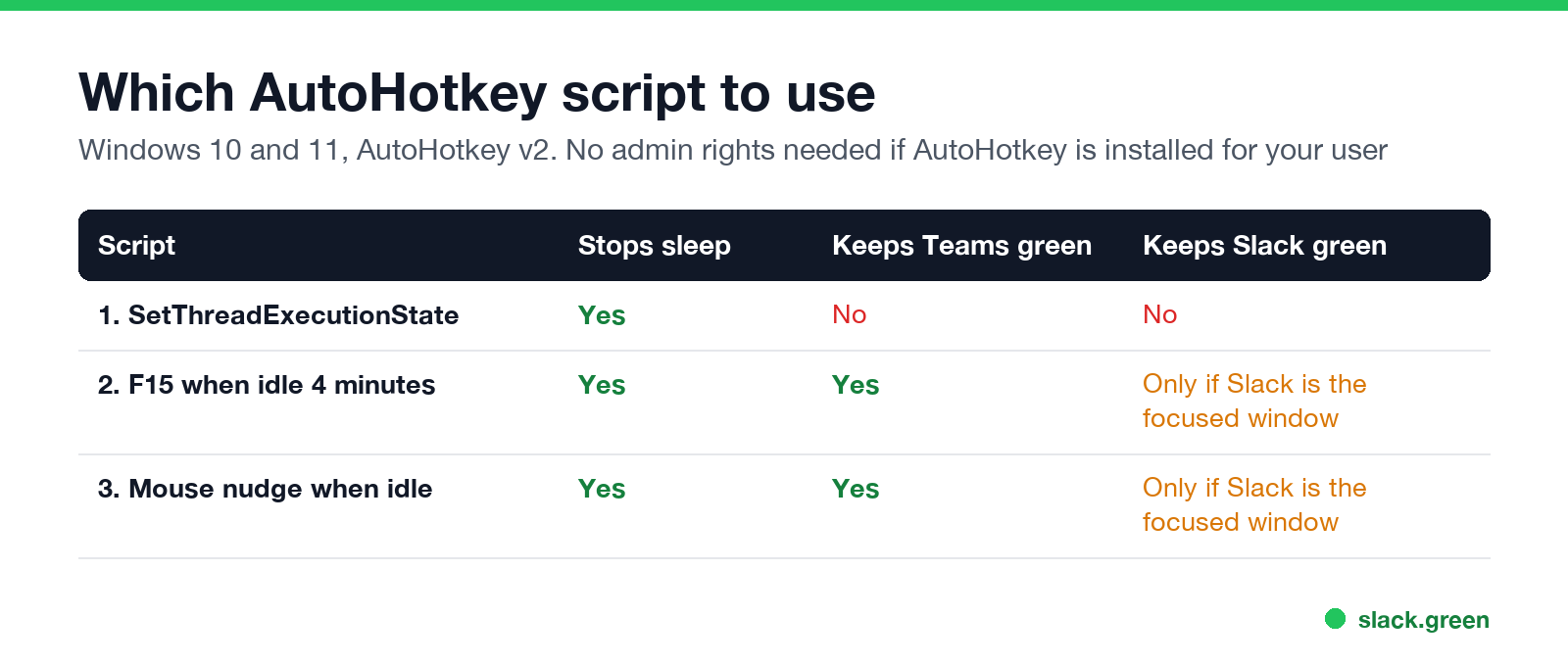
| Script | Stops sleep | Keeps Teams green | Keeps Slack green |
|---|---|---|---|
| 1. SetThreadExecutionState | Yes | No | No |
| 2. F15 when idle | Yes | Yes | Only while Slack is the focused window |
| 3. Mouse nudge when idle | Yes | Yes | Only while Slack is the focused window |
How to run the script and start it with Windows
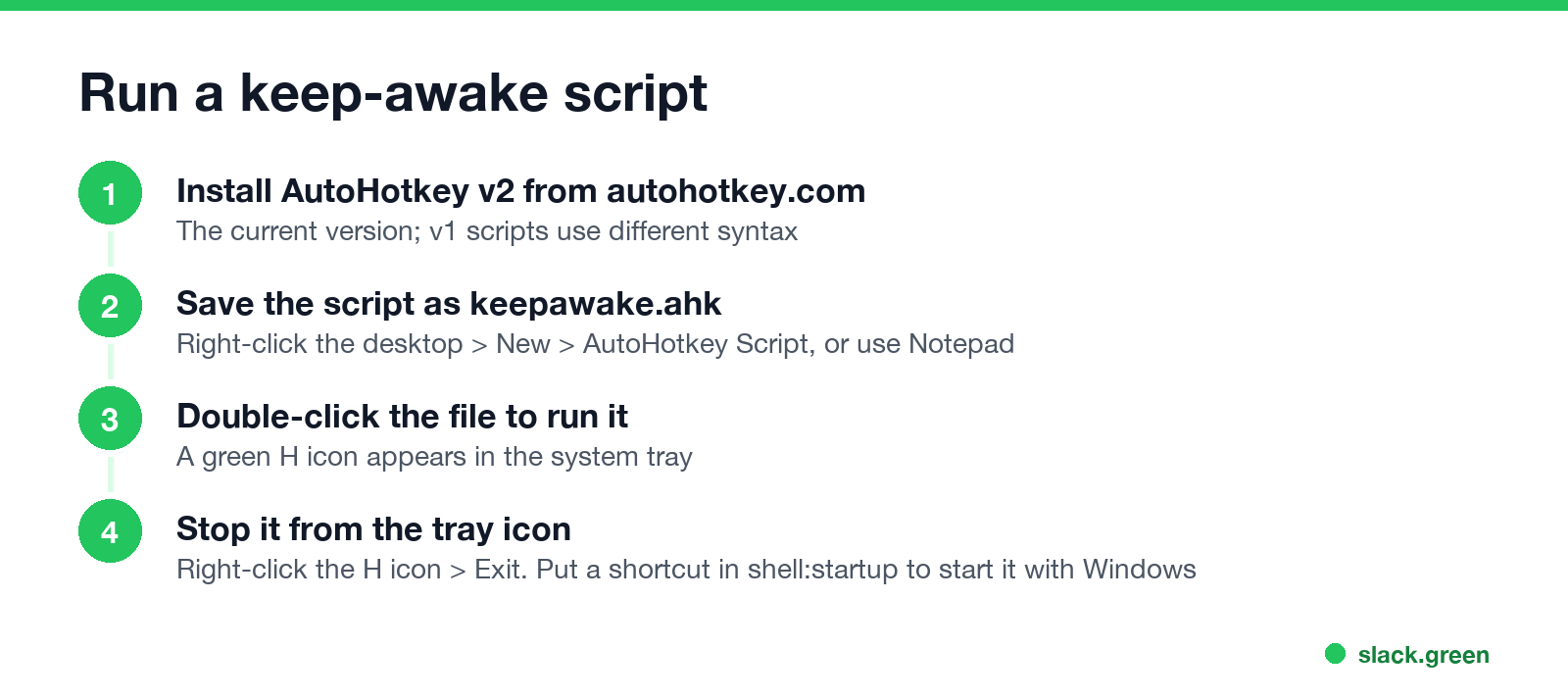
- Install AutoHotkey v2 from autohotkey.com. The installer can install for your user only, which needs no admin rights on most PCs.
- Save one of the scripts as
keepawake.ahkin Notepad (choose All files as the type so it does not end in.txt). - Double-click the file. A green H icon appears in the system tray while it runs.
- To stop it, right-click the H icon and choose Exit.
- • PowerShell. The same
SetThreadExecutionStatecall and an F15 loop work in a PowerShell script; see keep a computer awake with PowerShell. - • Microsoft PowerToys Awake, if PowerToys is allowed; see PowerToys Awake and Slack.
To start it with Windows, press Win+R, type shell:startup, press Enter, and put a shortcut to keepawake.ahk in the folder that opens.
The scripts use v2 syntax. AutoHotkey v1 is no longer developed, and v1 scripts such as Send, {F15} will not run under v2 without changes.
If you cannot install AutoHotkey
Many work PCs block unknown software. Two options need nothing extra installed:
More options for locked-down PCs are in keep a work computer awake without admin rights.
Is an AutoHotkey keep-awake script visible to IT?
Never appear "away" on Slack again
Cloud-based. No downloads. Works 24/7 even when your laptop is off.
Yes, to anyone who looks. AutoHotkey runs as a normal process (AutoHotkey64.exe) with your script's path on its command line, and endpoint tools such as Microsoft Defender, Intune and CrowdStrike record processes. Scripts 2 and 3 create input that Windows marks as injected, which some monitoring tools can check. What each tool sees is in can CrowdStrike detect a mouse jiggler and how to detect a mouse jiggler.
FAQ
What is the AutoHotkey script to prevent sleep?
DllCall("SetThreadExecutionState", "UInt", 0x80000003) followed by Persistent, in AutoHotkey v2. It blocks sleep and screen-off until you exit.
How do I make an AutoHotkey mouse jiggler?
Use a timer that runs MouseMove(1, 0, 0, "R") and MouseMove(-1, 0, 0, "R") when A_TimeIdle is over a few minutes, as in script 3.
Does an AutoHotkey script keep Teams active? Yes, if it creates input. Script 2 (F15) and script 3 (mouse nudge) reset the Windows idle timer that Teams reads. Script 1 does not.
Does an AutoHotkey script keep Slack active? Only while Slack is the focused window. Slack counts input inside its own window.
Does an AutoHotkey script work when the PC is locked? Script 1 still blocks sleep. Teams shows Away as soon as the PC is locked, whatever the script does.
Stop Jiggling Your Mouse.
Join hundreds of remote workers who never worry about their Slack status. Set it up once, stay green forever.
Related Articles
Can My Employer See What I Watch on YouTube at Work?
On a work laptop or the office network, your employer can see that you used YouTube, when, and for how long. With HTTPS inspection or monitoring software, they can see which videos, because the video address and the browser tab title both name it. On your own phone on mobile data, they see nothing.
Can My Employer See My iMessages on a Work Mac?
Not through device management or the network: Jamf or Intune cannot read Messages, and iMessage is end-to-end encrypted. But if you sign in to Messages on a work Mac, your texts are stored on that Mac, where monitoring screenshots, backups and admin access can reach them. How to check, and how to take iMessage off the Mac without deleting it from your iPhone.
Can My Boss See My Private Outlook Calendar Events?
Usually not the details. When you mark an Outlook event Private, someone who can read your calendar sees only Private appointment, the time and a lock. The exceptions are delegates you gave Can view private items, the people invited to the event, anyone with full access to your mailbox in new Outlook or the web, and compliance admins. How to check who has which access, and what Private does not hide.