
How to Stop Your Computer From Sleeping: Windows and Mac
To stop a Windows 11 computer from sleeping, open Settings, System, Power & battery, Screen, sleep & hibernate timeouts and set the sleep timers to Never. On a Mac, turn on Prevent automatic sleeping in Energy or Battery settings, or run caffeinate. Steps for Windows 11, Windows 10 and macOS, one command for each, why a PC sleeps too fast, and what to do on a locked-down work laptop.
To stop your computer from sleeping on Windows 11, open Settings, System, Power & battery, expand Screen, sleep & hibernate timeouts, and set Make my device sleep after to Never. On Windows 10 the same setting is under Settings, System, Power & sleep. On a Mac, open System Settings, then Energy on a desktop Mac or Battery, Options on a MacBook, and turn on Prevent automatic sleeping when the display is off. For a short job, run caffeinate -i in Terminal instead. Sleep and the screen turning off are separate timers, so the screen can still go dark after you do this.
We build Slack Green, which keeps a Slack status green from a server. People often stop sleep to keep Slack or Teams active, and that does not work on its own: an awake computer with no input still shows you away. The Slack side is in how to keep Slack active.
Where the sleep setting lives
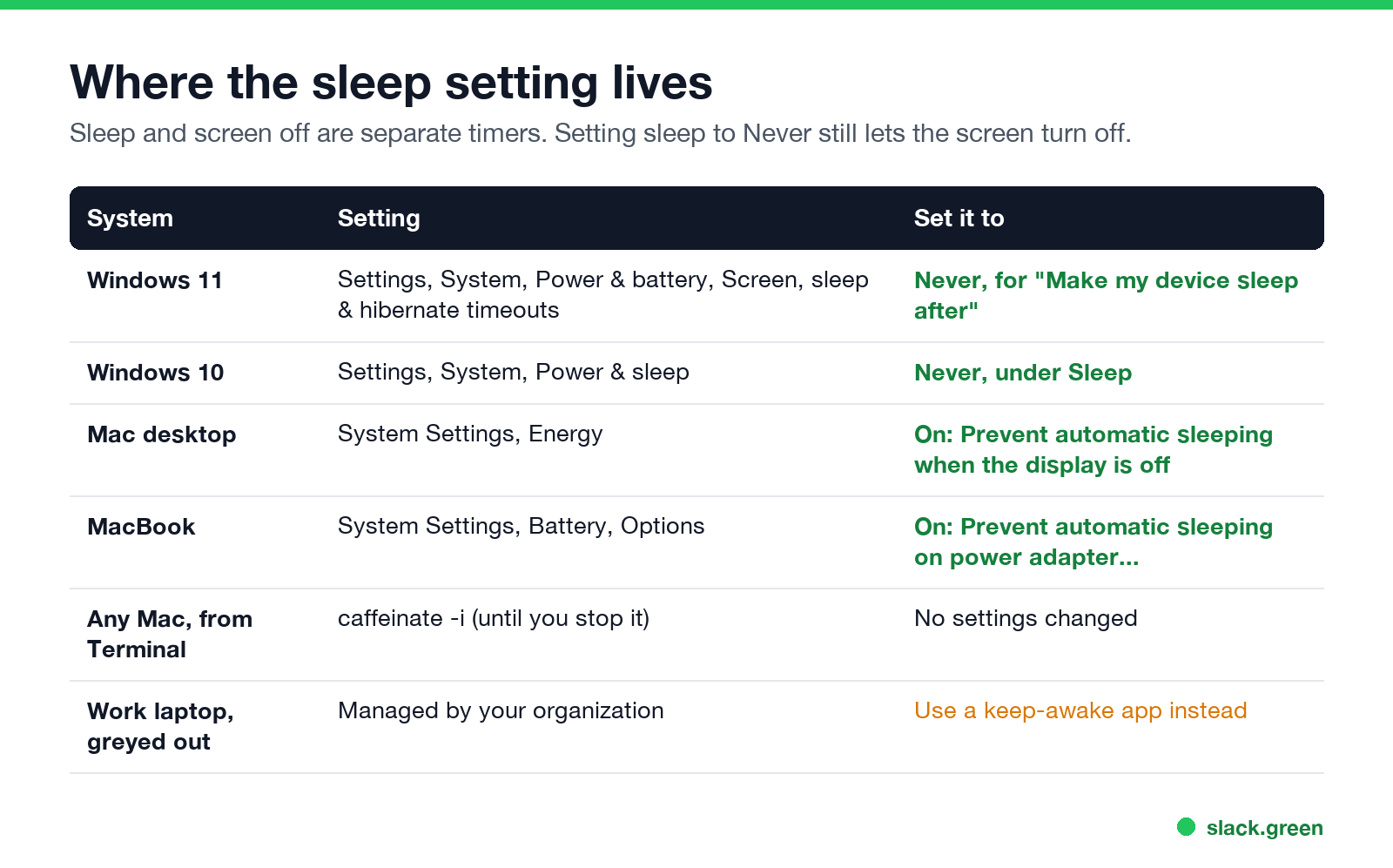
| System | Setting | Set it to |
|---|---|---|
| Windows 11 | Settings, System, Power & battery, Screen, sleep & hibernate timeouts | Never for "Make my device sleep after", on battery and plugged in |
| Windows 10 | Settings, System, Power & sleep | Never under Sleep |
| Mac desktop | System Settings, Energy | On: Prevent automatic sleeping when the display is off |
| MacBook | System Settings, Battery, Options | On: Prevent automatic sleeping on power adapter when the display is off |
| Any Mac, from Terminal | caffeinate -i | Nothing changed; stops when you press Ctrl+C |
| Work laptop, settings greyed out | "Some settings are managed by your organization" | A keep-awake app, below |
Stop Windows 11 from sleeping
- Open Settings with Windows + I.
- Go to System, then Power & battery.
- Expand Screen, sleep & hibernate timeouts. Older Windows 11 builds call it Screen and sleep.
- Set Make my device sleep after to Never, for both When plugged in and On battery power. Set the hibernate timers to Never too if they appear.
- To keep the screen on as well, set Turn off my screen after to Never.
The same change from an administrator Command Prompt, where 0 means never:
powercfg /change standby-timeout-ac 0
powercfg /change standby-timeout-dc 0
powercfg /change hibernate-timeout-ac 0
powercfg /change monitor-timeout-ac 0
The -ac settings apply when plugged in and -dc on battery. To undo, run the same lines with the number of minutes you want, such as 30. A PowerShell script that keeps the PC awake only while it runs is in keep a Windows PC awake with PowerShell.
Stop Windows 10 from sleeping
Never appear "away" on Slack again
Cloud-based. No downloads. Works 24/7 even when your laptop is off.
Open Settings, System, Power & sleep, and set Sleep to Never for both power states. The powercfg lines above work on Windows 10 too.
Stop a Mac from sleeping
On a desktop Mac, open System Settings, Energy, and turn on Prevent automatic sleeping when the display is off. On a MacBook, open System Settings, Battery, Options, and turn on Prevent automatic sleeping on power adapter when the display is off. A MacBook on battery still sleeps on its own timer.
To keep the display on too, open System Settings, Lock Screen, and set the Turn display off timers to Never. That also affects when the Mac locks, as covered in keep your Mac screen from locking.
For a one-off job, such as a long download, Terminal is quicker and changes no settings:
# keep the Mac awake until you press Ctrl+C; add -d to keep the display on too
caffeinate -i
# or for two hours, then stop by itself
caffeinate -i -t 7200
Every caffeinate flag is explained in caffeinate on Mac. Menu bar apps that do the same are compared in the best app to keep your Mac awake.
Why your computer sleeps so fast
When a work laptop will not let you change it
Never appear "away" on Slack again
Cloud-based. No downloads. Works 24/7 even when your laptop is off.
On a company laptop, IT often locks the sleep and lock timers. You can still keep the computer awake with a tool that asks Windows or macOS not to sleep while it runs, which needs no settings change. PowerToys Awake and Caffeine for Windows work on Windows, and caffeinate works on any Mac. If you cannot install anything, see keep a work computer awake without admin rights. If the screen locks anyway, that is a separate policy, covered in how to stop Windows 11 from locking.
Keeping the computer awake does not create input. Slack still shows you away 10 minutes after your last input in Slack, and Teams after about 5 minutes without input on the computer. A playing video does not change that either, as covered in does playing a video keep your computer awake.
Keep a laptop awake with the lid closed
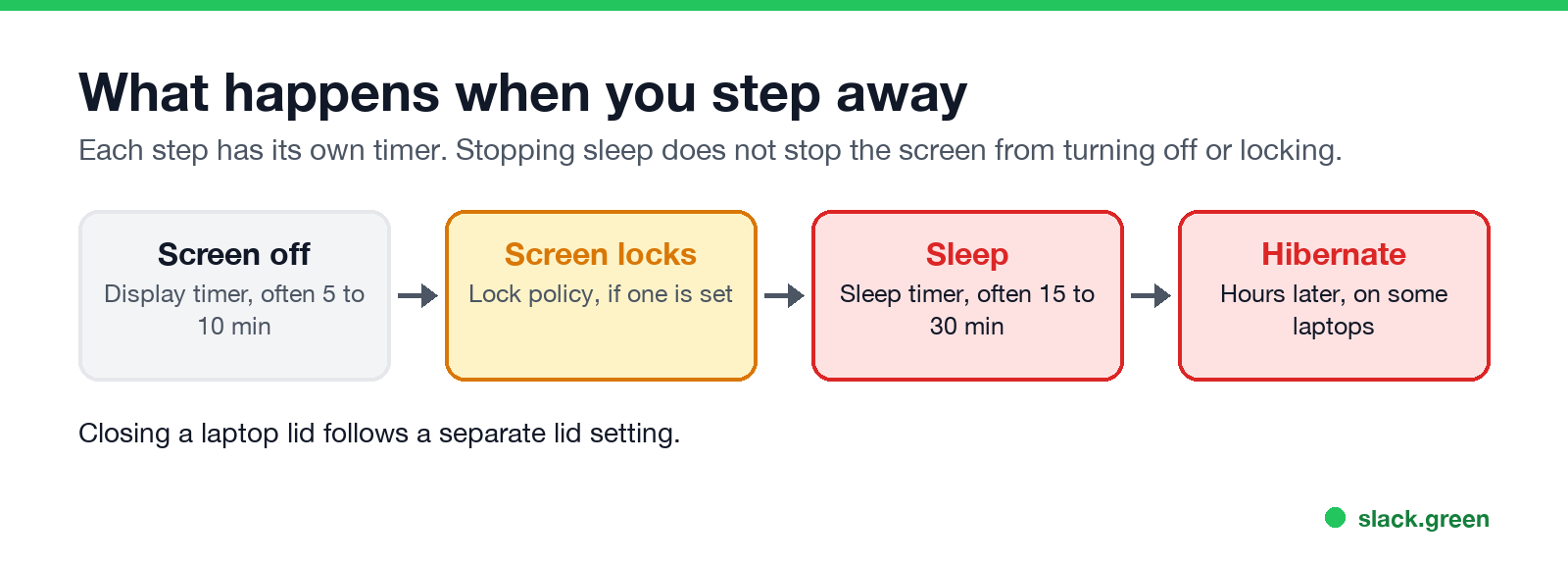
Closing the lid follows its own setting, separate from the sleep timer. On Windows it is under Control Panel, Power Options, Choose what closing the lid does. On a Mac it needs an external display, a keyboard and power. Both are covered step by step in keep a laptop awake with the lid closed.
FAQ
How do I stop my computer from sleeping when idle?
Set the sleep timer to Never: Settings, System, Power & battery on Windows 11, or turn on Prevent automatic sleeping in Energy or Battery settings on a Mac.
Is it bad to never let a computer sleep?
For a desktop, no, apart from the power it uses. For a laptop on battery, it drains the battery. Turning off the screen while keeping the computer awake saves most of the power.
Why does my computer go to sleep even though I set it to Never?
A company policy, a battery saver mode, or a lid-close setting. Or it is the screen turning off, not sleep.
How do I stop my computer from sleeping without admin rights?
Use a keep-awake tool that runs as your user, such as PowerToys Awake or a PowerShell script on Windows, or caffeinate on a Mac.
Does stopping sleep keep me active on Teams or Slack?
No. Both look for keyboard or mouse input, and sleep settings do not create any.
Stop Jiggling Your Mouse.
Join hundreds of remote workers who never worry about their Slack status. Set it up once, stay green forever.
Related Articles
How to Keep Skype Status Active: Skype for Business Idle Timers
To keep your Skype for Business status active, open Options, Status, and raise both idle timers, Inactive and then Away, from 5 minutes to as much as 360 minutes each. Consumer Skype shut down on May 5, 2025 and Skype for Business Online in 2021, so for most people the real question is now Teams. What still works, status icons, Outlook, and status not updating.
Is It Legal for My Employer to Monitor Me? US, EU and UK Rules
In the US it is mostly legal for an employer to monitor company devices, accounts and premises, often without asking. The limits are state notice laws in New York, Connecticut and Delaware, consent rules for audio recording and biometrics, bans on cameras in restrooms, and your personal devices. The EU, UK and parts of Canada and Australia add notice and proportionality rules.
Can My Employer See My Personal Email on My Work Computer?
Your employer cannot sign in to your Gmail, and doing so without permission can break the Stored Communications Act. But on a work computer, screenshot and keystroke monitoring, browser history, HTTPS inspection and Outlook's local cache can all expose personal email. Work email is fully visible, deleted messages included. Case by case, with what to do.