
What Can My Employer See With Intune? Personal vs Work Devices
Intune shows your employer device details such as model, serial number and OS, plus the work apps it manages. Microsoft says your organization can never see your texts, email, photos, contacts, calendar, passwords, documents, or calling and browsing history. A company-owned device shows more: every app, the full phone number, and location if it is lost.
With Intune, your employer sees details about the device, not what is on it. Microsoft's Intune privacy page lists what an organization can always see: the device owner, name, serial number, model, manufacturer, operating system and IMEI. It also sees the work apps it manages. It lists what an organization can never see: calling and web browsing history, email and text messages, contacts, calendar, passwords, pictures, and the content of your documents. That holds on your own phone and on a company-owned one.
What changes on a company-owned device is the rest: IT sees every installed app, the full phone number, and the location of a lost device. On a company Windows PC it can also query file names, running processes and the registry. Other tools that run next to Intune, such as a company VPN or Microsoft Defender, can see more than Intune does.
We build Slack Green, which keeps your Slack status green from our servers with nothing installed on the work device, so we track what employers can see on managed phones and laptops. The broader phone question is in can my employer see what I do on my phone.
What Intune shows your employer
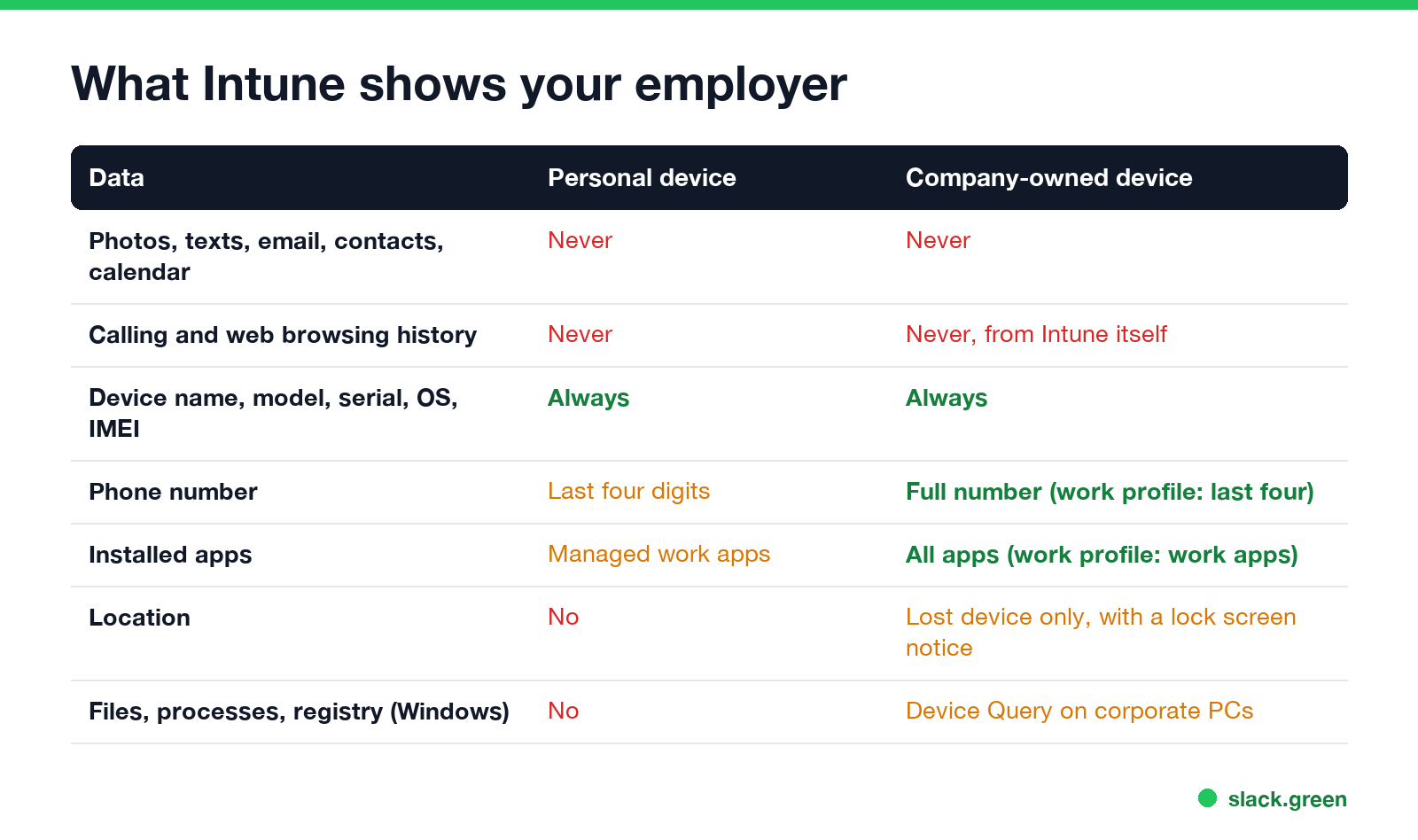
This table follows Microsoft Learn's page "What info can your organization see when you enroll your device" (updated April 2026).
| Data | Personal device | Company-owned device |
|---|---|---|
| Photos, texts, email, contacts, calendar, passwords | Never | Never |
| Calling and web browsing history | Never | Never, through Intune |
| Content of documents you create | Never | Never, through Intune |
| Device owner, name, serial number, model, OS, IMEI | Always | Always |
| Phone number | Last four digits | Full number; last four on Android with a work profile |
| Installed apps | Managed work apps | All apps; only work profile apps on Android with a work profile |
| Location | No | Only for a lost device; an iPhone in Lost Mode locks and shows a message |
| Storage space | When troubleshooting | When troubleshooting |
| Certificates, file names, processes, registry, event logs | No | Yes, on Windows, through Device Query |
Two lines matter most for the common questions. Can Company Portal see my photos? No, on any device. Can Intune see my texts? No, on any device. Microsoft adds that some setups let an organization see more than the managed app list on a personal device, and tells you to ask your IT admin.
Personal device or company-owned: check which one you are
The ownership type decides which column applies to you. To see it:
- Open the Company Portal app, or the Company Portal website.
- Go to Devices and pick your device.
- Look at Ownership in the device details: Personal or Corporate.
How you enrolled usually tells you too. If you installed Company Portal on your own phone to get Outlook and Teams, it is personal. On iPhone that is often User Enrollment, and on Android it creates a work profile with a briefcase badge on work apps. If the phone or laptop came from your company, or set itself up with company screens when you first turned it on, it is corporate.
What IT can do to the device, not only see
Never appear "away" on Slack again
Cloud-based. No downloads. Works 24/7 even when your laptop is off.
Seeing and doing are different. On an enrolled device, IT can:
App protection policies, which some companies use without enrolling the device at all, only reach data inside work apps such as Outlook and Teams. They can stop you copying work text into a personal app, and wipe the work account from those apps.
What Intune does not show, but other tools can
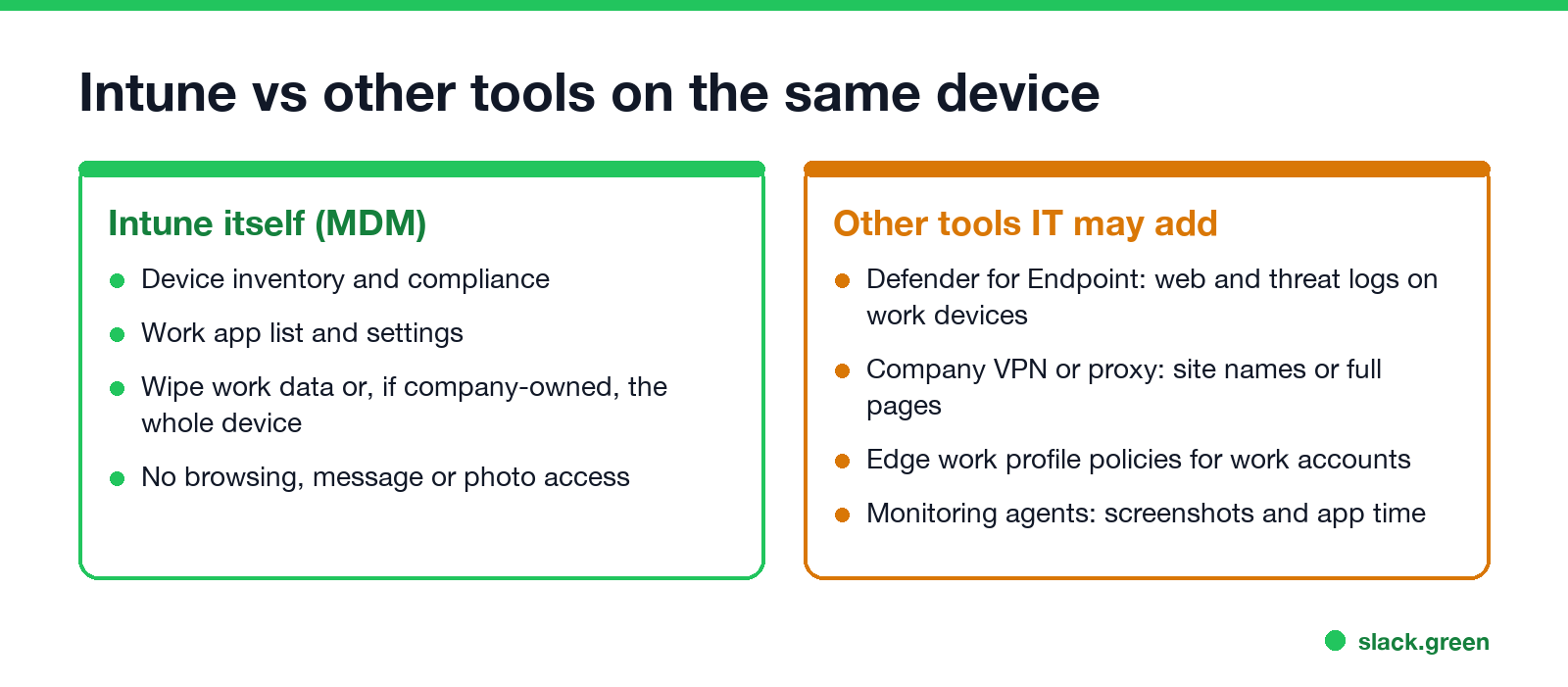
"Intune cannot see my browsing history" is true of Intune. It is not the whole picture on a work device, because IT often installs more through Intune:
On a personal phone with only Company Portal and work apps, none of these reach your personal apps. A private or Incognito window on a company laptop does not hide from them; see can my employer see my Incognito history.
Keep personal data personal on an Intune device
FAQ
Never appear "away" on Slack again
Cloud-based. No downloads. Works 24/7 even when your laptop is off.
Can Intune see my browsing history? No. Microsoft lists web browsing history among the things your organization can never see through Intune. A company VPN, proxy or Defender on a work device is a separate tool and can log sites.
Can Company Portal see my photos? No. Pictures, including the camera roll, are on Microsoft's "can never see" list.
Can Intune see my texts or WhatsApp messages? No. Email and text messages are on the same list, and personal apps are outside what Intune manages.
Can Intune track my location? Not on a personal device. On a company-owned device, IT can locate it only when it is lost, and an iPhone in Lost Mode locks and shows a message when that happens.
Can Intune wipe my personal phone? It can remove the work apps, work data and work profile. On a personal iPhone with User Enrollment or an Android phone with a work profile, that is all IT can remove. A full wipe is meant for company-owned devices.
Can IT see my screen with Intune? Not by itself. Intune's Remote Help lets a support person view or control a screen during a session that you accept.
Stop Jiggling Your Mouse.
Join hundreds of remote workers who never worry about their Slack status. Set it up once, stay green forever.
Related Articles
Can My Employer See What I Watch on YouTube at Work?
On a work laptop or the office network, your employer can see that you used YouTube, when, and for how long. With HTTPS inspection or monitoring software, they can see which videos, because the video address and the browser tab title both name it. On your own phone on mobile data, they see nothing.
Can My Employer See My iMessages on a Work Mac?
Not through device management or the network: Jamf or Intune cannot read Messages, and iMessage is end-to-end encrypted. But if you sign in to Messages on a work Mac, your texts are stored on that Mac, where monitoring screenshots, backups and admin access can reach them. How to check, and how to take iMessage off the Mac without deleting it from your iPhone.
Can My Boss See My Private Outlook Calendar Events?
Usually not the details. When you mark an Outlook event Private, someone who can read your calendar sees only Private appointment, the time and a lock. The exceptions are delegates you gave Can view private items, the people invited to the event, anyone with full access to your mailbox in new Outlook or the web, and compliance admins. How to check who has which access, and what Private does not hide.