
How to Stop Ubuntu From Locking the Screen (GNOME, KDE, Mint)
To stop Ubuntu from locking the screen, open Settings, Privacy & Security, Screen Lock, turn off Automatic Screen Lock and set Blank Screen Delay to Never. The same fix as gsettings commands, how to stop suspend too, how to pause the lock for one task, and the equivalents for KDE Plasma and Linux Mint.
To stop Ubuntu from locking the screen, open Settings, go to Privacy & Security, then Screen Lock (on Ubuntu 22.04, Privacy, then Screen). Turn off Automatic Screen Lock, and set Blank Screen Delay to Never if you also want the screen to stay on. From a terminal, the same change is two commands:
gsettings set org.gnome.desktop.screensaver lock-enabled false
gsettings set org.gnome.desktop.session idle-delay 0
The first stops the lock. The second stops the screen from blanking; 0 means never, and the default is 300 seconds. Suspend is a separate timer under Settings, Power, covered below.
A screen that stays unlocked does not keep chat apps active. Slack turns you grey after 10 minutes without input in the Slack window, locked screen or not; keep Slack active on Linux explains why. Slack Green keeps your Slack status active during the hours you set, from the cloud, so it works whether the Linux machine is locked, asleep or off.
The three timers behind the Ubuntu lock screen
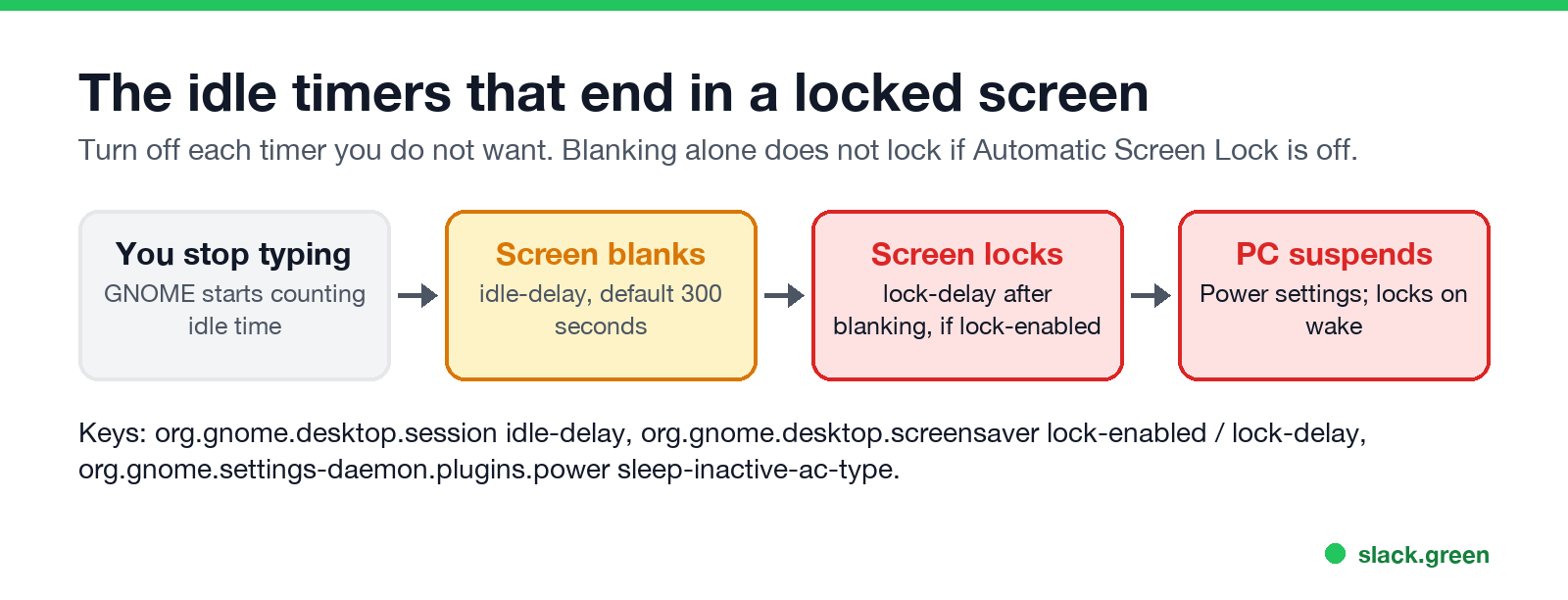
GNOME, the desktop on Ubuntu, runs three settings in a row:
| Timer | Settings name | gsettings key | Default |
|---|---|---|---|
| Screen blank | Blank Screen Delay (in Power on some versions) | org.gnome.desktop.session idle-delay | 300 seconds |
| Lock after blank | Automatic Screen Lock, Automatic Screen Lock Delay | org.gnome.desktop.screensaver lock-enabled, lock-delay | On, 0 seconds |
| Suspend | Automatic Suspend | org.gnome.settings-daemon.plugins.power sleep-inactive-ac-type | Suspend on battery after a while |
The lock follows the blank. If Automatic Screen Lock is off, the screen goes dark after the idle delay but comes back without a password when you move the mouse. If you want a dark screen but no password, turn off only the lock. If you want the screen on the whole time, set the blank delay to Never as well.
Stop Ubuntu from locking with gsettings
These commands change the current user's settings and take effect at once, with no reboot:
# stop the automatic lock
gsettings set org.gnome.desktop.screensaver lock-enabled false

# never blank the screen (value in seconds, 0 = never)
gsettings set org.gnome.desktop.session idle-delay 0

# do not ask for a password after suspend (Ubuntu only key)
gsettings set org.gnome.desktop.screensaver ubuntu-lock-on-suspend false

# check the current values
gsettings get org.gnome.desktop.screensaver lock-enabled
gsettings get org.gnome.desktop.session idle-delay
To keep the lock but make it later, leave lock-enabled on and raise idle-delay, for example 900 for 15 minutes. lock-delay adds seconds between the blank and the lock.
To undo everything:
gsettings reset org.gnome.desktop.screensaver lock-enabled
gsettings reset org.gnome.desktop.session idle-delay
Stop Ubuntu from sleeping as well
Never appear "away" on Slack again
Cloud-based. No downloads. Works 24/7 even when your laptop is off.
A suspended computer always wakes to the lock screen if lock on suspend is on, so stop suspend too if you step away for long. In Settings, Power, set Automatic Suspend to off for Plugged In, and for On Battery Power if you want. From a terminal:
gsettings set org.gnome.settings-daemon.plugins.power sleep-inactive-ac-type 'nothing'
gsettings set org.gnome.settings-daemon.plugins.power sleep-inactive-battery-type 'nothing'
Closing the laptop lid is handled by the system, not GNOME. Ubuntu suspends on lid close by default; HandleLidSwitch in /etc/systemd/logind.conf controls it.
Pause the lock for one task only
To keep the screen awake while a download, a video or a long build runs, without changing settings, wrap the command in gnome-session-inhibit. The inhibit is removed when the command exits:
# keep the session from going idle for one hour
gnome-session-inhibit --inhibit idle --reason "long build" sleep 3600

# keep it awake while a script runs, and block suspend too
gnome-session-inhibit --inhibit idle --inhibit suspend ./long-job.sh
gnome-session-inhibit --list shows which apps hold an inhibit right now. Video players and browsers playing full-screen video take one on their own, which is why the screen stays on during a film. The GNOME Shell extension Caffeine adds a top-bar toggle that does the same thing.
KDE Plasma and Linux Mint
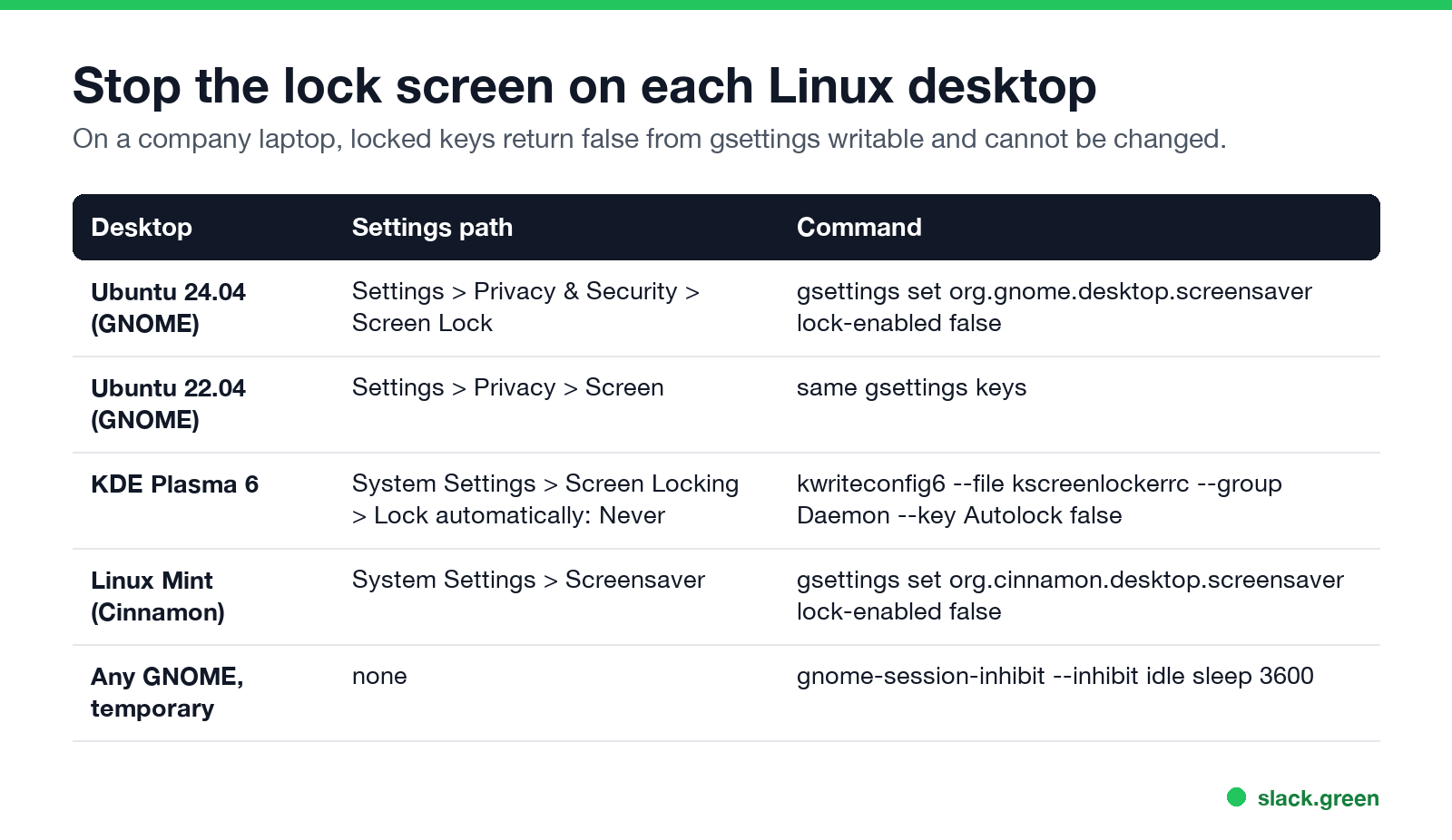
KDE Plasma (Kubuntu, KDE neon, Fedora KDE). Open System Settings, Screen Locking, and set Lock screen automatically to Never. Turn off After waking from sleep if you want no password after suspend. Screen dimming and sleep are under Power Management (Energy Saving on Plasma 5). From a terminal on Plasma 6 (use kwriteconfig5 on Plasma 5):
kwriteconfig6 --file kscreenlockerrc --group Daemon --key Autolock false
kwriteconfig6 --file kscreenlockerrc --group Daemon --key LockOnResume false
Linux Mint (Cinnamon). Open System Settings, Screensaver. Set Delay before starting the screensaver to Never, and turn off Lock the computer after the screensaver starts and Lock the computer when put to sleep. From a terminal:
gsettings set org.cinnamon.desktop.screensaver lock-enabled false
gsettings set org.cinnamon.desktop.session idle-delay 0
When the lock comes back anyway
Never appear "away" on Slack again
Cloud-based. No downloads. Works 24/7 even when your laptop is off.
- • Your company locked the setting. Managed Linux laptops can pin these keys with a dconf lock. Check with
gsettings writable org.gnome.desktop.screensaver lock-enabled. If it printsfalse, the value is set by policy and only IT can change it. - • A second user or remote session. Switching users, or signing in over RDP, locks the local screen by design.
- • The lid. Closing the lid suspends the laptop and locks it on wake, whatever the idle timers say.
- • It is a different machine. The same question on other systems: how to stop Windows 11 from locking and keep a Mac screen from locking.
If the goal is to stay green in work chat while you step away, an unlocked screen is not enough, because Slack counts only input inside its own window. What does work is in how to keep Slack active.
FAQ
How do I disable the lock screen in Ubuntu 24.04?
Settings, Privacy & Security, Screen Lock, turn off Automatic Screen Lock. Or run gsettings set org.gnome.desktop.screensaver lock-enabled false.
How do I stop Ubuntu from turning off the screen?
Set Blank Screen Delay to Never, or run gsettings set org.gnome.desktop.session idle-delay 0.
Why does Ubuntu still ask for a password after sleep?
Lock on suspend is a separate setting. Turn off Lock Screen on Suspend in the same Screen Lock page, or set ubuntu-lock-on-suspend to false.
Does the lock screen setting survive a reboot?
Yes. gsettings values are saved per user and stay until you change or reset them.
Can I stop the lock only while a program runs?
Yes. Run the program through gnome-session-inhibit --inhibit idle, and the normal lock returns when it exits.
Stop Jiggling Your Mouse.
Join hundreds of remote workers who never worry about their Slack status. Set it up once, stay green forever.
Related Articles
How to Keep Skype Status Active: Skype for Business Idle Timers
To keep your Skype for Business status active, open Options, Status, and raise both idle timers, Inactive and then Away, from 5 minutes to as much as 360 minutes each. Consumer Skype shut down on May 5, 2025 and Skype for Business Online in 2021, so for most people the real question is now Teams. What still works, status icons, Outlook, and status not updating.
Is It Legal for My Employer to Monitor Me? US, EU and UK Rules
In the US it is mostly legal for an employer to monitor company devices, accounts and premises, often without asking. The limits are state notice laws in New York, Connecticut and Delaware, consent rules for audio recording and biometrics, bans on cameras in restrooms, and your personal devices. The EU, UK and parts of Canada and Australia add notice and proportionality rules.
Can My Employer See My Personal Email on My Work Computer?
Your employer cannot sign in to your Gmail, and doing so without permission can break the Stored Communications Act. But on a work computer, screenshot and keystroke monitoring, browser history, HTTPS inspection and Outlook's local cache can all expose personal email. Work email is fully visible, deleted messages included. Case by case, with what to do.