
Mouse Jiggler for Linux: Free xdotool and ydotool Scripts
The free Linux mouse jiggler is a short loop: xdotool on X11 or ydotool on Wayland moves the pointer 1 pixel and back every minute. If you only need the screen to stay on, an inhibitor is cleaner. Slack still counts only input inside its own window.
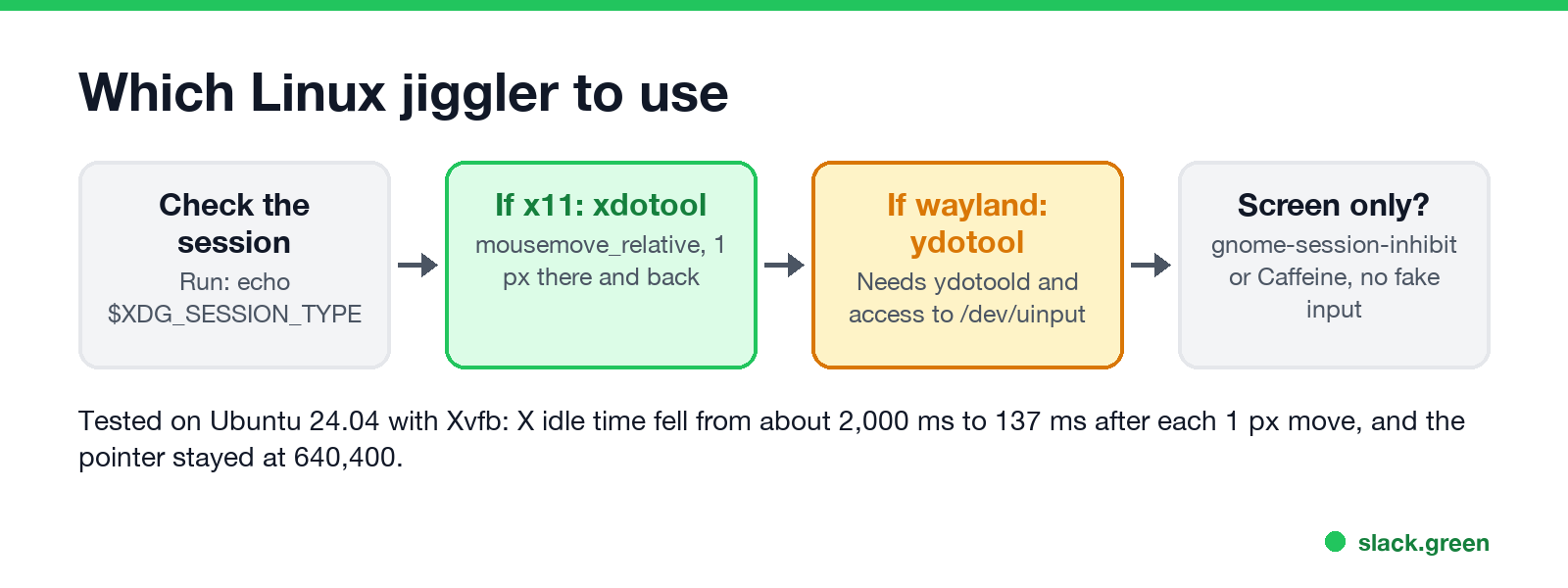
The free mouse jiggler for Linux is a short shell loop. On an X11 session, xdotool mousemove_relative moves the pointer 1 pixel and back every 60 seconds. That counts as input, so the screen does not blank, lock or suspend. On Wayland, which Ubuntu and Fedora use by default with GNOME, xdotool cannot reach the desktop, so use ydotool, which writes to the kernel input device /dev/uinput. Run echo $XDG_SESSION_TYPE first to see which one you have. If you only want the screen to stay on, you do not need fake input at all: gnome-session-inhibit or the Caffeine extension does that.
A jiggler does not keep Slack green on its own. Slack counts only input inside its own window, so the nudge helps Slack only when the pointer sits over the Slack window. Slack Green keeps your Slack status active from our servers during the hours you set, with nothing running on the Linux machine.
Linux mouse jiggler options compared
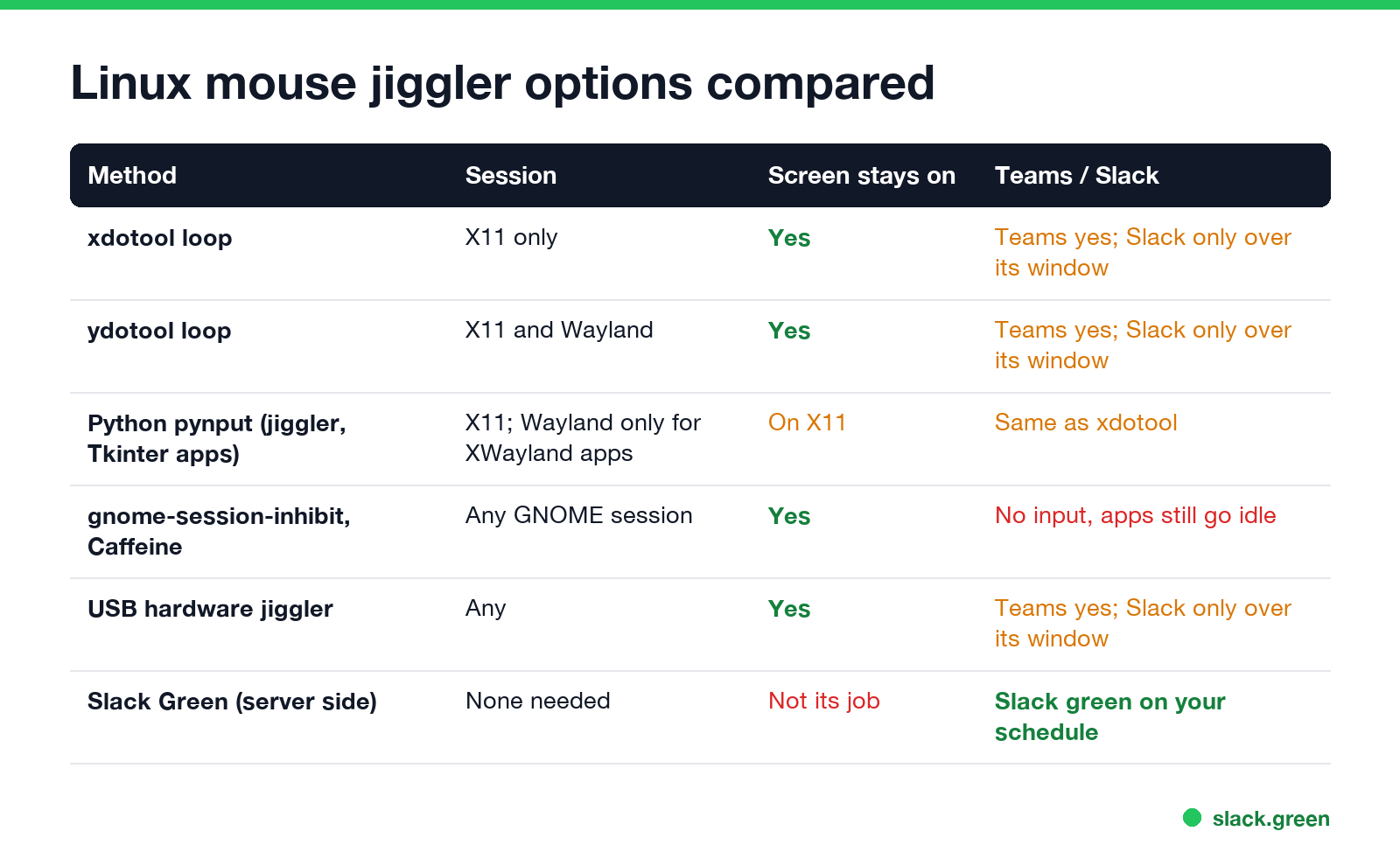
| Method | Works on | Keeps the screen on | Chat status |
|---|---|---|---|
| xdotool loop | X11 only | Yes | Teams apps that read system idle: yes. Slack: only over its window |
| ydotool loop | X11 and Wayland | Yes | Same as xdotool |
Python with pynput (the jiggler package, small Tkinter apps on GitHub) | X11; on Wayland only XWayland apps | On X11 | Same as xdotool |
gnome-session-inhibit, Caffeine | GNOME, any session | Yes | No input, so apps still go idle |
| USB hardware jiggler | Any | Yes | Same as xdotool, and it needs no software |
| Paid AppImage apps (mouse-jiggler.org, MoveIt) | X11; Wayland through ydotool | Yes | Same as xdotool |
| Slack Green | Nothing on the machine | No | Slack green on your schedule |
The Arkane Mouse Jiggler that most Windows guides name does not run on Linux. For Windows see Mouse Jiggler for Windows, and for macOS see mouse jiggler for Mac.
Mouse jiggler on Ubuntu with xdotool (X11)
Install xdotool from the distro repository. It is in Ubuntu, Debian, Fedora and Arch:
sudo apt install xdotool        # Ubuntu, Debian, Mint
sudo dnf install xdotool        # Fedora
sudo pacman -S xdotool          # Arch
Save this as jiggle.sh, make it executable with chmod +x jiggle.sh, and run it with ./jiggle.sh. Stop it with Ctrl+C.
#!/usr/bin/env bash
# jiggle.sh: move the pointer 1 px right and back every 60 seconds (X11)
while true; do
  xdotool mousemove_relative -- 1 0
  xdotool mousemove_relative -- -1 0
  sleep 60
done
The -- matters. Without it, xdotool reads -1 as an option and the move back fails. A relative move of one pixel there and back leaves the pointer where it was, so it does not get in the way when you come back to the keyboard.
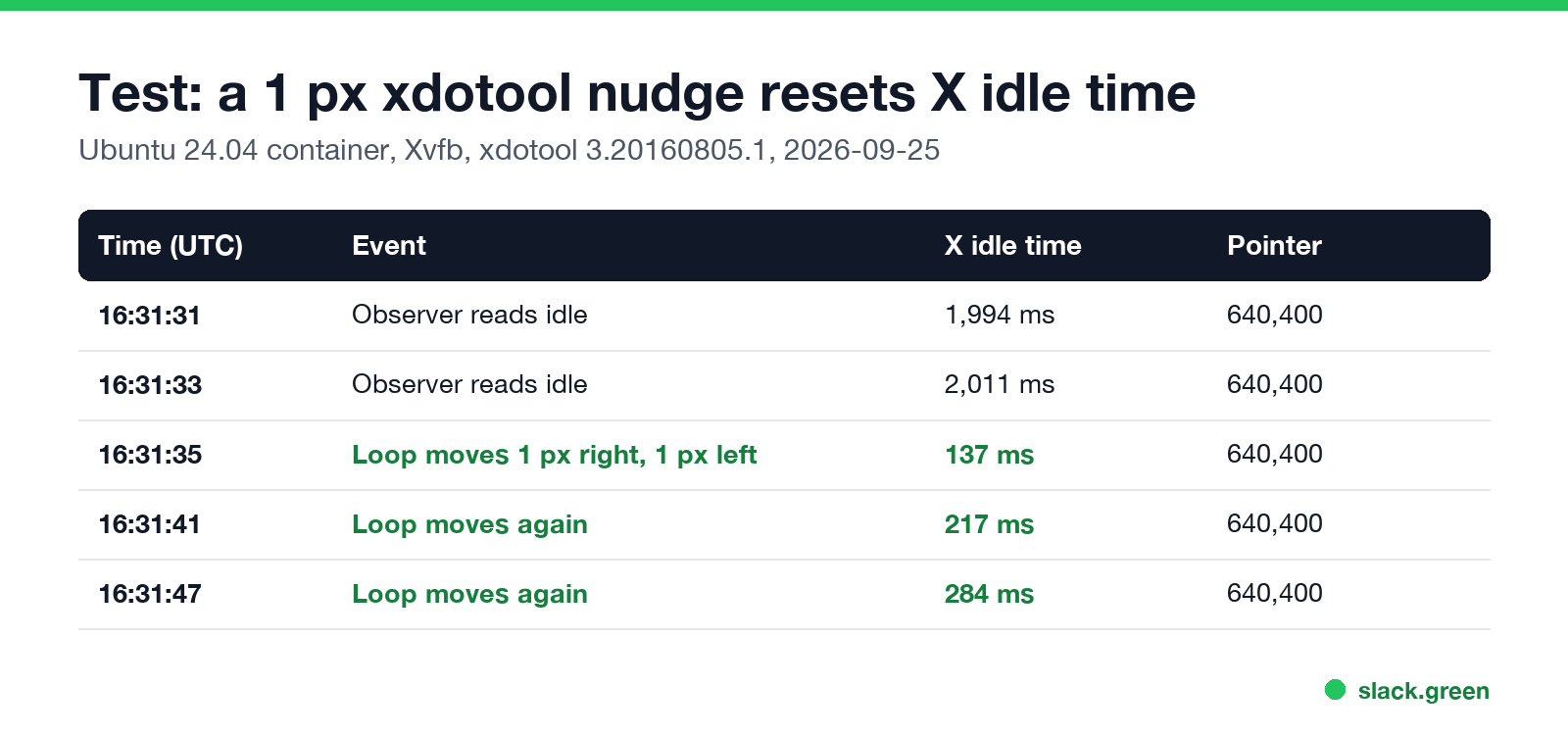
We tested the loop on 2026-09-25 in an Ubuntu 24.04 container with the Xvfb X server and xdotool 3.20160805.1, the version Ubuntu 24.04 ships. The X idle time, read with xprintidle, fell from about 2,000 ms to 137 ms right after each nudge, and the pointer stayed at 640,400.
One trap from the same test: xprintidle 0.2.5 on Ubuntu 24.04 reset the idle counter each time we called it. A script that asks xprintidle whether you are idle before it jiggles keeps resetting the timer it reads, so the plain fixed loop above is the safer choice.
To start the loop at login, add it to Startup Applications in GNOME or Mint, or create ~/.config/autostart/jiggle.desktop with Exec=/home/you/jiggle.sh.
Mouse jiggler on Wayland with ydotool
Never appear "away" on Slack again
Cloud-based. No downloads. Works 24/7 even when your laptop is off.
xdotool talks to the X server. On a Wayland session it reaches only apps that run under XWayland, and the desktop's idle timer does not see its moves, so the screen still locks. ydotool creates a virtual input device through the kernel, so it works on Wayland, on X11 and even on the text console.
sudo apt install ydotool
# the user running ydotool needs write access to /dev/uinput
sudo ydotool mousemove 1 0
Ubuntu 24.04 ships ydotool 0.1.8, where mousemove <x> <y> moves by that many pixels. It runs without a daemon and prints "ydotoold backend unavailable (may have latency+delay issues)". We ran it in a privileged Ubuntu 24.04 container with /dev/uinput and it exited cleanly. ydotool 1.x, from Arch and newer Fedora releases, needs the ydotoold daemon and uses flags instead: ydotool mousemove -x 1 -y 0. Check ydotool mousemove --help on your machine before you write the loop.
The loop is the same as the xdotool one, with the ydotool command inside. To avoid sudo, give your user access to /dev/uinput with a udev rule, or run ydotoold as a systemd service. Both give every program you run the power to type on your behalf, so do not do this on a machine you do not own.
Keep Linux from going idle without a jiggler
If the goal is a screen that stays on during a build, a download or a video call, block the idle timer instead of faking input:
# keep the GNOME session awake for as long as the command runs
gnome-session-inhibit --inhibit idle --inhibit suspend sleep 3600

# block suspend on any systemd distro while a job runs
systemd-inhibit --what=sleep:idle ./long-job.sh

# X11 only: turn off the screen saver and screen power saving
xset s off -dpms
The Caffeine GNOME extension puts the same inhibit behind a top-bar toggle. None of these create input, so chat apps still mark you away after their own timer. The settings route, with GNOME, KDE and Mint menus, is in how to stop Ubuntu from locking the screen. For other systems see how to stop your computer from sleeping.
Does a Linux mouse jiggler keep Slack and Teams active?
Slack: only when the pointer is over the Slack window. Slack sets you away after 10 minutes without input in its own window, on every distro and every package format (deb, snap, flatpak). A nudge anywhere else on the screen does not count; does Slack track mouse movement explains why. You can script xdotool to bring Slack to the front before each nudge, but then Slack jumps in front of your work every minute. The Linux specifics are in keep Slack active on Linux.
Teams: depends on the client. Microsoft retired the Teams desktop app for Linux at the end of 2022. The unofficial teams-for-linux app reads system idle time, so a system-wide jiggle keeps it Available. Teams in a browser tab is less predictable, so test it for 10 minutes before you rely on it. The Windows behaviour is in does a mouse jiggler work for Teams.
Screen lock, suspend and most activity trackers: yes, they see the moves as input.
Can IT detect a mouse jiggler on Linux?
Never appear "away" on Slack again
Cloud-based. No downloads. Works 24/7 even when your laptop is off.
Yes, if they look. The script shows up in ps as xdotool or ydotool every minute, ydotool adds a virtual input device that libinput list-devices lists, and the pattern (1 pixel every 60 seconds, no clicks, no typing) is easy to spot in any activity log. A USB jiggler shows up as a new HID device. How each kind is found is in can a mouse jiggler be detected, and the policy side in is it illegal to use a mouse jiggler.
If the only goal is a green dot in Slack, you do not need input on the Linux box at all. Slack Green keeps your Slack session active from a cloud server during your set hours, so it works while the machine is locked, asleep or off. For people who prefer their own hardware there is also a self-hosted CLI. The other options are compared in Slack Green vs mouse jiggler and the best mouse jiggler.
FAQ
Is there a mouse jiggler for Ubuntu?
Yes. The free one is a 5-line xdotool loop on X11, or ydotool on Wayland. Paid AppImage apps also exist.
Why does my xdotool jiggler do nothing?
You are probably on Wayland. Run echo $XDG_SESSION_TYPE. If it prints wayland, use ydotool, or, on Ubuntu 24.04 and earlier, log in with "Ubuntu on Xorg" from the gear icon on the login screen.
Does xdotool work on Wayland?
Only for apps that run under XWayland. The desktop's idle timer does not see its moves, so the screen still locks.
How do I keep Linux from going idle without moving the mouse?
Use gnome-session-inhibit --inhibit idle, systemd-inhibit, the Caffeine extension, or xset s off -dpms on X11.
Does a mouse jiggler keep Slack green on Linux?
Only when the pointer is over the Slack window. Slack counts only input inside its own window.
Stop Jiggling Your Mouse.
Join hundreds of remote workers who never worry about their Slack status. Set it up once, stay green forever.
Related Articles
LinkedIn Active Status: What the Green Dot Means and How to Hide It
On LinkedIn, a solid green dot on someone's photo means they are active on LinkedIn now. A hollow green circle means they are not, but the mobile app will notify them at once. Turn yours off under Settings & Privacy, Visibility, Manage active status; with No one, you also stop seeing other people's status.
Teams Status Light: Busy Lights That Follow Your Teams Status
A Teams status light is a USB or Bluetooth busy light that copies your Microsoft Teams presence: green when Available, red in a call or on Do not disturb. Luxafor, Kuando and Embrava sell them; PresenceLight and a short Graph API script do it free with a smart bulb. The light shows your status; it cannot change it.
What Does the Yellow Clock Mean in Outlook?
Next to a person's name or photo, the yellow clock in Outlook means Away or Be right back, a status Microsoft Teams sets. On an email, a clock means Outlook is holding that message for later: a scheduled send or a snooze.