
How to Keep Slack Active on Linux
On Linux the away flip comes from two places: Slack's 10-minute idle timer and your desktop's idle-blank-suspend chain. The GNOME and KDE settings that stop sleep-away, what systemd-inhibit and Caffeine cannot do, and the xdotool route with its Wayland limit.
Linux gets the same Slack desktop app as Mac and Windows, the same 10-minute idle timer, and one extra layer of variety: every desktop environment ships its own idle, blank, and suspend chain, and any link in that chain marks you away in seconds. This page covers the Linux specifics: the GNOME and KDE settings that stop sleep-away, the inhibit tools that solve only half the problem, and the scripted-input route with its Wayland catch. Slack Green, the server-side tool we make, keeps you active with the Linux box off, free for 7 days with no card, and the full cross-platform comparison is in how to keep Slack active.
The two clocks on Linux
Slack's idle timer. Ten minutes without typing, clicking or moving the mouse; the desktop app reads the system idle time, on any distro and package format. Input in other windows counts too, because the app reads the system idle time; it does not record what you type or where the mouse goes. No setting changes the 10 minutes.
The desktop's idle chain. GNOME blanks the screen after 5 minutes of stillness by default and suspends on battery after 20; KDE and others ship their own numbers. A blanked-then-locked or suspended session reports nothing, so the dot dies long before Slack's timer would have fired. On most setups this chain, not Slack, is what marks you away first.
Stop the desktop from cutting you off
On GNOME, two settings and one command cover it:
- Screen Blank. Settings, Power, Screen Blank: set it longer than your longest stretch away, or Never.
- Automatic Suspend. Same panel, turn it off while you need the dot, at least on AC power.
- One command instead.
gsettings set org.gnome.desktop.session idle-delay 0disables idle blanking; on X11,xset s off -dpmsdoes the same at the display level.
On KDE, the equivalents live in Energy Saving; on anything else, look for idle, blank, and suspend timers. The generic tool that works everywhere systemd runs:
systemd-inhibit --what=idle:sleep sleep infinityIt holds idle and sleep inhibited until you stop it. The GNOME Caffeine extension does the same from the top bar. Every lock-screen setting for GNOME, KDE and Linux Mint, with the gsettings keys, is in how to stop Ubuntu from locking the screen.
Now the limit, and it is the same limit as on every platform: all of this stops only the sleep clock. A wide-awake Linux box still shows you away 10 minutes after your last keyboard or mouse input. Inhibitors create no input; the same-family test for keep-awake tools is in does Caffeine keep Slack active.
Even with every fix here, Slack sets you away once the laptop suspends, the lid closes or 10 minutes pass with no input. A server-side tool keeps your Slack dot green with no input, even with the laptop closed or the phone locked.
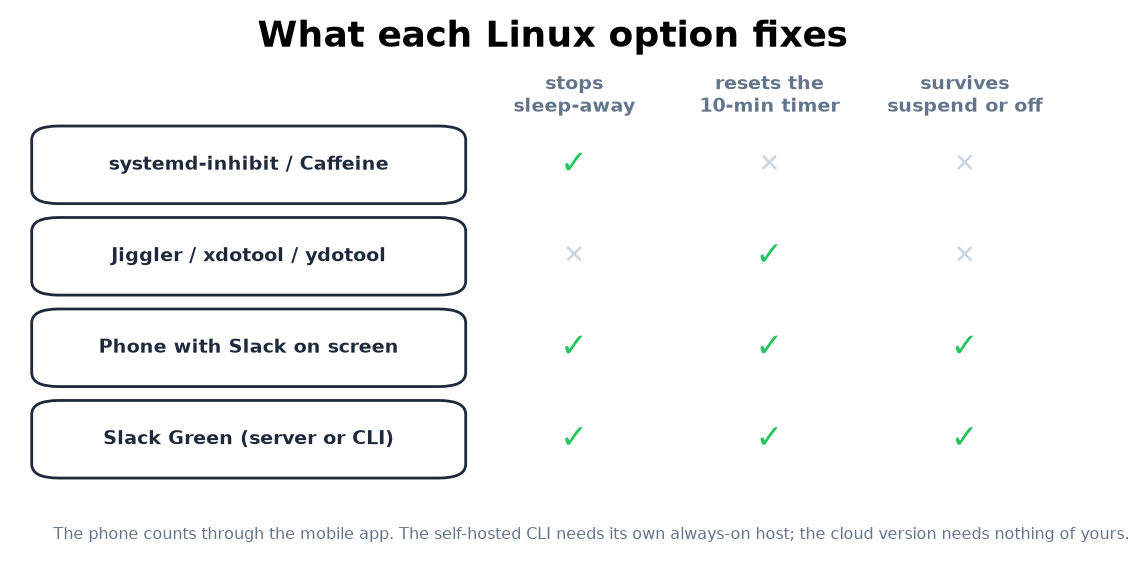
What resets Slack's timer on Linux
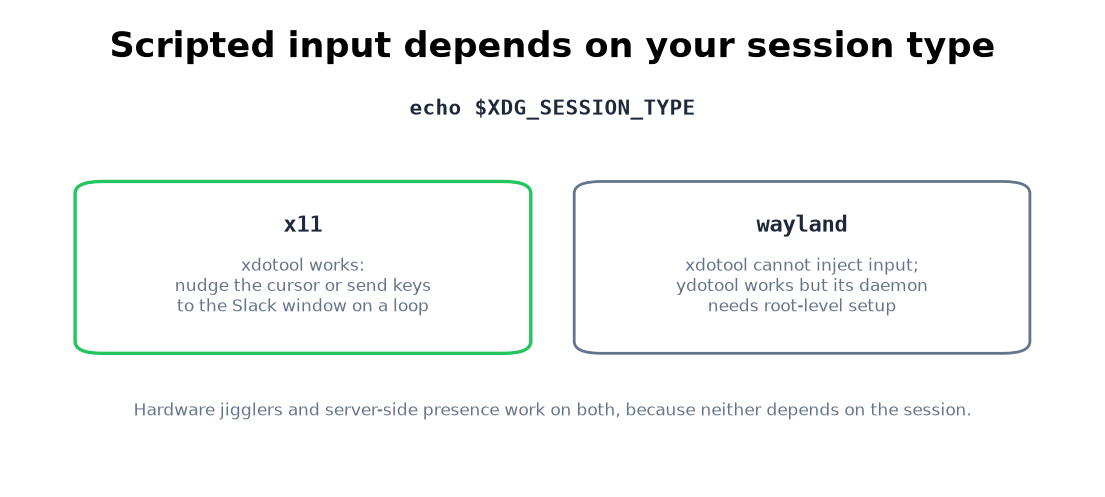
echo $XDG_SESSION_TYPE before you build the script. Tested loops for both are in mouse jiggler for Linux.If the dot goes gray while you are typing in Slack itself, that is not a timer problem: Slack keeps showing away while working.
Linux questions people search
Does systemd-inhibit keep Slack active? No. It stops idle and sleep, which prevents the instant sleep-away, and leaves the 10-minute idle timer running.
Does the Caffeine GNOME extension keep your Slack dot green? Same class: it inhibits the idle chain and creates no Slack input.
Why does my xdotool script do nothing?
You are probably on Wayland. echo $XDG_SESSION_TYPE answers it; on Wayland use ydotool or a hardware jiggler, or move the problem off the machine entirely with a server-side session.
Is the snap or flatpak Slack different for presence? No. Sandboxing changes file access, not the idle timer. All package formats report presence the same way.
Can I keep Slack active with the machine suspended? Not from the machine. A suspended box reports nothing. A second device or a server-side session are the options that survive suspend, compared in how to keep Slack active.
The short version
Fix the desktop chain first: Screen Blank and Automatic Suspend in GNOME, Energy Saving in KDE, or systemd-inhibit --what=idle:sleep, because default idle settings mark you away minutes before Slack's own timer. Then feed the 10-minute timer: by hand, with a jiggler, with xdotool on X11 or ydotool on Wayland, from a phone, or from a server-side tool, self-hosted if you prefer your tokens on your own hardware.
Related Articles
How to Stop Ubuntu From Locking the Screen (GNOME, KDE, Mint)
To stop Ubuntu from locking the screen, open Settings, Privacy & Security, Screen Lock, turn off Automatic Screen Lock and set Blank Screen Delay to Never. The same fix as gsettings commands, how to stop suspend too, how to pause the lock for one task, and the equivalents for KDE Plasma and Linux Mint.
How to Keep Slack Active in the Browser
Slack in a browser tab follows the same 10-minute timer as the desktop app, with two extra ways to die: tab discarding and the browser closing. What counts as input in a tab, the Memory Saver and sleeping-tabs exceptions, and when the tab beats the app.
How to Keep Slack Active on a Chromebook
A Chromebook runs Slack two ways, a browser tab or the Android app, and they follow different presence rules. The ChromeOS power settings that stop the instant away, the Memory Saver trap, what works on managed school and work devices, and what does not.