
Slack Shows Me Active When I'm Not: Why It Never Switches to Away
Slack shows you active when you are not because one signed-in session still counts as active: another computer, Slack open on your phone screen, a huddle, a stale connection, or a tool signed in as you. How to find it, and how to show away on purpose.
Slack shows you as active when you are not because at least one signed-in session still counts as active. Slack combines all your sessions, and one active session anywhere keeps your dot green. The usual culprits are another computer or browser tab where Slack is open and in use, Slack open on your phone screen, a huddle you did not leave, or an app or presence tool signed in as you. The normal 10-minute window also keeps you green for up to 10 minutes after your last input. Check your sessions at my.slack.com/account under Access Logs, sign out of the ones you do not use, or click your profile picture and choose Set yourself as away.
A locked or sleeping computer does set that computer's session to away within seconds. If you use Slack Green or a similar tool, a green dot while you are away is the point, and it follows the working hours you set; outside them, Slack's normal rules return.
Why Slack keeps you green when you are away
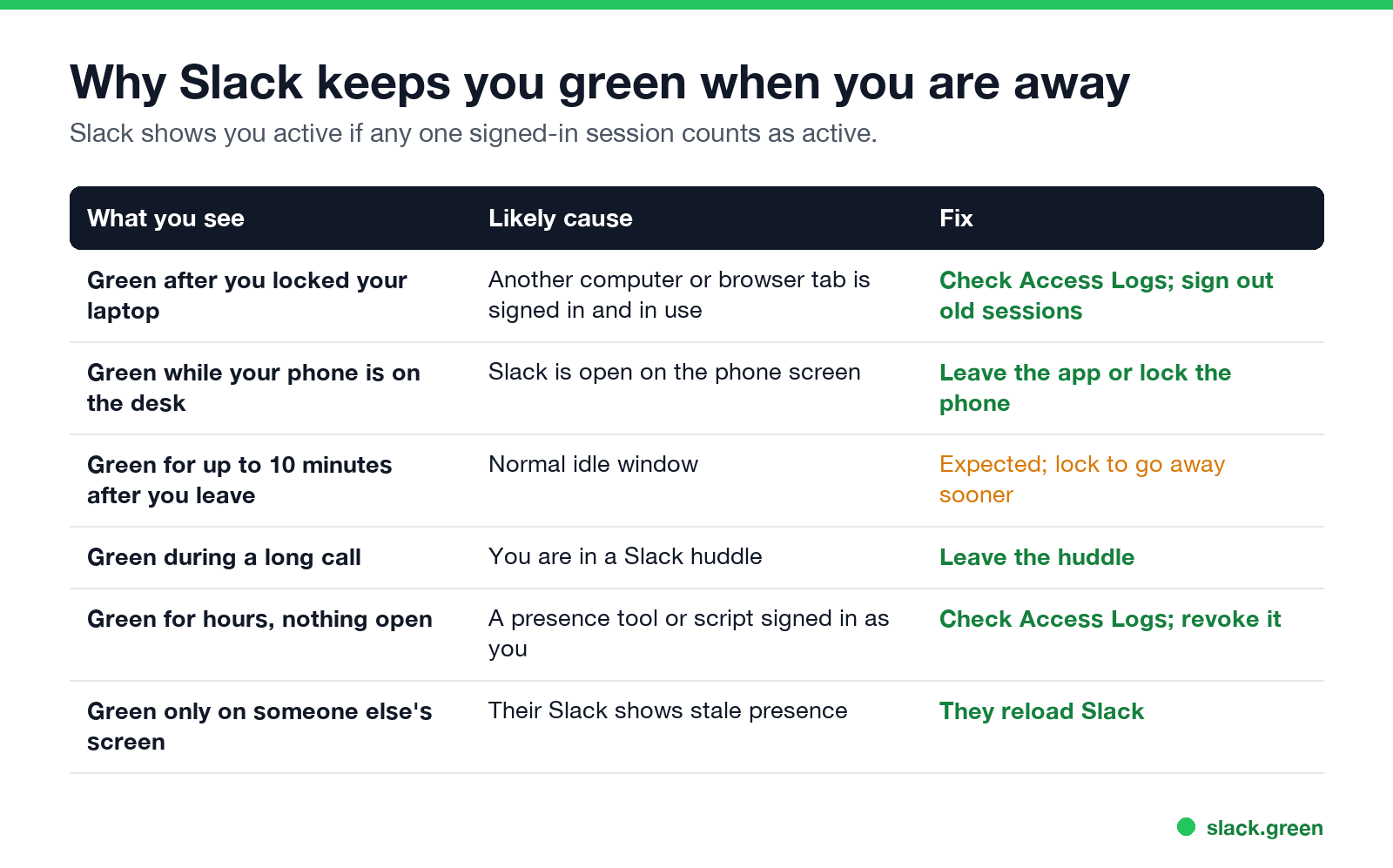
| What you see | Likely cause | Fix |
|---|---|---|
| Green after you locked your laptop | Another computer or tab signed in and in use | Check Access Logs; sign out old sessions |
| Green while your phone is on the desk | Slack open on the phone screen | Leave the app or lock the phone |
| Green for a few minutes after you leave | Normal 10-minute window | Lock the computer to go away sooner |
| Green during a long call | You are in a Slack huddle | Leave the huddle |
| Green for hours with nothing open | A tool signed in as you | Check Access Logs; revoke it |
| Green only on one coworker's screen | Their Slack shows stale presence | They reload Slack |
One active session keeps you green
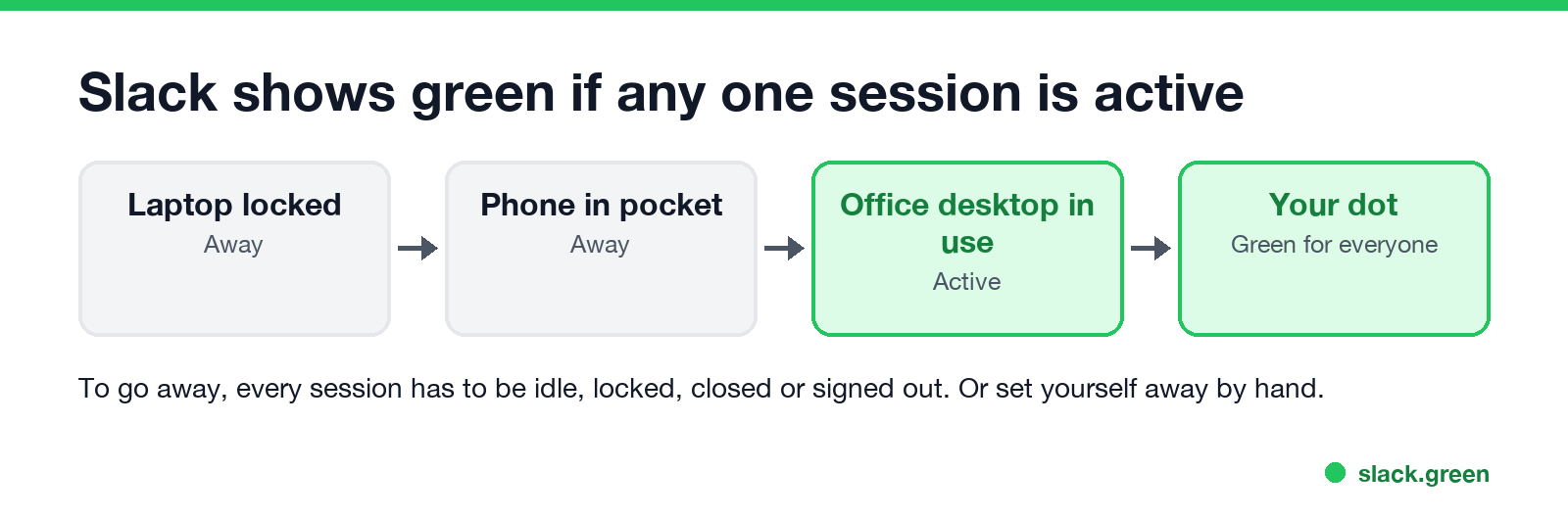
Every device where you are signed in reports on its own, and Slack shows the best result. A laptop you locked at home counts as away, but an office desktop you forgot to sign out of counts as active whenever it gets input in Slack, and for 10 minutes after. The full logic is in how Slack decides when you are away.
Does Slack show away when the computer is locked?
Never appear "away" on Slack again
Cloud-based. No downloads. Works 24/7 even when your laptop is off.
Yes. Locking the screen or putting the computer to sleep sets that computer's session to away within seconds. If you still show green, another session is active.
Does Slack go away when the laptop is closed?
Yes, for that laptop, because closing the lid puts it to sleep. The exception is a laptop set to stay awake with the lid closed, for example with an external display attached; then the normal 10-minute timer applies.
Slack shows me as active on iPhone or Android
On a phone, you are active only while the Slack app is on screen. If you leave Slack open on an unlocked phone, or the screen never locks, you stay green. Lock the phone or switch apps. Details in keep Slack active on your phone.
How to find the session that keeps you green
Never appear "away" on Slack again
Cloud-based. No downloads. Works 24/7 even when your laptop is off.
- Go to
my.slack.com/accountin a browser. - Click Access Logs. Each entry shows the time, IP address and device.
- Look for a device or IP you do not expect, such as an old office computer or an app.
- In your account settings, choose Sign out all other sessions if you want a clean start.
Presence tools and apps that act as you appear there too. If you did not set one up, treat it as a security problem and change your password.
How to show away on purpose
Click your profile picture and choose Set yourself as away. It stays until you switch back, on every device, even while you type. Steps for every device are in how to appear offline on Slack. To pause notifications too, see Slack Do Not Disturb.
The opposite problem
If Slack shows you away while you are working, that is the idle timer: Slack counts only input in its own window. See why Slack keeps showing you as away, and Slack Green if you want your dot to follow your working hours instead.
FAQ
Never appear "away" on Slack again
Cloud-based. No downloads. Works 24/7 even when your laptop is off.
Why does Slack show me as active when I am not?
Another session is still active: a second computer, Slack on your phone screen, a huddle, or an app signed in as you.
Why does my Slack status never switch to away?
A session keeps getting activity, or you are in a huddle. Check Access Logs, then sign out of sessions you do not use.
How long does Slack keep me active after I leave?
Up to 10 minutes on a computer, unless you lock it or it sleeps first.
Can coworkers see which device keeps me active?
No. They see one dot. Only you, and admins on paid plans, can see sessions in access logs.
Stop Jiggling Your Mouse.
Join hundreds of remote workers who never worry about their Slack status. Set it up once, stay green forever.
Related Articles
Slack Red Dot Won't Go Away? What It Counts and How to Clear It
A red dot on the Slack icon means unread activity somewhere; a red number means DMs, mentions, keywords or followed thread replies. Press Shift+Esc to mark all read, check Threads, Activity, Later and other workspaces, then clear the cache or reset the OS badge.
How to Keep Your Outlook Status Green (It Comes From Teams)
Your Outlook status shows your Microsoft Teams presence, so to keep Outlook green you keep Teams Available: Teams signed in and running, input on the computer, no lock or sleep, and no leftover status. What sets you Away, and what you can change.
Slack Multiple Workspaces: Use, Switch and Stay Active in Each
You can sign in to several Slack workspaces in one app and switch with Ctrl+Tab or Cmd/Ctrl plus a number. Each workspace has its own account, status, presence and Do Not Disturb, so you can be active in one and away in another. How to add, switch and manage them.