
Slack Active on Multiple Devices: Which One Sets Your Status?
When you use Slack on a phone and a computer at once, one active device is enough to keep you green, and a manual away on any device sets you away on all of them. The rule, common cases, and how notifications pick a device.
When you are signed in to Slack on several devices, Slack shows one dot for all of them. If any one device is active, you show as active. A computer counts as active for 10 minutes after your last input in the Slack window, and a phone counts only while the Slack app is open on screen. You show away only when every device is idle, asleep or closed. One exception overrides this: if you choose Set yourself as away on any device, you show away everywhere until you undo it. Coworkers see the same green dot whichever device it comes from.
This rule is also why a phone or a server can keep you green while your laptop is shut. We build Slack Green, which keeps one session active from a cloud server during the hours you set, so your dot stays green whatever your own devices do.
The rule, step by step
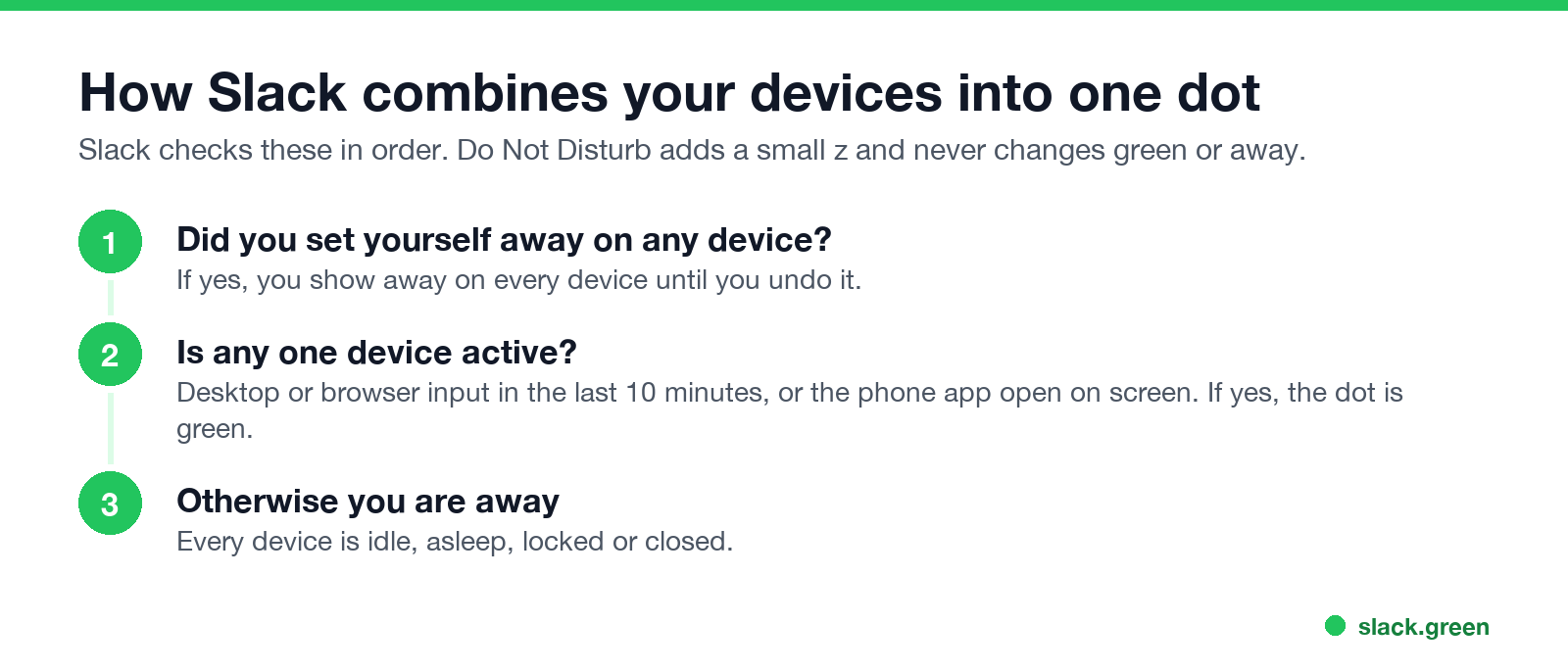
- Manual away first. Your manual away is a setting on your account, not on one device. Set it on the phone and the desktop shows it too.
- Then any active device. Slack looks at every signed-in session. Desktop app, browser tab and phone all count. One active session makes you green.
- Otherwise away. When the last active device goes idle, sleeps or locks, you turn into an empty circle.
Do Not Disturb works the same way on all devices. It adds a small z to your dot and pauses notifications, but it never makes you green or away. See the green dot with a z.
The per-device timers come from how long does Slack stay active: 10 minutes after the last input on desktop and in the browser, and only while on screen on a phone. Sleep or lock sets that one device idle at once.
Common two-device situations
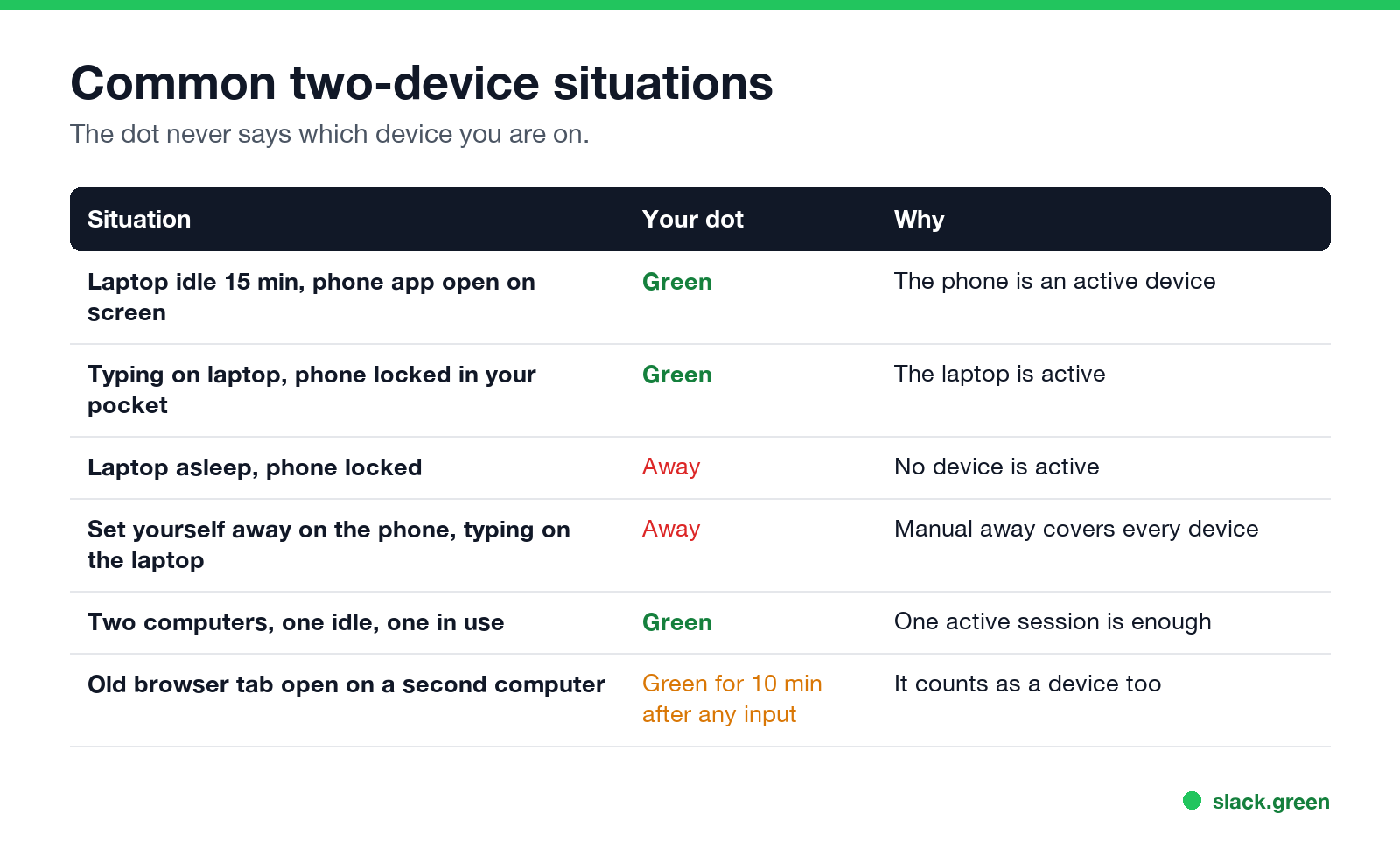
| Situation | Your dot | Why |
|---|---|---|
| Laptop idle for 15 minutes, Slack open on the phone screen | Green | The phone is an active device |
| Typing on the laptop, phone locked in your pocket | Green | The laptop is active |
| Laptop asleep, phone locked | Away | No device is active |
| Set yourself away on the phone, typing on the laptop | Away | Manual away covers every device |
| Two computers, one idle and one in use | Green | One active session is enough |
| An old browser tab on a second computer | Green for 10 minutes after any input there | It is a device too |
Does Slack show active on phone and computer at the same time?
Never appear "away" on Slack again
Cloud-based. No downloads. Works 24/7 even when your laptop is off.
It shows one dot. Being active on both does not look different from being active on one, and Slack shows no phone badge or device label to coworkers. Does Slack show when you are on mobile covers what people can still guess from the rhythm of your dot. Admins can see the device type and IP address of each sign-in in the access logs, but not which device is setting your dot at a given moment.
Where notifications go when you use several devices
Presence also decides where your notifications land. By default Slack sends notifications to the desktop while you are active there, and to your phone when you are inactive on desktop. You can change the delay in Preferences, then Notifications, under the setting for sending notifications to your mobile devices when you are inactive on desktop. If phone notifications never arrive, a desktop session that still counts as active is a common cause, covered in Slack notifications not working.
Check your own presence and session count
Slack's API reports your own presence across devices. Call users.getPresence with your own user token, and the answer for your own account includes how many clients are connected:
curl -s https://slack.com/api/users.getPresence \
  -H "Authorization: Bearer $SLACK_USER_TOKEN"
An example answer, shortened:
{
  "ok": true,
  "presence": "active",
  "online": true,
  "auto_away": false,
  "manual_away": false,
  "connection_count": 2
}
connection_count is the number of connected Slack clients. manual_away tells you if a manual away from any device is on. Asking about another user returns only presence. More on the API in the Slack presence API.
Signed in on two computers, or on devices you forgot
Never appear "away" on Slack again
Cloud-based. No downloads. Works 24/7 even when your laptop is off.
Every signed-in device can hold your dot. An old browser tab at work, a second laptop, or a tablet in a drawer can make your dot change when you do not expect it, as in Slack shows me active when I'm not. To clean up:
my.slack.com/account.This signs out every other session, including your phone, so keep the device you are using at hand.
Using several devices to stay green
Because one active device is enough, a second device can keep you green while the main one is closed. A phone with Slack open on screen and auto-lock off does this until the battery or the OS stops it. The setup is in keep Slack active on mobile. A server session does the same without a spare phone: Slack Green keeps a session active from the cloud on your schedule. Every option is compared in how to keep Slack active.
FAQ
Which device sets my Slack status?
Any active one. If one device is active, you are green. A manual away set on any device applies to all.
Does Slack show active on the phone if my computer is idle?
Yes, while the Slack app is open on the phone screen. Lock the phone or switch apps and you go away, unless another device is active.
Can I be logged in to Slack on two computers?
Yes. Both sessions count. You show active if either one had input in the Slack window in the last 10 minutes.
Can coworkers see which device I use?
No. The dot looks the same from every device. Admins can see sign-in devices in access logs.
Why does Slack show me away on my phone when I am active on my laptop?
It should not. One active device makes you green everywhere. Check whether you set yourself away by hand, or whether the laptop is signed in to a different workspace. Presence is per workspace, as in using several Slack workspaces.
Stop Jiggling Your Mouse.
Join hundreds of remote workers who never worry about their Slack status. Set it up once, stay green forever.
Related Articles
Slack Lists Tutorial: Create, Organize and Share a List
Slack lists are tables of tasks inside Slack, with fields, assignees, due dates, a board view and a comment thread on every item. How to create a list from scratch or a template, set up fields, turn it into a kanban board, add messages to it, share it, and what the plan limits are.
Slack Jira Integration: Setup, /jira Commands and Notifications
Install the Jira Cloud for Slack app, type /jira connect in a channel to send a Jira space's updates there, /jira notify for personal notifications as DMs, and create work items from any message with More actions. Every /jira command, Jira automation to Slack, and fixes when previews or notifications stop.
How to Create a Slack Workspace, on Desktop or Phone
Go to slack.com/get-started, enter your email, type the confirmation code, and click Create a Workspace. It is free to start, you become the Primary Owner, and it takes about five minutes. Steps for desktop, iPhone and Android, and what to set up next.