
Does Slack Show When You Are on Mobile?
No. Slack's presence API gives a coworker only active or away, with no device. The phone shows up in one place, your account's access log, which paid-plan admins can export.
No. Slack shows coworkers the same green dot whether you use the desktop app, a browser tab or your phone, with no phone badge or label next to it. On a phone the dot is green only while the Slack app is open on screen; switch to another app or lock the phone and you turn away. We checked what a coworker can read on 2 October 2026: Slack's presence API returns one word for another person, active or away, and nothing about the device. The device is recorded in one place, your account's access log, which you can read yourself and admins on paid plans can export for the whole workspace.
What a coworker's Slack can read about you
We called users.getPresence in a four-person test workspace, once for ourselves and once for each of the other three members. A coworker's app, or a bot they install, gets exactly this for you:
{"ok": true, "presence": "away"}For our own account the same call returned more, but still no device:
{"ok": true, "presence": "away", "online": true, "auto_away": true,
 "manual_away": false, "connection_count": 1, "last_activity": 1790881201}
connection_count counts open Slack sessions, and phones count the same as laptops. Nothing in either answer says iPhone, Android, Mac or browser. The profile card, the member list and the conversation header show the same dot with no device label.
Where Slack does record your phone: the access log
Every account has an access log at Account settings, then Access Logs (https://<your-workspace>.slack.com/account/logs). It lists each sign-in with the app, so a phone shows up by name. This is our own log from a work workspace on 1 and 2 October, with IP addresses and locations hidden:
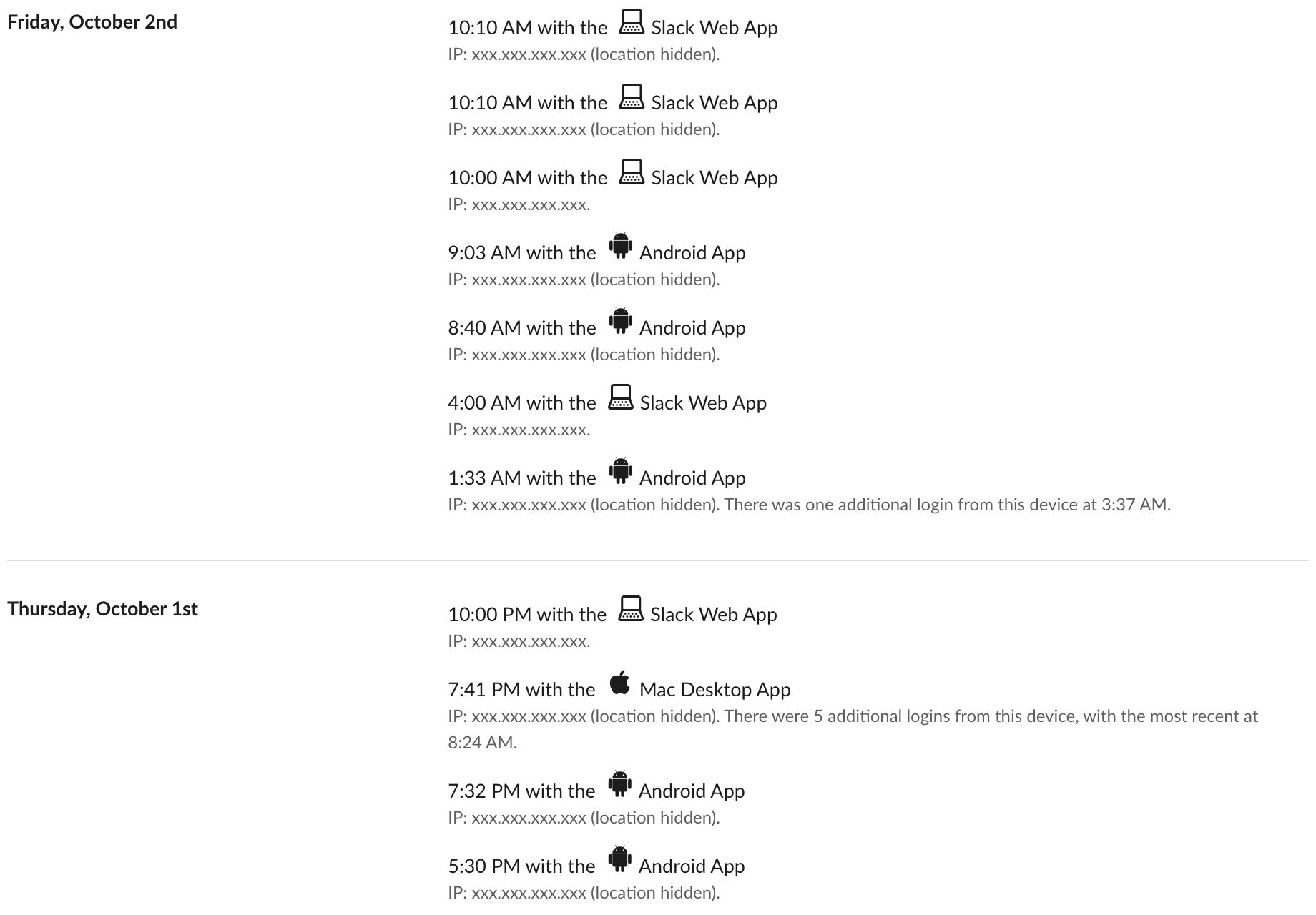
Three things to read from it:
- • The app names are Android App, Mac Desktop App and Slack Web App, each with its own icon.
- • Each row is a session start with a time, not minutes of use. Our Android rows came several times a day (1:33, 8:40 and 9:03 AM on 2 October). Repeat sign-ins from one device fold into a note such as "There were 5 additional logins from this device".
- • In our test workspace, opening two extra browser tabs added no rows. The log will not show how long the phone was open.
One way to sign a phone in is to scan the code under Sign in on mobile on a computer; Slack sign in on mobile with a QR code shows what that code contains.
Your own log is open to you on every plan; we read it on a Free workspace and on a work workspace. Who else can read it depends on the plan.
Never appear "away" on Slack again
Cloud-based. No downloads. Works 24/7 even when your laptop is off.
What admins can see, by plan
| Viewer | Sees the device? | Where |
|---|---|---|
| Coworker or bot | No | users.getPresence returns only active or away |
| You | Yes | Your own access log, every plan |
| Admin on Free | No | Analytics has only Overview and Channels; the workspace access-log API returns paid_only |
| Admin on Pro, Business+ or Enterprise | Yes | Workspace access logs per session, and member analytics with last active date on iOS, Android and desktop |
We checked the Free rows ourselves in a workspace we own: the Analytics menu lists Overview and Channels and nothing else, and team.accessLogs answered paid_only on 29 September. The paid rows come from Slack's admin documentation; we have no paid workspace to screenshot. Member analytics on paid plans give dates, not times.
What else admins can and cannot see is in can Slack admins see DMs and can Slack be used to monitor employees. If you are asking about the phone itself, see can my employer see what I do on my phone.
What the dot does on a phone
Slack's help center says you are active "when Slack is open on your desktop or mobile device", and away "after 10 minutes of desktop inactivity, or if you navigate away or close the app on your mobile device". So the dot looks the same everywhere, but it lasts a different time:
How Slack combines a phone and a computer into one dot is in Slack active on multiple devices; in our own test, any one open session kept the dot green. If you work from your phone and want the dot to follow your working hours instead of the seconds the app is open, Slack Green keeps your Slack presence active on a schedule while the phone stays locked.
FAQ
Can my manager tell I replied from my phone?
Not from Slack's interface. Messages carry no device label. Only an admin on a paid plan reading the access log or member analytics can see that you used a phone that day.
Does the access log show when I only read messages on my phone?
It shows that a session started on the phone and when, not what you read or for how long.
Can I hide my phone from the access log?
No. You can sign out of sessions you do not use with Sign out of all sessions on the same page, but the past rows stay.
Stop Jiggling Your Mouse.
Join hundreds of remote workers who never worry about their Slack status. Set it up once, stay green forever.
Related Articles
Can Slack Messages Be Subpoenaed? Yes, Here Is How It Works
Yes. Slack messages, including DMs, can be requested in a lawsuit or an investigation. Most requests go to the company that owns the workspace, which exports them. Slack itself gives out message content only with a search warrant and tells the company first. Slack's own policy, its disclosure numbers, legal holds, and what deleted messages mean.
Can People See When You Join a Slack Huddle?
Yes. You show in the participant list and the sidebar shows who is inside. Join with Mute my microphone on and the camera off, but never invisibly.
How to Hide Slack Message Previews in Notifications
To hide Slack message previews, open Preferences, Notifications, scroll to Sounds & appearance, and uncheck Include a preview of the message in each notification. On iPhone, Mac and Android, set Slack's notification previews to Never or When Unlocked. Screen sharing, lock screens and email notifications.