
Can People See When You Join a Slack Huddle?
Yes. When you join a Slack huddle, everyone in it sees your name and picture in the participant list, and the channel shows who is in the huddle. You can join with your microphone muted and camera off, and turn off the In a huddle status, but you cannot join invisibly. How to see who is in a huddle first.
Yes. When you join a Slack huddle, you appear in its participant list with your name and profile picture, so everyone already in the huddle sees that you arrived. People in the channel or DM can also see the huddle and who is in it from the conversation. What you control is how you arrive: Slack can join you with your microphone muted, your camera stays off until you turn it on, and you can stop Slack from setting your status to In a huddle. There is no way to join a huddle invisibly or to listen without being listed.
The huddle behaviour and settings here are from Slack's help articles "Use huddles in Slack" and "Adjust your huddles preferences", both checked on 27 September.
Your status dot follows the usual rule in and out of huddles: it turns away after about 10 minutes without input in the Slack window. Slack Green keeps it green from a server during the hours you set.
What people see when you join a huddle
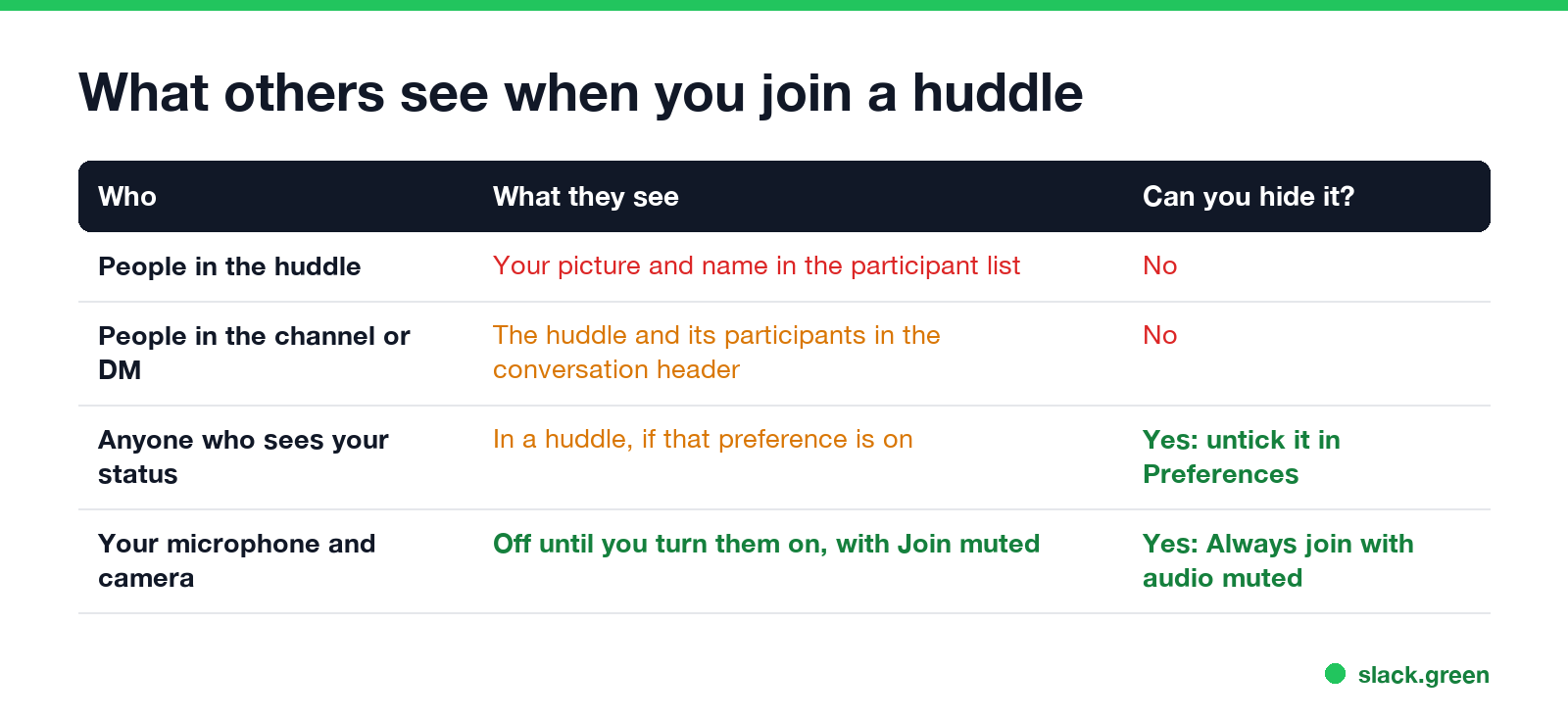
| Who | What they see | Can you hide it? |
|---|---|---|
| People in the huddle | Your name and picture in the participant list | No |
| People in the channel or DM | The huddle is running, and who is in it | No |
| Anyone who sees your status | "In a huddle", if that preference is on | Yes |
| Everyone in the huddle | Your audio and video, once you turn them on | Yes, join muted |
People outside the conversation see nothing, except the In a huddle status next to your name if you left that preference on. Slack's help says a huddle is open to anyone in the channel or DM where it started, and people invited from outside the conversation cannot see its messages or the huddle thread.
How to see who is in a Slack huddle before you join
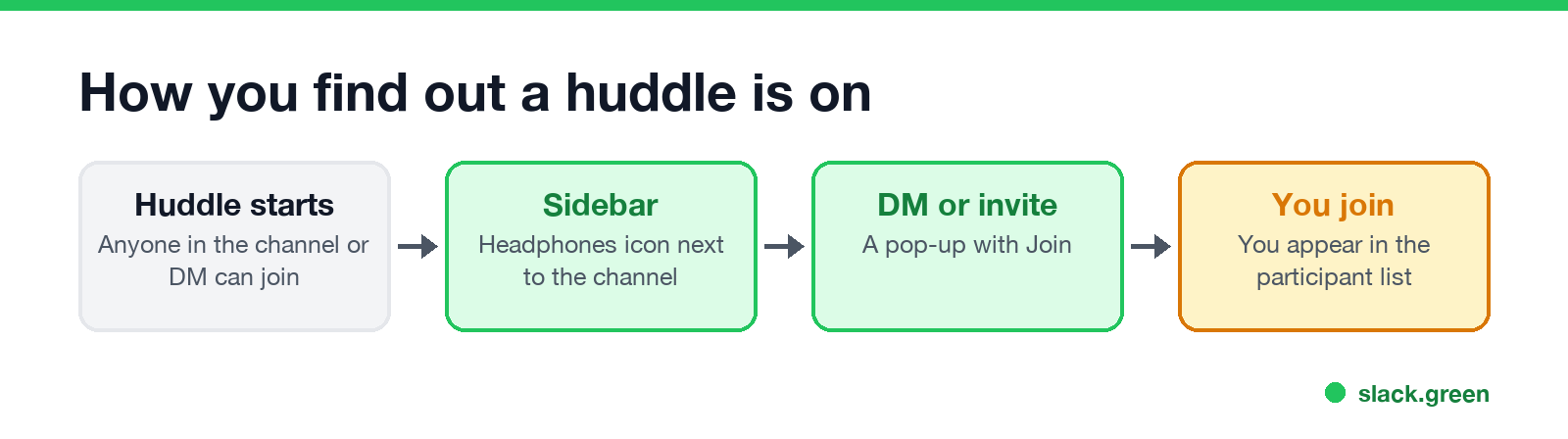
- Look for the headphones icon next to a channel name in your sidebar. Slack's help says it appears when a huddle starts in a channel you belong to.
- Open the channel or DM. The top of the conversation shows the running huddle and the people in it.
- Join from the headphones icon at the top of the conversation, or click Join in the pop-up if someone invited you or the huddle started in a DM.
On mobile, tap the headphones icon next to the channel or DM on Home, then Join. If you open a huddle link for a private channel or DM you are not in, you have to click Request Access, and anyone in the huddle can let you in; they see the request.
Does Slack notify people when you join a huddle?
Never appear "away" on Slack again
Cloud-based. No downloads. Works 24/7 even when your laptop is off.
Slack's help describes notifications for the start of a huddle, not for each person who joins:
If Set your status to In a huddle is on, your status changes while you are in it, so anyone who looks at your name sees it.
How to join a Slack huddle quietly
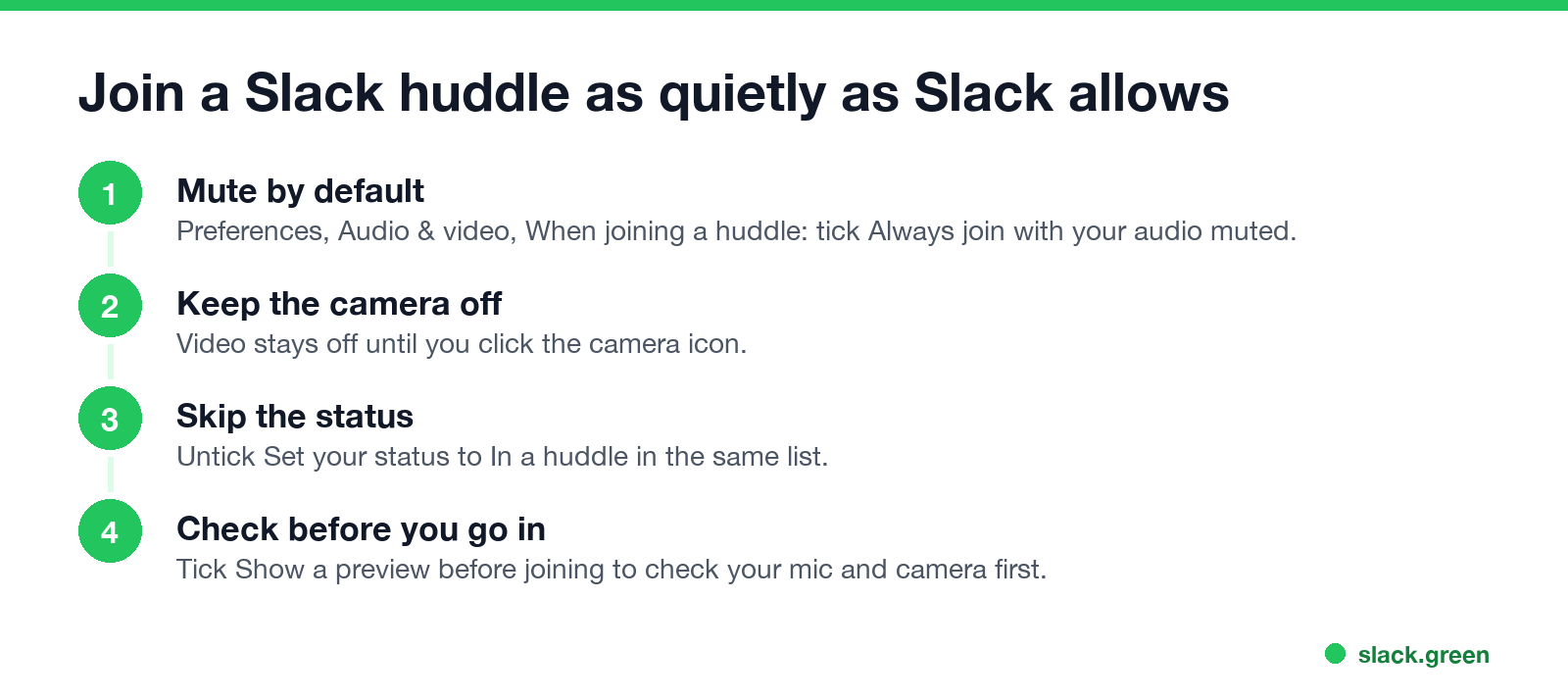
You cannot hide, but you can arrive without interrupting. Click your profile picture, open Preferences, select Audio & video, and under When joining a huddle tick or untick:
Your camera is off until you click the camera icon. For audio problems once you are in, see Slack huddle not working.
Can your boss see your huddles?
Your boss sees you in a huddle the same way anyone else does: in the participant list if they are in it, in the channel if they are a member, and through your status. Whether huddles are recorded or transcribed, and what admins can see afterwards, is covered in are Slack huddles recorded. What the headphones next to someone's name mean is in Slack status icons meaning.
To set a clear status for focus time instead, pick one from our Slack status generator.
FAQ
Never appear "away" on Slack again
Cloud-based. No downloads. Works 24/7 even when your laptop is off.
Can people see when you join a Slack huddle?
Yes. You appear in the participant list, and the conversation shows who is in the huddle.
Can I join a Slack huddle without anyone knowing?
No. Every participant is listed. You can join muted with your camera off.
How do I see who is in a Slack huddle?
Open the channel or DM where it is running. The huddle at the top of the conversation shows its participants.
Does Slack notify the channel when someone joins a huddle?
Slack's help describes a notification when a huddle starts, not when each person joins. Joiners appear in the participant list.
Does my Slack status change in a huddle?
Only if Set your status to In a huddle is ticked in Preferences, Audio & video.
Stop Jiggling Your Mouse.
Join hundreds of remote workers who never worry about their Slack status. Set it up once, stay green forever.
Related Articles
Slack Emoji for Announcements, Updates and Reminders
The standard Slack emoji for an announcement is 📣 :mega: or 📢 :loudspeaker: at the start of the post. Use 🚨 :rotating_light: only for real emergencies, 🆕 :new: for updates, ⏰ :alarm_clock: for reminders, and ask readers to react with ✅ :white_check_mark: once they have read it. Templates and a custom emoji idea.
Slack Status for a Doctor Appointment: 24 Statuses and Emoji
A Slack status for a doctor appointment says you are out and when you are back, such as 🏥 'At an appointment, back at 2 PM.' You do not have to say what kind. 24 statuses for doctor, dentist and other appointments, the emoji codes, and how to schedule the status so it clears by itself.
Slack Status for Limited Availability: 30 Statuses to Copy
A Slack status for limited availability says you are around but slow, until when, and how to reach you if it is urgent, such as ⏳ 'Limited availability today, replies after 3 PM. Urgent: @mention me.' 30 statuses for busy days, slow replies and catching up, the emoji to use, and when to pause notifications too.