
Slack Huddle Not Working? Fixes for No Sound, Mic, Camera and Connection
When a Slack huddle will not connect, has no sound, or others cannot hear you, run Slack's audio and video test, check the microphone and speaker in Preferences, re-grant Slack mic and camera access in your OS, and try Chrome or your phone to find a network block. Fixes by symptom for Mac, Windows, browser and mobile.
When a Slack huddle is not working, start with Slack's own test: click your profile picture, Preferences, Audio & video, and under Troubleshooting click Run test. It checks your microphone, speaker, camera, screen sharing and connection, and tells you which one failed. The usual fixes, in order: pick the right microphone and speaker in the same settings, give Slack microphone and camera access again in your system settings, quit and reopen Slack, and try the huddle in Chrome or on your phone. If it works on your phone's mobile data but not on your office Wi-Fi or VPN, the network is blocking huddle traffic, and your IT team needs to open it.
Check Slack's status page first if a whole team hits the problem at once. Then work through the fix for your symptom below.
A huddle that runs while you share your screen and never touch Slack can also turn your dot grey 10 minutes after your last input in Slack. Slack Green keeps it green during the working hours you set, from the cloud.
Find the cause from the symptom
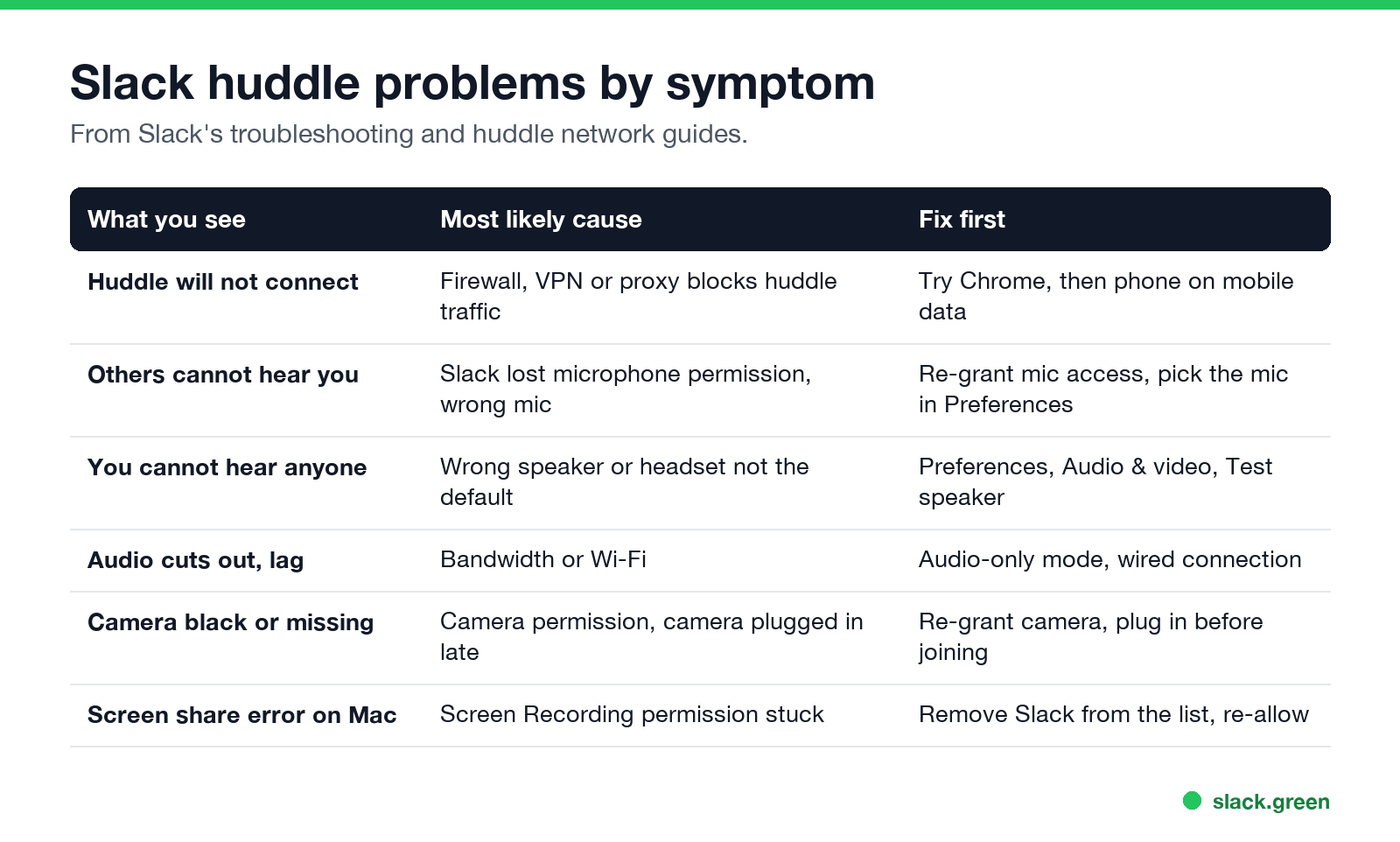
| What you see | Most likely cause | Fix first |
|---|---|---|
| Huddle will not connect | Firewall, VPN or proxy blocks huddle traffic | Try Chrome, then your phone on mobile data |
| Others cannot hear you | Slack lost microphone permission, or the wrong mic is selected | Re-grant mic access, pick the mic in Preferences |
| You cannot hear anyone | Wrong speaker, or your headset is not the system default | Preferences, Audio & video, Test the speaker |
| Audio cuts out or lags | Bandwidth or weak Wi-Fi | Audio-only mode, a wired connection |
| Camera black or missing | Camera permission, or the camera was plugged in after joining | Re-grant camera access, plug in before you join |
| Screen share error on Mac | Screen Recording permission stuck | Remove Slack from the list and allow it again |
During a huddle on desktop, the troubleshooting icon in the bottom left opens a panel with tabs for each part. A warning icon there marks what is wrong, and the panel has the Audio-only mode switch.
Slack huddle: others cannot hear you
- Check you are not muted. The mic shortcut is Cmd+Shift+Space on a Mac and Ctrl+Shift+Space on Windows, and it is easy to hit by accident.
- Pick the right microphone. In Preferences, Audio & video, say a few words and watch the voice meter. If it does not move, choose another device from the microphone menu.
- Give Slack microphone access again. - Mac: System Settings, Privacy & Security, Microphone, turn Slack on. If it is already on, turn it off and on. - Windows: Settings, Privacy & security, Microphone, allow apps to use the microphone and turn on Slack. - Chrome: Settings, Privacy and security, Site settings, Microphone, and add your workspace URL to Allow.
- Close other calling apps. Slack's help center notes that switching between Slack and another calling app can revoke Slack's microphone access. Re-grant it as in step 3.
Slack huddle: you cannot hear anyone
Never appear "away" on Slack again
Cloud-based. No downloads. Works 24/7 even when your laptop is off.
Slack huddle keeps disconnecting or will not connect
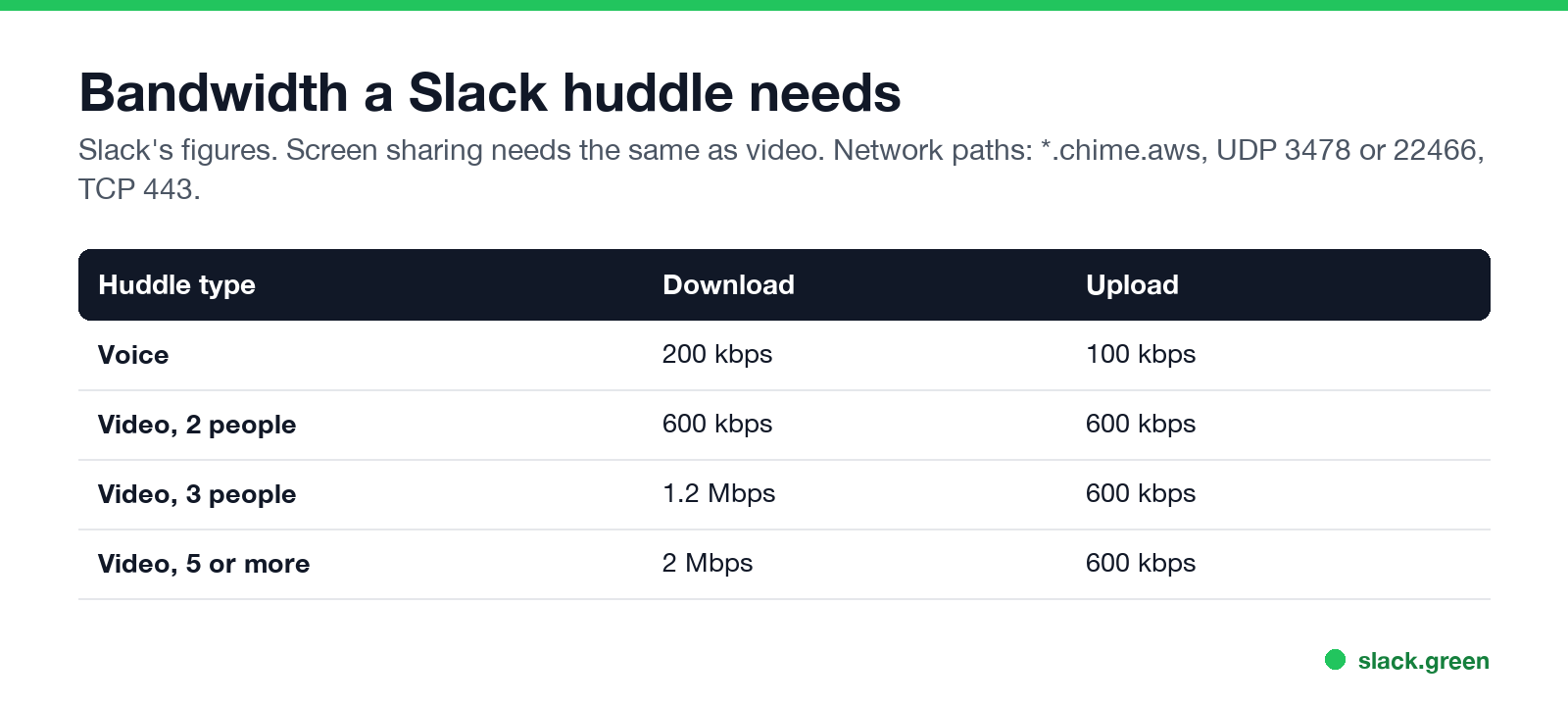
Slack's bandwidth figures: a voice huddle needs 200 kbps down and 100 kbps up. Video needs 600 kbps each way for two people, 1.2 Mbps down for three, and 2 Mbps down for five or more. Screen sharing needs the same as video. If you are below that, switch on Audio-only mode, move closer to the router or plug in a cable.
To find where the block is, try the huddle in three places, in this order, as Slack's troubleshooting article suggests:
For IT teams, Slack's network guide for huddles lists what to allow:
Domains:  *.chime.aws   (or IP range 99.77.128.0/18)
UDP:      3478  (preferred)  or 22466  (legacy)
TCP:      443
It also asks for huddle traffic to bypass VPNs and proxies, with split tunneling on the VPN, and for deep packet inspection to be off for these paths. A corporate VPN is the most common reason a huddle works at home and fails at work.
Slack huddle camera not working
Slack huddle screen sharing not working on Mac
Never appear "away" on Slack again
Cloud-based. No downloads. Works 24/7 even when your laptop is off.
Slack needs Screen & System Audio Recording permission (Screen Recording on older macOS). If Slack shows an error even though the permission looks on, Slack's help center describes a known bug for people who moved from the direct download to the Mac App Store version. The fix is to remove the permission and grant it again. Remove Slack from the list in System Settings, Privacy & Security, Screen & System Audio Recording, or reset it from Terminal:
tccutil reset ScreenCapture com.tinyspeck.slackmacgapQuit and reopen Slack, start a screen share, and allow access when macOS asks. On Windows, if others cannot see your shared screen, open the laptop lid and unplug extra monitors, then share again. To share sound with your screen, see how to share audio in a Slack huddle.
Huddle not working on iPhone or Android
Still not working?
Contact Slack support and include the test results from Run test, the time of the huddle that failed, and a screenshot of any error. Slack asks for these three things.
FAQ
Never appear "away" on Slack again
Cloud-based. No downloads. Works 24/7 even when your laptop is off.
Why can't I hear anyone in a Slack huddle?
Slack is sending audio to the wrong speaker, or your headset is not the system default on Windows. Pick the speaker in Preferences, Audio & video and click Test.
Why does my Slack huddle keep disconnecting?
Usually weak Wi-Fi, low bandwidth or a VPN. Switch on Audio-only mode, use a cable, or ask IT to let huddle traffic bypass the VPN.
Does a huddle work in the browser?
Yes. Chrome is the browser Slack's troubleshooting steps use, and the audio and video test runs only in the desktop app and in Chrome.
Are Slack huddles recorded?
No. See are Slack huddles recorded, and how to record a Slack huddle if you need a transcript. If you are deciding between huddles and Zoom for team calls, see Slack huddles vs Zoom.
Stop Jiggling Your Mouse.
Join hundreds of remote workers who never worry about their Slack status. Set it up once, stay green forever.
Related Articles
Slack Lists Tutorial: Create, Organize and Share a List
Slack lists are tables of tasks inside Slack, with fields, assignees, due dates, a board view and a comment thread on every item. How to create a list from scratch or a template, set up fields, turn it into a kanban board, add messages to it, share it, and what the plan limits are.
Slack Sidebar Sections: Create, Sort, Share and Fix Them
Slack sidebar sections are custom groups of channels, DMs and apps in your sidebar. Only you see them, and they need a paid plan. How to create one on desktop and mobile, move many channels at once, sort and filter each section, share a section with your team, and get disappeared sections back.
Slack Canvas vs Lists: Which One to Use, and How They Work Together
A Slack canvas is a document for briefs, notes and how-tos; a Slack list is a table of items with owners, due dates, fields, board views and a thread per item. Use a canvas to explain, a list to track. Who can see each, what happens on the free plan, and how to use both in one channel.