
How to Record a Slack Huddle: AI Notes, Transcripts and Screen Recording
Slack has no record button for huddles. On paid plans, turn on AI notes to keep a summary and transcript in a canvas; Slack tells everyone. For audio and video, use a screen recorder such as Xbox Game Bar, Snipping Tool or OBS, and ask everyone first. Steps for Windows, Mac and mobile.
You cannot record a Slack huddle inside Slack; there is no record button. You have two ways to keep one. On a paid plan, click AI notes: Off in the huddle and choose Start AI notes & transcription. After the huddle, Slack posts a canvas in the huddle thread with the takeaways, action items and a full transcript, and everyone in the huddle is told that notes are on. To keep the audio or video itself, use a screen recorder on your computer: Xbox Game Bar or Snipping Tool on Windows, OBS Studio on a Mac. Slack does not warn anyone about a screen recording, so ask everyone before you start.
Whether Slack saves anything on its own, and who can listen in, is covered in are Slack huddles recorded. This page is the how-to.
One thing a long huddle does to you: if you share your screen or talk without touching Slack, your dot can turn grey 10 minutes after your last input in the Slack window. Slack Green keeps it green during the working hours you set, from the cloud.
Ways to record a Slack huddle
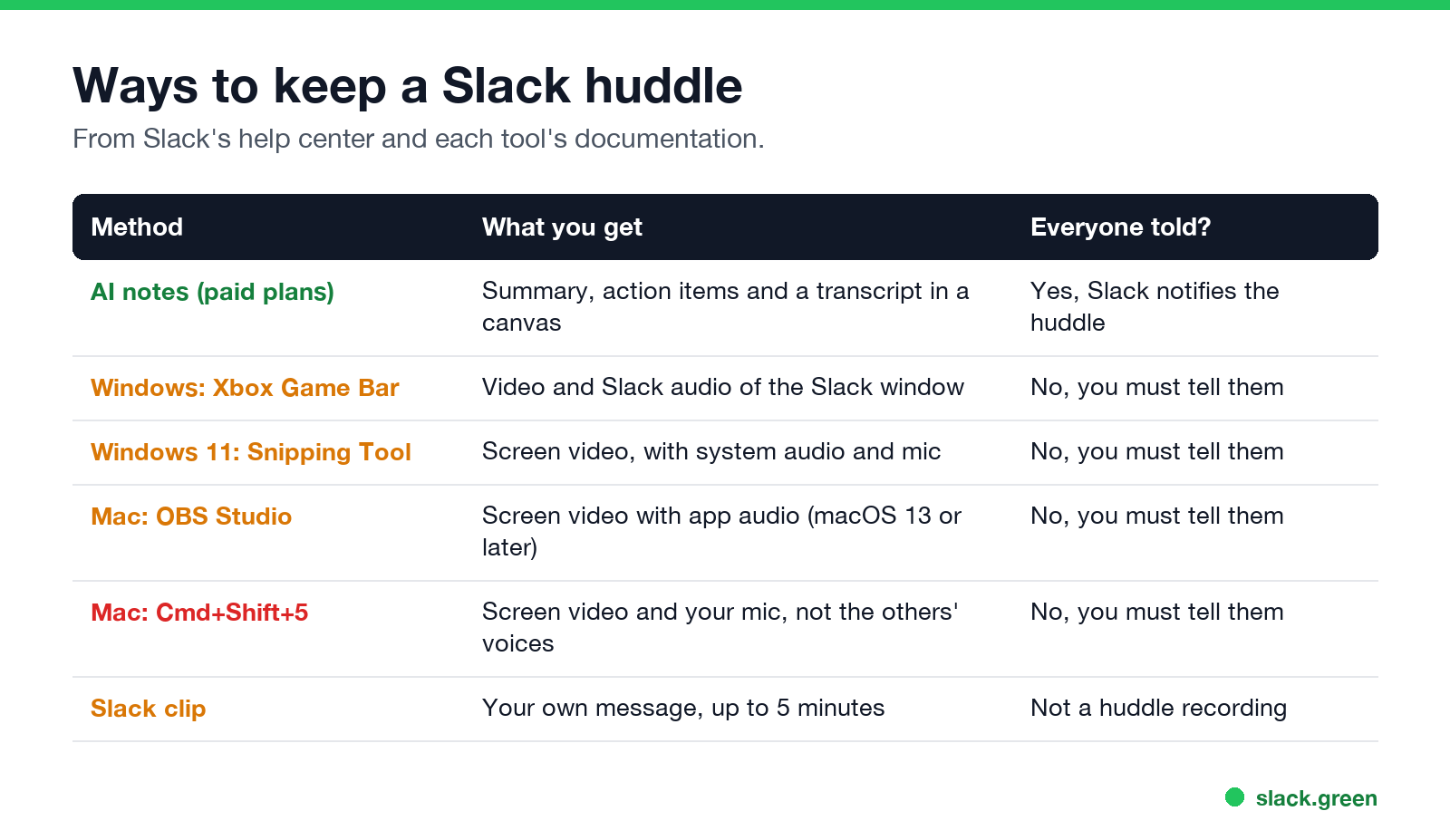
| Method | What you get | Does Slack tell the huddle? |
|---|---|---|
| AI notes (paid plans) | Summary, action items and a transcript in a canvas | Yes |
| Windows: Xbox Game Bar | Video of the Slack window with its audio | No, you must tell them |
| Windows 11: Snipping Tool | Screen video with system audio and your mic | No, you must tell them |
| Mac: OBS Studio | Screen video with app audio | No, you must tell them |
| Mac: Cmd+Shift+5 | Screen video and your mic only; other people's voices are missing | No, you must tell them |
| Slack clip | A message from you, up to five minutes | Not a huddle recording |
Record a transcript with AI notes
AI notes is Slack's own answer, described in its help article Use AI to take huddle notes.
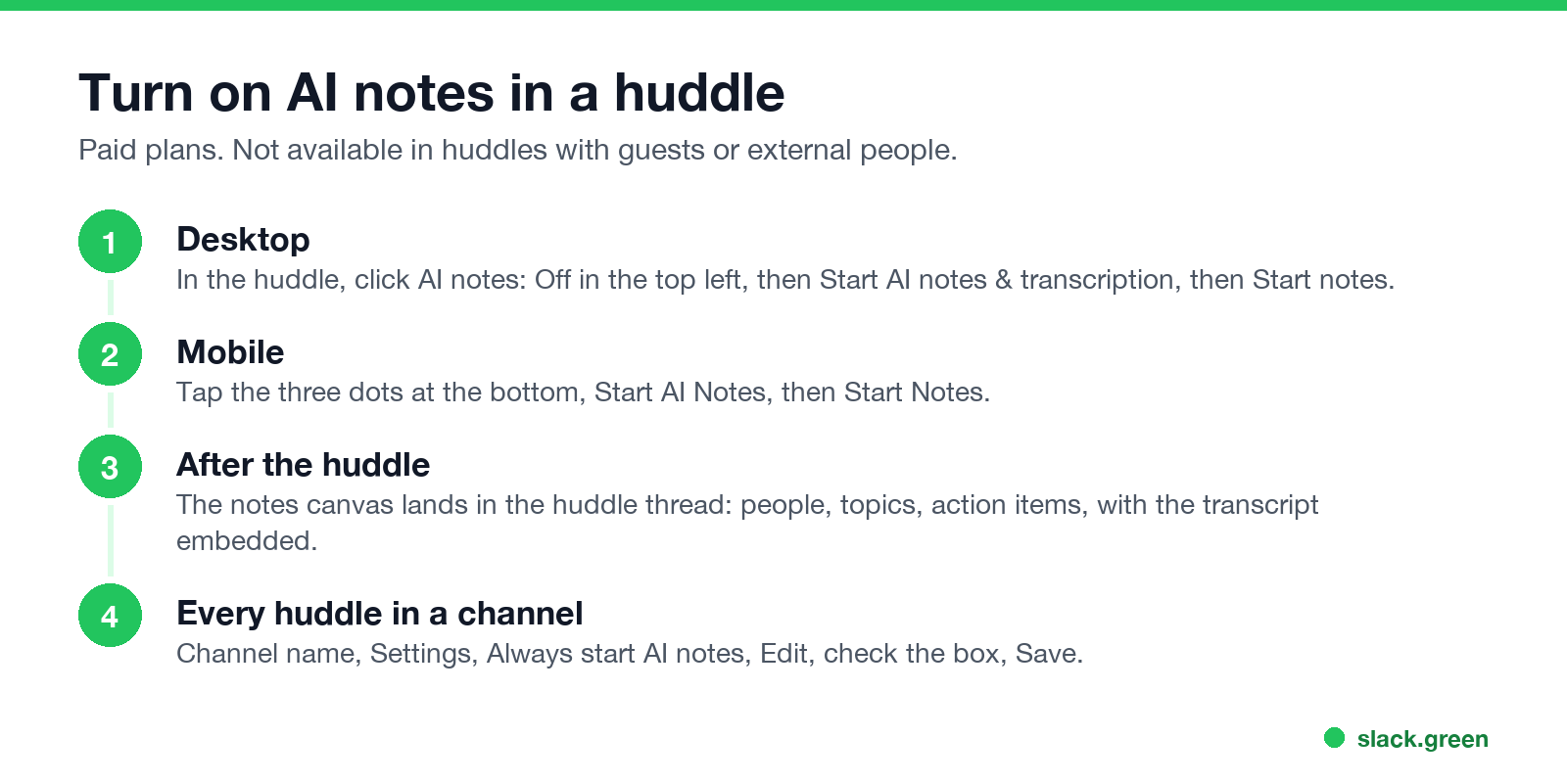
Desktop: in the huddle, click AI notes: Off in the top left corner, then Start AI notes & transcription, then Start notes.
Mobile: tap the three dots at the bottom of the huddle, then Start AI Notes, then Start Notes. A banner confirms that notes are on.
What you get afterwards:
- • A canvas in the huddle thread with the people in the huddle, topics, action items and more.
- • The transcript, embedded in that canvas. It does not show up in Slack search.
- • Access for anyone in the channel or DM where the huddle took place. They can share the canvas like any other.
Anyone in the huddle can stop, resume or delete the notes at any time from the same AI notes button. To start notes for every huddle in a channel, open the channel name, Settings, Always start AI notes, Edit, check the box, and Save.
Limits: AI notes need a paid plan, are not available to guests, and do not work in huddles with external people. Slack does not keep the audio itself.
Download a huddle transcript
Slack's help article describes no separate transcript file or download button. Open the notes canvas from the huddle thread and copy the transcript out of it, or share the canvas with the people who need it.
Record a Slack huddle on Windows
Never appear "away" on Slack again
Cloud-based. No downloads. Works 24/7 even when your laptop is off.
Xbox Game Bar is built into Windows 10 and 11:
Game Bar records one app window with that app's audio, which is exactly what a huddle needs. It will not record the desktop or File Explorer, and if you switch to another window, the recording stays on Slack.
Snipping Tool in Windows 11 can record a screen region. Press Win+Shift+R, drag the area, and turn on system audio and the microphone in the toolbar before you press Start. It saves to Videos, Screen Recordings.
Record a Slack huddle on Mac
The built-in recorder (Cmd+Shift+5, or QuickTime Player's New Screen Recording) records the screen and, if you pick one, your microphone. It does not capture the audio coming out of Slack, so the other people in the huddle will be silent in the file.
To record everyone, use OBS Studio (free). On macOS 13 or later:
Grant OBS screen recording permission in System Settings, Privacy & Security when macOS asks.
Record a huddle on iPhone or Android
The phone's own screen recorder is the only option, and it usually does not capture the other side of a call. iOS screen recording records your mic at most, and many Android phones block call audio. For anything important, record on a computer or use AI notes.
Ask before you record
Never appear "away" on Slack again
Cloud-based. No downloads. Works 24/7 even when your laptop is off.
Screen recorders do not tell anyone, so it is on you. Say it at the start, and post it in the huddle thread so people who join later see it. Recording laws differ by country and by US state, and some require every person's consent. Your company may also ban recording internal calls, so check the policy first. AI notes are the safer default because Slack tells everyone and anyone can stop them.
FAQ
Does Slack have a huddle recording feature?
No. It has AI notes with a transcript on paid plans, and clips of up to five minutes, but no way to record a huddle's audio or video.
Can I get a transcript of a Slack huddle?
Yes, if AI notes were on during the huddle. The transcript is embedded in the notes canvas in the huddle thread.
Does Slack notify people if I record a huddle?
For AI notes, yes. For a screen recorder on your own computer, no, so tell people yourself.
Can I record a huddle on the free plan?
Not with AI notes. A screen recorder works on any plan.
Why is my recording missing everyone's voice?
The recorder captured your microphone, not Slack's output. Use Game Bar on Windows or OBS with app audio on a Mac. If the huddle itself has no sound, see Slack huddle not working.
Stop Jiggling Your Mouse.
Join hundreds of remote workers who never worry about their Slack status. Set it up once, stay green forever.
Related Articles
Slack Lists Tutorial: Create, Organize and Share a List
Slack lists are tables of tasks inside Slack, with fields, assignees, due dates, a board view and a comment thread on every item. How to create a list from scratch or a template, set up fields, turn it into a kanban board, add messages to it, share it, and what the plan limits are.
Slack Jira Integration: Setup, /jira Commands and Notifications
Install the Jira Cloud for Slack app, type /jira connect in a channel to send a Jira space's updates there, /jira notify for personal notifications as DMs, and create work items from any message with More actions. Every /jira command, Jira automation to Slack, and fixes when previews or notifications stop.
How to Create a Slack Workspace, on Desktop or Phone
Go to slack.com/get-started, enter your email, type the confirmation code, and click Create a Workspace. It is free to start, you become the Primary Owner, and it takes about five minutes. Steps for desktop, iPhone and Android, and what to set up next.